
Veise VE027
Veise VE027 Built-in Wi-Fi Smart Lock User Manual
Comprehensive instructions for installation, operation, maintenance, and troubleshooting.
1. Product Overview
The Veise VE027 is a smart deadbolt lock designed for keyless entry, offering multiple access methods including fingerprint, PIN codes, RFID cards, mechanical keys, and remote control via the KK Home App. It features built-in Wi-Fi for direct connectivity without a separate hub.
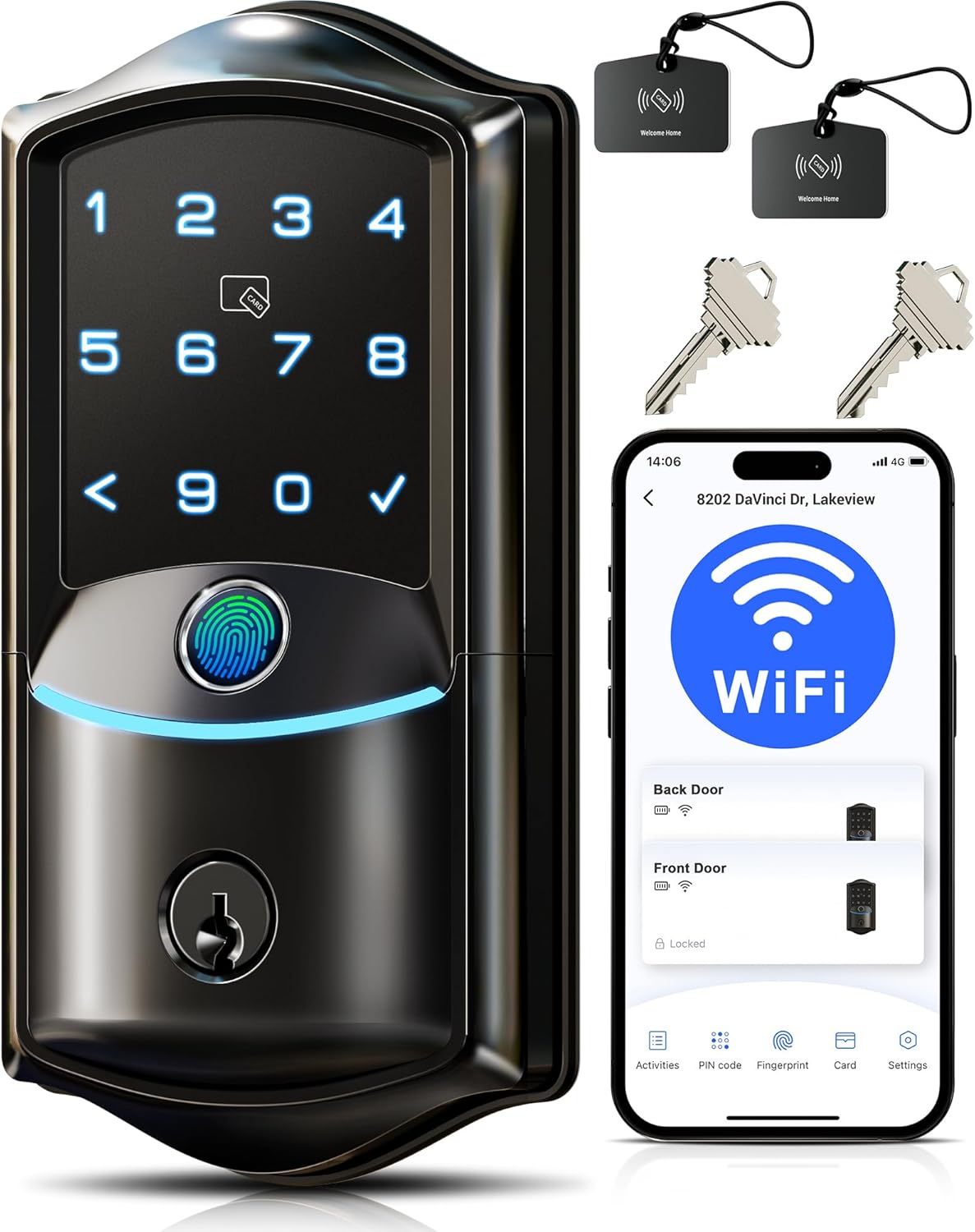
Image: Veise VE027 Smart Lock showing its exterior unit, RFID cards, mechanical keys, and the KK Home app interface.
Key Features:
- Built-in Wi-Fi: Remote control via KK Home App without a separate hub. View status, receive alerts, manage users, and access logs remotely.
- Multiple Unlock Methods: App (Remote), Fingerprints, PIN Codes, RFID Cards, Mechanical Keys, Alexa, Google Home.
- Enhanced Security: Military-grade encryption, anti-peeping mode, wrong entry limit, away mode, vacation mode.
- Durability: IP65 weatherproof rating, BHMA & ANSI Grade 3 certified, aluminum construction.
- Power: Operates on 8 AA batteries (not included) with low-battery alerts and a Type-C emergency charging port.
2. What's in the Box
Verify all components are present before beginning installation.
- Exterior Assembly (B)
- Interior Assembly (F)
- Latch (C)
- Strike (D)
- Mounting Plate (E)
- Mechanical Keys (x2) (A)
- User Cards (x2) (M)
- Reset Tool (L)
- Interior Assembly Screws (x5, 2 spare) (K)
- Latch Screws (x2) (I)
- Strike Screws (x2) (H)
- Mounting Plate Screws (J)

Image: Detailed diagram of all parts included in the Veise VE027 Smart Lock package.
3. Setup and Installation
Follow these steps carefully for proper installation. Keep the door open or ajar during installation. Do not close it before inserting the batteries. Do not insert batteries until installation is complete. Early insertion requires manual reset to re-identify direction.
Video: Official Veise Installation Video for VE027 Smart Lock, demonstrating each step of the setup process.
Step 1: Measure the Dimensions
- Ensure the door frame is properly aligned with the door and free of any obstructions.
- Make sure the hole in the door frame is drilled to a minimum depth of 1" (25mm).
- Verify door thickness is 1-3/8" to 2" (35 to 50mm).
- Check hole diameter: 1-1/2" or 2-1/8" (38mm or 54mm).
- Confirm backset: 2-3/8" or 2-3/4" (60 or 70mm).
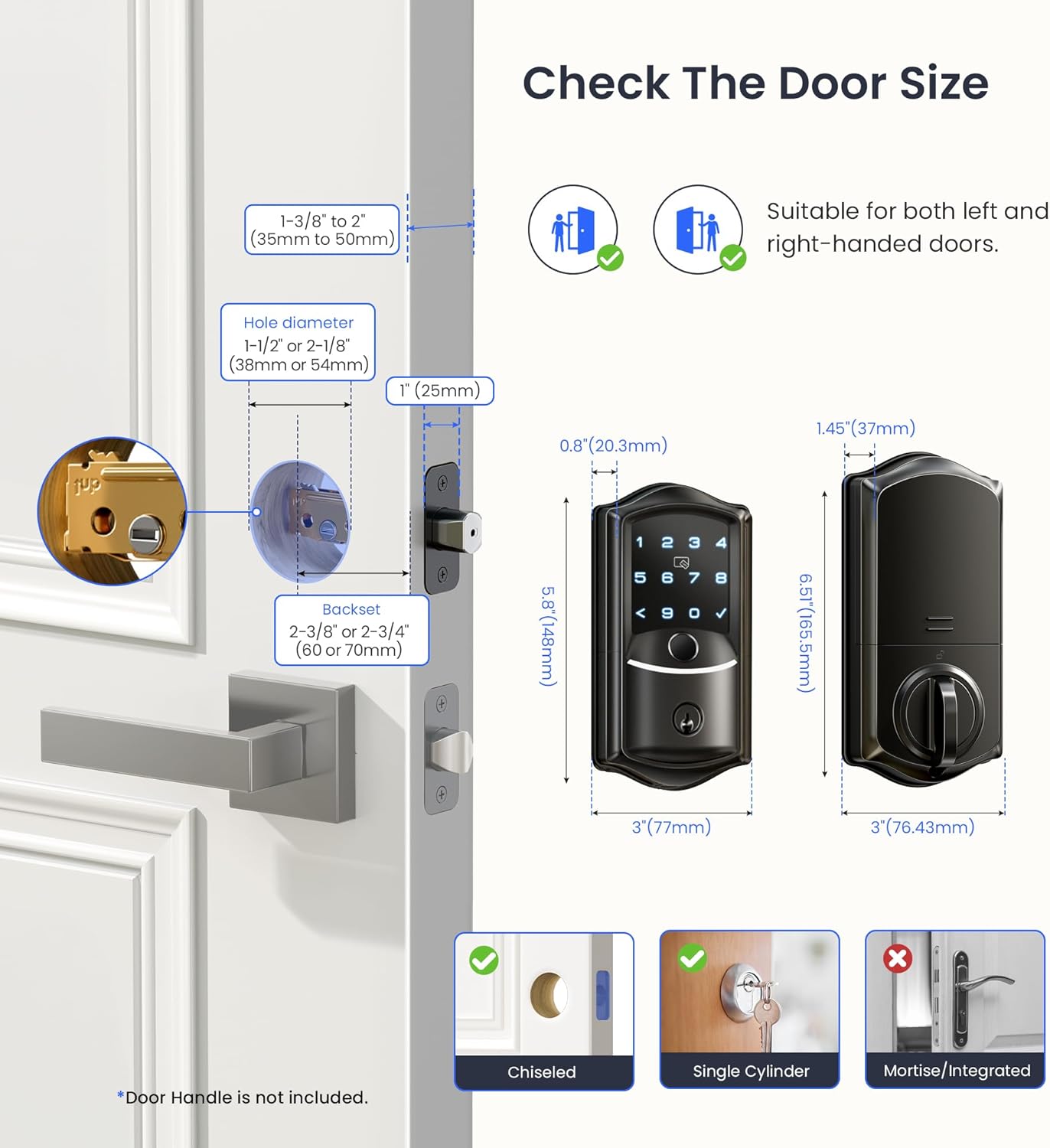
Image: Door measurement guide for Veise VE027 Smart Lock installation.
Step 2: Install the Latch and Strike
- Keep the latch bolt fully retracted during installation, and do not insert the key at this stage.
- Insert the latch into the door edge, ensuring the 'UP' marking is facing upwards.
- Secure the latch with the provided latch screws (I).
- Install the strike plate on the door frame, aligning it with the latch.
- Secure the strike plate with the provided strike screws (H).
Step 3: Install the Exterior Assembly
- Route the cable below the latch.
- Insert the torque blade through the latch slot.
- If the hole diameter is 1-1/2" (38mm), remove the spacer from the exterior assembly.
- Attach the mounting plate (E) to the door, ensuring the torque blade passes through its center hole.
- Secure the mounting plate with the mounting plate screws (J).
Step 4: Install the Interior Assembly
- Ensure the latch is retracted before proceeding.
- Remove the battery cover from the interior assembly.
- Connect the cable from the exterior assembly to the interior assembly, ensuring correct orientation until fully seated.
- Keep the thumb turn vertical and the torque blade horizontal.
- Attach the interior assembly to the mounting plate and tighten the three interior assembly screws (K). Be sure not to use the wrong screws, or it may lead to short-circuit and other problems.
Step 5: Install the Batteries and Distinguish Left- or Right-Hand Door
- First, seat the ribbon in the groove, then place the battery over it.
- Insert 8 AA Alkaline batteries. Please use only new, non-rechargeable alkaline batteries.
- Attach the battery cover.
- The lock will automatically detect the door direction (left- or right-handed).
4. Operating Instructions
4.1 App Pairing and Wi-Fi Connection
To unlock the full potential of your Veise VE027 Smart Lock, connect it to the KK Home App and your home Wi-Fi network.
Video: Official Veise VE027 App Pairing Tutorial, guiding users through connecting the lock to the KK Home app and Wi-Fi.
- Download the KK Home App by scanning the QR code or searching in your app store.
- Register your account and log in to the KK Home App.
- Turn on Bluetooth on your phone and keep your phone within 2 meters of the lock.
- Open the app and tap "Add device".
- Find "VE027", then tap "Connect", or scan the QR code/enter the ESN manually (found on the back of the interior assembly).
- Make sure the lock is installed and reset.
- Change the master code when prompted.
- Once connected, select your 2.4GHz Wi-Fi network, enter the password, and name your lock to finish the setup.
Note: If you're using a 5GHz network, please check the FQA in the app to switch network channels. If connection fails, ensure the lock is powered, Bluetooth is on, and the default master code (12345678) unlocks it. Reset the lock if necessary.
4.2 Unlocking Methods
- Fingerprint: Place your registered finger on the sensor for quick access.
- PIN Code: Enter your 4-10 digit PIN code on the keypad, followed by the checkmark.
- RFID Card: Tap your registered RFID card against the keypad.
- Mechanical Key: Use the physical key as a backup.
- KK Home App: Remotely unlock/lock from anywhere via the app.
- Voice Control: Compatible with Alexa and Google Home for voice commands (e.g., "Alexa, unlock the front door").
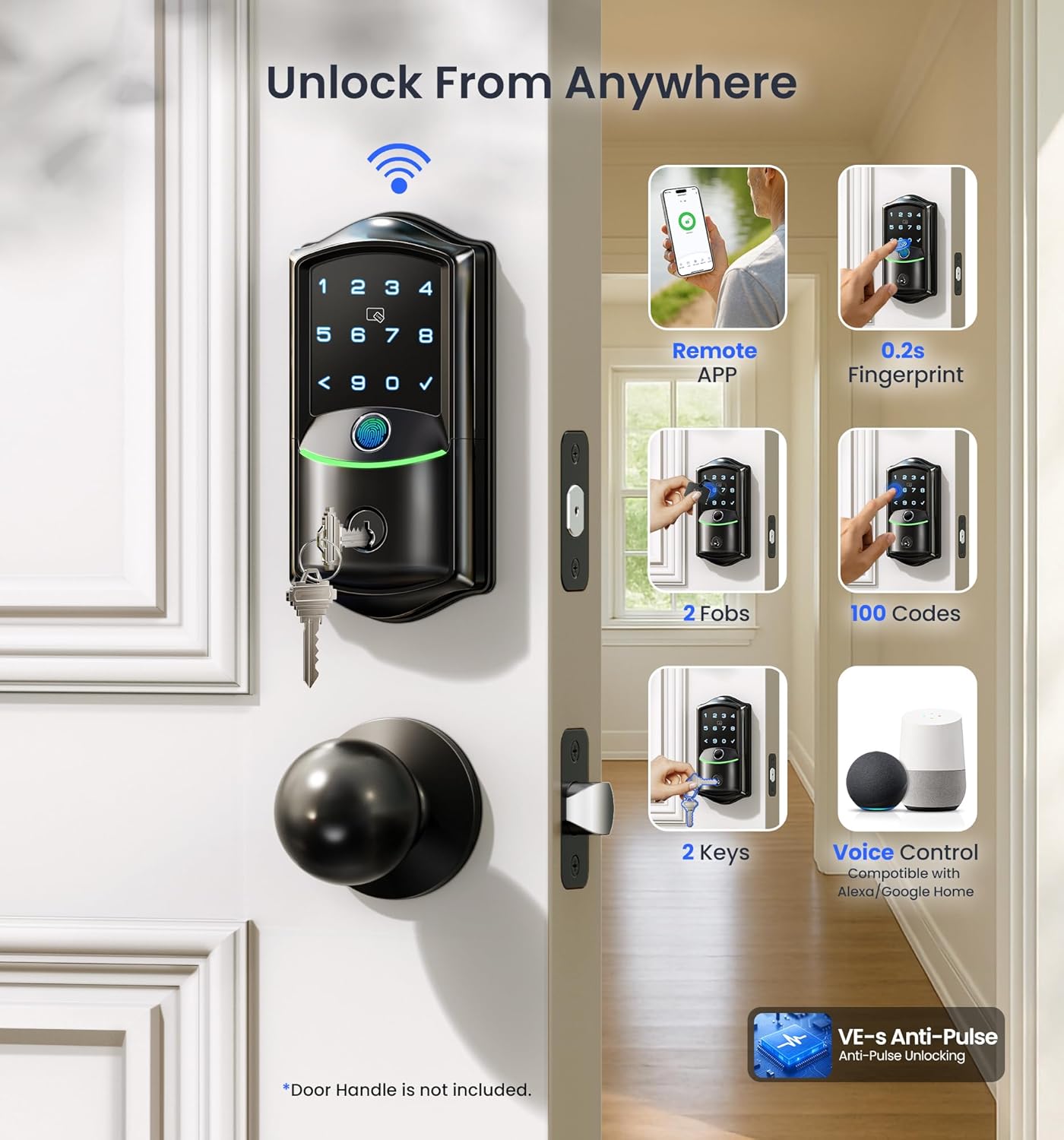
Image: Overview of the multiple convenient unlocking options available with the smart lock.
4.3 App Functions Overview
Video: Official Veise VE027 App Function Introduction, detailing how to use various features within the KK Home app.
- Check Lock Status & Battery Life: Open the App to see your lock's status (locked/unlocked) and current battery level.
- Set and Edit Passcodes: Create permanent, recurring, duration-based, or one-time PIN codes for family, guests, or service providers.
- Add Fingerprints: Enroll fingerprints for quick and secure access. Keep fingers clean and dry during registration.
- Add Cards: Register RFID cards for tap-to-unlock functionality. Note: Only supports 13.56MHz cards (Mifare, NFC, Desfire, EV1).
- Notifications & Access Logs: Receive real-time alerts for lock activity and view a detailed history of who accessed your lock and when. Ensure app notifications are enabled.
- Auto-Lock Settings: Turn on auto-lock and set a timer (e.g., 10s, 1min, 3min) for automatic locking after the door closes.
- Share Device Permissions: Share access to your lock with others via email or QR code, setting different permission types (Family, Guest).
- Connect with Alexa: Log in and authorize KK Home to link with Alexa for voice control.
5. Maintenance
5.1 Battery Replacement
- The lock is powered by 8 AA alkaline batteries (not included).
- The KK Home App will provide low-battery alerts.
- To replace, remove the interior assembly's battery cover, replace all 8 batteries, and reattach the cover.
5.2 Emergency Power
- In case of complete battery depletion, use the Type-C emergency charging port on the exterior unit to temporarily power the lock.
- This port supports power only; no data transfer.
5.3 Weather Resistance
- The lock has an IP65 weatherproof rating, protecting it from dust and water splashes.
- While durable, avoid direct high-pressure water exposure.
6. Troubleshooting
6.1 Resetting the Lock
If you encounter issues with pairing or the lock not responding, a reset may be necessary.
Video: Official Veise VE027 Wi-Fi Smart Lock Reset Video, demonstrating the reset procedure.
- Keep the door open and unlocked.
- Press and hold the Reset Button (located on the interior assembly, usually near the battery compartment) for 5 seconds using the Reset Tool (L).
- Keep holding the Reset Button until you hear the voice prompt "Restored to factory settings", and the latch bolt extends out automatically.
6.2 Connection Issues
- If the app shows "Connection Failed" or the lock doesn't appear in the device list:
- Reset the lock and test if the default master code (12345678) unlocks it.
- Ensure Bluetooth is enabled on your phone and the lock has power.
- Verify your Wi-Fi network is 2.4GHz.
7. Specifications
| Feature | Specification |
|---|---|
| Brand | Veise |
| Model | VE027 |
| Lock Type | Biometric, Deadbolt, Keypad |
| Material | Aluminum |
| Color | Matte Black |
| Connectivity Protocol | Wi-Fi |
| Controller Type | APP+Fingerprint+Passcode+Cards+Keys+Voice |
| Special Features | Auto-Lock, Remote Access Sharing, Locally Record Activities, Back-Lit Keypad, IP65 Waterproof, Smart App Control |
| Item Dimensions (L x W x H) | 3.89 x 5.35 x 7.91 inches |
| Item Weight | 2.22 pounds (1.01 Kilograms) |
| Batteries Required | Yes (8 AA, not included) |
| BHMA Grade | 3 |
8. Warranty and Support
- Warranty: The Veise VE027 Smart Lock comes with a 1-year warranty.
- Phone Support: Lifetime weekday phone support is available from 9 AM–5 PM PST.
- Email Support: 24/7 email assistance is provided.
- Contact Information: For any questions or support, please contact Veise customer service.
Related documentsVE027


Ask a question about this manual
Ask about setup, troubleshooting, compatibility, parts, safety, or missing instructions. Manuals+ will review the question and use this page’s manual context to help answer it.