
1. Introduction
The 3nStar LTT334 is a powerful and reliable 4" label printer designed for both direct thermal and thermal transfer printing. It features a durable dual-wall plastic frame and metal printhead, ensuring longevity and consistent performance. This printer delivers a 203 dpi resolution at a high speed of 127mm/s (5 IPS) and supports ribbons up to 300m. It comes with Bartender Label Printing Software and offers versatile connectivity options including USB 2.0 and LAN. With support for TSPL, EPL, ZPL, and DPL emulation, the LTT334 is a comprehensive labeling solution suitable for various applications such as logistics, retail, and warehousing.
Key Features:
- Supports 300m (984 ft) thermal transfer ribbons.
- Dual-wall plastic construction for enhanced durability.
- USB 2.0 & Ethernet connectivity.
- Bartender Label Printing Software included.
- 203 dpi resolution / 5 IPS printing speed.
- Compatible with Windows, Linux, Mac OS, Android.
- TSPL, EPL, ZPL, DPL Emulation.
- MicroSD slot expandable up to 4GB.
- Includes sensors: black mark, ribbon end, cover open, gap.
- Label dispenser included.
- Accessory Included: Roller Holder.
2. Package Contents
Upon opening the package, please verify that all components are present and undamaged. The standard package for the 3nStar LTT334 Label Printer includes:
- 3nStar LTT334 Label Printer Unit
- Windows labeling software driver and user manual CD
- Quick start guide
- USB cable
- Power cord
- External switching power adapter
- Roller Holder accessory
3. Setup
3.1 Unpacking and Placement
Carefully remove the printer from its packaging. Place the printer on a stable, flat surface with adequate ventilation. Ensure there is enough space around the printer for proper operation and maintenance, especially for loading labels and ribbons.
3.2 Connecting the Power Adapter
- Connect the external switching power adapter to the power input port on the back of the printer.
- Plug the power cord into the power adapter.
- Plug the other end of the power cord into a grounded electrical outlet.
3.3 Connecting to a Computer
The LTT334 printer supports both USB and Ethernet connectivity.
USB Connection:
- Connect one end of the provided USB cable to the USB port on the printer.
- Connect the other end of the USB cable to an available USB port on your computer.
Ethernet (LAN) Connection:
- Connect a standard Ethernet cable (not included) to the LAN port on the printer.
- Connect the other end of the Ethernet cable to your network router or switch.
3.4 Driver and Software Installation
Insert the included CD into your computer's CD-ROM drive. Follow the on-screen instructions to install the Windows labeling software driver and the Bartender Label Printing Software. Drivers for Linux, Mac OS, and Android are also available and can typically be downloaded from the manufacturer's website.
3.5 Loading Labels and Ribbons
The LTT334 supports both direct thermal and thermal transfer labels. For thermal transfer printing, a ribbon is required.
Loading Labels:
- Open the printer cover.
- Adjust the label guides to match the width of your labels.
- Insert the label roll onto the media spindle, ensuring the labels feed smoothly from the bottom.
- Feed the leading edge of the labels through the print mechanism until it extends slightly past the print head.
- Close the printer cover.
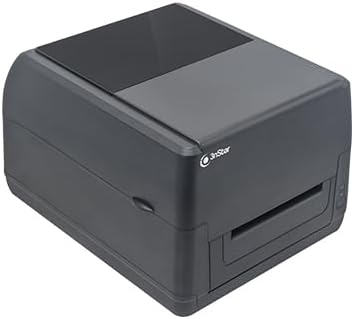
Image: Internal view of the 3nStar LTT334 printer with the top cover open, illustrating the label and ribbon loading area.
Loading Ribbons (for Thermal Transfer):
- Open the printer cover.
- Place the ribbon roll onto the supply spindle, ensuring the ribbon unwinds from the top.
- Thread the ribbon through the print head assembly as indicated by the diagrams inside the printer or in the quick start guide.
- Attach the leading edge of the ribbon to the take-up spindle and rotate the spindle a few times to secure it.
- Close the printer cover.

Image: Detailed view of the 3nStar LTT334 printer's interior, highlighting the path for loading the thermal transfer ribbon.

Image: Another angle of the 3nStar LTT334 printer's interior, showing the ribbon and label loading area from a different perspective.
4. Operating the Printer
4.1 Powering On/Off
- To power on the printer, press the power button located on the front or side of the unit. The indicator lights will illuminate.
- To power off, press and hold the power button until the indicator lights turn off.

Image: Front view of the 3nStar LTT334 printer, highlighting the power button and status indicators.
4.2 Printing Labels
Once the printer is set up and connected, you can begin printing labels using the Bartender Label Printing Software or other compatible applications.
- Open your label design software (e.g., Bartender).
- Create or open your label design. Ensure the label dimensions in the software match the physical labels loaded in the printer.
- Select the 3nStar LTT334 as your printer.
- Configure print settings such as print speed, darkness, and number of copies as needed.
- Initiate the print job. The printer will feed and print the labels.

Image: The 3nStar LTT334 printer in operation, demonstrating a label being printed and dispensed.

Image: The 3nStar LTT334 printer connected to an external label roll holder, printing a shipping label, showcasing its versatility with larger media rolls.
4.3 Emulation Modes
The LTT334 supports multiple printer command languages including TSPL, EPL, ZPL, and DPL. This allows for broad compatibility with various existing labeling systems and software. The emulation mode can typically be selected or configured through the printer driver settings on your computer.
5. Maintenance
Regular maintenance ensures optimal performance and extends the lifespan of your 3nStar LTT334 printer.
5.1 Cleaning the Print Head
The print head is a critical component and should be cleaned regularly, especially if print quality degrades or after changing many rolls of labels/ribbons.
- Turn off the printer and disconnect the power cord.
- Open the printer cover.
- Using a lint-free cloth or a print head cleaning pen moistened with isopropyl alcohol, gently wipe the print head surface.
- Allow the print head to dry completely before closing the cover and reconnecting power.
5.2 Cleaning the Platen Roller
The platen roller helps feed the labels and can accumulate dust or adhesive residue.
- Turn off the printer and disconnect the power cord.
- Open the printer cover.
- Gently wipe the platen roller with a lint-free cloth moistened with isopropyl alcohol. Rotate the roller to clean the entire surface.
- Allow it to dry completely before closing the cover and reconnecting power.
5.3 General Cleaning
Wipe the exterior of the printer with a soft, damp cloth. Do not use harsh chemicals or abrasive cleaners.
6. Troubleshooting
This section provides solutions to common issues you might encounter with your 3nStar LTT334 printer.
| Problem | Possible Cause | Solution |
|---|---|---|
| Printer not powering on | Power cord not connected; Power outlet issue | Ensure power cord is securely connected to printer and outlet. Test outlet with another device. |
| No print output | Printer not connected; Incorrect driver; No labels/ribbon; Printer paused | Check USB/Ethernet connection. Reinstall driver. Load labels/ribbon. Check printer status in software. |
| Poor print quality (faded, lines) | Dirty print head; Incorrect darkness setting; Low quality labels/ribbon | Clean print head. Adjust darkness setting in printer driver. Use recommended labels/ribbons. |
| Labels not feeding correctly | Label guides not adjusted; Labels jammed; Sensor issue | Adjust label guides to fit media. Clear any jams. Clean sensors (black mark, gap). |
| Printer offline | Network issue; Driver setting | Check network cable/connection. Ensure printer is not set to "Use Printer Offline" in Windows. |
7. Specifications
Detailed technical specifications for the 3nStar LTT334 Label Printer.
| Specification | Value |
|---|---|
| Brand | 3nStar |
| Model Name | LTT334 |
| Printing Technology | Thermal (Direct Thermal/Thermal Transfer) |
| Resolution | 203 DPI |
| Max Print Speed Monochrome | 5 IPS (127mm/s) |
| Connectivity Technology | USB, Ethernet |
| Maximum Media Size | 4.25 x 70 Inches |
| Ribbon Length Support | Up to 300m (984 ft) |
| Memory Storage Capacity | 8 MB |
| Emulation | TSPL, EPL, ZPL, DPL |
| Compatible Devices | PC, POS, Laptops |
| Operating System Compatibility | Windows, Linux, Mac OS, Android |
| Power Consumption | 60 Watts |
| Product Dimensions | 12 x 9 x 8 inches (30.48 x 22.86 x 20.32 cm) |
| Item Weight | 8.8 pounds (4 Kilograms) |
| UPC | 850013523870 |
| Sensors | Black mark, ribbon end, cover open, gap |
| Special Feature | Network-Ready |
8. Warranty and Support
8.1 Warranty Information
The 3nStar LTT334 Label Printer comes with a 1 Year Limited Warranty. Please refer to the warranty card included in your package or visit the official 3nStar website for detailed terms and conditions regarding warranty coverage and claims.
8.2 Customer Support
For technical assistance, troubleshooting, or any inquiries regarding your 3nStar LTT334 printer, please contact 3nStar customer support. Contact information can typically be found on the manufacturer's official website or in the quick start guide.
Manufacturer: 3nStar
Please have your product model number (LTT334) and serial number ready when contacting support to expedite assistance.


