
1. Introduction
The Coibeu Smart Digital Lock WKZWN08 offers advanced security and convenience for your home or office. This lock integrates multiple unlocking methods, including fingerprint, numeric password, temporary password, IC card, and traditional physical keys. With Wi-Fi connectivity and control via the Tuya Smart app, you can manage access remotely and receive real-time security alerts. This manual provides detailed instructions for installation, operation, maintenance, and troubleshooting to ensure optimal performance and security.

Figure 1: Coibeu Smart Digital Lock WKZWN08, displaying the complete system including the exterior and interior lock units, physical keys, and IC cards for various access methods.
2. Safety Information
- Battery Safety: Use only 4 AA alkaline batteries. Do not mix old and new batteries, or different types of batteries. Replace all batteries simultaneously. Remove batteries if the lock will not be used for an extended period.
- Installation: Ensure the lock is installed by a qualified professional or follow the installation instructions carefully to prevent damage or malfunction.
- Physical Keys: Keep physical keys in a safe, accessible location outside the property, but not near the door, for emergency access.
- Password Security: Do not share your master password. Change default passwords immediately after installation. Avoid using easily guessable passwords.
- Environmental Conditions: The lock is designed for temperatures between -10°C and 55°C. Avoid exposing the lock to extreme temperatures or direct water spray.
3. Package Contents
Verify that all components are present in the package before beginning installation:
- 1x Digital Lock (Internal and External Parts)
- 1x Lock Mechanism
- 1x Strike Plate
- 1x Spring
- 4x Medium Screws
- 2x Small Screws
- 2x Handle Spindles
- 2x Screws (for handle)
- 2x Metallic Cylinders (Bushings for handle screws)
- 2x Physical Keys
- 2x IC Cards (Proximity Cards)
- 1x Finishing Sticker
4. Specifications
| Model | WKZWN08 |
| Color | Black |
| Material | Stainless Steel, Tempered Glass, Electronic Components |
| Lock Core Type | Grade C (High Security) |
| Recommended Door Thickness | 4cm - 9cm |
| Power Source | 4x AA Alkaline Batteries |
| Emergency Power | USB-C Interface (for power bank/charger) |
| Fingerprint Capacity | Up to 100 |
| IC Card Capacity | Up to 100 |
| Password Capacity | Up to 100 |
| Fingerprint Recognition Time | ≤ 1 second |
| False Recognition Rate | 0.001% |
| Error Rate | 0.1% |
| Battery Autonomy | Up to 6 months (depending on usage) |
| Operating Temperature | -10°C to 55°C |
| Connectivity | 2.4 GHz Wi-Fi |
| Compatible App | Tuya Smart |
Dimensions
- Front Panel: Height: 28 cm, Width: 6.8 cm, Depth: 2.2 cm
- Rear Panel: Height: 28 cm, Width: 6.8 cm, Depth: 2.2 cm
- Handle: Height: 4 cm, Width: 13.4 cm
5. Setup
5.1 Door Preparation and Installation
The Coibeu Smart Digital Lock is compatible with door thicknesses ranging from 4cm to 9cm. It supports reversible installation, meaning it can be configured for doors that open to the right or left. Refer to the detailed installation guide provided in the product packaging for step-by-step instructions on preparing your door and mounting the lock components.

Figure 2: Detailed view of the lock's internal mechanism, highlighting the silent latch, robust double-thickness bolt, and durable stainless steel components.
5.2 Battery Installation
- Locate the battery compartment on the interior unit of the lock.
- Open the battery cover.
- Insert 4 new AA alkaline batteries, ensuring correct polarity (+/-).
- Close the battery cover securely.
5.3 App Download and Initial Pairing (Tuya Smart)
- Download the Tuya Smart application from your smartphone's app store (iOS or Android).
- Register or log in to your Tuya Smart account.
- Follow the in-app instructions to add a new device. Select 'Lock' or 'Smart Door Lock' from the device categories.
- Ensure your phone is connected to a 2.4 GHz Wi-Fi network.
- Follow the prompts on the lock's keypad and in the app to complete the pairing process. This typically involves entering a pairing code or pressing a button on the lock.
- Once paired, you can manage lock settings, add users, and monitor activity via the app.

Figure 3: Remote control functionality demonstrated, showing a user interacting with the Tuya Smart app to manage the smart lock.
6. Operating Instructions
6.1 Unlock Modes
The Coibeu Smart Digital Lock offers five convenient ways to unlock your door:
- Fingerprint: Place your registered finger on the biometric sensor. The lock will unlock in less than 1 second upon successful recognition.
- Numeric Password: Enter your registered numeric password on the touch keypad, followed by the '#' key.
- Temporary Password: Generate a temporary, time-limited password via the Tuya Smart app for guests or service providers. This password can be used on the keypad.
- IC Card: Present a registered IC card to the card reader area on the lock's exterior unit.
- Physical Key: In case of emergency or battery depletion, use one of the provided physical keys to manually unlock the door.
- App Remote Unlock: Use the Tuya Smart app to unlock the door remotely from anywhere, provided the lock is connected to Wi-Fi.
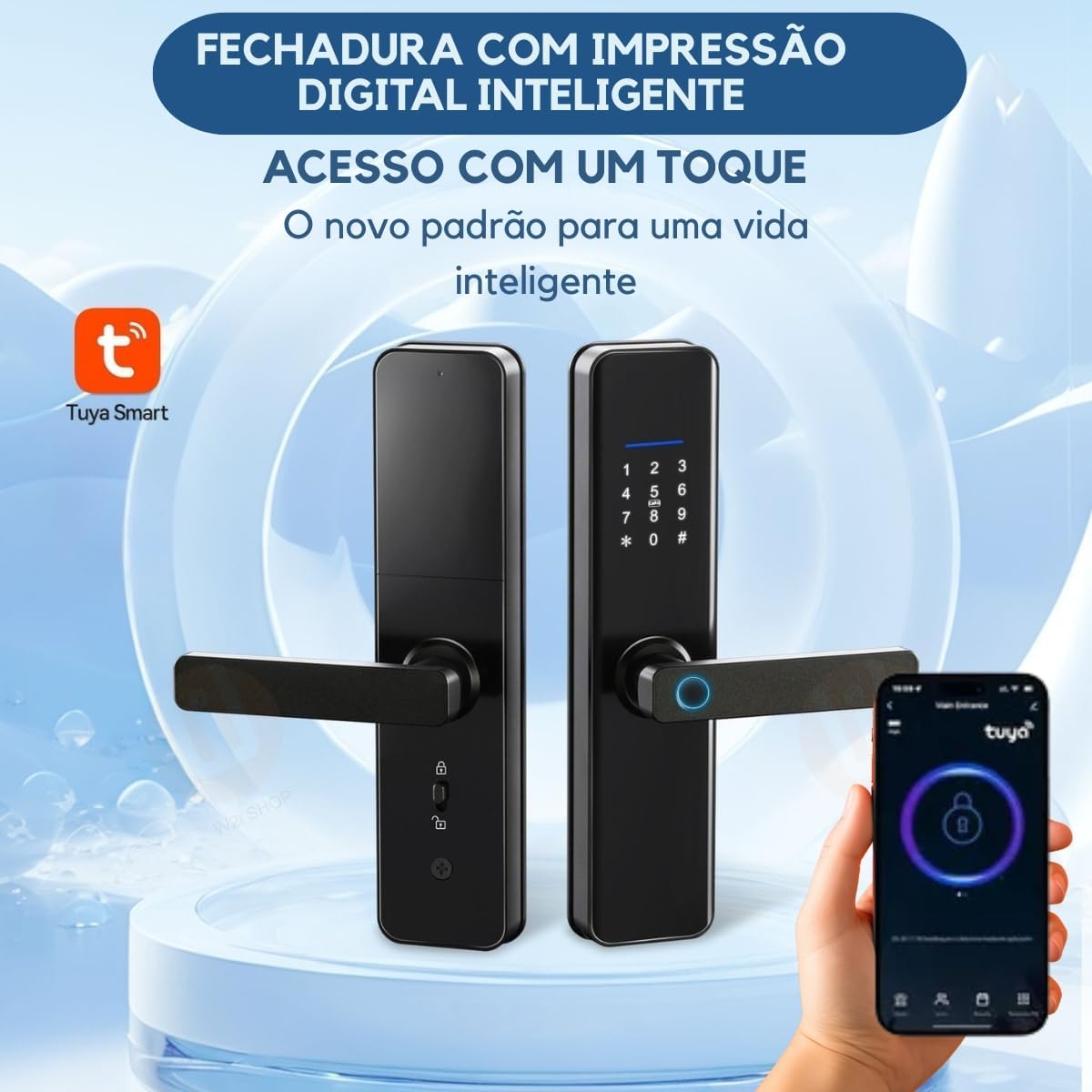
Figure 4: The smart lock's exterior unit, featuring the integrated fingerprint sensor and numeric keypad for multiple access options.
6.2 Automatic Locking
For enhanced security, the lock is designed to automatically re-lock after a short period once the door is closed. This feature ensures your door is always secured without manual intervention.
7. Maintenance
7.1 Battery Replacement
The lock will provide a low battery alert via the Tuya Smart app and potentially an audible/visual indicator on the lock itself. When this occurs, replace all 4 AA alkaline batteries promptly to ensure continuous operation. Refer to section 5.2 for battery installation steps.
7.2 Cleaning
Clean the lock's exterior surfaces with a soft, dry cloth. Avoid using abrasive cleaners, solvents, or harsh chemicals, as these can damage the finish and electronic components. For the fingerprint sensor and keypad, use a slightly damp cloth if necessary, then wipe dry immediately.
7.3 Durability and Corrosion Resistance
The Coibeu Smart Digital Lock is constructed with high-quality materials and features a durable finish, including a heat-treated paint layer, designed to resist wear and corrosion. It has passed salt spray tests, indicating its resilience against humidity and environmental degradation, ensuring long-term aesthetic appeal and reliable performance.

Figure 5: The lock's robust construction and premium finish, designed for resistance against wear and corrosion, ensuring long-lasting performance.
8. Troubleshooting
- Lock Not Responding: Check battery levels. If batteries are depleted, use the emergency USB-C power interface with a power bank or charger, or use the physical key.
- Low Battery Alert: The Tuya Smart app will notify you of low battery. Replace all 4 AA alkaline batteries immediately.
- Incorrect Password/Suspicious Access Alert: The lock will trigger an alarm and send a notification to your app if there are multiple incorrect password attempts or suspicious activity. Review recent access logs in the app.
- Fingerprint Not Recognized: Ensure your finger is clean and dry. Try re-registering your fingerprint if the issue persists. The lock has a low false recognition rate (0.001%) and high accuracy.
- App Connectivity Issues: Ensure your Wi-Fi network is stable and operating on 2.4 GHz. Restart your router and the lock if necessary. Check app permissions on your smartphone.
- Anti-Intrusion Alarm: The lock features an anti-theft alarm that activates with attempted forced entry, providing an audible warning and app notification.

Figure 6: Overview of the smart lock's comprehensive security features, including anti-intrusion, low battery warnings, and alerts for incorrect access attempts.

Figure 7: Emergency unlock options, featuring the USB-C port for external power and the traditional keyhole for manual access.
9. Warranty and Support
For warranty information, technical support, or service inquiries, please contact your retailer or the manufacturer directly. Refer to your purchase documentation for specific warranty terms and contact details. Ensure you have your product model (WKZWN08) and purchase date available when seeking support.