
Introduction
This manual provides detailed instructions for the installation, operation, and maintenance of your Hikity Android 15 Car Stereo. Please read this manual thoroughly before using the product to ensure proper function and safety. Keep this manual for future reference.
What's in the Box
Verify that all items are present in the package:
- 1 x Android Car Stereo
- 1 x Power Cable
- 1 x GPS Antenna
- 1 x Rear Camera Input Cable
- 1 x RCA Cable
- 2 x USB Cables
- 1 x Installation Tools
- 1 x Instruction Manual
- 1 x Rear View Camera
- 1 x External Microphone
- 1 x CANBUS Decoder

Image: All components included in the Hikity Android Car Stereo package, laid out for inspection.
Setup and Installation
Professional installation is recommended. Ensure the vehicle's power is disconnected before beginning installation. This unit is designed for Citroen Berlingo B9 (2008-2017) and Peugeot Partner (2008-2019).
- Remove Original Head Unit: Carefully remove the existing car stereo and trim panels. Refer to your vehicle's specific service manual for detailed removal instructions.
- Connect Wiring Harness: Connect the provided ISO adapter and power cable to the vehicle's wiring harness. Ensure all connections are secure.
- Connect Peripherals:
- GPS Antenna: Mount the GPS antenna in a location with a clear view of the sky, typically on the dashboard or under the windshield. Connect it to the GPS input on the stereo.
- Rear View Camera: Install the rear view camera at the back of the vehicle. Connect the camera's video output to the "Camera Input" on the stereo. The red cable from the camera input harness connects to the positive terminal of the car's reverse light cable, and the black cable connects to the negative terminal. This ensures the camera activates when reversing.
- External Microphone: Connect the external microphone for improved call quality. Position it near the driver for optimal voice capture.
- USB Cables: Route the USB cables to an accessible location, such as the glove compartment, for connecting USB devices.
- RCA Cables: If connecting external amplifiers or subwoofers, use the provided RCA cables.
- CANBUS Decoder: Connect the CANBUS decoder as per the wiring diagram. This enables steering wheel controls and other vehicle-specific functions.
- Mount the Head Unit: Secure the new Hikity car stereo into the dashboard using the mounting frame and installation tools.
- Test Functionality: Reconnect the vehicle's power. Turn on the stereo and test all functions: radio, Bluetooth, GPS, camera, and steering wheel controls.

Image: Before and after installation comparison, showing the integrated 9-inch display.

Image: Wiring diagram for the car stereo, illustrating connections for various components.
Operating Instructions
Basic Navigation and User Interface
The Hikity Android 15 Car Stereo features a 9-inch touchscreen with a resolution of 1280*720. The user interface is intuitive, allowing for easy navigation through applications and settings.

Image: User Interface design and split-screen functionality.
Video: Overview of the Android system user interface and features.
Wireless CarPlay & Android Auto
This unit supports wireless CarPlay and Android Auto, allowing seamless integration with your smartphone. Access navigation, music, phone calls, messages, and voice assistants (Siri or Google Assistant) directly from the stereo display.
- Connection: Ensure Bluetooth is enabled on your phone. Pair your phone with the car stereo via Bluetooth. Once paired, the system will prompt you to activate CarPlay or Android Auto.
- Functionality: Once connected, your phone's compatible apps will appear on the stereo screen. You can control them via touch or voice commands.

Image: Wireless CarPlay and Android Auto interface.
Video: Demonstration of CarPlay connection and functionality.
GPS Navigation
The unit includes a built-in GPS module supporting both online and offline maps. Connect to Wi-Fi for real-time traffic updates and map downloads.
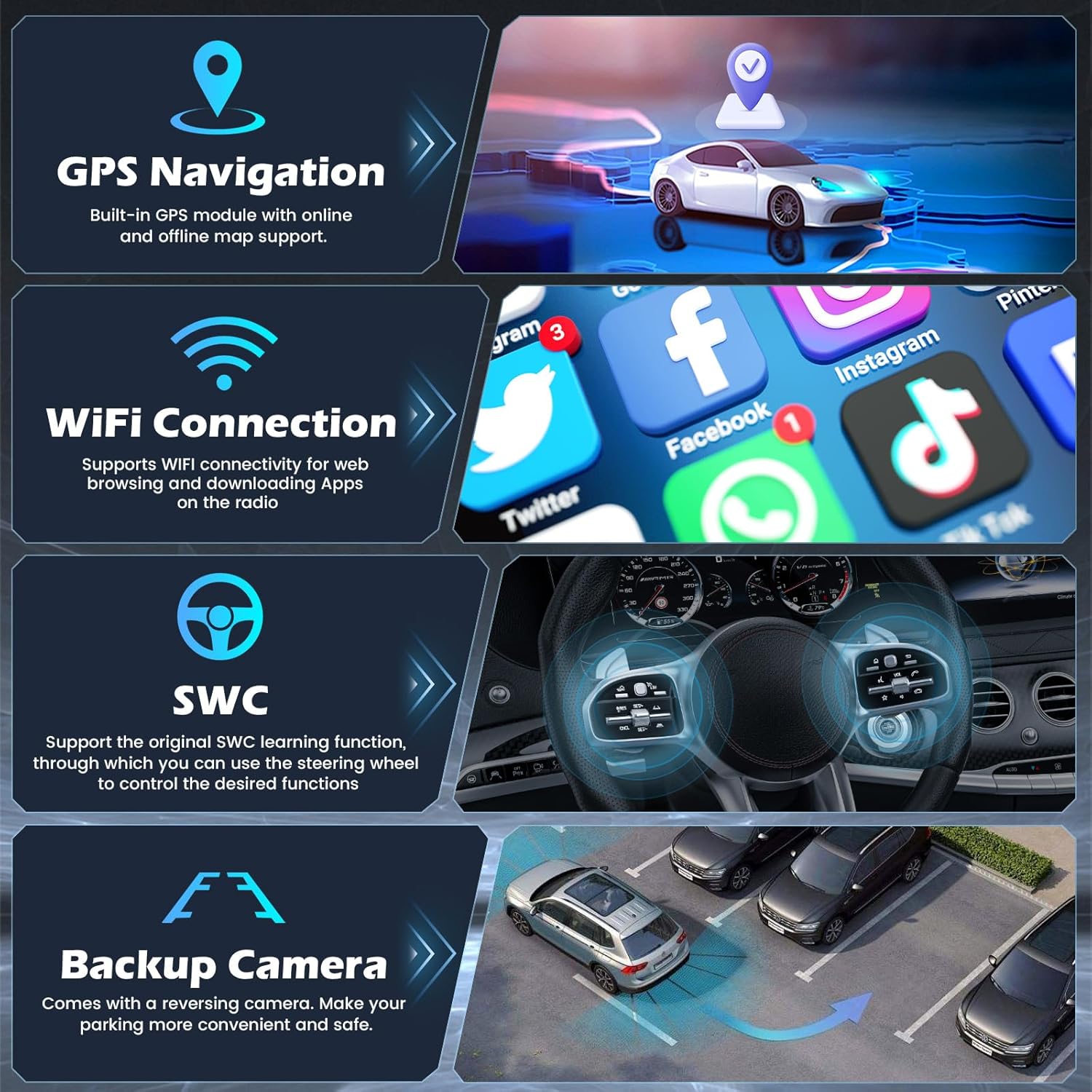
Image: GPS Navigation, Wi-Fi, Steering Wheel Control (SWC), and Backup Camera features.
FM/RDS Radio and Bluetooth 5.0
Enjoy high-quality audio with the FM/RDS radio tuner. Bluetooth 5.0 enables hands-free calling and wireless music streaming. Pair your phone via Bluetooth to access these features.
- FM/RDS: Tune into your favorite radio stations. RDS provides station information and traffic announcements.
- Bluetooth: Go to the Bluetooth settings on the stereo and your phone to pair. Once connected, you can make/receive calls and stream audio.

Image: Bluetooth, FM/RDS Radio, 32EQ, and AI DSP functionalities.
Steering Wheel Control (SWC)
The unit supports original steering wheel controls, allowing you to manage audio, calls, and navigation without taking your hands off the wheel. The included CANBUS decoder facilitates this integration.
- Configuration: Access the SWC settings in the stereo's menu to program the buttons according to your preference.
Rear View Camera
The included AHD rear view camera provides a clear image when the vehicle is in reverse, enhancing safety and convenience during parking maneuvers. The camera features night vision for low-light conditions.
- Activation: The camera automatically activates when the vehicle is shifted into reverse gear, provided it is correctly wired.
Product Specifications
| Feature | Detail |
|---|---|
| Brand | Hikity |
| Model Number | A7878A3662H1MI2-63EU |
| Color | Black |
| Operating System | Android 15 |
| RAM | 4GB |
| ROM | 64GB |
| Screen Size | 9 Inches |
| Screen Resolution | 1280 x 720 |
| Connectivity Technology | Bluetooth, USB, Wi-Fi |
| Special Features | FM/RDS Radio, GPS Navigation, SWC, Integrated Wi-Fi, Wireless CarPlay & Wireless Android Auto |
| Compatible Devices | Smartphone |
| Total USB Ports | 2 |
| Audio Output Mode | Stereo |
| Surround Sound Channel Configuration | 5.1 |
| Video Encoding | MKV, RMVB, AVI, MP4, MDV |
Maintenance
- Screen Cleaning: Use a soft, lint-free cloth to clean the touchscreen. For stubborn smudges, slightly dampen the cloth with water or a screen-safe cleaner. Avoid harsh chemicals.
- Software Updates: Periodically check for software updates to ensure optimal performance and access to new features. Updates can typically be found in the system settings or on the manufacturer's website.
- General Care: Avoid exposing the unit to extreme temperatures, direct sunlight for prolonged periods, or excessive moisture.
Troubleshooting
| Problem | Possible Solution |
|---|---|
| No Power | Check power cable connections and vehicle's fuse box. Ensure the ignition is on. |
| No Sound | Verify speaker connections. Check volume levels and audio settings (equalizer, sound field). Ensure the mute function is not active. |
| Bluetooth Not Connecting | Ensure Bluetooth is enabled on both the stereo and your phone. Delete previous pairings and try pairing again. Restart both devices. |
| CarPlay/Android Auto Not Working | Ensure your phone's Bluetooth is connected. Check for any prompts on your phone to allow connection. Ensure the "SpeedPlay" app is running on the head unit. |
| GPS Signal Lost | Ensure the GPS antenna is properly connected and has a clear view of the sky. Move the vehicle to an open area if in a covered parking or tunnel. |
| Steering Wheel Controls Not Responding | Verify CANBUS decoder connection. Re-enter the SWC learning mode in the stereo settings to reprogram the buttons. |
| Rear Camera Not Displaying | Check the camera input cable connection. Ensure the camera's power is correctly wired to the reverse light circuit. The reverse input cable must be plugged in even if the camera is not used, as it affects Bluetooth and Wi-Fi signals. |
Warranty and Support
Your Hikity Android Car Stereo comes with a 2-year limited manufacturer's warranty. For technical support, warranty claims, or further assistance, please contact Hikity customer service through their official channels or the retailer where the product was purchased.
Please retain your proof of purchase for warranty purposes.