
Product Overview
The Yoidesu 100-Key Mechanical RGB Gaming Keyboard is designed for desktop PC and laptop use, offering a compact yet full-sized typing experience. It features durable white mechanical switches, customizable RGB backlighting, and a hot-swappable design for personalized switch replacement.
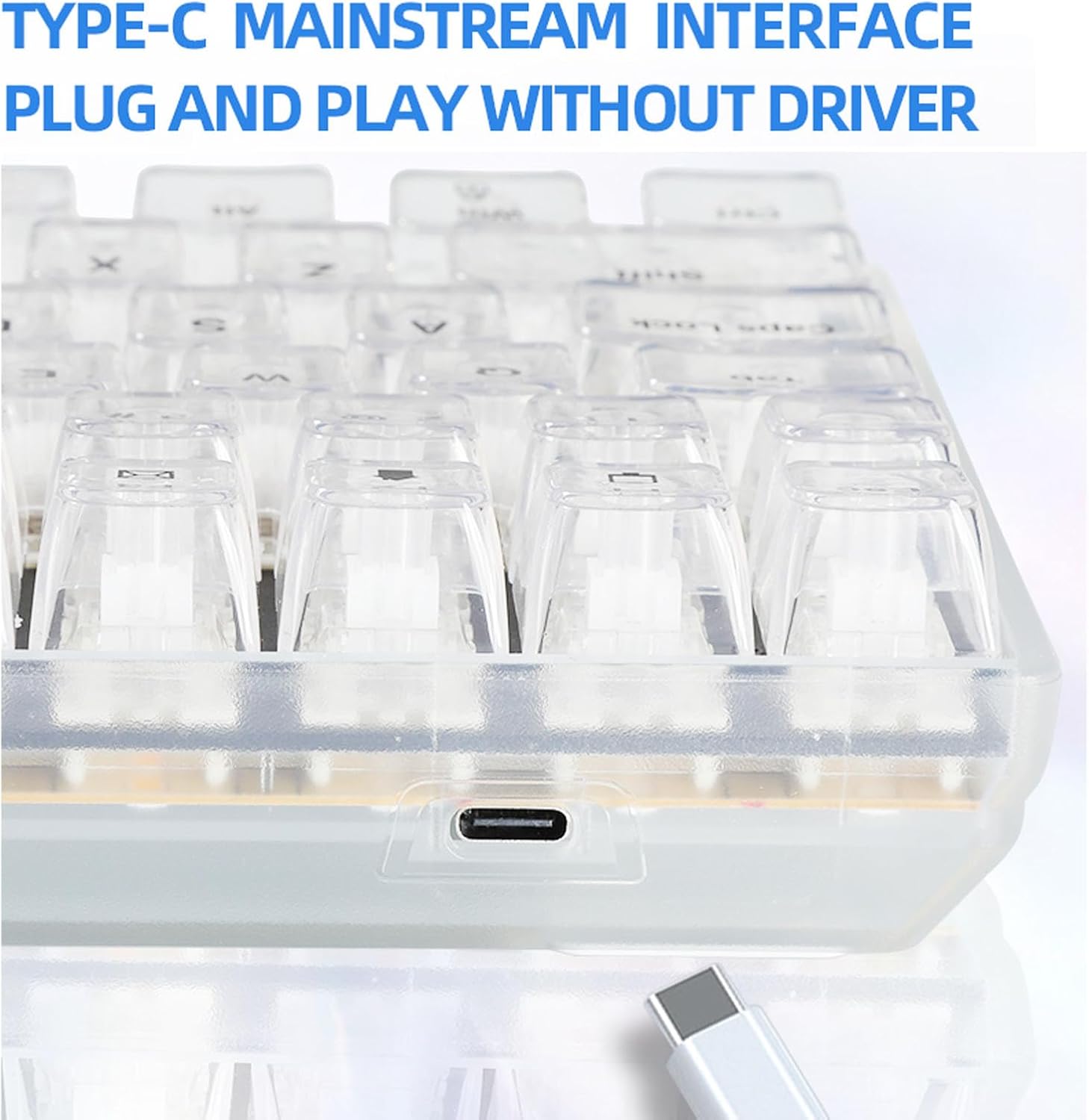
Image: The Yoidesu 100-Key Mechanical RGB Gaming Keyboard, showcasing its full layout and vibrant RGB backlighting.
Package Contents
- 1 x Yoidesu Mechanical Gaming Keyboard
- 1 x USB Cable
- 1 x Keycap Puller
- 2 x Replacement White Switches
Setup Instructions
- Unpack the Keyboard: Carefully remove the keyboard and all accessories from the packaging.
- Connect the USB Cable: Locate the USB Type-C port on the keyboard. Insert one end of the provided USB cable into this port.
- Connect to Computer: Insert the other end of the USB cable into an available USB port on your desktop PC or laptop.
- Plug and Play: The keyboard is designed for plug-and-play functionality. Your operating system should automatically detect and install the necessary drivers. No additional software installation is typically required.

Image: A close-up view of the USB Type-C port located on the Yoidesu keyboard, indicating the connection point for the USB cable.
Operating Instructions
RGB Backlighting Control
The keyboard features customizable RGB backlighting with multiple modes and colors.
- Lighting Modes: The keyboard offers 18 distinct RGB backlit modes.
- Single Color Modes: Additionally, there are 8 single-color backlit modes available.
- Adjusting Brightness and Speed: Specific key combinations (refer to keyboard function keys, often Fn + arrow keys or dedicated lighting keys) allow adjustment of brightness levels and lighting effect speed.
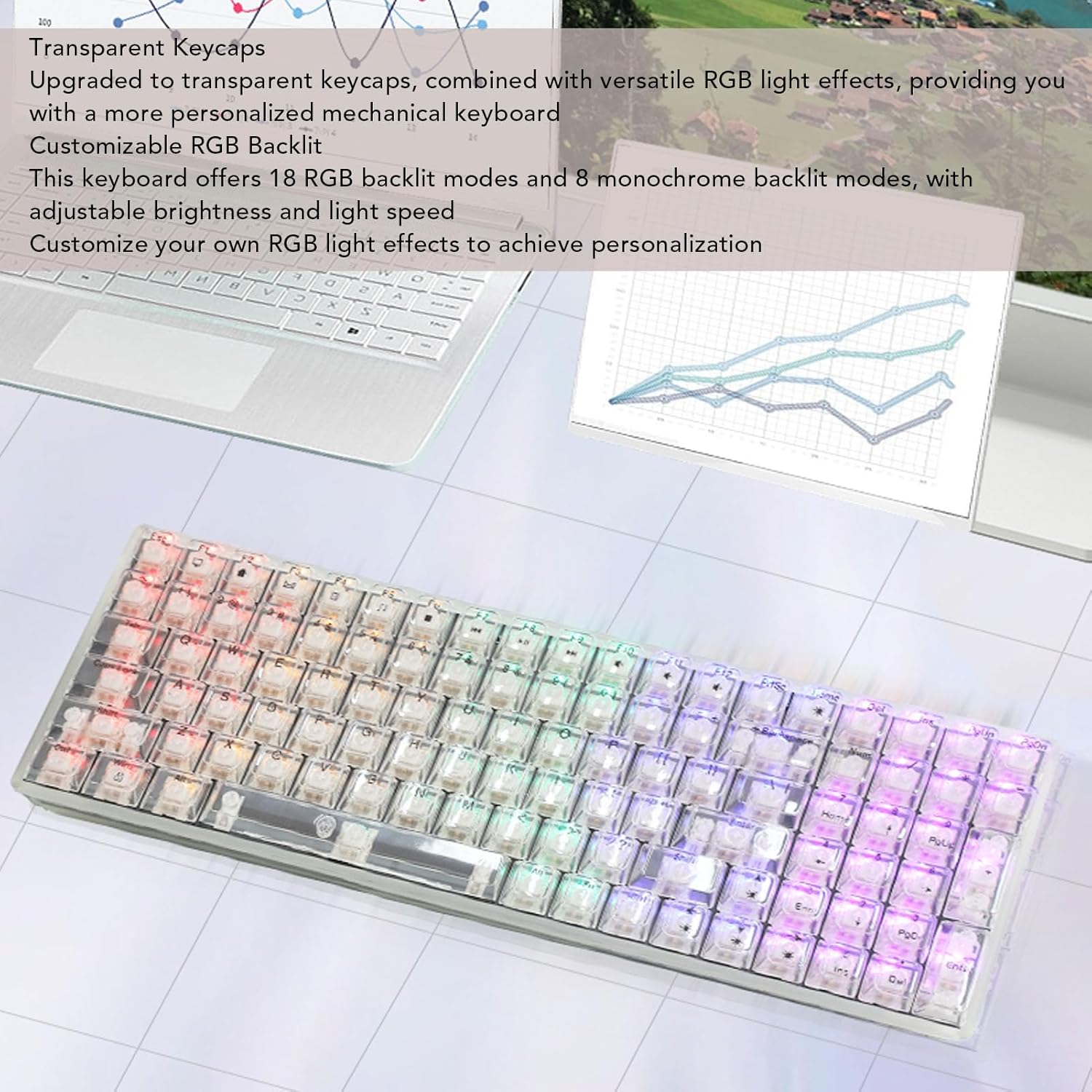
Image: The Yoidesu keyboard displaying various RGB lighting effects across its transparent keycaps.
Hot-Swappable Switches
The keyboard supports hot-swappable mechanical switches, allowing users to replace switches without soldering.
- Remove Keycap: Use the provided keycap puller to gently remove the desired keycap.
- Remove Switch: Use a switch puller (not included, but often integrated with keycap puller) to carefully extract the mechanical switch from its socket.
- Insert New Switch: Align the pins of the new mechanical switch with the holes on the PCB and press down firmly until it clicks into place. Ensure pins are not bent.
- Replace Keycap: Place the keycap back onto the new switch.

Image: An illustration demonstrating the process of removing a keycap and a mechanical switch from the keyboard for replacement.
Ergonomic Design
The keyboard features an ergonomic high and low key layout and adjustable tilt angle for comfortable use.
- Adjustable Feet: Two support feet are located on the bottom of the keyboard. Flip them out to increase the keyboard's tilt angle for a more comfortable typing position.
Maintenance
Regular cleaning helps maintain the performance and appearance of your keyboard.
- General Cleaning: Use a soft, dry cloth to wipe down the surface of the keyboard.
- Keycap Cleaning: For deeper cleaning, keycaps can be removed using the provided keycap puller and cleaned with a mild soap solution. Ensure keycaps are completely dry before reattaching.
- Dust Removal: Use compressed air to remove dust and debris from between the keycaps and switches.
- Avoid Liquids: Do not immerse the keyboard in water or spray cleaning solutions directly onto it.
Troubleshooting
Keyboard Not Responding
- Check USB Connection: Ensure the USB cable is securely connected to both the keyboard and the computer. Try a different USB port on your computer.
- Restart Computer: Sometimes a simple computer restart can resolve connectivity issues.
- Test on Another Device: If possible, test the keyboard on another computer to determine if the issue is with the keyboard or the original computer.
RGB Lights Not Working
- Check Brightness Settings: Ensure the brightness level is not set to minimum. Use the keyboard's function keys to increase brightness.
- Cycle Modes: Try cycling through the different RGB modes to see if any light up.
- Reconnect Keyboard: Disconnect and reconnect the USB cable.
Specifications
| Feature | Specification |
|---|---|
| Brand | Yoidesu |
| Model Name | Yoidesu1695r38yma |
| Item Type | Mechanical Gaming Keyboard |
| Material | ABS |
| Keys | 100 keys (96% full size) |
| Connection | Wired (USB Type-C) |
| Switch Type | White Mechanical Switches (Hot-Swappable) |
| Cable Length | Approx. 1.8m / 70.87in |
| Backlit Effect | RGB (18 modes, 8 single colors) |
| Power Input | DC 5V / <200mA |
| Dimensions (Approx.) | 390mm (L) x 141mm (W) x 40mm (H) / 15.35in (L) x 5.55in (W) x 1.57in (H) |

Image: The Yoidesu keyboard with its approximate length, width, and height dimensions indicated.
Warranty and Support
For warranty information or technical support, please refer to the documentation included with your purchase or contact Yoidesu customer service through the retailer where the product was purchased. Please have your model number (Yoidesu1695r38yma) and purchase details ready when contacting support.