
1. Introduction
Thank you for choosing the UIKICON 5K Digital Camera. This compact and versatile camera is designed for ease of use, making it ideal for beginners, teens, and vlogging enthusiasts. Featuring 5K video resolution, 80MP photo capability, dual screens, and 18X digital zoom, it allows you to capture high-quality memories with simplicity.
This manual provides detailed instructions on how to set up, operate, and maintain your camera to ensure optimal performance and longevity. Please read it thoroughly before using your device.
2. What's in the Box
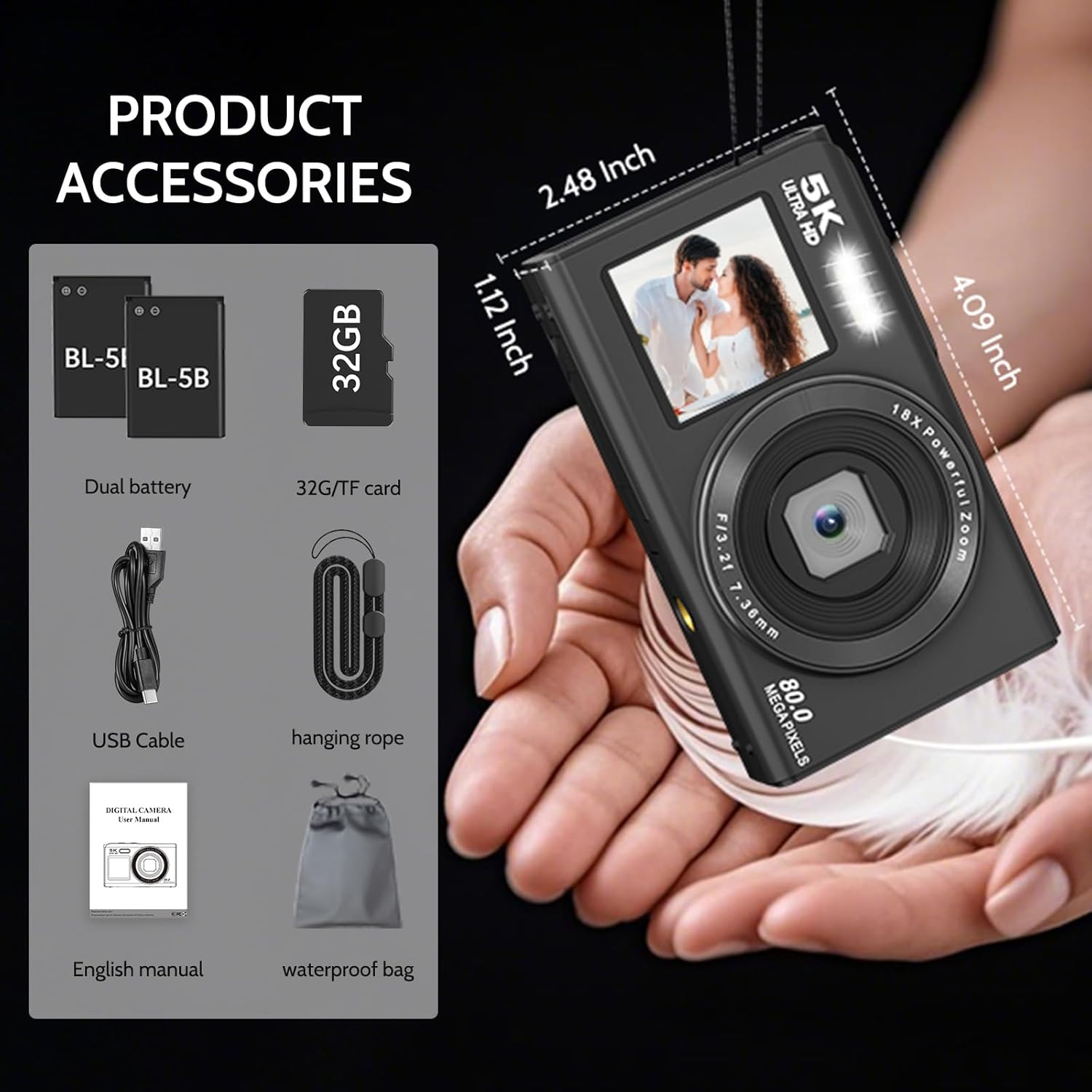
Image: All components included in the UIKICON 5K Digital Camera package.
Your UIKICON 5K Digital Camera package should contain the following items:
- UIKICON 5K Digital Camera (Model S150Pro)
- Two (2) BL-5B Batteries
- One (1) 32GB TF Card
- One (1) USB Cable
- One (1) Adjustable Hanging Rope
- One (1) English Instruction Manual
- One (1) Camera Bag (Waterproof)
3. Product Overview
3.1 Camera Components
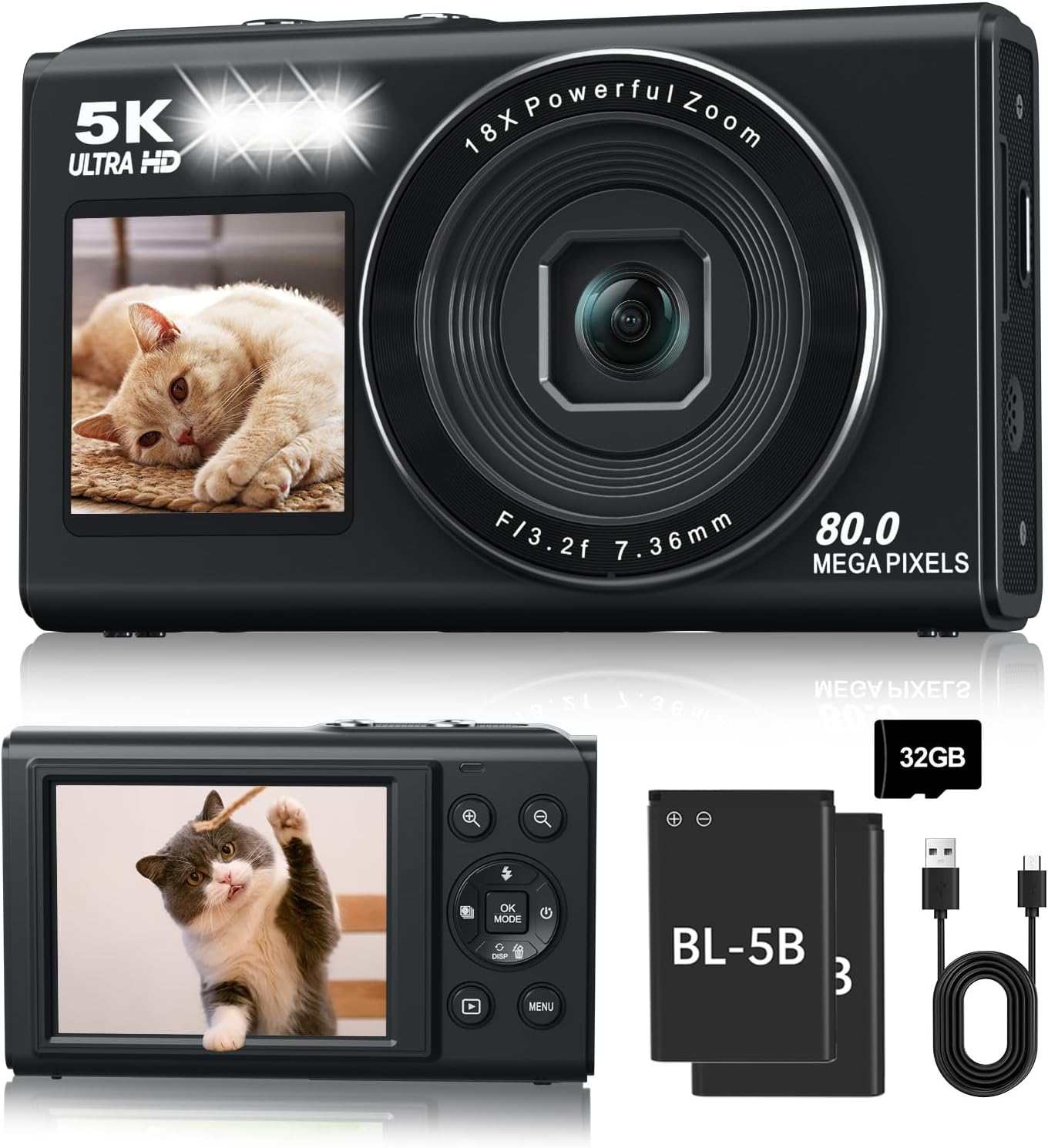
Image: Front view of the camera.

Image: Back view and button functions.

Image: Key features on the camera body.
Familiarize yourself with the camera's physical components and controls:
- Front Screen: For selfies and vlogging.
- Rear Screen: Main display for framing shots and reviewing content.
- Lens: Main optical component for capturing images.
- Flash: Provides illumination in low-light conditions.
- Power Button: Turns the camera on/off.
- Shutter Button: Captures photos or starts/stops video recording.
- DISP Button: Toggles between front and rear screens.
- OK/Mode Button: Confirms selections or switches shooting modes.
- Zoom Buttons (+/-): Adjusts the 18X digital zoom.
- Menu Button: Accesses camera settings.
- Playback Button: Enters review mode for photos and videos.
- USB Port: For charging, data transfer, and webcam connection.
- Memory Card Slot: For inserting the TF card.
- Battery Compartment: For inserting the BL-5B batteries.
- Lanyard Hole: For attaching the hanging rope.
- Tripod Mount (1/4-20): For attaching to a tripod or other support.
4. Setup
4.1 Battery Installation

Image: Battery and Memory Card Installation Guide.
- Open the battery compartment cover located at the bottom of the camera.
- Insert the BL-5B battery into the compartment, ensuring the correct orientation as indicated by the diagram inside the compartment.
- Close the battery compartment cover securely until it clicks into place.
4.2 Memory Card Installation
- Locate the memory card slot, usually next to the battery compartment.
- Insert the 32GB TF card into the slot with the gold contacts facing down, pushing gently until it clicks into place.
- To remove the card, push it in again until it springs out.
4.3 Initial Charging
Before first use, fully charge the camera's battery.
- Connect the small end of the USB cable to the camera's USB port.
- Connect the large end of the USB cable to a USB power adapter (not included) or a computer's USB port.
- The charging indicator light will illuminate. It will turn off or change color once charging is complete.
5. Operating Instructions
5.1 Power On/Off
Press and hold the Power button for a few seconds to turn the camera on or off.
5.2 Dual Screen Operation

Image: Using the DISP button to switch screens.
The camera features dual screens for versatile shooting. To switch between the front and rear screens, simply press the DISP button located on the back of the camera.
5.3 Photo and Video Capture
To take a photo or start/stop video recording, press the Shutter button. Ensure you are in the desired mode (Photo or Video) before pressing.
5.4 Zoom Function

Image: Demonstrating 18X digital zoom capabilities.
Use the Zoom In (+) and Zoom Out (-) buttons to adjust the 18X digital zoom. Note that digital zoom may reduce image quality compared to optical zoom.
5.5 Focus Modes
The camera supports auto, manual, and fixed focus modes. Access these options through the camera's menu settings to achieve precise focus for your shots.
5.6 Shooting Modes

Image: Overview of the 8 available shooting modes.
The camera offers 8 easy-to-use shooting modes:
- Video: Records video footage.
- Time-lapse: Captures a series of images over time to create a sped-up video.
- Burst: Takes multiple photos in quick succession.
- Timer: Sets a delay before taking a photo (e.g., 2s, 5s, 10s).
- Photo: Standard still image capture.
- Auto: Camera automatically adjusts settings for optimal results.
- Slowly: (Likely Slow Motion video) Captures video at a higher frame rate for slow-motion playback.
- Loop: (Likely Loop Recording) Records video in segments, overwriting older footage when the memory card is full.
To switch between modes, press the OK/Mode button.
5.7 Filters and Exposure
Enhance your photos with 21 built-in filters and adjust exposure compensation (+/-) through the camera's menu settings.
5.8 Webcam Functionality

Image: Camera connected via USB, functioning as a webcam.
Connect the camera to your computer via the USB cable to use it as a high-quality webcam for video calls or streaming.
5.9 File Transfer
Transfer photos and videos to your computer using the provided USB cable. The camera will appear as a removable disk drive.
5.10 Built-in Fill Light
The camera features a built-in fill light to improve image quality in low-light conditions. Activate or deactivate it using the designated button (often the 'Up' button on the directional pad).
6. Maintenance
6.1 Cleaning the Camera
- Use a soft, lint-free cloth to clean the camera body.
- For the lens and screens, use a specialized lens cleaning cloth and solution. Avoid harsh chemicals.
- Do not use excessive force when cleaning.
6.2 Battery Care
- Store batteries in a cool, dry place when not in use.
- Avoid fully discharging batteries frequently to prolong their lifespan.
- If storing for extended periods, charge batteries to about 50% capacity.
6.3 Storage
When not in use, store the camera in its provided bag in a dry, dust-free environment away from direct sunlight and extreme temperatures.
7. Troubleshooting
If you encounter issues with your camera, please refer to the table below for common problems and their solutions.
| Problem | Possible Cause | Solution |
|---|---|---|
| Camera does not turn on. | Battery is dead or incorrectly inserted. | Charge the battery fully. Ensure battery is inserted with correct polarity. |
| Cannot take photos/videos. | Memory card is full, not inserted, or corrupted. | Check memory card insertion. Delete unnecessary files or format the card (backup data first). Replace card if corrupted. |
| Images are blurry. | Incorrect focus mode, camera shake, or dirty lens. | Adjust focus mode. Hold camera steady or use a tripod. Clean the lens. |
| Screen is blank or flickering. | Screen mode issue or software glitch. | Press the DISP button to switch screens. Turn camera off and on again. |
| Battery drains quickly. | Frequent use of flash, long video recording, or old battery. | Reduce flash usage. Carry spare batteries. Consider replacing old batteries. |
If the problem persists after trying these solutions, please contact customer support.
8. Specifications
Detailed technical specifications for the UIKICON 5K Digital Camera (Model S150Pro):
| Feature | Specification |
|---|---|
| Brand | UIKICON |
| Model Name | S150Pro |
| Maximum Webcam Image Resolution | 80 MP |
| Photo Sensor Technology | CMOS |
| Effective Still Resolution | 13 MP |
| Total Still Resolution | 80 MP |
| Video Resolution | 1080p (5K upscaled) |
| Digital Zoom | 18X |
| Image Stabilization | Digital |
| Screen Size | 3 Inches |
| Display Type | LCD |
| Memory Storage Capacity | 32 GB (External-Memory Size) |
| Battery Type | NiMH (BL-5B) |
| Battery Average Life | 70 minutes |
| Connectivity Technology | USB, Wi-Fi |
| Supported File Format | MP4 (Video), JPEG (Photo) |
| Item Weight | 0.24 Kilograms |
| Enclosure Material | Acrylonitrile Butadiene Styrene (ABS) |
| Skill Level | Amateur |
| Mount Type | Tripod (1/4-20 thread) |
9. Warranty and Support
The UIKICON 5K Digital Camera comes with a 2-year warranty. Please retain your proof of purchase for warranty claims.
For technical support, troubleshooting assistance, or warranty inquiries, please refer to the contact information provided in the packaging or visit the official UIKICON website.