
Beyamis YYM-US-0021-CE20697-4-FBA
Beyamis Android Tracker Tags User Manual
Model: YYM-US-0021-CE20697-4-FBA
1. Introduction
The Beyamis Android Tracker Tags are advanced item locators designed to help you keep track of your valuable belongings. Utilizing Bluetooth and Ultra-Wideband (UWB) technology, these tags seamlessly integrate with the Google Find Hub App on compatible Android devices, allowing for both nearby and long-range tracking. This manual provides comprehensive instructions for setting up, operating, and maintaining your tracker tags.

Image 1.1: Beyamis Android Tracker Tags (4-pack) with included CR2032 batteries and product packaging.
2. Package Contents
Please verify that all items are present in your package:
- 4 x Beyamis Android Tracker Tags (2 black, 2 white)
- 2 x Extra CR2032 Batteries
- 1 x User Manual (this document)
3. Specifications
| Feature | Detail |
|---|---|
| Product Dimensions | 1.18 x 1.18 x 0.2 inches (30 x 30 x 5 mm) |
| Item Weight | 0.6 ounces (17 grams) |
| Model Number | YYM-US-0021-CE20697-4-FBA |
| Battery Type | CR2032 (replaceable) |
| Battery Life | Up to 2 years |
| Connectivity | Bluetooth, UWB (Ultra-Wideband) |
| Waterproof Rating | IP67 |
| Color | Black/White |
| Material | Acrylonitrile Butadiene Styrene (ABS) |
4. Setup and Pairing
To begin using your Beyamis Android Tracker Tags, you must first pair them with the Google Find Hub App on your Android device. Ensure your device runs Android 9+ and has Google Play Services enabled. These trackers are not compatible with Apple or Huawei devices.
- Download the Google Find Device App:
Open the Google Play Store on your Android phone and search for "Google Find Device" or "Google Find My Device". Download and install the official application.

Image 4.1: Screenshot illustrating the first step of downloading the Google Find Device app.
- Activate and Connect the Tracker:
Once the app is installed, open it. Press the button on your Beyamis tracker tag. The app should automatically detect the tag and prompt you to connect. Follow the on-screen instructions to complete the connection process.

Image 4.2: Visual guide for pressing the tracker button and connecting via the app.
- Name and Customize Your Device:
After successful connection, you will be prompted to name your tracker (e.g., "Keys," "Wallet," "Luggage") and select an icon. This helps in easily identifying your items within the app. Tap 'Save' to confirm.
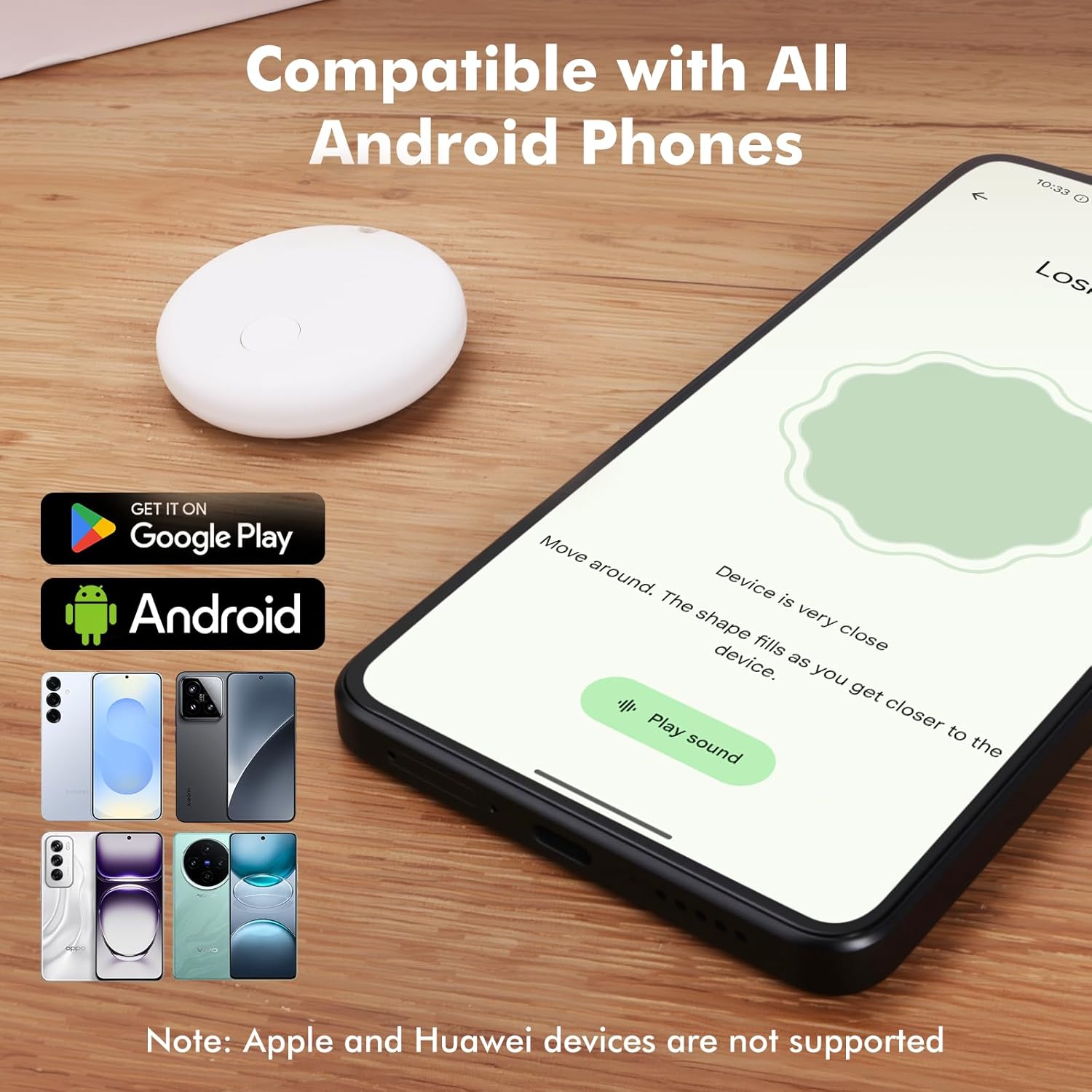
Image 4.3: The app interface showing compatibility with Android phones and the customization screen.
Once paired, attach the tracker tag to the item you wish to monitor, such as keys, wallets, bags, or pet collars.
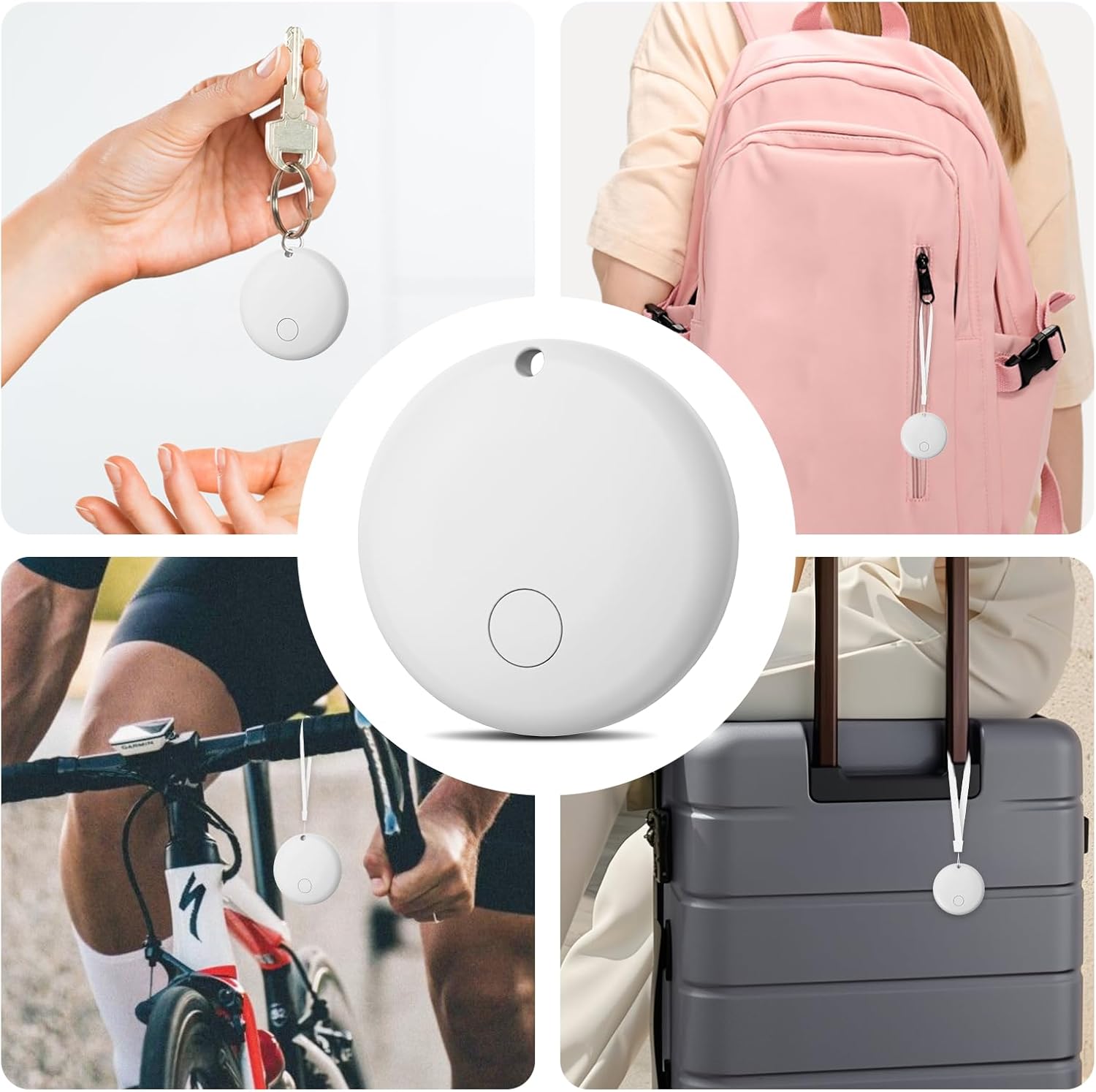
Image 4.4: Examples of how to attach the tracker tags to various personal items.
5. Operating Instructions

Image 5.0: Real-time tracking on your phone provides an overview of all your tracked items.
5.1. Finding Items Nearby (Bluetooth)
When your item is within Bluetooth range (up to 60m/200ft), you can trigger a loud alarm on the tracker tag to pinpoint its exact location. This is ideal for finding items hidden under furniture or in cluttered spaces.
- Open the Google Find Device App on your Android phone.
- Select the specific tracker tag you wish to locate from your list of devices.
- Tap the "Play sound" button. The tracker will emit a piercing beep (100dB+) until you tap "Stop sound" or the item is found.

Image 5.1: Using the app to make the tracker ring loudly for nearby item retrieval.

Image 5.2: The Pinpoint Finding feature ensures you hear the tracker's alarm clearly.
5.2. Finding Items Far Away (Google Find Hub Network)
For items outside Bluetooth range, the Google Find Hub network provides real-time location updates. This cloud-based system leverages other Android devices to anonymously relay the location of your lost tag, allowing you to see its last known position on a map and get directions.
- Ensure your phone's location services are enabled.
- Open the Google Find Device App.
- Select the lost tracker tag. The app will display its last known location on a map.
- Tap "Get directions" to navigate to the item's location using Google Maps.

Image 5.3: Utilizing map directions within the app to locate items far away.

Image 5.4: Guided tracking provides precise directions to your lost items.

Image 5.5: The global reach of the Google Find Hub network for tracking your items.
5.3. Sharing Item Locations
You can share access to your tracker tags with trusted family members or friends, allowing multiple users to locate shared items. This feature enhances convenience for household items or shared vehicles.
- In the Google Find Device App, select the tracker you wish to share.
- Look for a "Share device" or "Add person" option.
- Follow the prompts to invite others via their Google account.
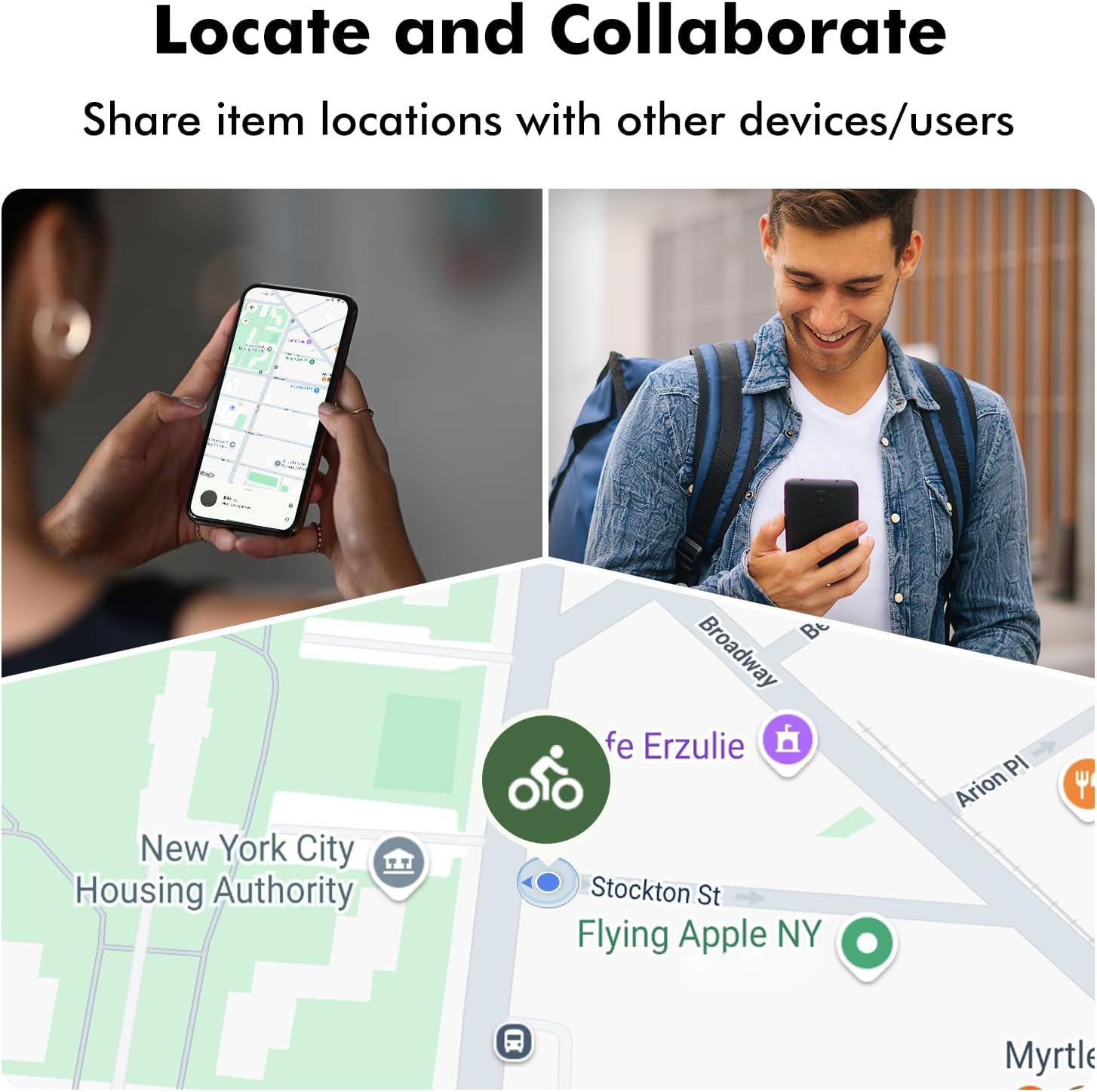
Image 5.6: The ability to share item locations with other users for collaborative tracking.

Image 5.7: Team up to track allows sharing access for stress-free finding.
5.4. Privacy Features
The Beyamis Android Tracker Tags prioritize your privacy. All location data is encrypted, ensuring that only you can access your item's history through the secure Google ecosystem. There are no shared logs or third-party visibility of your tracking data.
6. Maintenance: Battery Replacement
Your Beyamis Android Tracker Tag uses a replaceable CR2032 coin cell battery, designed to last up to 2 years. When the battery is low, the app will notify you. Replacing the battery is a simple process:
- Locate the small notch or seam on the side of the tracker tag.
- Carefully use a small, flat tool (like a coin or a small screwdriver) to gently pry open the two halves of the tracker.
- Remove the old CR2032 battery.
- Insert a new CR2032 battery with the positive (+) side facing upwards.
- Align the two halves of the tracker and press them firmly together until they click securely into place.

Image 6.1: Illustration of the replaceable battery design and how to access the battery compartment.
Note: Dispose of used batteries responsibly according to local regulations.
7. Troubleshooting
If you encounter issues with your Beyamis Android Tracker Tags, please refer to the following common problems and solutions:
- Tracker not pairing with the app:
- Ensure your Android phone meets the minimum requirements (Android 9+ with Google Play Services).
- Verify Bluetooth is enabled on your phone.
- Make sure the tracker tag has a fresh battery.
- Try restarting your phone and the tracker (by removing and reinserting the battery).
- Ensure you are within close proximity to the tracker during pairing.
- Tracker alarm is too quiet or not sounding:
- Check the battery level of the tracker in the app. A low battery can affect alarm volume.
- Ensure there are no obstructions directly covering the tracker's speaker.
- Confirm your phone's volume is up and not muted.
- Location updates are inconsistent or inaccurate:
- Ensure your phone's location services are enabled and the Google Find Device app has location permissions.
- For far-away tracking, the accuracy depends on the Google Find Hub network. In areas with fewer Android devices, updates might be less frequent.
- If tracking via Bluetooth, ensure you are within the 60m/200ft range.
- App crashes or freezes:
- Clear the app's cache and data in your phone's settings.
- Ensure the Google Find Device app is updated to the latest version.
- Restart your phone.
If these steps do not resolve your issue, please contact Beyamis customer support for further assistance.
8. Safety Information
- Battery Safety: Keep CR2032 batteries out of reach of children and pets. Swallowing a button cell battery can be fatal. Seek immediate medical attention if ingested.
- Water Resistance: The tracker is IP67 waterproof, meaning it can withstand immersion in up to 1 meter of water for 30 minutes. However, it is not designed for prolonged submersion or high-pressure water jets. Ensure the battery compartment is securely closed after replacement to maintain water resistance.
- Operating Temperature: Avoid exposing the device to extreme temperatures (hot or cold) as this can affect battery life and performance.
- Disposal: Do not dispose of the device or batteries in household waste. Follow local regulations for electronic waste and battery recycling.
9. Warranty and Support
Beyamis provides a limited warranty for its products. For specific warranty terms and conditions, please refer to the documentation included with your purchase or visit the official Beyamis website. For technical support, troubleshooting assistance beyond this manual, or warranty claims, please contact Beyamis customer support:
- Manufacturer: Beyamis
- Website: Visit the Beyamis Store on Amazon (for general product information)
- Contact: Please refer to the Beyamis official website or product packaging for direct customer service contact information.
Ask a question about this manual
Ask about setup, troubleshooting, compatibility, parts, safety, or missing instructions. Manuals+ will review the question and use this page’s manual context to help answer it.