
1. Introduction
This manual provides detailed instructions for the installation, operation, and maintenance of your UNITOPSCI 9.66 Inch 3 Channel WiFi Mirror Dash Cam. This device is designed to enhance driving safety and provide comprehensive recording capabilities with its front, in-cabin, and rear cameras. Please read this manual thoroughly before using the product to ensure proper functionality and to avoid damage.

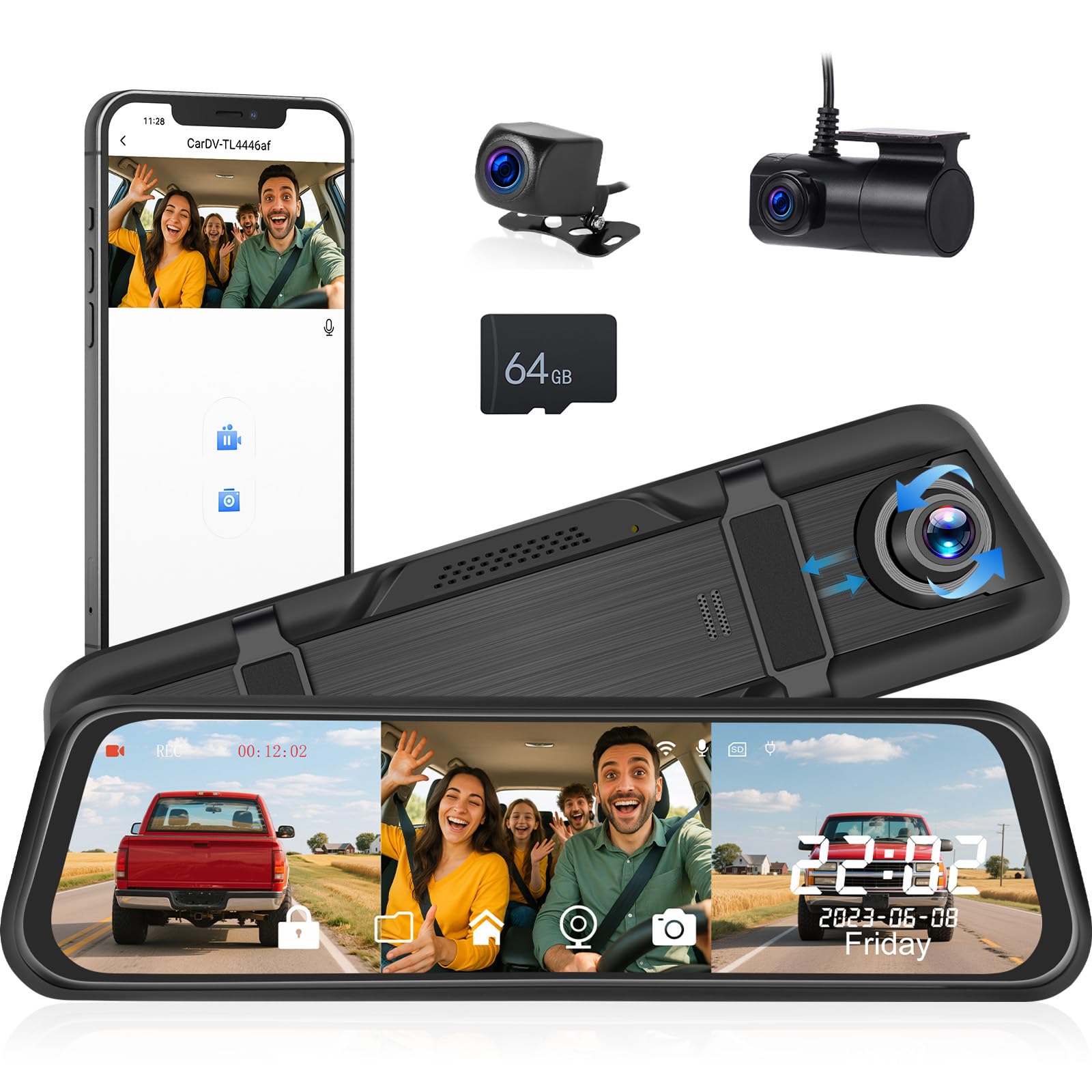
Overview of the UNITOPSCI 9.66 Inch 3 Channel Mirror Dash Cam with its main features.
2. Package Contents
Verify that all items listed below are included in your package. If any items are missing or damaged, please contact customer support.
- DVR (Mirror Dash Cam) x 1
- Power cable x 1
- Rear view camera x 2 (Note: The product description mentions 3 channels, but the 'Whats in the box' lists 2 rear view cameras. This implies one is for the rear exterior and one for the interior/cabin, or there's a discrepancy. For clarity, we list as provided.)
- Extended line x 1
- User manual x 1
- Bandage x 1
- 64GB TF Card x 1 (Included as per feature bullets)

Visual representation of the package contents and main unit dimensions.
3. Product Overview
3.1 Main Unit Components
- 9.66" IPS Touch Screen: Capacitive display for intuitive control and clear viewing.
- Front Camera: Records the road ahead at 1440P resolution.
- In-Cabin Camera: Records the vehicle interior at 720P resolution.
- Rear Camera: Records the view behind the vehicle at 720P resolution.
- USB Port: For power and data transfer.
- AV-IN Port: For connecting external cameras.
- TF Card Slot: Supports up to 64GB TF card for storage.
- Reset Button: To restore factory settings.
- Speakers: For audio output.
- Brackets: For mounting the mirror dash cam.
Front view of the mirror dash cam.
4. Key Features
4.1 Triple Channel Recording
The dash cam records simultaneously from three perspectives: front (1440P), in-cabin (720P), and rear (720P). This provides comprehensive coverage for incidents and situational awareness.

Illustration of the triple channel recording and wide viewing angles.
4.2 9.66" IPS HD Touch Screen
The large capacitive IPS touch screen offers vibrant colors and details. It allows easy switching between camera views (front, rear, inside) or displaying them simultaneously.

Triple display switching and in-cabin camera functions.
4.3 Super Night Vision
Equipped with an upgraded sensor and WDR & HDR technology, the dash cam captures clear videos with enhanced details in low light conditions, making license plates and road signs visible.

Night vision capabilities in various low-light scenarios.
4.4 Built-in WiFi & App Control
Connect the dash cam to your smartphone via Wi-Fi using the "Viidure" app (available for iOS and Android). This allows you to view, playback, and manage recordings directly from your device.

Steps for WiFi connection and app control.
4.5 Loop Recording & G-Sensor
Loop Recording: Automatically overwrites the oldest unlocked footage when the 64GB TF card is full, ensuring continuous recording.
G-Sensor: Detects sudden impacts or collisions and automatically locks the current video file to prevent it from being overwritten, preserving critical evidence.

Explanation of G-Sensor, Parking Monitor, and Loop Recording.
4.6 24-Hour Parking Monitor
With a dedicated hardwire kit (sold separately), the dash cam can continue recording in time-lapse mode after the car is turned off, providing continuous surveillance against theft or vandalism.

Visual of the 24-hour parking monitoring feature.
4.7 Reversing View Function
When reversing, the mirror dash cam automatically displays the backup camera image in full screen with adjustable parking assist lines. You can manually adjust the display range up or down for optimal viewing.

Automatic display of parking lines when reversing.
5. Installation Guide
Follow these steps to properly install your dash cam system.
5.1 Mounting the Mirror Dash Cam
- Secure the mirror dash cam over your existing rearview mirror using the provided bandages/straps. Ensure it is firmly attached and does not obstruct your view.
- Adjust the front camera lens to capture the desired view of the road ahead.
5.2 Connecting the Power Cable
- Plug the power cable into the dash cam's USB port.
- Route the power cable along the edge of the windshield and down to your vehicle's 12V power outlet (cigarette lighter socket).
- Plug the power adapter into the 12V power outlet.
5.3 Installing the Rear Camera
- Mount the rear camera at the back of your vehicle, typically above the license plate or on the rear window. Ensure it has a clear view.
- Connect the rear camera cable to the AV-IN port on the main dash cam unit.
- Route the rear camera cable neatly through the vehicle's interior, tucking it under trim panels to conceal it.
- Connect the red wire of the rear camera cable to your vehicle's reverse light power wire. This enables the automatic display of the reversing view when shifting into reverse.
5.4 Installing the In-Cabin Camera
The in-cabin camera is integrated into the main unit, requiring no separate installation.

Cable routing and installation diagram.
6. Operating Instructions
6.1 Powering On/Off
- The dash cam will automatically power on and begin recording when your vehicle's ignition is turned on.
- It will automatically power off when the ignition is turned off.
- To manually power on/off, press and hold the power button (if available, otherwise rely on ignition).
6.2 Screen Navigation
Use the touch screen to navigate menus and settings. Swipe left/right to switch between camera views or display modes.
6.3 Adjusting Settings
Access the settings menu by tapping the gear icon on the screen. Here you can adjust:
- Video Resolution: Set recording quality for each camera.
- Loop Recording Duration: Set segment length (e.g., 1, 3, 5 minutes).
- G-Sensor Sensitivity: Adjust the sensitivity for impact detection.
- Parking Monitor: Enable/disable and configure settings (requires hardwire kit).
- Exposure Compensation: Adjust brightness levels for optimal recording in varying light conditions.
- Date/Time: Set the correct date and time.
- Wi-Fi: Enable/disable Wi-Fi and view network details.

Adjustable screen settings for lens, field of view, and brightness.

Adjusting exposure compensation for night vision.
7. App Control (Viidure App)
The "Viidure" app allows for convenient control and management of your dash cam via Wi-Fi.
7.1 Downloading the App
Search for "Viidure" in your smartphone's app store (Google Play Store for Android, Apple App Store for iOS) and download it.
7.2 Connecting to Wi-Fi
- On the dash cam, enable Wi-Fi from the settings menu.
- On your smartphone, go to Wi-Fi settings and connect to the dash cam's Wi-Fi network (SSID and password will be displayed on the dash cam screen).
- Open the "Viidure" app. It should automatically detect and connect to the dash cam.
7.3 App Functions
- Live View: Stream real-time footage from the cameras to your phone.
- Playback: Review recorded videos stored on the TF card.
- Download: Save video clips directly to your smartphone.
- Settings: Adjust dash cam settings remotely.

Detailed steps for WiFi connection and app control.
8. Troubleshooting
If you encounter issues with your dash cam, refer to the following common problems and solutions:
| Problem | Possible Cause | Solution |
|---|---|---|
| Dash cam does not power on. | No power supply; faulty power cable/adapter; loose connection. | Check power cable connection to dash cam and 12V outlet. Ensure vehicle's 12V outlet is functional. Try a different power source if available. |
| Recording stops or freezes. | TF card full; faulty TF card; low power. | Ensure loop recording is enabled. Format the TF card regularly. Replace the TF card if it's old or damaged. Ensure stable power supply. |
| Poor video quality. | Dirty lens; incorrect resolution settings; extreme lighting conditions. | Clean camera lenses with a soft cloth. Check video resolution settings. Adjust exposure compensation in settings. |
| Wi-Fi connection issues. | Incorrect Wi-Fi password; app not updated; interference. | Verify Wi-Fi password. Ensure the "Viidure" app is up to date. Try restarting both the dash cam and your smartphone. |
| Rear camera not displaying. | Loose cable connection; faulty camera. | Check the connection of the rear camera cable to the main unit. Ensure the cable is not damaged. |
| Parking monitor not working. | Hardwire kit not installed; feature disabled in settings. | Install a dedicated hardwire kit for 24-hour parking monitoring. Enable the feature in the dash cam settings. |
9. Specifications
| Feature | Detail |
|---|---|
| Product Dimensions | 1 x 10.1 x 2.8 inches |
| Item Weight | 1.82 pounds |
| Display | 9.66 inch IPS Touch Screen |
| Front Camera Resolution | 1440P (1920*1080P@25FPS as per feature bullets, 1440P as per other details. Refer to device for exact resolution.) |
| In-Cabin Camera Resolution | 720P (1080*720P@30FPS as per feature bullets) |
| Rear Camera Resolution | 720P (1080*720P@30FPS as per feature bullets) |
| Field of View | Front: 170 degrees, In-Cabin: 120 degrees, Rear: 150 degrees (approximate, based on product images) |
| Storage | Supports TF Card (64GB included) |
| Connectivity | Wireless (Wi-Fi) |
| Special Features | IPS Touch screen, G-Sensor, Loop Recording, Night Vision, Parking Monitor, App Control |
| Mounting Type | Rearview Mirror Mount |
| Vehicle Service Type | Car, Truck |
10. Warranty and Support
UNITOPSCI provides customer support and warranty services for its products.
- Replacement: Available within 24 months.
- Technical Support: Lifetime after-sales consultation and technical support.
- Returns: 60-day no-worry return policy.
- Response Time: Quick response within 16 hours for inquiries.
For support, please contact UNITOPSCI via email at UNITOPSCI@126.com.
