
1. Introduction
This manual provides comprehensive instructions for the WiMiUS K13 4K Google TV Projector. Designed for a superior visual experience, this projector integrates advanced features for both entertainment and professional use. Key functionalities include native 1080p resolution with 4K support, 1500 ANSI lumens brightness, automatic focus and keystone correction, and an integrated Google TV system for seamless access to a wide range of applications.
Please read this manual thoroughly before operating the device to ensure proper usage and to maximize its performance and longevity.
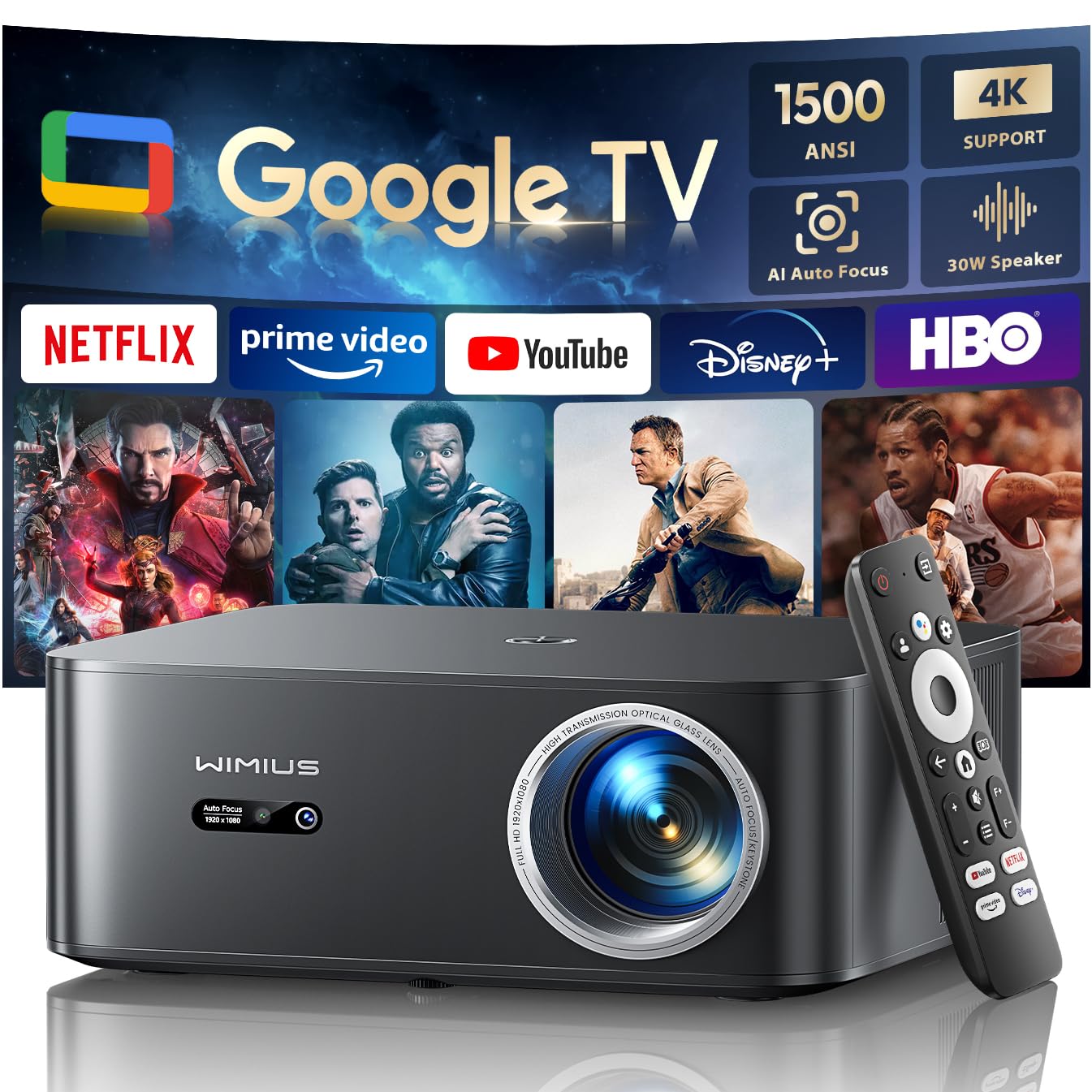
Figure 1: WiMiUS K13 4K Google TV Projector
2. Setup Guide
2.1 Unpacking and Package Contents
Carefully remove all components from the packaging. Verify that all items are present:
- WiMiUS K13 Projector
- Remote Control (AAA batteries not included)
- Power Cable
- HDMI Cable
- User Manual
2.2 Placement
Position the projector on a stable, flat surface. For optimal image quality, ensure the projector lens is perpendicular to the projection surface. Recommended projection distance is 2.5 to 3 meters for a large screen size.
- Tabletop Mounting: Place the projector on a table or stand.
- Ceiling/Wall Mounting: The projector features M5 screw holes for compatible ceiling or wall mounts. Ensure the mount is securely installed and can support the projector's weight.
- Tripod Mounting: The K13 projector does not have dedicated tripod mounting holes. Use a tripod equipped with a tray to support the projector.
2.3 Power Connection
Connect the power cable to the projector's power input port, then plug the other end into a power outlet. The power indicator light will illuminate.
2.4 Initial Power-On and Basic Setup
Press the power button on the projector or remote control to turn on the device. Upon first use, follow the on-screen prompts to:
- Select your preferred language.
- Connect to a Wi-Fi network (2.4G or 5G) for internet access.
- Log in with your Google account to access Google TV features and applications.
2.5 Automatic Focus and Keystone Correction
The WiMiUS K13 projector is equipped with automatic focus and keystone correction. After powering on or moving the projector, it will automatically adjust the image to achieve a clear, rectangular display. Manual adjustments are also available in the settings menu if needed.
3. Operating Instructions
3.1 Remote Control and Google Voice Assistant
Use the provided remote control to navigate the Google TV interface. The remote includes dedicated buttons for popular streaming services like Netflix, Prime Video, YouTube, and Disney+. Utilize the integrated Google Voice Assistant by pressing the microphone button on the remote and speaking commands to search for content, adjust volume, or launch applications.
3.2 Google TV and Application Usage
The projector runs on an officially certified Android 11.0 Google TV system, providing access to over 10,000 applications from the Google Play Store. Navigate through the home screen to find installed apps or download new ones. Ensure a stable internet connection for optimal streaming performance.
3.3 Screen Mirroring
The projector supports wireless screen mirroring from various devices:
- AirPlay (iOS devices): Connect your iOS device and the projector to the same Wi-Fi network. Select the AirPlay option on your iOS device and choose the projector from the list of available devices.
- Miracast (Android/Windows devices): Enable Miracast or Screen Mirroring on your Android or Windows device. Select the projector from the detected devices.
3.4 Connecting External Devices
The WiMiUS K13 offers multiple connectivity options:
- HDMI Ports: Connect gaming consoles, laptops, Blu-ray players, or other HDMI-enabled devices. Select the corresponding HDMI input from the projector's source menu.
- USB Ports: Insert USB drives to play media files (videos, photos, documents like PPT, Excel, Word).
- 3.5mm Audio Output: Connect external headphones or speakers via the audio jack.
3.5 Audio Output
The projector features integrated 20W speakers for clear audio. For enhanced sound, you can connect external audio systems:
- Bluetooth 5.2: Pair with Bluetooth speakers or headphones for wireless audio.
- HDMI ARC: Connect to a soundbar or AV receiver that supports HDMI ARC for simplified audio setup and control.
3.6 Zoom Function
Adjust the screen size from 50% to 100% using the digital zoom function in the settings menu. This allows you to resize the image without physically moving the projector.

Figure 2: Outdoor movie experience with the WiMiUS K13 Projector

Figure 3: Outdoor sports viewing with the WiMiUS K13 Projector
4. Maintenance
4.1 Lens Cleaning
Gently clean the projector lens with a soft, lint-free cloth or a lens cleaning brush. Avoid using abrasive materials or harsh chemicals, which can damage the lens coating.
4.2 Ventilation Care
Ensure the projector's ventilation openings are clear and unobstructed to prevent overheating. Regularly check for dust accumulation and clean as necessary using a soft brush or compressed air.
4.3 Storage
When not in use for extended periods, store the projector in a cool, dry, and dust-free environment. Use the original packaging or a protective case to prevent damage.
5. Troubleshooting
If you encounter issues with your WiMiUS K13 projector, refer to the following common problems and solutions:
| Problem | Possible Cause | Solution |
|---|---|---|
| No image displayed | Power cable disconnected, incorrect input source, device not powered on. | Check power connection, ensure projector is on, select correct HDMI/USB input. |
| Image is blurry | Out of focus, lens dirty, projector moved. | Allow auto-focus to adjust, clean the lens, manually adjust focus if needed. |
| Image is distorted (trapezoid shape) | Projector not perpendicular to screen. | Allow auto-keystone correction to adjust, manually adjust keystone in settings. |
| No sound | Volume too low, incorrect audio output selected, external device audio issue. | Increase volume, check audio output settings (internal, Bluetooth, HDMI ARC), verify external device audio. |
| Cannot connect to Wi-Fi/Bluetooth | Incorrect password, out of range, network issue. | Verify password, move closer to router/device, restart projector and router/device. |
| Remote control not responding | Low batteries, obstruction, remote not paired. | Replace batteries, remove obstructions, re-pair remote if necessary. |
6. Specifications
Detailed technical specifications for the WiMiUS K13 Projector:
| Feature | Detail |
|---|---|
| Brand | WiMiUS |
| Item Model Number | K13 |
| Color | Black |
| Product Type | Portable Projector |
| Display Resolution | 1920 x 1080 (Native Full HD) |
| Maximum Display Resolution | 4096 x 2160 Pixels (4K Support) |
| Display Type | LCD |
| Brightness | 1500 ANSI Lumens |
| Connectivity Technology | HDMI, USB, 3.5mm Audio, Wi-Fi (6), Bluetooth (5.2) |
| Special Features | Digital Keystone Correction, Built-in Speaker, Auto Focus, Built-in Wi-Fi, Google TV |
| Compatible Devices | Tablet, Laptop, Game Console, Speaker, Smartphone, Television |
| Recommended Product Uses | Home Cinema, Video Games, Professional, Education |
| Product Dimensions | 28L x 24.2W x 10.8H centimeters |
| Form Factor | Portable |
| Mounting Type | Table Mount (M5 screw holes for ceiling/wall mount) |
7. Warranty and Support
WiMiUS is committed to providing excellent customer service and support for your K13 projector:
- Customer Service: 24/7 support is available for any inquiries or assistance you may need.
- Refund Policy: Enjoy a 1-year refund policy from the date of purchase.
- Repair Coverage: The projector is covered by a 3-year repair warranty.
- Technical Support: Lifetime technical support is provided for your product.
For any questions or support requests regarding your WiMiUS K13 projector, please contact our customer service team via email. We are dedicated to providing a prompt and satisfactory solution.


