
1. Introduction
This manual provides detailed instructions for the setup, operation, and maintenance of your Akko Marmot Tri-Mode Wireless Mouse. This optical mouse offers versatile connectivity options, including 2.4GHz wireless and Bluetooth 3.0/5.0, making it compatible with a wide range of devices such as PCs, laptops, MacBooks, and iPads. Its ergonomic design and adjustable DPI settings ensure a comfortable and responsive user experience.

Image 1.1: Front view of the Akko Marmot Wireless Mouse. This image displays the mouse's unique marmot-inspired design, featuring a light brown body, darker brown accents for ears and nose, and a small white tooth detail.
2. Package Contents
- Akko Marmot Tri-Mode Wireless Mouse
- USB 2.4G Receiver (stored inside the mouse)
- AA Battery (may be pre-installed or included separately)
- Storage Pouch
3. Setup Instructions
3.1. Battery Installation
- Locate the battery compartment on the underside of the mouse.
- Open the battery compartment cover.
- If a battery is present and shrink-wrapped, remove the wrapping before insertion.
- Insert one AA battery, ensuring correct polarity (+/-).
- Close the battery compartment cover securely.
3.2. Connecting the Mouse
The Akko Marmot mouse supports three connection modes: 2.4GHz wireless, Bluetooth 3.0, and Bluetooth 5.0. Use the mode switch on the underside of the mouse to select your preferred connection type.

Image 3.1: Diagram illustrating the tri-mode connection capabilities of the Akko Marmot mouse, showing 2.4G, BT3.0, and BT5.0 options.
3.2.1. 2.4GHz Wireless Connection
- Locate the USB 2.4G receiver, typically stored in a slot within the battery compartment on the underside of the mouse.
- Remove the receiver from its storage slot.
- Insert the USB receiver into an available USB port on your computer or device.
- Turn on the mouse using the power switch on its underside. The mouse should connect automatically.
3.2.2. Bluetooth Connection (BT3.0 / BT5.0)
- Turn on the mouse using the power switch on its underside.
- Switch the mode selector on the underside of the mouse to either BT3.0 or BT5.0.
- On your computer or device, navigate to the Bluetooth settings.
- Search for new Bluetooth devices. The mouse should appear as 'Akko Marmot' or a similar identifier.
- Select the mouse to pair. Follow any on-screen prompts to complete the pairing process.
4. Operating Instructions
4.1. DPI Adjustment
The mouse features adjustable DPI (Dots Per Inch) settings, allowing you to change cursor sensitivity. The default DPI is 1600. You can cycle through three DPI levels: 800, 1600, and 3200.

Image 4.1: Visual representation of the adjustable DPI settings, ranging from 800 DPI to 3200 DPI, with 1600 DPI as the default.
To adjust the DPI, locate the DPI button on the mouse (typically near the scroll wheel or on the underside) and press it to cycle through the available settings.
4.2. Grip Styles
The ergonomic design of the Akko Marmot mouse accommodates various grip styles for user comfort.

Image 4.2: Illustrations demonstrating common mouse grip styles: Palm Grip, Fingertip Grip, and Claw Grip.
5. Maintenance
5.1. Cleaning
- Use a soft, dry cloth to wipe the exterior of the mouse.
- For stubborn dirt, slightly dampen the cloth with water or a mild, non-abrasive cleaner.
- Avoid using harsh chemicals or abrasive materials that could damage the mouse surface.
5.2. Battery Replacement
When the mouse performance degrades or it stops responding, it may be time to replace the AA battery. Follow the battery installation steps in Section 3.1.
6. Troubleshooting
- Mouse not responding:
- Ensure the battery is correctly installed and has sufficient charge. Replace if necessary.
- Check that the mouse is powered on using the switch on its underside.
- For 2.4GHz connection, ensure the USB receiver is securely plugged into a working USB port.
- For Bluetooth connection, verify that Bluetooth is enabled on your device and the mouse is correctly paired. Try re-pairing if issues persist. - Intermittent connection:
- Move the mouse closer to the receiver or Bluetooth-enabled device.
- Avoid using the mouse near other wireless devices that may cause interference. - DPI not changing:
- Ensure you are pressing the correct button for DPI adjustment. Refer to the product packaging or manufacturer's website for specific button location if not clearly marked. - Cursor movement is erratic:
- Clean the optical sensor on the underside of the mouse.
- Ensure you are using the mouse on a suitable surface (non-reflective, uniform color).
7. Specifications
| Feature | Detail |
|---|---|
| Brand | Akko |
| Model | Marmot |
| Connectivity Technology | BT3.0/BT5.0/2.4G (Tri-mode) |
| Movement Detection Technology | Optical |
| Adjustable DPI | 800/1600 (Default)/3200 |
| Item Weight | 5.6 ounces |
| Package Dimensions | 6.29 x 4.1 x 2 inches |
| Compatibility | Mac/Win systems (PCs, laptops, MacBooks, iPad) |
| Date First Available | April 16, 2025 |
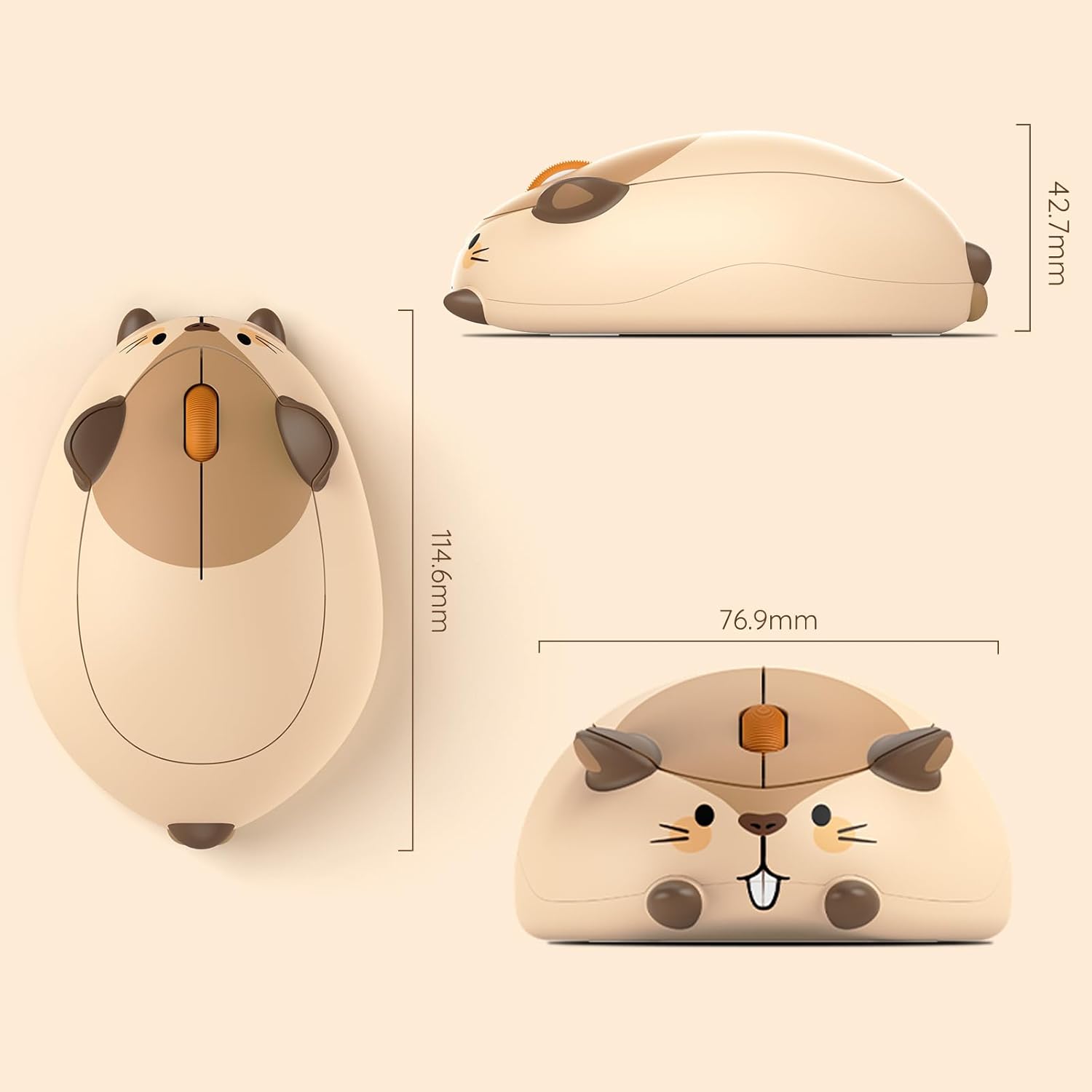
Image 7.1: Dimensional drawing of the Akko Marmot mouse, indicating its length (114.6mm), width (76.9mm), and height (42.7mm).
8. Warranty and Support
For warranty information, technical support, or further assistance, please refer to the official Akko website or contact Akko customer service directly. Keep your purchase receipt as proof of purchase for any warranty claims.


