
SHIWOJIA ST-517C-3M-TY
SHIWOJIA Solar Outdoor WiFi Camera User Manual
Model: ST-517C-3M-TY
1. Introduction
This manual provides comprehensive instructions for the installation, operation, and maintenance of your SHIWOJIA Solar Outdoor WiFi Camera (Model ST-517C-3M-TY). This wireless security camera features 2K resolution, 360° PTZ control, color night vision, two-way audio, and PIR motion detection, all powered by an integrated solar panel and rechargeable batteries. Please read this manual thoroughly before use to ensure proper functionality and safety.

Image 1.1: SHIWOJIA Solar Outdoor WiFi Camera. This image displays the main product, a black outdoor security camera with a solar panel mounted on top and two antennas, designed for wireless operation.
2. Package Contents
Verify that all items listed below are included in your package. If any items are missing or damaged, please contact customer support.
- Camera (x1)
- Solar Panel (x1)
- User Manual (x1)
- Power Cable (x1)
- Tweezers (x1)
- Mounting Screws and Wall Plugs

Image 2.1: Detailed list of products. This image shows the camera, solar panel, user manual, power cable, tweezers, and mounting hardware, illustrating all components included in the product package.
3. Setup and Installation
3.1 Choosing an Installation Location
Select a location that provides a strong Wi-Fi signal for optimal performance. It is recommended to test the Wi-Fi signal strength at the desired installation spot before mounting. Ensure the solar panel receives direct sunlight for several hours daily to maintain battery charge.
3.2 Mounting the Camera
- Mark the drilling points on the wall using the camera bracket as a template.
- Drill holes and insert the wall plugs.
- Secure the camera bracket to the wall using the provided screws.
- Attach the camera and solar panel assembly to the bracket. Adjust the solar panel angle to maximize sun exposure.
3.3 Initial Charging
Before first use, fully charge the camera's internal batteries using the provided power cable. Connect the cable to the camera's charging port and a standard USB power adapter (not included).
3.4 App Download and Pairing
- Download the 'Tuya Smart' or 'Smart Life' app from your mobile device's app store.
- Register for an account or log in if you already have one.
- Follow the in-app instructions to add your camera. This typically involves powering on the camera, resetting it if necessary, and scanning a QR code displayed on your phone with the camera lens.
- Ensure your mobile device is connected to a 2.4GHz Wi-Fi network during the pairing process.
4. Operating Instructions
4.1 Power Management
The camera is powered by rechargeable batteries and continuously charged by the integrated solar panel. Ensure the solar panel is clean and unobstructed for efficient charging.
4.2 PTZ Rotation Control
Utilize the mobile app to remotely control the camera's pan (355°) and tilt (90°) movements, allowing for a wide surveillance area.

Image 4.1: PTZ Rotation Control. This image illustrates a smartphone screen displaying the camera's live feed and directional controls for panning 355 degrees and tilting 90 degrees, demonstrating remote camera movement.
4.3 Night Vision Modes
The camera features 4 built-in white LEDs and 4 infrared (IR) LEDs, providing two night vision modes:
- Color Night Vision: Activates white LEDs for full-color video in low-light conditions.
- IR Night Vision: Uses infrared LEDs for clear black-and-white video in complete darkness.

Image 4.2: Color & IR Night Vision. This image compares two views of a house at night, one showing clear color night vision with activated white lights, and the other showing traditional black and white infrared night vision.
4.4 PIR Motion Detection
The advanced PIR (Passive Infrared) sensor detects human movement, reducing false alarms. When motion is detected, the camera sends notifications to your smartphone and records a short video clip to the inserted Micro SD card or cloud storage. The camera does not support mobile tracking.

Image 4.3: PIR Human Detection. This image depicts a person walking past the camera, triggering an alarm notification on a smartphone, demonstrating the camera's motion detection capabilities.
4.5 Two-Way Audio
The integrated microphone and speaker allow for real-time two-way communication through the app. You can speak to visitors or deter intruders directly from your smartphone.

Image 4.4: Two-way Audio. This image shows a delivery person at a door, with speech bubbles indicating a two-way conversation between the person and the camera user via a smartphone app.
4.6 Storage Methods
The camera supports two methods for storing recorded video and audio:
- Micro SD Card (TF Card): Insert a compatible Micro SD card (not included) into the designated slot for local storage.
- Cloud Storage: Subscribe to the optional cloud storage service via the app for secure online backup of your recordings.

Image 4.5: Multiple Storage Methods. This image displays icons for TF Card and Cloud Storage, alongside a smartphone screen showing recorded video events, illustrating the camera's flexible storage options.
5. Maintenance
5.1 Cleaning the Solar Panel
Regularly clean the surface of the solar panel with a soft, damp cloth to ensure maximum efficiency in charging the camera's batteries. Avoid abrasive cleaners or materials that could scratch the panel.
5.2 Camera Lens Cleaning
Gently wipe the camera lens with a microfiber cloth to remove dust or smudges that may affect image clarity.
5.3 Firmware Updates
Check the app periodically for available firmware updates. Keeping the camera's firmware up-to-date ensures optimal performance, security, and access to new features.
6. Troubleshooting
- Camera not connecting to Wi-Fi: Ensure the camera is within range of your 2.4GHz Wi-Fi router. Tuya cameras require a strong Wi-Fi signal. Try moving the camera closer to the router or installing a Wi-Fi extender.
- Battery not charging: Verify the solar panel is receiving direct sunlight and is free from dirt or obstructions. Ensure the camera was initially charged via the power cable.
- Frequent false alarms: Adjust the PIR motion detection sensitivity settings within the app. Ensure the camera is not pointed at areas with constant movement (e.g., busy roads, swaying branches).
- No night vision: Check if night vision mode is enabled in the app. Ensure the camera lens is clean.
- Two-way audio issues: Check the volume settings on your phone and within the app. Ensure there are no obstructions blocking the camera's microphone or speaker.
- Camera does not support Alexa: This model does not support Amazon Alexa integration.
- Camera does not support mobile tracking: This model does not feature automatic mobile tracking.
7. Specifications
| Feature | Detail |
|---|---|
| Brand | SHIWOJIA |
| Model Number | ST-517C-3M-TY |
| Connectivity Technology | Wi-Fi (2.4GHz) |
| Video Recording Resolution | 2K (1920p) |
| Special Features | Solar Powered, Outdoor Use, Wireless, PTZ (Pan/Tilt/Zoom), Color Night Vision, PIR Motion Detection, Two-Way Audio |
| Usage Environment | Outdoor |
| Waterproof Rating | IP65 |
| Battery Type | Lithium-ion (3 non-standard batteries included) |
| Product Dimensions (L x W x H) | 20 x 18 x 13 cm |
| Product Weight | 1.29 kilograms |
| Recommended Use | Outdoor Security |
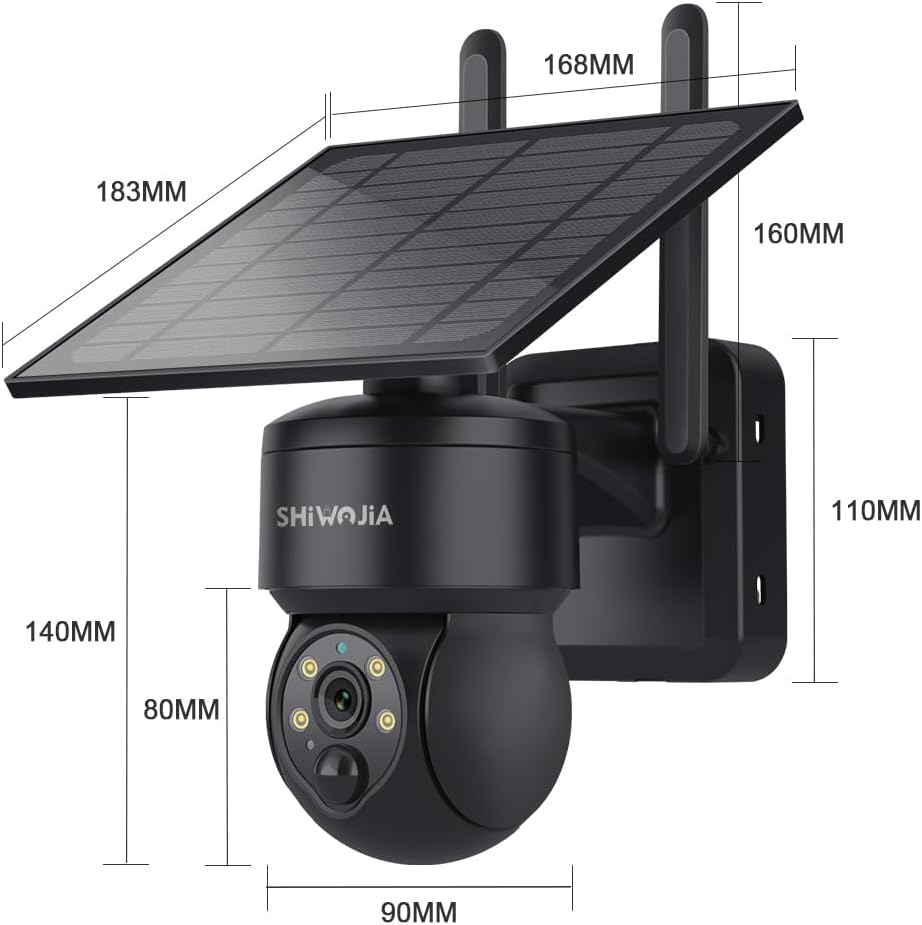
Image 7.1: Product dimensions. This image provides a detailed diagram with measurements in millimeters for the camera and its solar panel, indicating its physical size.
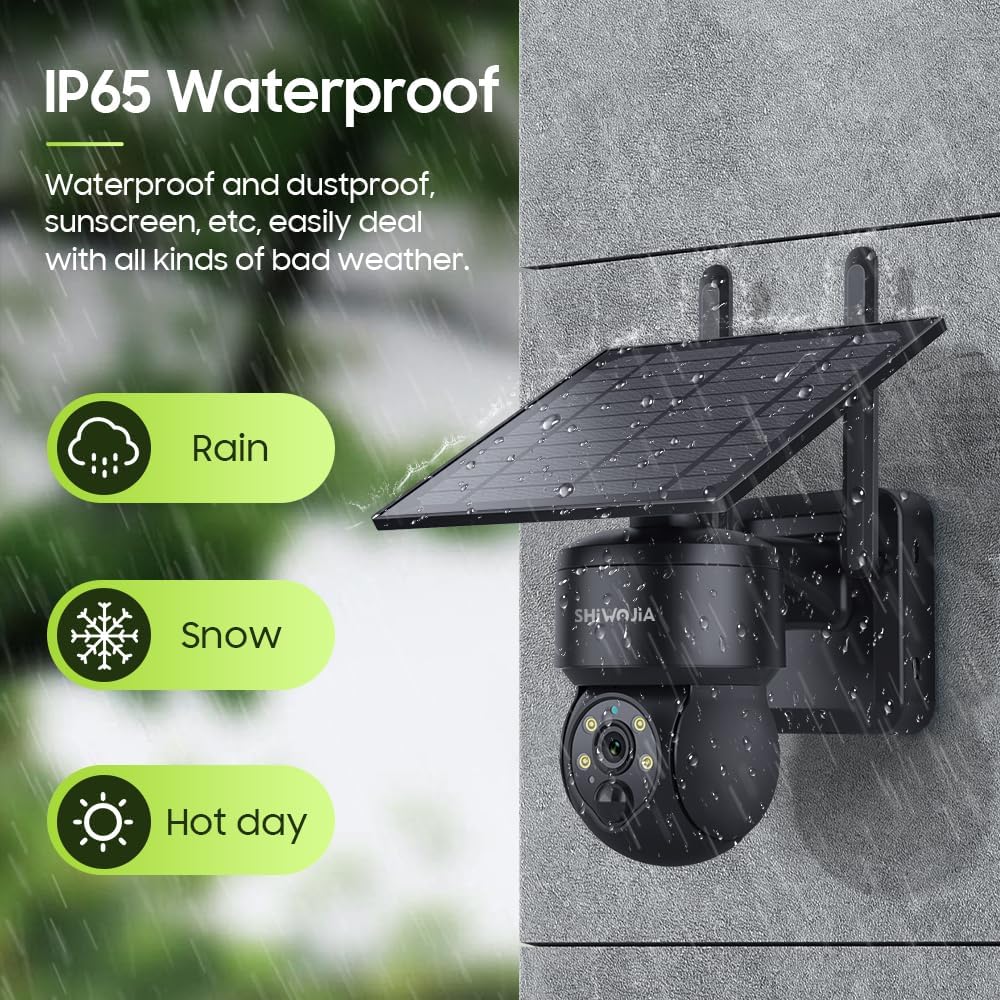
Image 7.2: IP65 Waterproof. This image visually represents the camera's IP65 rating, showing it enduring rain, snow, and hot weather conditions, highlighting its durability for outdoor use.
8. Warranty and Support
Specific warranty details are not provided in the product information. For warranty claims, technical support, or inquiries regarding replacement parts, please contact the seller directly through your purchase platform. Information regarding spare parts availability is currently unavailable.
Ask a question about this manual
Ask about setup, troubleshooting, compatibility, parts, safety, or missing instructions. Manuals+ will review the question and use this page’s manual context to help answer it.