
mucar 892BT+CS4
MUCAR 892BT+CS4 Automotive Diagnostic Tool
User Instruction Manual
Model: 892BT+CS4 | Brand: mucar
1. Introduction
The MUCAR 892BT+CS4 is a professional automotive diagnostic tool designed to provide comprehensive system diagnostics, advanced service functions, and powerful ECU coding capabilities for a wide range of vehicle makes and models. This manual provides detailed instructions on how to set up, operate, and maintain your device to ensure optimal performance and longevity.

Figure 1: MUCAR 892BT+CS4 Device Overview
2. Product Features
The MUCAR 892BT+CS4 offers a robust set of features for professional automotive diagnostics:
- Bi-directional Control: Perform active tests to control vehicle components and systems.
- ECU Coding: Advanced functions for reflash special functions, reflash vehicle control modules, customize OE settings, and match components.
- 34+ Service Functions: Extensive range of reset and maintenance services including Oil Reset, EPB, BMS, SAS, ABS Bleeding, Injector Coding, and more.
- Full System Diagnostics: Access and diagnose all available electronic control modules (ECM, TCM, ABS, SRS, etc.) for over 140 car brands.
- FCA AutoAuth: Supports secure gateway access for FCA vehicles.
- DoIP & CANFD Support: Compatible with newer vehicle communication protocols.
- Wireless Diagnostics: Bluetooth 5.0 connectivity for flexible operation.
- Lifetime Free Updates: Ensures the software remains current with the latest vehicle models and functions.
- AutoScan & AutoVIN: Quickly identify vehicle information for efficient diagnostics.
- Multi-language Support: Operates in 28+ languages.
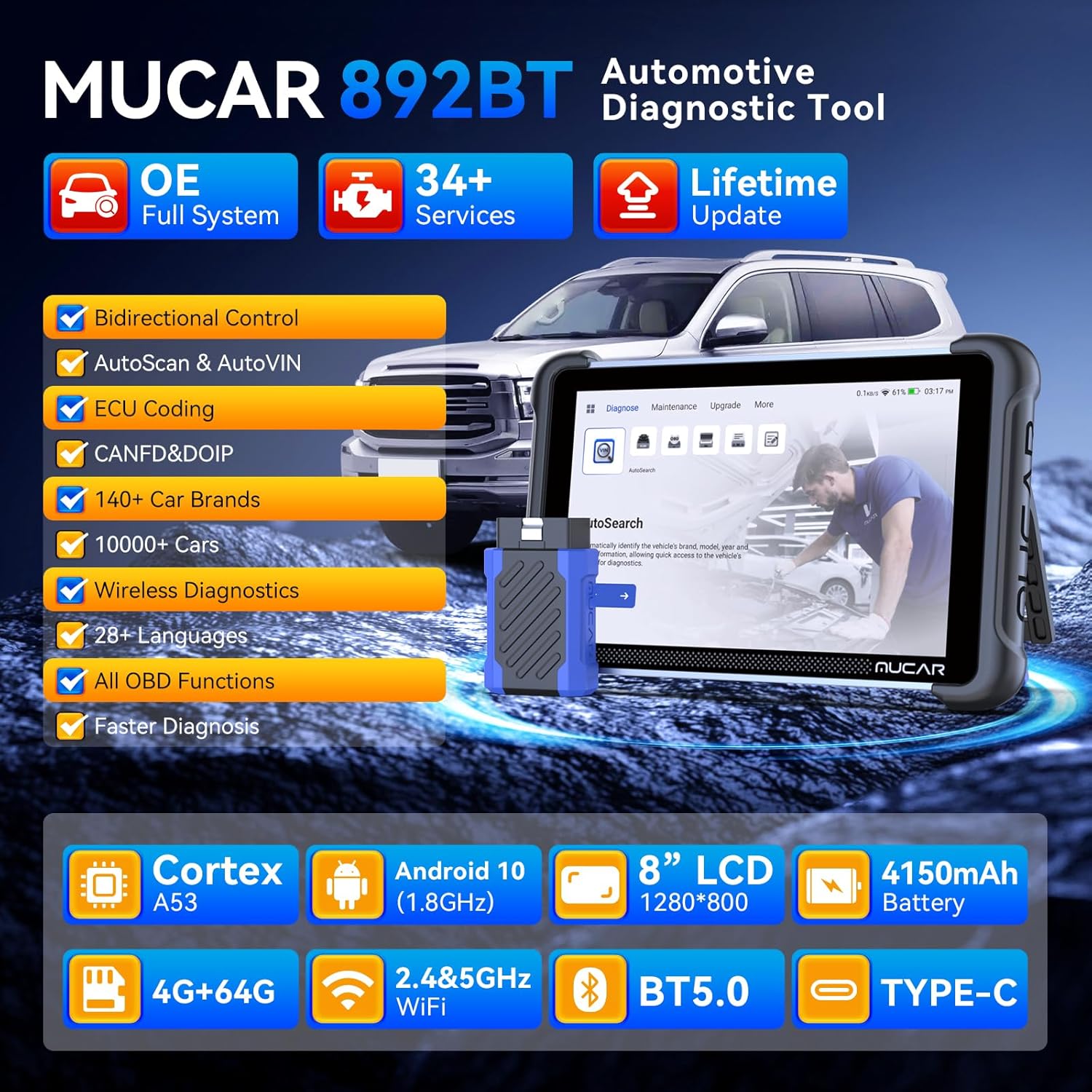
Figure 2: Key Features of MUCAR 892BT+CS4
3. Package Contents
Upon opening the package, verify that all the following items are present:
- MUCAR 892BT+CS4 Diagnostic Tablet
- VCI (Vehicle Communication Interface) Dongle
- OBD-II Diagnostic Cable
- Power Adapter/Charging Cable
- User Manual (this document)
- Carrying Case

Figure 3: MUCAR 892BT+CS4 Packaging
4. Getting Started
4.1 Initial Setup and Charging
- Unpack the device and accessories from the carrying case.
- Connect the power adapter to the diagnostic tablet and plug it into a power outlet. Allow the device to charge fully before first use. The battery indicator on the screen will show charging status.
- Press and hold the power button to turn on the device.
- Follow the on-screen prompts to complete the initial setup, including language selection, Wi-Fi connection, and time zone settings.
4.2 Connecting to a Vehicle
- Locate the vehicle's OBD-II port, typically found under the dashboard on the driver's side.
- Plug the VCI dongle into the vehicle's OBD-II port. Ensure a secure connection.
- Turn the vehicle's ignition to the 'ON' position (engine off).
- On the MUCAR 892BT+CS4 tablet, ensure Bluetooth is enabled and the VCI dongle is paired. The device should automatically detect the VCI.
5. Operation
5.1 Diagnostic Functions
The diagnostic functions allow you to read and clear fault codes, view live data, and retrieve vehicle information.
- All System Diagnostics: Select 'Diagnose' from the main menu. The device will automatically identify the vehicle via AutoVIN or allow manual selection. It will then scan all available systems (Engine, ABS, SRS, Transmission, etc.) for diagnostic trouble codes (DTCs).
- Read Codes: Displays current, pending, and historic DTCs with descriptions.
- Clear Codes: Erases DTCs from the vehicle's control modules. Ensure all issues are resolved before clearing codes.
- Live Data: Displays real-time data streams from various sensors and components. Data can be viewed in text, graph, or gauge format.
- Freeze Frame Data: Captures a snapshot of vehicle conditions at the moment a DTC was set.
- ECU Information: Retrieves detailed information about the vehicle's Electronic Control Units.

Figure 4: All System Diagnostic Interface

Figure 5: Enhanced 4 Systems Diagnosis
5.2 Advanced Functions
These functions provide deeper control and customization capabilities.
- Bi-directional Control (Active Tests): Allows the user to send commands to the vehicle's ECUs to test specific components, such as turning on/off lights, operating windows, or cycling the ABS pump. This helps in pinpointing faulty components.
- ECU Coding: Used to re-flash control modules, customize vehicle settings, and match new components to the vehicle's system. This function requires advanced knowledge and should be performed with caution.

Figure 6: Full Bi-directional Controls

Figure 7: Advanced ECU Coding
5.3 Service Functions (34+)
The MUCAR 892BT+CS4 provides over 34 special reset and maintenance services. Some common services include:
- Oil Reset: Resets the oil life system after an oil change.
- Electronic Parking Brake (EPB) Reset: Deactivates and reactivates the brake control system, assists with brake fluid control, and opens/closes brake pads.
- Battery Management System (BMS) Reset: Registers the new battery to the ECU and clears fault information.
- Steering Angle Sensor (SAS) Calibration: Calibrates the steering angle sensor after replacement or repair.
- ABS Bleeding: Performs various bi-directional tests to check the operating conditions of the Anti-lock Braking System (ABS).
- Injector Coding: Codes new injector numbers to the ECU for accurate communication and control.
- Throttle Position Sensor (ETS) Reset: Initializes the throttle actuators to the default state.
- Gear Learning: Performs crankshaft position sensor adaptive learning.
- TPMS Reset: Resets tire pressure monitoring system.

Figure 8: 34+ Service Functions
6. Software Updates
The MUCAR 892BT+CS4 offers lifetime free software updates to ensure compatibility with the latest vehicle models and diagnostic functions.
- Ensure the device is connected to a stable Wi-Fi network.
- From the main menu, tap on 'Upgrade' or 'Update'.
- The device will check for available updates.
- Select the desired updates and tap 'Download' to begin the process.
- Once downloaded, follow the on-screen instructions to install the updates. Do not power off the device during the update process.
7. Maintenance and Care
- Cleaning: Use a soft, damp cloth to clean the device. Avoid using abrasive cleaners or solvents.
- Storage: Store the device in its carrying case in a dry, cool environment when not in use. Avoid extreme temperatures.
- Battery Care: For optimal battery life, avoid fully discharging the battery frequently. Charge the device regularly, even if not in active use.
- Cable Inspection: Periodically inspect the diagnostic cable and VCI dongle for any signs of damage. Replace if necessary.
8. Troubleshooting
| Problem | Possible Cause | Solution |
|---|---|---|
| Device does not power on. | Low battery; Power button not pressed long enough; Device malfunction. | Charge the device for at least 30 minutes. Press and hold the power button for 3-5 seconds. Contact support if issue persists. |
| Unable to connect to vehicle. | VCI not properly connected; Ignition not ON; Bluetooth issue; Vehicle not OBD-II compliant. | Ensure VCI is securely plugged in. Turn ignition to ON. Check Bluetooth pairing. Verify vehicle is OBD-II compliant (1996 and newer for US). |
| Software update failed. | Unstable Wi-Fi connection; Insufficient storage space. | Ensure strong Wi-Fi signal. Check available storage and clear unnecessary files if needed. Retry update. |
| Diagnostic results are incorrect or incomplete. | Outdated software; Incorrect vehicle selection; Faulty VCI. | Perform a software update. Ensure correct vehicle year, make, and model are selected. Test with another vehicle if possible or contact support. |
9. Technical Specifications
- Processor: Cortex A53
- Operating System: Android 10 (1.8GHz)
- Display: 8-inch LCD (1280x800 resolution)
- Battery: 4150mAh
- Storage: 4GB RAM + 64GB ROM
- Connectivity: 2.4 & 5GHz Wi-Fi, Bluetooth 5.0, Type-C USB
- Vehicle Protocols: OBD-II, EOBD, JOBD, KWP2000, ISO9141, J1850 VPW, J1850 PWM, CAN, DoIP, CANFD
- Operating Temperature: 0°C to 50°C (32°F to 122°F)
- Storage Temperature: -20°C to 70°C (-4°F to 158°F)
10. Warranty and Support
The MUCAR 892BT+CS4 comes with a standard manufacturer's warranty. Please refer to the warranty card included in your package for specific terms and conditions. For technical support, product inquiries, or warranty claims, please contact mucar customer service through their official website or the contact information provided with your purchase.
Related documents892BT+CS4


Ask a question about this manual
Ask about setup, troubleshooting, compatibility, parts, safety, or missing instructions. Manuals+ will review the question and use this page’s manual context to help answer it.