1. Introduction
This manual provides detailed instructions for the IROK MG75PRO 81-key wired magnetic switch mechanical keyboard. Please read this manual thoroughly before using the product to ensure proper setup and operation. This keyboard features advanced magnetic switches, a durable CNC aluminum body, customizable ARGB lighting, and a high polling rate for optimal performance.

Image 1.1: The IROK MG75PRO 81-key mechanical keyboard, showcasing its compact layout and RGB backlighting.
2. Package Contents
Verify that all items are present in the package:
- IROK MG75PRO Mechanical Keyboard
- USB-C Cable
- Keycap Puller
- User Manual (this document)
3. Setup
3.1 Connecting the Keyboard
- Locate the USB-C port on the back of the IROK MG75PRO keyboard.
- Connect one end of the provided USB-C cable to the keyboard.
- Connect the other end of the USB-C cable to an available USB port on your computer (PC or Laptop).
- The keyboard will automatically be recognized by your operating system.
3.2 Driver Installation and Customization Software
The IROK MG75PRO supports a Web Driver and a One-stop HUB Driver for advanced customization. These drivers allow for precise adjustment of magnetic switch actuation points, ARGB lighting effects, and key remapping.
- To access the customization software, visit the official IROK website: www.irok.cc.
- Download and install the appropriate driver for your operating system, or use the web-based driver directly.
- Follow the on-screen instructions to complete the installation.

Image 3.1: The IROK customization driver interface, showing options for magnetic switch settings and lighting.
4. Operating Instructions
4.1 Basic Keyboard Functions
The IROK MG75PRO functions as a standard 81-key keyboard upon connection. All keys perform their labeled functions by default.
4.2 Magnetic Switch Technology (Hall Effect)
The keyboard utilizes Hall Effect magnetic switches, offering adjustable actuation points and rapid trigger functionality. This allows for precise control and faster response times in gaming and typing.
- Adjustable Actuation: Use the customization software to set the actuation point for each key from 0.005mm.
- Rapid Trigger: This feature allows a key to register an input immediately upon movement and reset immediately upon release, without needing to return to the full reset point. This can be configured via the software.
- Polling Rate: The keyboard supports an 8KHz polling rate, ensuring minimal input delay.
- Single-Key Scan Rate: A 256KHz single-key scan rate contributes to the keyboard's responsiveness.

Image 4.1: Visual representation of the keyboard's 0.005mm actuation and 8KHz polling rate capabilities.
4.3 ARGB Lighting Customization
The IROK MG75PRO features customizable ARGB backlighting with an independent IC 500Hz high refresh rate. This allows for a wide range of lighting effects and colors.
- Use the customization software to select from various preset lighting modes.
- Adjust brightness, speed, and color patterns to personalize your keyboard's appearance.
- Individual key lighting can also be configured.
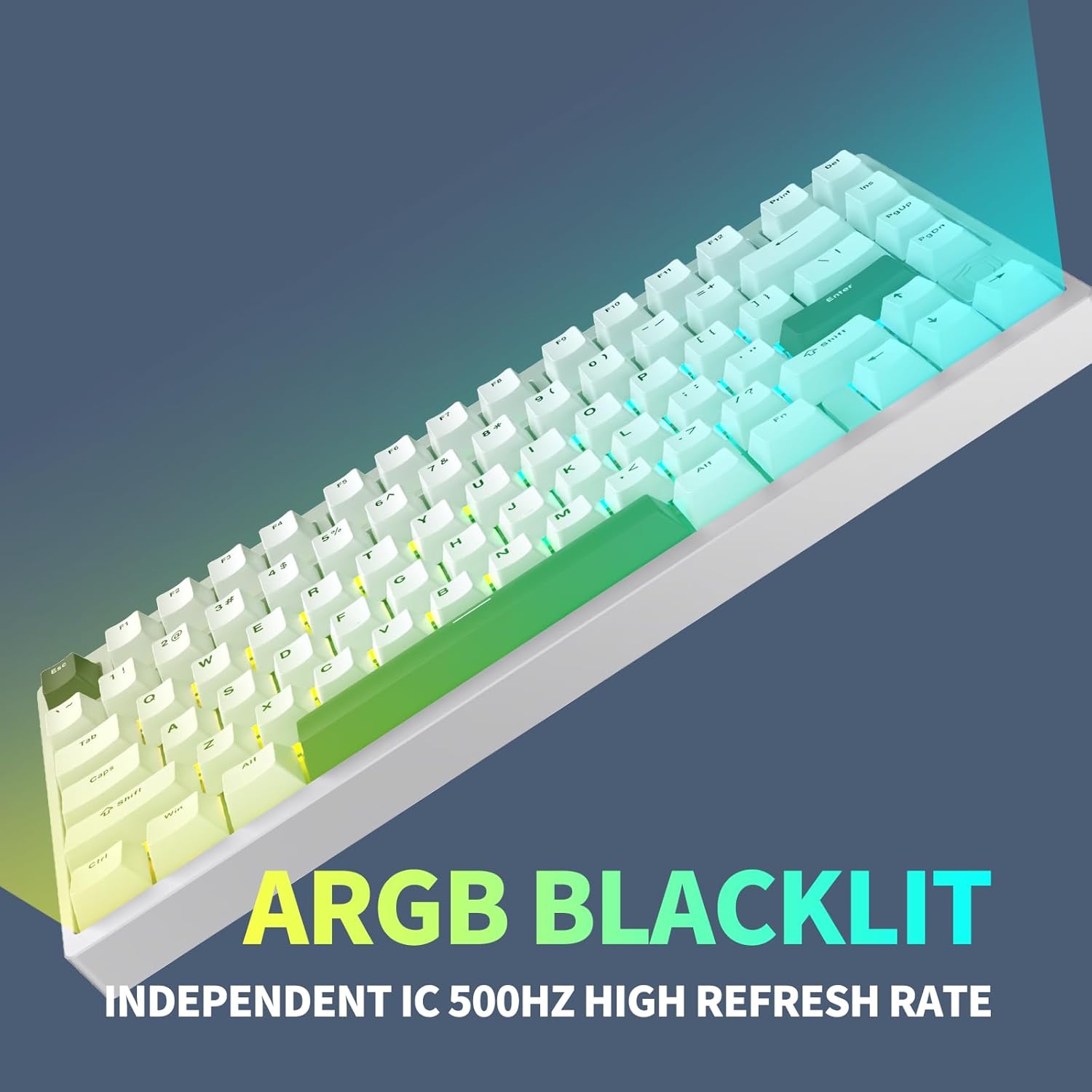
Image 4.2: The keyboard displaying its customizable ARGB backlighting.
4.4 "Mix" Function for Switches and Keycaps
The keyboard's design allows for easy replacement of magnetic switches and keycaps without soldering. This "Mix" function provides flexibility for personalization.
- To replace a switch, gently pull the keycap off using the provided keycap puller.
- Then, carefully pull the magnetic switch upwards to remove it.
- Insert a new compatible magnetic switch, ensuring it is properly aligned, and press down until it clicks into place.
- Replace the keycap.

Image 4.3: Illustration of the "Mix" function, demonstrating the hot-swappable magnetic switches.
5. Maintenance
5.1 Cleaning the Keyboard
Regular cleaning helps maintain the keyboard's performance and appearance.
- Disconnect the keyboard from your computer before cleaning.
- Use the provided keycap puller to remove keycaps for thorough cleaning.
- Wipe the keycaps and keyboard surface with a soft, damp cloth. Avoid excessive moisture.
- Use compressed air to remove dust and debris from between the keys and switches.
- Ensure all components are dry before reattaching keycaps and reconnecting the keyboard.
5.2 Disassembly for Advanced Maintenance
The IROK MG75PRO features a DIY design that allows for complete disassembly in approximately 3 seconds without special tools. This facilitates deeper cleaning or modification.
- Refer to the product's structural diagrams or online resources for detailed disassembly steps.
- Exercise caution when disassembling to avoid damaging internal components.
- Reassemble carefully, ensuring all parts are correctly aligned and secured.

Image 5.1: The IROK MG75PRO keyboard in a disassembled state, illustrating its modular construction.
6. Troubleshooting
If you encounter issues with your IROK MG75PRO keyboard, refer to the following common problems and solutions:
| Problem | Possible Cause | Solution |
|---|---|---|
| Keyboard not responding | Loose USB connection, driver issue, faulty USB port. |
|
| Keys not registering or double-typing | Incorrect actuation point setting, debris under keycap/switch, switch malfunction. |
|
| ARGB lighting not working or incorrect | Software settings, power issue. |
|
7. Specifications
| Feature | Detail |
|---|---|
| Model | MG75PRO |
| Layout | 81 Keys (75% TKL) |
| Switch Type | Magnetic (Hall Effect) |
| Connectivity | Wired USB-C |
| Polling Rate | 8KHz |
| Single-Key Scan Rate | 256KHz |
| Latency | As low as 0.125ms |
| Actuation Point | Adjustable from 0.005mm |
| Body Material | CNC Aluminum Alloy |
| Structure | Gasket Mounted |
| Backlighting | Customizable ARGB (500Hz refresh rate) |
| Dimensions (L x W x H) | 12.7 x 5.75 x 1.7 inches |
| Weight | 3.63 pounds |
| Compatible Devices | Laptop, PC |
8. Warranty and Support
IROK products are designed for durability and performance. For warranty information, technical support, or to download the latest drivers and software, please visit the official IROK website:
Please retain your proof of purchase for warranty claims.
