
Introduction
This manual provides detailed instructions for the IROK MG75PRO 81-key wired magnetic switch mechanical keyboard. It covers essential information regarding product setup, operation, customization, maintenance, and troubleshooting to ensure optimal performance and user experience.
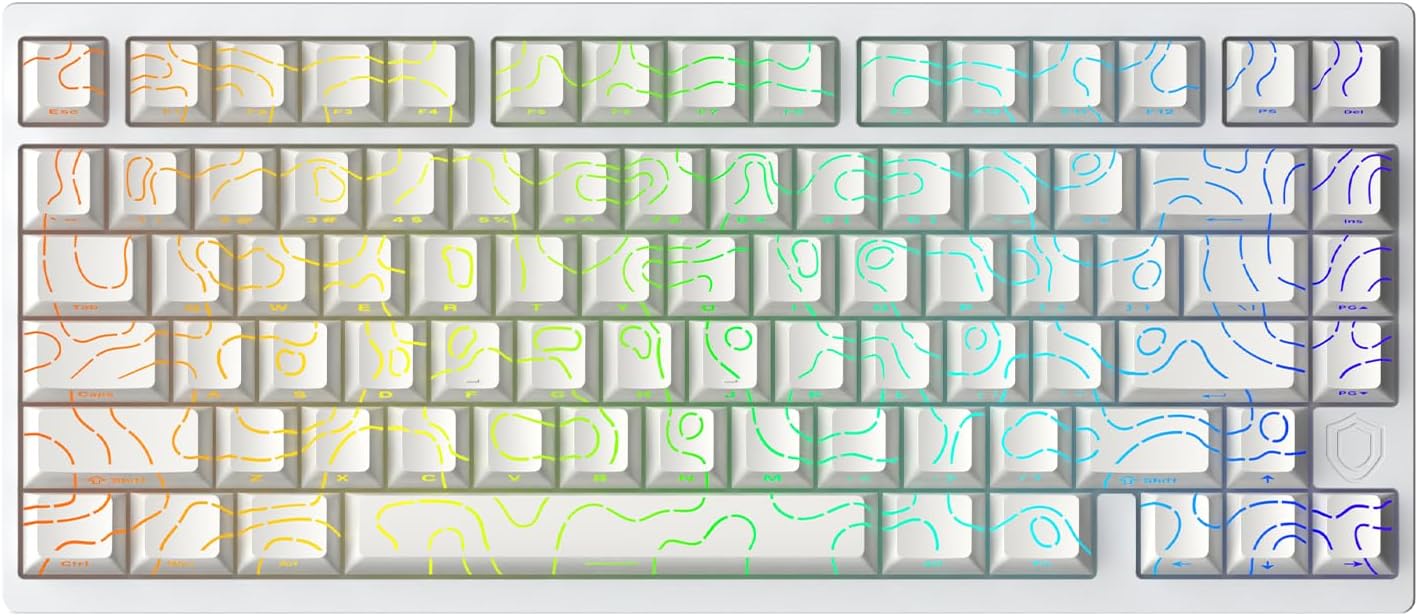
Image: The IROK MG75PRO keyboard, showcasing its 81-key layout and RGB backlighting.
What's in the Box
Upon unboxing your IROK MG75PRO keyboard, please verify that all the following components are included:
- IROK MG75PRO Mechanical Keyboard
- Keycap Puller
- USB Cable
Setup
- Connect the Keyboard: Plug the provided USB cable into the USB-C port on the keyboard and the other end into an available USB 3.0 port on your computer. For optimal performance, a USB 3.0 port is recommended.
- Driver Installation: The keyboard is generally plug-and-play. For advanced customization and features, download the proprietary web driver or one-stop HUB driver from the official IROK website. Refer to the 'Customization and Software' section for more details.
- Initial Test: Open a text editor or a keyboard testing tool to ensure all keys are functioning correctly.
Operating Instructions
The IROK MG75PRO keyboard features advanced magnetic switches and customizable settings for an enhanced typing and gaming experience.
Key Features:
- Magnetic Switches: Equipped with GTURBO magnetic axis algorithm and a high-speed flagship MCU for stable and smooth performance.
- Rapid Trigger & Adjustable Actuation: The magnetic switches allow for adjustable actuation points and rapid trigger functionality, enabling keys to react to minimal movement and reset instantly. This feature can be configured via the software.
- 8KHz Polling Rate: Provides an ultra-fast response time, reducing input latency.
- ARGB Backlighting: Features independent IC 500Hz high refresh rate ARGB lamps for customizable lighting effects.

Image: Visual representation of the keyboard's 0.005mm actuation and 8KHz polling rate capabilities.
Basic Functions:
- Function Keys (Fn): The keyboard includes a dedicated Fn key. Combine it with other keys to access secondary functions, such as media controls, volume adjustment, and lighting effects. Refer to the keycap legends for specific combinations.
- Lighting Control: Adjust ARGB lighting modes, brightness, and speed using Fn key combinations or the dedicated software.

Image: The keyboard showcasing its ARGB lighting with a 500Hz refresh rate for vibrant effects.
Customization and Software
The IROK MG75PRO supports a proprietary web driver and a one-stop HUB driver for comprehensive customization.

Image: A screenshot of the IROK web driver interface, showing options for magnetic switch settings, lighting, and actions.
Software Features:
- Key Remapping: Assign custom functions to individual keys.
- Actuation Point Adjustment: Fine-tune the actuation distance for each magnetic switch (e.g., 0.005mm precision).
- Rapid Trigger Settings: Configure the rapid trigger sensitivity for instant key resets.
- Lighting Customization: Create and apply various ARGB lighting effects, patterns, and colors.
- Macro Recording: Program complex sequences of key presses.
- Profile Management: Save and switch between multiple custom profiles for different applications or games.
To access the software, visit the official IROK website and download the appropriate driver or use the web-based interface. The driver download address is typically provided on the product packaging or the manufacturer's website.
Maintenance
Regular maintenance helps prolong the lifespan and maintain the performance of your keyboard.
Cleaning:
- Keycaps: Use the provided keycap puller to carefully remove keycaps. Clean them with a mild soap solution and a soft cloth, then ensure they are completely dry before reattaching.
- Keyboard Body: Use a soft, lint-free cloth, slightly dampened with water or a mild cleaning solution, to wipe down the aluminum alloy body. Avoid excessive moisture.
- Between Keys: Use compressed air to remove dust and debris from between the switches.
Switch and Keycap Replacement:
The IROK MG75PRO features a 'Mix' function for all magnetic switches, allowing for easy replacement without soldering.

Image: An illustration demonstrating the keyboard's quick disassembly feature, highlighting its modular design.
- Removing Switches: Use a switch puller (not included, but compatible with magnetic switches) to gently remove switches from the PCB.
- Installing Switches: Align the new magnetic switch with the socket on the PCB and press down gently until it clicks into place. Ensure it is seated properly.
- Keycap Replacement: Use the keycap puller to remove existing keycaps. Press new keycaps firmly onto the switch stems.
Troubleshooting
| Problem | Possible Cause | Solution |
|---|---|---|
| Keyboard not responding | Loose USB connection, faulty cable, driver issue, computer port issue. | Check USB cable connection. Try a different USB port (preferably USB 3.0). Restart your computer. Reinstall or update keyboard drivers. |
| Keys not registering or double-typing | Dust/debris under keycap/switch, switch malfunction, incorrect actuation setting. | Remove keycap and clean around the switch. If hot-swappable, try replacing the switch. Adjust actuation point settings in the software. |
| RGB lighting not working | Lighting disabled, software glitch, hardware issue. | Check Fn key combinations for lighting control. Ensure lighting is enabled in the software. Restart the keyboard by unplugging and replugging. |
| Software not detecting keyboard | Incorrect driver, USB connection issue, software conflict. | Ensure you have the correct and latest driver installed. Verify USB connection. Try running the software as administrator. |
Specifications
Detailed technical specifications for the IROK MG75PRO keyboard:
Image: An exploded diagram illustrating the internal components and gasket structure of the IROK MG75PRO keyboard.
| Feature | Detail |
|---|---|
| Model | MG75PRO |
| Layout | 81 Keys (75% TKL) |
| Switch Type | Magnetic Switches (Hall Effect) |
| Polling Rate | 8KHz |
| Actuation Precision | 0.005mm |
| Latency | As low as 0.125ms |
| Body Material | CNC Aluminum Alloy |
| Structure | Gasket Structure |
| Backlighting | ARGB (500Hz refresh rate) |
| Connectivity | Wired (USB-C) |
| Compatible Devices | Laptop, PC |
| Product Dimensions | 12.7 x 5.8 x 1.7 inches |
| Item Weight | 3.63 pounds |
| Manufacturer | IROK |
Warranty and Support
For warranty information and technical support, please refer to the official IROK website or contact their customer service directly. Keep your purchase receipt as proof of purchase for any warranty claims.
Online Resources:
- Visit the IROK Store on Amazon for product updates and related information.
- Check the manufacturer's website for the latest drivers and support documentation.


