
1. Introduction
This manual provides detailed instructions for the installation, operation, and maintenance of your PHEZEN Android 14 Car Stereo Radio. Please read this manual thoroughly before using the product to ensure proper functionality and to prevent damage. Keep this manual for future reference.
2. Product Overview
Key Features:
- Vehicle Compatibility: Designed for Subaru Outback Legacy 2009-2014 models.
- Operating System: Latest Android 14 system with 4GB RAM + 64GB ROM for smooth performance.
- Display: 9-inch 2.5D IPS HD Touch Screen (1024*600 resolution) with high sensitivity and full viewing angle.
- Connectivity: Supports Wireless CarPlay & Android Auto, GPS Navigation (offline/online maps), WiFi, Bluetooth 5.2.
- Multimedia: FM/RDS Radio, support for various audio/video formats (AVI, MP3, WAV, WMA).
- Safety & Convenience: Steering Wheel Control integration, Backup Camera support (waterproof night vision camera included), Split-Screen mode, Hands-free calling, Voice Control.
Package Contents:
Verify that all items are present in the package:
- 1 x Car Stereo Unit
- 1 x Power Cable
- 1 x GPS Antenna
- 2 x USB Cables
- 1 x RCA Cable
- 1 x Backup Camera
- 1 x User Manual (this document)

Figure 2.1: Included components with the PHEZEN Car Stereo.
3. Setup and Installation
Professional installation is recommended. Ensure the vehicle's power is disconnected before beginning installation.
3.1 Vehicle Compatibility Check
Confirm your vehicle is a Subaru Outback or Legacy model manufactured between 2009 and 2014. The stereo is designed to fit the specific dashboard dimensions of these models.
3.2 Wiring Connections
Connect the provided power cable, GPS antenna, USB cables, RCA cables, and backup camera cable to their respective ports on the car stereo unit and the vehicle's wiring harness. Refer to the wiring diagram provided with the power cable for specific connections.

Figure 3.1: Rear wiring connections of the car stereo unit.
3.3 Mounting the Unit
Carefully mount the car stereo into the dashboard opening. Ensure all cables are securely connected and not pinched. Secure the unit using the appropriate mounting brackets.
3.4 Initial Power-On
After installation, reconnect the vehicle's power. Turn on the ignition. The stereo should power on automatically. Follow any on-screen prompts for initial setup, such as language selection and time zone.
4. Operating Instructions
4.1 Wireless CarPlay and Android Auto
This unit supports both wireless CarPlay for iOS devices and wireless Android Auto for Android devices. To connect:
- Ensure Bluetooth and Wi-Fi are enabled on your smartphone.
- On the car stereo, navigate to the CarPlay or Android Auto application.
- Follow the on-screen instructions to pair your phone via Bluetooth. Once paired, the system will automatically establish a Wi-Fi connection for CarPlay/Android Auto functionality.

Figure 4.1: Wireless CarPlay and Android Auto interface.
4.2 GPS Navigation and WiFi Connectivity
The unit features a dual navigation system supporting both offline and online maps. For online maps and other internet-dependent functions:
- WiFi Connection: Go to Settings > Network > Wi-Fi. Select your mobile hotspot or a local Wi-Fi network and enter the password.
- GPS Usage: Open your preferred navigation app (e.g., Google Maps). Ensure the GPS antenna is properly installed for accurate positioning. Download offline maps for areas with limited mobile signal.
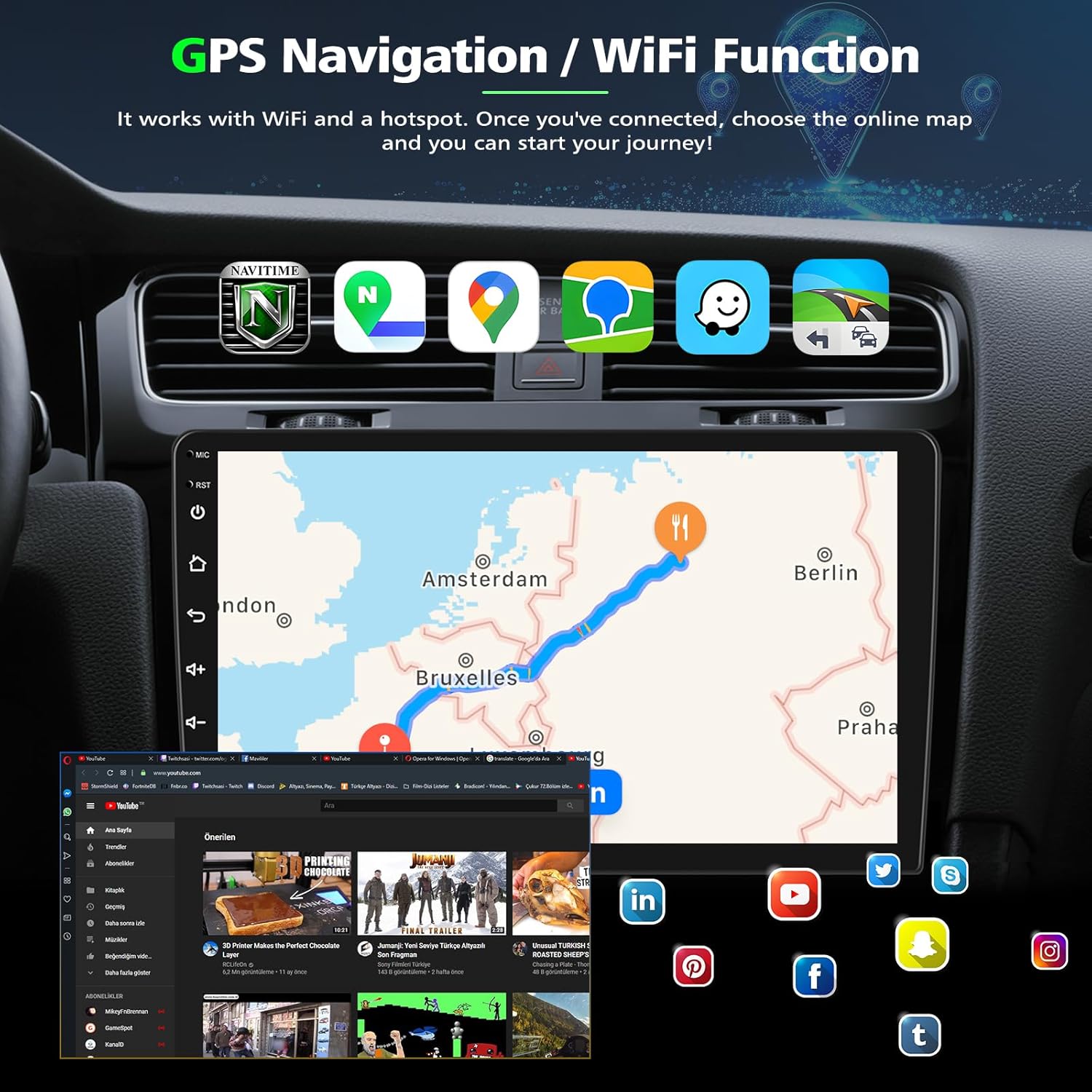
Figure 4.2: GPS Navigation and WiFi functionality.
4.3 Bluetooth Functionality
Bluetooth 5.2 allows for hands-free calling and audio streaming.
- Go to the Bluetooth application on the stereo.
- Enable Bluetooth on your phone and search for available devices.
- Select the car stereo from your phone's Bluetooth list and confirm the pairing code.
- Once connected, you can make/receive calls and play music through the car speakers.
4.4 FM/RDS Radio
Access the FM Radio application to listen to local radio stations. The RDS (Radio Data System) feature displays station information where available.
- Auto Scan: Use the auto-scan function to find and save available stations.
- Manual Tuning: Manually tune to specific frequencies.
- Presets: Save your favorite stations for quick access.
4.5 Split-Screen Mode
The split-screen feature allows you to run two applications simultaneously on the 9-inch display.
- Open the first application you wish to use.
- Press and hold the recent apps button (usually a square icon) or swipe up from the bottom and hold, then drag the first app to one side of the screen.
- Select the second application from the recent apps list or app drawer to fill the other half of the screen.
4.6 Steering Wheel Control (SWC)
The unit supports integration with your vehicle's existing steering wheel controls for safer operation.
- Go to Settings > Steering Wheel Control.
- Follow the on-screen instructions to program each button on your steering wheel to the desired function on the stereo.

Figure 4.3: Reverse Display and Steering Wheel Control setup.
4.7 Backup Camera
The included waterproof night vision backup camera provides a clear view when reversing.
- Ensure the backup camera is correctly installed and connected to the dedicated camera input on the stereo.
- When the vehicle is shifted into reverse gear, the stereo will automatically display the camera feed.
- Reference lines on the screen assist with parking.
4.8 Voice Control
Utilize voice commands for various functions, enhancing driving safety.
- Activate voice control through the dedicated button on the screen or steering wheel (if programmed).
- Speak clear commands for navigation, calls, music playback, and more.

Figure 4.4: Bluetooth, Split Screen, FM/RDS Radio, and Voice Control features.
5. Maintenance
Regular maintenance ensures optimal performance and longevity of your car stereo.
- Screen Cleaning: Use a soft, lint-free cloth slightly dampened with water or a screen cleaner specifically designed for electronics. Avoid harsh chemicals or abrasive materials.
- Software Updates: Periodically check for available software updates through the system settings (if applicable) to ensure you have the latest features and bug fixes. A stable internet connection is required for updates.
- Environmental Conditions: Avoid exposing the unit to extreme temperatures, direct sunlight for prolonged periods, or excessive moisture.
6. Troubleshooting
If you encounter issues, refer to the following common troubleshooting steps:
- No Power: Check all power connections. Ensure the vehicle's ignition is on. Verify fuses are intact.
- No Sound: Check speaker connections. Ensure volume is not muted or set to zero. Verify audio source selection.
- GPS Signal Loss: Ensure the GPS antenna is securely connected and has a clear view of the sky. Move the vehicle to an open area if signal is weak.
- CarPlay/Android Auto Not Connecting: Ensure Bluetooth and Wi-Fi are enabled on your phone. Try restarting both your phone and the car stereo. Forget and re-pair the device.
- Backup Camera Not Displaying: Check the camera's power and video signal connections. Ensure the vehicle is in reverse gear.
- AM/FM Antenna Issue: If the AM/FM antenna cable is too short or not connecting properly, a longer adapter cable may be required (not included).
- Touch Screen Unresponsive: Try restarting the unit. If the issue persists, a factory reset might be necessary (note: this will erase all user data).
7. Specifications
| Brand | PHEZEN |
| Model Number | B0F52LYXLS |
| Operating System | Android 14 |
| RAM + ROM | 4GB + 64GB |
| Screen Size | 9 inches |
| Screen Resolution | 1024*600 IPS HD Touch Screen |
| Connectivity | Bluetooth 5.2, Wi-Fi, GPS |
| Output Power | 45 watts per channel (180 watts total) |
| Number of Channels | 4 |
| Control Method | Touch, Remote |
| Compatible Devices | Smartphone |
| Supported Formats | AVI, MP3 Audio, WAV, WMA |
8. Warranty and Support
8.1 Warranty Information
This product comes with a warranty. For specific details regarding the warranty period and coverage, please refer to the warranty card included in your package or contact the seller directly. The product is generally covered by a 3-year warranty.
8.2 Customer Support
For technical assistance, installation queries, or any other support needs, please contact PHEZEN customer service or the seller (UZZO-PHEZEN) through the platform where the product was purchased. Provide your model number (B0F52LYXLS) and purchase date for faster service.