1. Introduction
Thank you for choosing the Philips DashCam. This device is designed to provide reliable video recording of your journeys, enhancing driving safety and providing crucial evidence in case of incidents. This manual will guide you through the installation, operation, and maintenance of your new dash camera system. Please read it thoroughly before use.
2. Product Overview
The Philips DashCam is a dual-camera system featuring a 4K front camera and a 1080P rear camera, equipped with advanced features for optimal performance.
2.1 Package Contents
- Philips DashCam (Front Camera)
- Rear Camera
- Car Charger
- 32GB MicroSD Card
- User Manual
- Mounting Accessories (e.g., adhesive pads, suction cup mount)

Image 2.1: Philips DashCam system components. This image displays the main front dash camera, the smaller rear camera, a car power adapter, and a 32GB microSD card, illustrating all items included in the package.
2.2 Key Features
- Dual Recording: Front camera records in UHD 4K, rear camera in FHD 1080P.
- Superior Night Vision: Features 6-layer glass, F1.5 aperture, and WDR technology for clear recordings in low-light conditions.
- 24-Hour Parking Monitoring: Built-in G-sensor detects collisions, and time-lapse recording provides continuous surveillance.
- Loop Recording: Automatically overwrites older, non-essential videos when the memory card is full. Supports up to 256GB cards.
- Integrated Wi-Fi & App Control: Connect to the dedicated app on iOS or Android devices to view, manage, and download recordings.
- G-Sensor: Detects sudden movements or impacts and locks the current video footage to prevent overwriting.

Image 2.2: Key features of the Philips DashCam. This infographic highlights features such as 4K+1080P resolution, wide-angle lens, Wi-Fi connectivity, loop recording, WDR technology, 24-hour parking monitoring, included 32GB card, voice transmission, and supercapacitor power.
2.3 Device Layout and Dimensions

Image 2.3: Philips DashCam dimensions and port identification. This diagram illustrates the physical measurements of the dash camera and labels key components such as the lens, screen, TF card slot, Type-C interface, reset button, power switch, arrow keys, mute button, and speaker.
3. Setup
3.1 Installing the MicroSD Card
- Ensure the dash camera is powered off.
- Locate the TF card slot on the side of the main camera unit (refer to Image 2.3).
- Insert the provided 32GB MicroSD card (or another compatible card up to 256GB, Class 10 or higher) into the slot until it clicks into place.
- To remove, gently push the card in until it springs out.
3.2 Mounting the DashCam
The dash camera can be mounted using the provided suction cup or adhesive mount. Choose a location on your windshield that does not obstruct your view of the road.
- Clean the chosen area on your windshield thoroughly.
- Attach the front camera mount to the windshield.
- Attach the rear camera to the rear windshield, ensuring a clear view.
- Adjust the camera angles to capture the desired field of view.
3.3 Power Connection
- Connect the car charger to the main dash camera unit's power input.
- Plug the car charger into your vehicle's 12V power outlet (cigarette lighter socket).
- Route the power cable neatly along the edges of your windshield and dashboard to avoid interference with driving.
- Connect the rear camera cable to the main dash camera unit.
3.4 Wi-Fi and App Connection
The Philips DashCam features built-in Wi-Fi for easy connection to its dedicated smartphone application.
- Download the official Philips DashCam app from your smartphone's app store (iOS or Android).
- Turn on the dash camera.
- On your smartphone, go to Wi-Fi settings and connect to the dash camera's Wi-Fi network (SSID and password can be found in the camera's settings menu or initial setup screen).
- Open the Philips DashCam app. You can now view live footage, play back recordings, download files, and adjust camera settings.
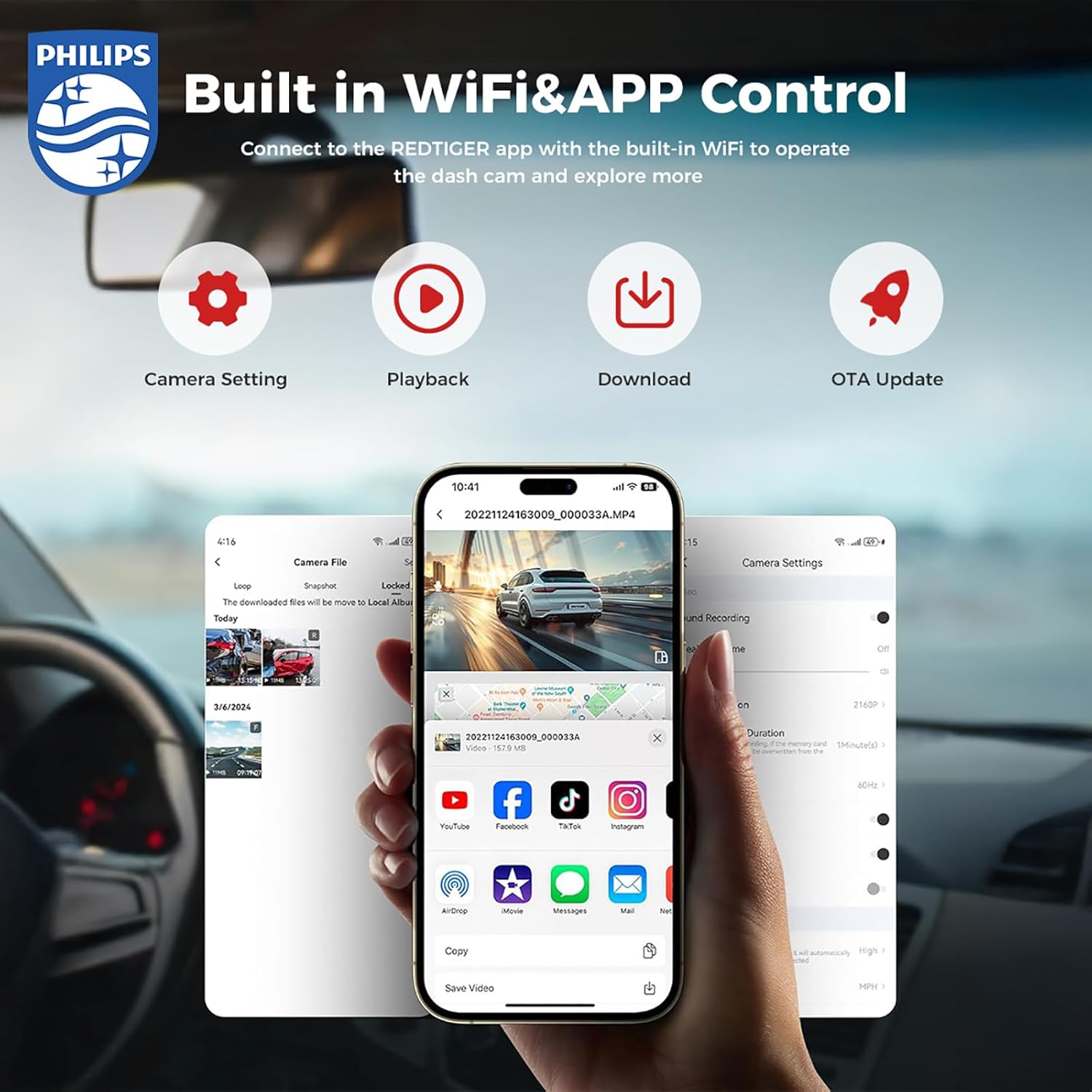
Image 3.1: Built-in Wi-Fi and App Control. This image shows a smartphone displaying the Philips DashCam application, illustrating options for camera settings, video playback, downloading recorded footage, and performing over-the-air (OTA) updates.
4. Operating Instructions
4.1 Automatic Recording
Once the dash camera is connected to power and your vehicle starts, the camera will automatically power on and begin recording. The front camera records in 4K resolution, and the rear camera records in 1080P.

Image 4.1: Front 4K and Rear 1080P recording. This image demonstrates the dual recording capability, showing the wide 140-degree view from the front 4K camera and the 130-degree view from the rear 1080P camera, ensuring comprehensive coverage.
4.2 Loop Recording
The dash camera continuously records video in short segments (e.g., 1, 3, or 5 minutes). When the MicroSD card is full, the oldest unlocked video files will be automatically overwritten by new recordings. This ensures continuous recording without manual intervention.

Image 4.2: Automatic Cycle (Loop Recording). This image illustrates the loop recording function, where the dash camera continuously records and automatically overwrites older files when storage is full. It also shows a locked file icon, indicating that G-sensor activated recordings are protected from being overwritten.
4.3 G-Sensor (Emergency Recording)
The built-in G-sensor detects sudden impacts or collisions. When an event is detected, the current video segment is automatically locked and saved to a protected folder on the MicroSD card, preventing it from being overwritten by loop recording. The G-sensor sensitivity can be adjusted in the camera settings (Off, Low, Medium, High).
4.4 24-Hour Parking Monitoring
With the parking monitoring feature enabled, the dash camera can continue to monitor your vehicle even when parked. This mode typically uses the G-sensor to detect impacts or motion detection to record events while the vehicle is stationary. For continuous 24-hour surveillance, time-lapse recording is also available.
4.5 Night Vision
The Philips DashCam is equipped with advanced night vision technology, including a large F1.5 aperture and WDR (Wide Dynamic Range), to capture clear and detailed video footage in low-light conditions, improving safety during nighttime driving.

Image 4.3: Super Night Vision. This image highlights the dash camera's advanced night vision capabilities, featuring light-balanced technology and a large F1.5 aperture to ensure clear video capture even in challenging low-light environments.
5. Maintenance
5.1 Cleaning the Lenses
Regularly clean the front and rear camera lenses with a soft, lint-free cloth to ensure clear video quality. Avoid using abrasive cleaners that could scratch the lens.
5.2 MicroSD Card Management
It is recommended to format the MicroSD card periodically (e.g., once a month) using the camera's menu or the app. This helps maintain card performance and prevents data corruption. Back up any important files before formatting.
5.3 Firmware Updates
Check the Philips DashCam app or the official Philips website for available firmware updates. Keeping your dash camera's firmware up-to-date ensures optimal performance and access to new features.
6. Troubleshooting
- Camera not powering on: Ensure the car charger is securely connected to both the camera and the vehicle's 12V outlet. Check if the vehicle's power outlet is functioning.
- Recording issues (e.g., blurry video, missing files):
- Clean the camera lenses.
- Format the MicroSD card.
- Ensure the MicroSD card is Class 10 or higher and not faulty. Try a different card if issues persist.
- Wi-Fi connection problems:
- Ensure the camera's Wi-Fi is enabled.
- Restart both the camera and your smartphone.
- Verify you are connecting to the correct Wi-Fi network provided by the dash camera.
- If the app is not functioning correctly, ensure it is updated to the latest version.
- G-sensor too sensitive/not sensitive enough: Adjust the G-sensor sensitivity setting in the camera's menu or app.
- Parking monitoring not working: Ensure the parking monitoring feature is enabled in the settings. Verify continuous power supply if required for 24-hour monitoring.
7. Specifications
| Brand | Philips |
| Model Name | DashCam |
| Video Capture Resolution | Front: 4K UHD, Rear: 1080P FHD |
| Special Features | G-Sensor, Loop Recording, Parking Monitor, Night Vision, Built-in WiFi |
| Connectivity Technology | Wi-Fi |
| Batteries Included | Yes (Lithium-metal) |
| Product Dimensions | 10 x 16 x 12 cm; 1.18 kg |
| Supported MicroSD Card | Up to 256GB (32GB included) |
8. Warranty and Support
For warranty information, please refer to the documentation included with your product or visit the official Philips website. Standard warranty terms and conditions apply. For technical support or service inquiries, please contact Philips customer service through their official channels.
Please note that extended protection plans may be available from third-party providers, but these are separate from the manufacturer's warranty.


