
1. Introduction
This manual provides essential information for the setup, operation, maintenance, and troubleshooting of your MSI Codex R2 Gaming Desktop. Please read this manual thoroughly before using your new system to ensure proper functionality and longevity. The MSI Codex R2 is a high-performance gaming desktop featuring an Intel Core i7-14700F processor, NVIDIA GeForce RTX 5060Ti graphics, 32GB DDR5 RAM, and a 2TB M.2 NVMe SSD, designed for an immersive gaming experience and demanding tasks.
2. Package Contents
Verify that all items listed below are included in your product package. If any item is missing or damaged, contact your retailer.
- MSI Codex R2 Gaming Desktop
- Power Cord
- Keyboard
- Mouse
- Quick Start Guide
- Warranty Card
3. Product Overview
Familiarize yourself with the physical components and design of your MSI Codex R2 Gaming Desktop.

Figure 3.1: Front-left view of the MSI Codex R2, showcasing the tempered glass side panel, internal components, and front RGB fans.

Figure 3.2: Front-right view of the MSI Codex R2, displaying the solid right side panel and the mesh front panel with RGB fans.

Figure 3.3: Rear-left view of the MSI Codex R2, highlighting the rear I/O ports, expansion slots, and the interior through the tempered glass.

Figure 3.4: Rear-right view of the MSI Codex R2, showing the solid right side panel and the rear I/O area.

Figure 3.5: Direct front view of the MSI Codex R2, featuring three prominent RGB fans behind a mesh panel.
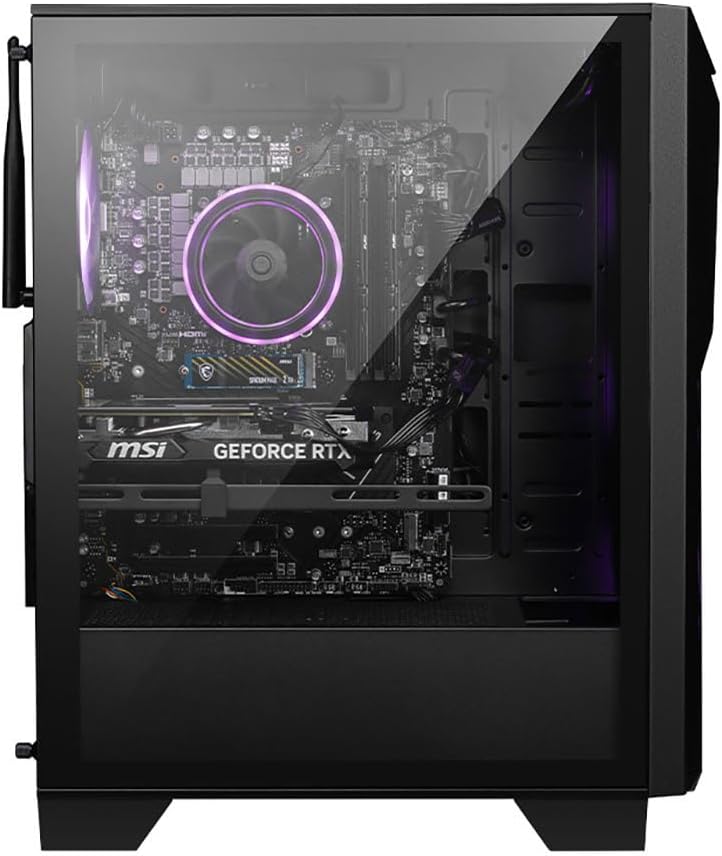
Figure 3.6: Interior view of the MSI Codex R2, detailing the motherboard, NVIDIA GeForce RTX graphics card, and the RGB CPU air cooler.

Figure 3.7: Right side view of the MSI Codex R2, showing the solid metal side panel.

Figure 3.8: Top front panel view of the MSI Codex R2, illustrating the front I/O ports including USB, audio jacks, and the MSI LED button.
4. Setup Guide
Follow these steps for the initial setup of your MSI Codex R2 Gaming Desktop.
4.1. Step 1: Unpacking
- Carefully remove the desktop from its packaging.
- Place the desktop on a stable, flat surface with adequate ventilation.
- Remove any protective films or packaging materials from the exterior and interior of the case.
4.2. Step 2: Connecting Peripherals
Connect your monitor, keyboard, and mouse to the appropriate ports on the rear of the desktop.
- Monitor: Connect your monitor to the graphics card's display outputs (HDMI, DisplayPort). Ensure it is connected to the dedicated graphics card, not the motherboard's integrated graphics ports.
- Keyboard and Mouse: Connect to any available USB ports.
- Audio: Connect speakers or headphones to the audio output jacks.
- Network: For wired internet, connect an Ethernet cable to the LAN port. For wireless, ensure the Wi-Fi antennas are securely attached if external.
4.3. Step 3: Power Connection
- Connect the power cord to the power supply unit (PSU) inlet on the rear of the desktop.
- Plug the other end of the power cord into a grounded electrical outlet.
4.4. Step 4: Initial Boot and Windows Setup
- Press the power button located on the top front of the desktop.
- Follow the on-screen instructions to complete the Windows 11 Home setup process. This typically involves selecting your region, language, creating a user account, and connecting to a network.
- Once Windows is set up, it is recommended to install any available updates for the operating system and drivers.
5. Operating Instructions
This section covers basic operation of your MSI Codex R2 Gaming Desktop.
5.1. Powering On/Off
- Power On: Press the power button on the top front of the desktop.
- Power Off: In Windows, click the Start button, then Power, and select 'Shut down'. Avoid directly holding the power button to turn off the system, as this can lead to data loss or system instability.
- Restart: In Windows, click the Start button, then Power, and select 'Restart'.
5.2. RGB Lighting Control
The MSI Codex R2 features customizable RGB lighting for its fans and internal components.
- LED Button: Press the dedicated LED button on the top front panel to cycle through various pre-set lighting effects and colors.
- MSI Center Software: For advanced customization, install and use the MSI Center software. This application allows for fine-tuning of lighting effects, colors, and synchronization with other MSI Mystic Light compatible devices.
5.3. Windows 11 Home Basics
Your desktop comes pre-installed with Windows 11 Home. For detailed information on using Windows 11, refer to the official Microsoft documentation or support resources.
6. Maintenance
Regular maintenance helps ensure optimal performance and extends the lifespan of your desktop.
6.1. Cleaning Your Desktop
- Exterior: Use a soft, damp cloth to wipe down the exterior surfaces. Avoid harsh chemicals.
- Dust Removal: Periodically use compressed air to clean dust from the fan vents and interior components. Ensure the system is powered off and unplugged before cleaning. Do not use a vacuum cleaner inside the desktop as it can generate static electricity.
- Air Filters: If your case has removable dust filters, clean them regularly by rinsing with water and allowing them to dry completely before reinstallation.
6.2. Software Updates
- Windows Updates: Regularly check for and install Windows updates to ensure system security and stability. Go to Settings > Windows Update.
- Driver Updates: Keep your graphics card drivers (NVIDIA GeForce Experience) and other system drivers updated for optimal performance and compatibility. Use MSI Center or visit the MSI support website for driver downloads.
7. Troubleshooting
This section addresses common issues you might encounter with your desktop.
7.1. No Power
- Ensure the power cord is securely connected to both the desktop and the electrical outlet.
- Verify the power outlet is functional by plugging in another device.
- Check the power switch on the back of the power supply unit (if present) is in the 'On' position.
7.2. No Display on Monitor
- Confirm the monitor is powered on and correctly connected to the graphics card's output ports.
- Ensure the correct input source is selected on your monitor.
- Try a different display cable or monitor if available.
7.3. System Performance Issues
- Close unnecessary background applications.
- Ensure all drivers, especially graphics drivers, are up to date.
- Check for malware or viruses using reputable antivirus software.
- Monitor system temperatures using MSI Center or other utility software to ensure components are not overheating.
7.4. RGB Lighting Not Working
- Press the LED button on the front panel to cycle through modes.
- Ensure MSI Center software is installed and updated, and check its lighting settings.
- Restart the system.
8. Technical Specifications
Detailed specifications for the MSI Codex R2 Gaming Desktop (Model B14NVM7-438US).
| Component | Specification |
|---|---|
| Processor | Intel Core i7-14700F (2.1 GHz, up to 20 Cores) |
| RAM | 32GB DDR5 (6000 MHz) |
| Storage | 2TB M.2 NVMe SSD |
| Graphics Card | NVIDIA GeForce RTX 5060Ti 8GB (Dedicated) |
| Operating System | Windows 11 Home |
| Power Supply | 650W 80+ Gold PSU |
| Wireless Connectivity | WiFi 7 (802.11ax), Bluetooth |
| USB 2.0 Ports | 4 |
| USB 3.0 Ports | 5 |
| Dimensions (LxWxH) | 8.38 x 16 x 19 inches |
| Item Weight | 21.3 pounds |
| Color | Black |
9. Warranty Information
Your MSI Codex R2 Gaming Desktop comes with a manufacturer's warranty. Please refer to the warranty card included in your package for specific terms, conditions, and duration. Generally, MSI products include a 1-year factory warranty from the date of purchase. Keep your proof of purchase for warranty claims.
10. Support and Contact
For further assistance, technical support, or driver downloads, please visit the official MSI website:
You may also contact MSI customer service directly through the contact information provided on their website or in your warranty documentation.


