
Introduction
Thank you for choosing the DEPGI Laptop Cooling Pad DE025NF. This device is designed to enhance your laptop's performance by providing efficient cooling and ergonomic support. It features a movable fan, customizable RGB lighting, and intelligent temperature control. Please read this manual carefully to ensure proper setup and operation.
Product Features
- 5.5-inch Movable Fan: Allows precise positioning over your laptop's heat vents for targeted cooling. Features a magnetic design for easy removal and cleaning.
- 10 RGB Light Modes: Includes 8 vivid lighting modes and 2 rhythm-reactive music sync effects for visual customization.
- Auto & Manual Fan Speed Control: Built-in temperature sensor automatically adjusts fan speed. Manual mode offers 3 speed levels.
- Ultra-Quiet Operation: Operates at ≤40dB, minimizing distraction.
- Ergonomic Design: Adjustable height levels to reduce neck and back strain.
- Wide Compatibility: Supports laptops from 14 to 17.3 inches.
Setup
1. Unboxing and Components
Carefully remove the cooling pad from its packaging. Ensure all components are present: the cooling pad unit and the USB power cable.
2. Placing Your Laptop
Place your laptop securely on the cooling pad. The pad is designed to accommodate laptops between 14 and 17.3 inches.

Image: The DEPGI Laptop Cooling Pad with a laptop positioned on its surface.
3. Adjusting Height Levels
The cooling pad features multiple adjustable height levels. Lift the stand at the rear of the pad and select your desired ergonomic angle to reduce strain during use.
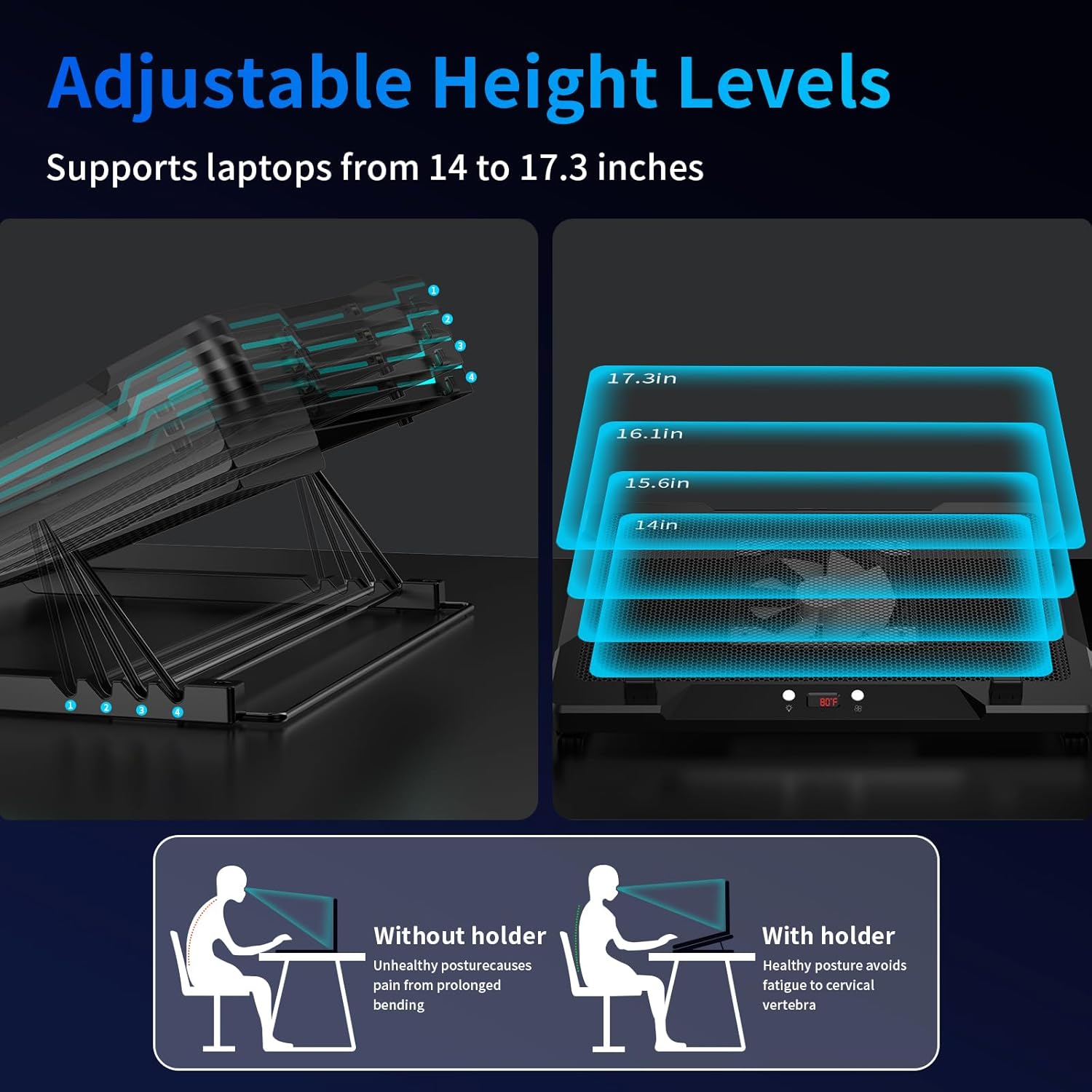
Image: Diagram illustrating the various adjustable height settings of the cooling pad, supporting different laptop sizes.
4. Connecting Power
Connect the provided USB power cable to the cooling pad's rear USB-C or USB-B port, and then to an available USB port on your laptop or a USB power adapter.

Image: Detail of the cooling pad's adjustable stand, rear USB-A/B charging ports, and anti-slip base.
Operating Instructions
1. Fan Control (Right Button)
The right button controls the fan operation. It supports both automatic temperature-based control and manual speed selection.
- Long Press: Toggle between Auto Temp Mode (AU) and Manual Mode (AA).
- Short Press (Manual Mode only): Cycles through fan speeds (ON → Level 1 → Level 2 → Level 3 → OFF).
In Auto Temp Mode, the fan speed adjusts based on the laptop's real-time temperature:
- 79.6°F - 84.2°F: Low-speed mode (40% RPM)
- 86.0°F - 89.6°F: Medium-speed mode (70% RPM)
- 91.4°F and above: Full-speed mode (100% RPM)

Image: Illustration of the Smart & Manual Cooling options, detailing temperature thresholds for auto mode and three manual speed levels.

Image: Instructions for the Right Button, explaining short and long press functions for fan control.
2. RGB Light Control (Left Button)
The left button manages the RGB lighting effects.
- Long Press: Toggle between Sound Mode (R1) and Manual Mode (LED).
- Short Press: Cycles through light effects (ON → Cycle FX → OFF).
In Sound Mode (R1), the lighting responds to ambient sound:
- L1: Responds to louder sounds.
- L2: Responds to even soft sounds.
In Manual Mode (LED), you can select from 8 preset modes:
- C1-C4: Solid color modes.
- C5-C8: Mixed effects with dynamic frequency (e.g., pulse, wave, rainbow).
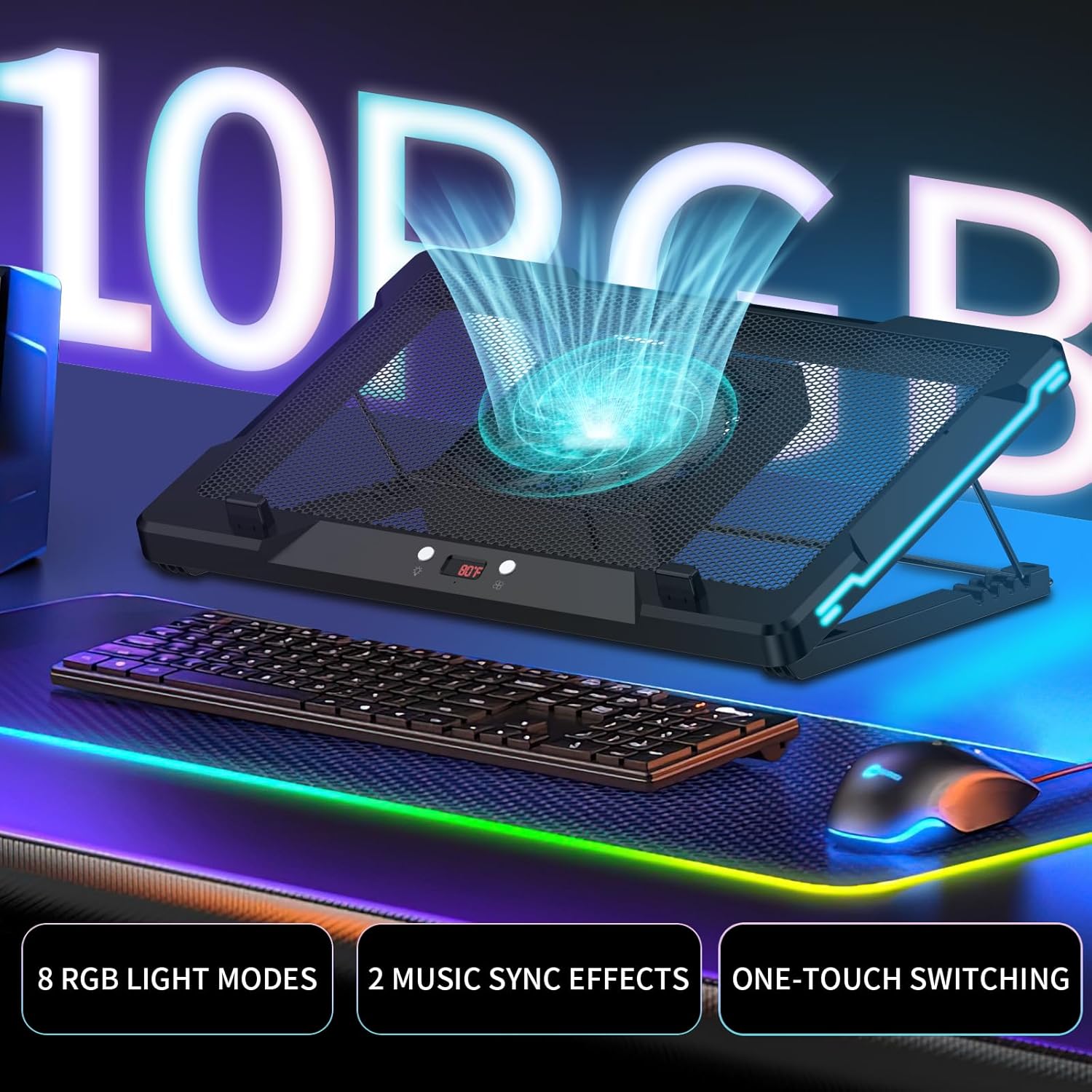
Image: The cooling pad showcasing its RGB lighting and the control panel with buttons.

Image: Detailed explanation of the Left Button's functions for light control, including Sound Mode and Manual Mode options.

Image: Visual representation of the interactive light response in Sound Mode (R1), showing how lights change with ambient sound.
3. Movable Fan Adjustment
The 5.5-inch fan can be slid freely to align with your laptop's specific heat vents. This allows for direct and efficient airflow to the areas that generate the most heat.

Image: Illustration demonstrating the 5.5-inch movable fan, highlighting its ability to slide and lock for targeted cooling.

Image: Close-up view of the snap-on magnetic fan design, emphasizing its ability to target pinpoint heat zones for fast and smart cooling.
Maintenance
Cleaning the Fan
The 5.5-inch fan is designed for easy cleaning. Due to its magnetic attachment, it can be removed in approximately 2 seconds. Regularly remove the fan and gently clean any accumulated dust with a soft brush or compressed air to maintain optimal airflow and cooling performance.
Troubleshooting
- Fan Not Spinning: Ensure the USB power cable is securely connected to both the cooling pad and a powered USB port. Try a different USB port or power adapter.
- Lights Not Working: Check the USB power connection. Use the left button to cycle through light modes or switch between Sound Mode and Manual Mode.
- Insufficient Cooling: Ensure the movable fan is positioned directly over your laptop's main heat vents. Clean any dust from the fan and the cooling pad's mesh surface. Verify the fan speed setting is appropriate for your laptop's temperature.
- Unusual Noise: Check for any obstructions around the fan. Ensure the cooling pad is placed on a flat, stable surface. If the noise persists, contact customer support.
Specifications
| Feature | Detail |
|---|---|
| Brand | DEPGI |
| Model Number | DE025NF |
| Color | Black |
| Material | Metal, Plastic |
| Product Dimensions (L x W x H) | 16.54" x 11.3" x 1.7" |
| Cooling Method | Air Flow, Fan |
| Number of Fans | 1 (5.5-inch movable) |
| Noise Level | ≤40dB |
| Compatibility | 14-17.3 inch Laptops |
Warranty Information
This DEPGI Laptop Cooling Pad DE025NF comes with a 1 Year Manufacturer Warranty. Please retain your proof of purchase for warranty claims. For detailed terms and conditions, refer to the warranty card included with your product or contact DEPGI customer support.
Customer Support
For any questions, technical assistance, or warranty inquiries regarding your DEPGI Laptop Cooling Pad, please contact DEPGI customer support through the official website or the contact information provided in your product packaging. Please have your model number (DE025NF) and proof of purchase ready when contacting support.
Product Video
Video: An official product introduction video for the DEPGI Laptop Cooling Pad, demonstrating its features and functionality.