
1. Introduction
This user manual provides comprehensive instructions for the installation, operation, and maintenance of your ieGeek 2K Security Camera Wireless Outdoor, Model S5. Please read this manual thoroughly before using the product to ensure proper functionality and safety.
The ieGeek S5 is a high-performance wireless outdoor security camera featuring 2K resolution, a 360° PTZ (Pan-Tilt-Zoom) function, color night vision, and smart motion detection. It is designed for outdoor surveillance with an IP65 waterproof rating and is powered by an adjustable and removable solar panel, offering a sustainable and wire-free security solution.
2. Product Overview
2.1. Package Contents
- ieGeek 2K Security Camera (Model S5)
- Adjustable & Removable Solar Panel
- Quick Manual Guide
- USB Charging Cable
- Camera Bracket
- Positioning Label Sticker
- Silicone Screws & Plugs (4 sets)

Figure 2.1: Package Contents. The image displays all items included in the box: the ieGeek S5 camera, solar panel, mounting hardware, USB charging cable, and user manual.
2.2. Key Features
- 2K Resolution: Delivers crystal-clear video footage.
- Adjustable & Removable Solar Panel: Provides continuous power with flexible installation options (integrated or separate mount).
- 360° PTZ Functionality: Offers 355° horizontal pan and 90° vertical tilt for comprehensive coverage.
- Color Night Vision: Enhanced visibility in low-light conditions with full-color imaging.
- Smart PIR Motion Detection: Accurately detects human movement, reducing false alarms.
- Light & Siren Alarm: Deters intruders with customizable sound and light activation upon detection.
- IP65 Waterproof: Designed to withstand various outdoor weather conditions.
- Two-Way Audio: Built-in microphone and speaker for real-time communication.
- 2.4G WiFi Connectivity: Stable wireless connection (5G WiFi not supported).
- Alexa Compatibility: Integrates with Amazon Alexa for voice control and smart home integration.
3. Setup and Installation
3.1. Charging the Camera
Before initial use, fully charge the camera's internal battery using the provided USB charging cable. Connect the cable to the camera's charging port and a standard 5V USB power adapter (not included). The charging indicator light will show the charging status.
3.2. App Download and Account Creation
The ieGeek S5 camera operates with a dedicated mobile application. Search for "ieGeek Cam" or "CloudEdge" in your smartphone's app store (Google Play Store for Android or Apple App Store for iOS) and download the application. Follow the on-screen instructions to create an account and log in.

Figure 3.1: ieGeek Cam App. Download the official ieGeek Cam app from your device's app store to manage your camera.
3.3. Connecting the Camera to Wi-Fi
- Open the ieGeek Cam app and tap "Add Device" or the "+" icon.
- Select your camera model from the list.
- Power on the camera. Ensure your smartphone is connected to a 2.4GHz Wi-Fi network. Note: 5GHz Wi-Fi networks are not supported.
- Follow the app's instructions to scan the QR code displayed on your phone with the camera lens.
- Once connected, the camera will indicate successful pairing, and you can proceed with naming your device.
3.4. Mounting the Camera and Solar Panel
The ieGeek S5 offers flexible mounting options for the camera and its solar panel:
- All-in-One Integrated Mount: The solar panel can be directly attached to the top of the camera for a compact setup. This is ideal when the camera's mounting location receives ample direct sunlight.
- Separate Split Mount: For optimal solar charging, the solar panel can be detached and mounted up to 6.56 feet (2 meters) away from the camera using the included extension cable. This allows you to place the solar panel in a sunnier spot (e.g., roof, fence) while the camera is positioned for optimal surveillance.
Installation Steps:
- Choose a suitable mounting location that provides a clear view and, if using the integrated solar panel, receives direct sunlight for several hours daily.
- Use the positioning label sticker to mark the drill holes.
- Drill holes and insert the silicone plugs.
- Attach the camera bracket to the wall using the provided screws.
- Secure the camera to the bracket. If using the separate solar panel, connect it to the camera via the cable and mount the panel in its chosen location.

Figure 3.2: Flexible Solar Panel Installation. The camera can be mounted with the solar panel integrated directly on top or separately with an extension cable for optimal sun exposure.

Figure 3.3: Installation Process. Visual guide for mounting the camera and solar panel in integrated or separate configurations.
4. Operating Instructions
4.1. Live View and Playback
Once connected, open the ieGeek Cam app to access the live view of your camera. You can pan (355° horizontal) and tilt (90° vertical) the camera remotely using the controls within the app to adjust the viewing angle. Recorded events can be accessed and played back from the app's history or cloud storage (if subscribed) or from an inserted MicroSD card.

Figure 4.1: All-Round Full View. The camera offers extensive pan and tilt capabilities for comprehensive area coverage.
4.2. Night Vision Modes
The camera supports both infrared night vision and full-color night vision. You can switch between these modes in the app settings. Color night vision utilizes built-in spotlights to illuminate the area, providing clearer, full-color images even in complete darkness.
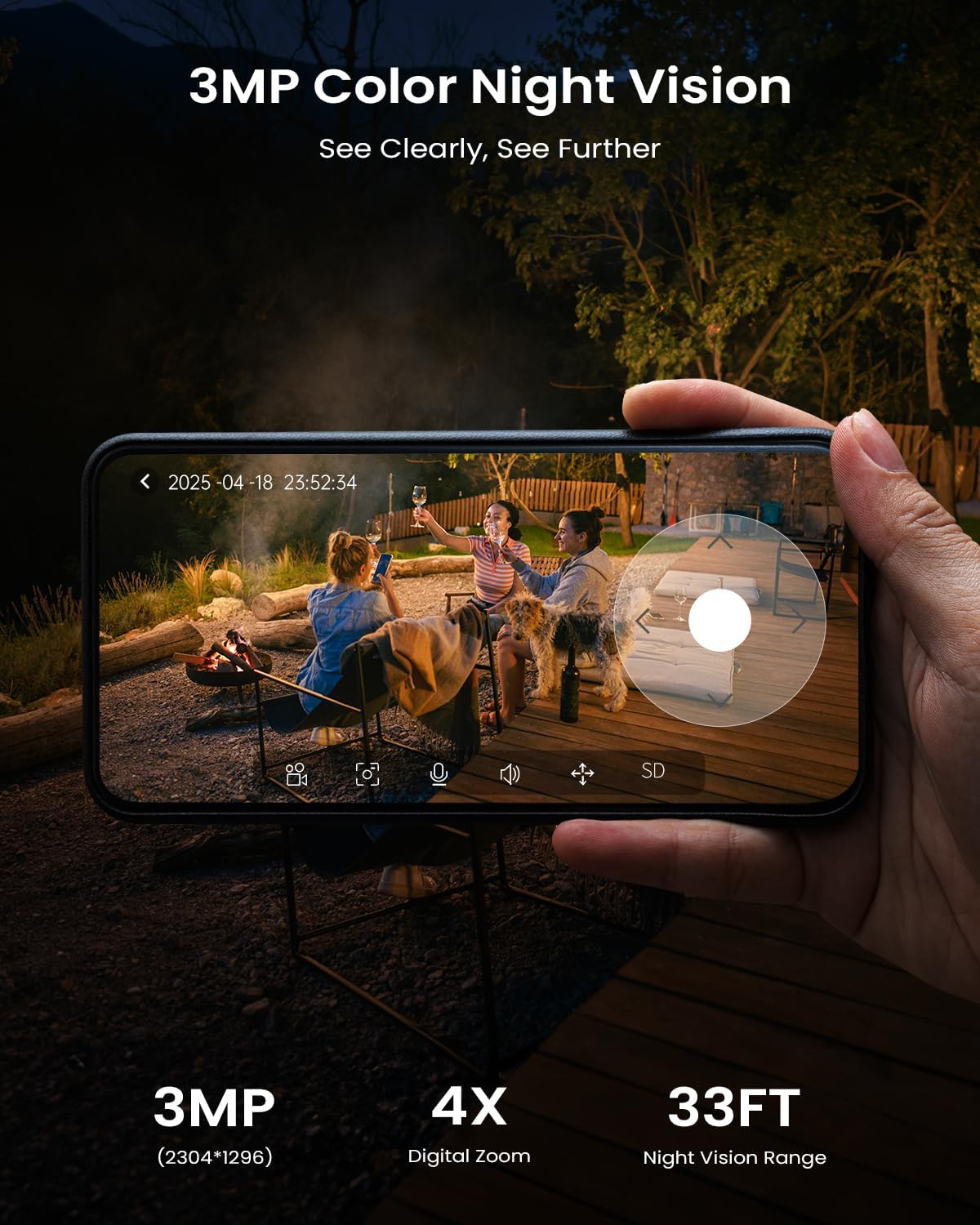
Figure 4.2: 2K Color Night Vision. The camera provides clear, detailed color images even at night.
4.3. Smart Motion Detection and Alerts
The ieGeek S5 features PIR (Passive Infrared) motion sensors for accurate human detection. When motion is detected, the camera can:
- Send instant push notifications to your smartphone.
- Activate a siren alarm.
- Turn on built-in spotlights.
You can customize detection zones and sensitivity settings within the app to minimize false alarms. Advanced AI algorithms (optional paid features) can differentiate between people, vehicles, packages, and pets.

Figure 4.3: Smart PIR Detection. The camera's motion detection triggers alerts, spotlights, and sirens to deter intruders.
4.4. Two-Way Audio
Utilize the two-way audio feature to communicate with visitors or deter unwanted individuals. Tap the microphone icon in the live view interface of the app to speak, and the sound will be projected through the camera's speaker. You can also hear audio from the camera's surroundings.

Figure 4.4: Clear Two-Way Audio. Communicate directly through the camera using the mobile app.
4.5. Smart Device Compatibility
The ieGeek S5 camera is compatible with Amazon Alexa, allowing for voice control and integration into your smart home ecosystem. Refer to the app's settings or the Alexa app for instructions on linking your camera.
5. Maintenance
- Cleaning: Regularly wipe the camera lens and solar panel with a soft, damp cloth to ensure clear vision and efficient solar charging. Avoid using harsh chemicals.
- Firmware Updates: Check the ieGeek Cam app periodically for firmware updates. Keeping your camera's firmware up-to-date ensures optimal performance and security.
- Battery Health: The solar panel is designed to keep the battery charged. In prolonged periods of low sunlight, you may need to manually charge the camera using the USB cable.
- Environmental Protection: While IP65 waterproof, avoid submerging the camera in water or exposing it to extreme temperatures beyond its operating range (-10°C to 50°C).
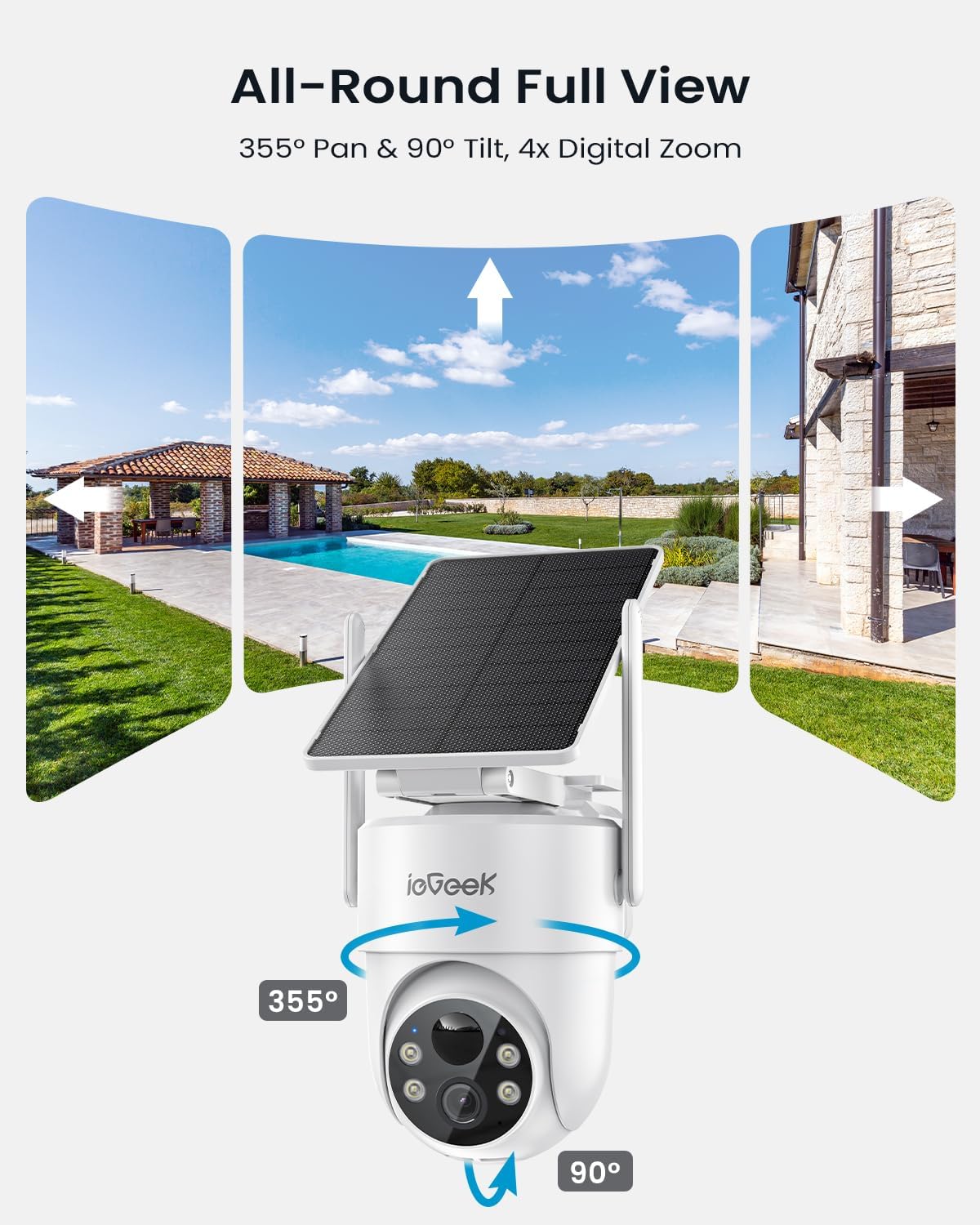
Figure 5.1: IP65 Weatherproof. The camera is built to endure various harsh weather conditions.
6. Troubleshooting
| Problem | Possible Cause | Solution |
|---|---|---|
| Camera not connecting to Wi-Fi | Incorrect Wi-Fi password; Camera too far from router; 5GHz Wi-Fi network used; Router firewall settings. | Ensure correct 2.4GHz Wi-Fi password. Move camera closer to router. Disable 5GHz band temporarily during setup if necessary. Check router settings. |
| Poor video quality | Weak Wi-Fi signal; Dirty lens. | Improve Wi-Fi signal strength (e.g., use a Wi-Fi extender). Clean the camera lens. |
| Motion detection not working or too many false alarms | Incorrect sensitivity settings; Detection zone not configured; Obstructions. | Adjust motion detection sensitivity in the app. Configure specific detection zones. Ensure no objects are constantly moving in the detection area (e.g., tree branches). |
| Battery not charging via solar panel | Insufficient direct sunlight; Dirty solar panel; Panel not connected properly. | Relocate solar panel to an area with more direct sunlight. Clean the solar panel surface. Ensure the solar panel cable is securely connected to the camera. |
| Two-way audio issues | Microphone/speaker muted in app; Volume too low; Network latency. | Check app settings to ensure audio is enabled and volume is adequate. Ensure stable network connection. |
7. Specifications
| Feature | Detail |
|---|---|
| Model Name | ieGeek S5 Solar Security Cameras Wireless Outdoor |
| Video Capture Resolution | 2K (2304 effective resolution) |
| Pan/Tilt Range | 355° Horizontal, 90° Vertical |
| Night Vision Range | Up to 50 Feet (Color Night Vision available) |
| Connectivity Technology | 2.4G Wi-Fi (Wi-Fi 6 Technology supported for lower latency, faster transmission, larger capacity) |
| Power Source | Solar Powered (with included C batteries) |
| Water Resistance Level | IP65 Waterproof |
| Operating Temperature | -10°C to 50°C |
| Item Weight | 835 g |
| Dimensions (L x W x H) | 10 x 10 x 10 millimeters (Product) |
| Compatible Devices | Alexa, Smartphone, Smartwatch, Tablet |
| Controller Type | CloudEdge, Amazon Alexa, ieGeek Cam |
8. Warranty and Support
The ieGeek S5 Security Camera comes with a 2-year warranty from the date of purchase. This warranty covers manufacturing defects and malfunctions under normal use.
For technical support, warranty claims, or any inquiries regarding your ieGeek product, please contact ieGeek customer service. Contact information can typically be found on the ieGeek official website or through the ieGeek Cam application.
Please retain your proof of purchase for warranty purposes.


