
1. Introduction
The VSON WP9623 Smart Writing Pad is an innovative device designed to digitize your handwritten notes and drawings in real-time. Featuring an 8192-level pressure-sensitive smart ballpoint pen, it offers a natural writing experience while providing advanced functionalities like offline storage, real-time synchronization, handwriting recognition, and screen projection. This manual provides detailed instructions for setting up, operating, and maintaining your Smart Writing Pad.
2. Package Contents
Please check the package for the following items:
- 1 x VSON WP9623 Smart Writing Pad
- 1 x Smart Ballpoint Pen
- 1 x USB Charging Cable
- 1 x A5 Notebook (for use with the Smart Writing Pad)
3. Product Overview
Familiarize yourself with the main components of your VSON WP9623 Smart Writing Pad.
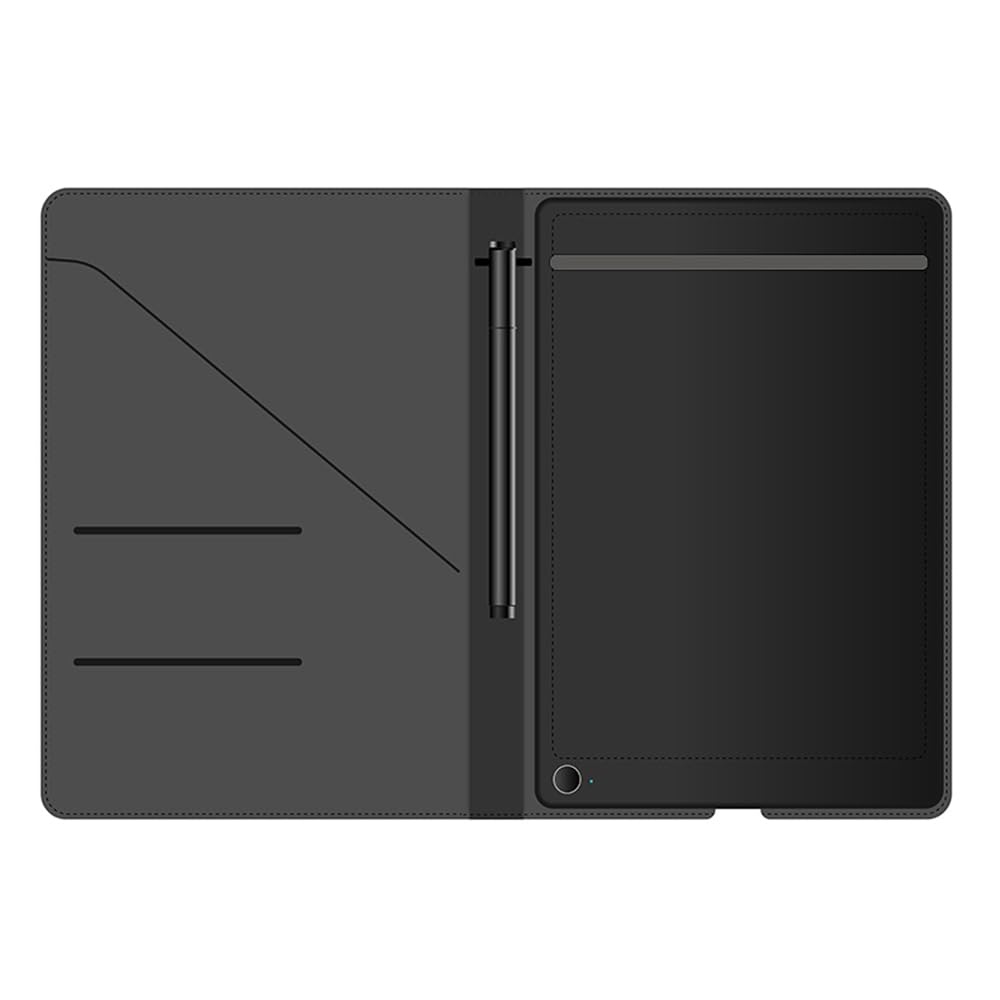
Figure 3.1: VSON WP9623 Smart Writing Pad and Smart Pen. The image displays the smart writing pad in a protective case, with the smart pen positioned alongside.
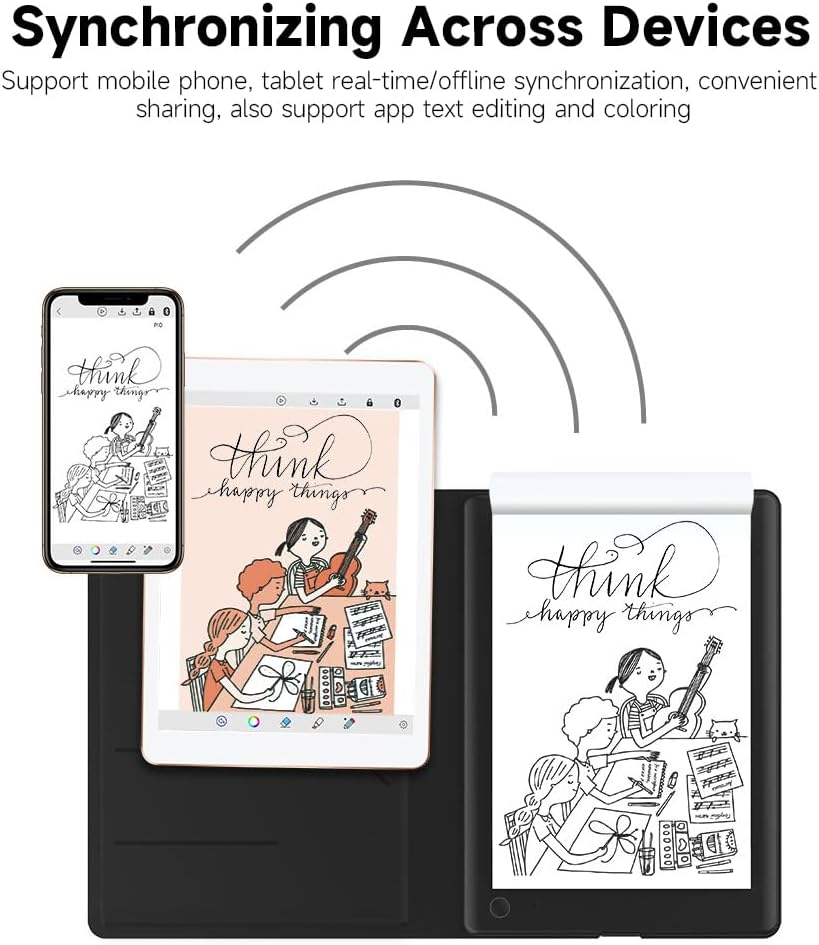
Figure 3.2: The Smart Ballpoint Pen. This image highlights the design of the smart pen, emphasizing its ergonomic grip and fine tip for precise writing.
4. Setup
4.1 Charging the Device
Before first use, fully charge both the Smart Writing Pad and the Smart Ballpoint Pen.
- Connect the USB charging cable to the charging port on the Smart Writing Pad and to a 5V/1A power adapter.
- Connect the USB charging cable to the charging port on the Smart Ballpoint Pen and to a 5V/1A power adapter.
- The charging indicator lights will show the charging status and turn off or change color when fully charged.
4.2 Connecting to Your Device (Bluetooth/USB)
To unlock the full features of your Smart Writing Pad, connect it to your smartphone or tablet via Bluetooth or USB.
- Bluetooth Connection:
- Ensure Bluetooth is enabled on your smartphone or tablet.
- Turn on the Smart Writing Pad.
- Open the companion application (downloadable from your device's app store).
- Follow the in-app instructions to pair your Smart Writing Pad via Bluetooth (BT4.0).
- USB Connection:
- Connect the Smart Writing Pad to your computer using the provided USB cable.
- The device should be recognized automatically, allowing for data transfer and charging.
5. Operating Instructions
5.1 Writing and Digitizing Notes
Place the A5 notebook on the Smart Writing Pad. Use the Smart Ballpoint Pen to write or draw on the paper. The 8192-level pressure sensitivity ensures that your digital notes accurately reflect the nuances of your handwriting.
Figure 5.1: Writing on the Smart Writing Pad. A user is shown actively writing on the smart pad with the smart pen, demonstrating the natural writing experience.
5.2 Offline Writing and Synchronization
The Smart Writing Pad supports offline storage of up to 150 pages. You can write without being connected to a device, and synchronize your notes later.
- Write as usual on the A5 notebook. The device will store your notes internally.
- Once reconnected to your smartphone or tablet via Bluetooth, open the companion app to initiate synchronization. Your offline notes will be transferred to the app.

Figure 5.2: Offline Usage. This image illustrates a user writing on the smart pad, highlighting its capability to store notes even without an active connection.
5.3 Real-time Synchronization Across Devices
When connected, your notes can be synchronized in real-time across multiple devices, including smartphones and tablets, allowing for convenient sharing and editing.

Figure 5.3: Synchronizing Across Devices. The image shows handwritten content appearing simultaneously on a smartphone, a tablet, and the smart writing pad, demonstrating real-time synchronization.
5.4 Intelligent Handwriting Recognition and Editing
The companion app features intelligent handwriting recognition, converting your handwritten notes into editable digital text. It supports multi-country text editing and allows notes to be generated into electronic files for easy management.
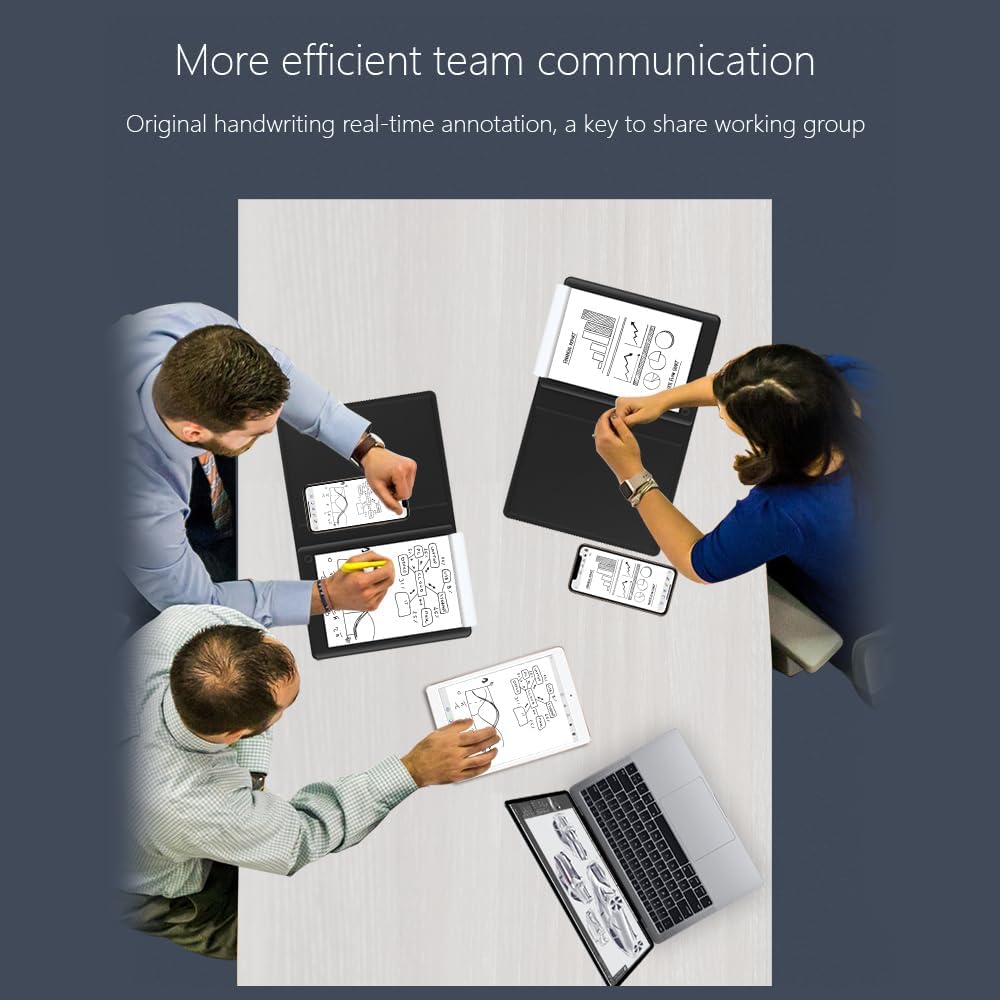
Figure 5.4: Intelligent Handwriting Recognition. This image depicts individuals in a meeting setting, utilizing the smart writing pad to digitize notes, which are then displayed on a tablet, illustrating the handwriting recognition feature.
5.5 Real-time Projection and Annotation
Project your written content onto a larger screen in real-time, enhancing presentations and collaborative sessions. You can draw and annotate directly on the pad, and the changes will appear instantly on the projected display.

Figure 5.5: Real-time Projection for Presentations. A person is shown presenting in an office environment, with content from the smart writing pad projected onto a whiteboard, demonstrating its use for dynamic presentations.
5.6 Team Communication and Sharing
Facilitate more efficient team communication with real-time annotation and one-touch sharing of your workgroup. Collaborate seamlessly by sharing notes and ideas instantly.
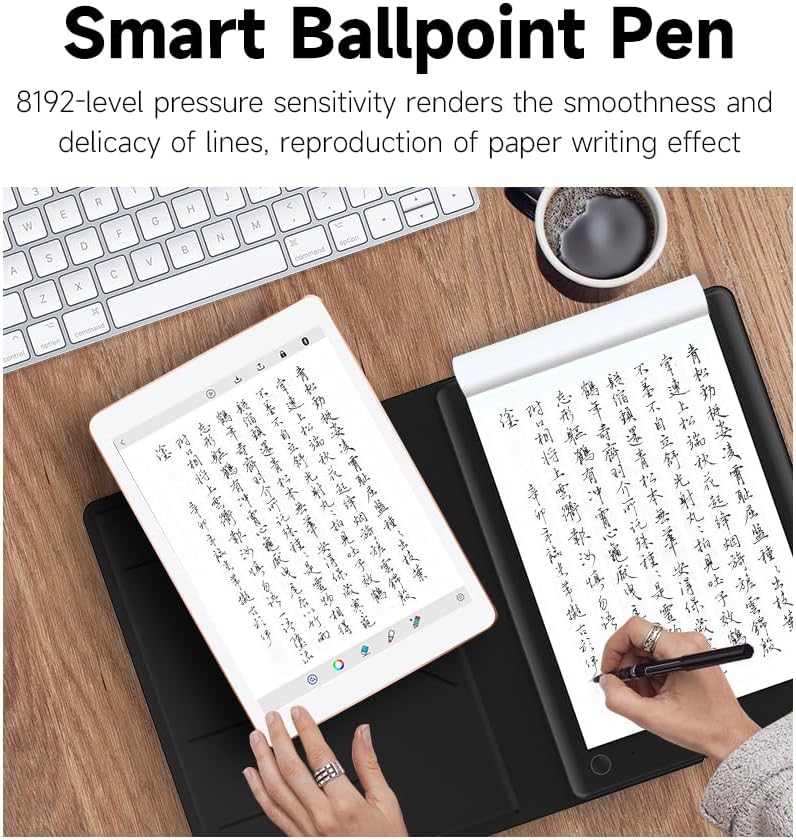
Figure 5.6: Enhanced Team Communication. This image illustrates a team collaborating around a table, using multiple smart writing pads and digital devices to share and discuss ideas in real-time.
5.7 File Management
The companion application allows for efficient file naming and classification management of your digitized notes, saving time and effort in organizing your work.
6. Maintenance
- Cleaning: Use a soft, dry cloth to clean the Smart Writing Pad and Smart Pen. Avoid using harsh chemicals or abrasive materials.
- Storage: Store the device in a cool, dry place away from direct sunlight and extreme temperatures.
- Pen Nibs: Replace the pen nibs as needed to maintain optimal writing performance. (Replacement nibs may be sold separately).
- Battery Care: To prolong battery life, avoid fully discharging the device frequently. Charge regularly.
7. Troubleshooting
7.1 Device Not Turning On
- Ensure the device is fully charged. Connect it to a power source and wait a few minutes before attempting to turn it on again.
7.2 Pen Not Writing/Digitizing
- Check if the Smart Pen is charged.
- Ensure the pen nib is properly inserted and not worn out.
- Verify that the Smart Writing Pad is turned on.
7.3 Connection Issues (Bluetooth)
- Make sure Bluetooth is enabled on both the Smart Writing Pad and your connected device.
- Ensure the devices are within the effective Bluetooth range.
- Try unpairing and re-pairing the device through your companion app or device's Bluetooth settings.
- Restart both the Smart Writing Pad and your connected device.
7.4 Synchronization Problems
- Ensure a stable connection (Bluetooth or USB) between the Smart Writing Pad and your device.
- Check your internet connection if cloud synchronization is enabled.
- Update the companion application to the latest version.
8. Specifications
| Feature | Detail |
|---|---|
| Brand | VSON |
| Model | WP9623 |
| Technical Type | Electromagnetic Induction |
| Format | A5 |
| Connection Method | BT4.0 / USB |
| Max Paper Thickness | 15 mm |
| Pen Battery Capacity | 80 mAh |
| Notebook Battery Capacity | 460 mAh |
| Input | 5V/1A |
| Item Dimensions | 26.1 x 21 x 1 cm |
| Color | Black |
9. Warranty and Support
Information regarding warranty coverage and customer support for the VSON WP9623 Smart Writing Pad is not available in the provided product data. Please refer to the product packaging or the manufacturer's official website for detailed warranty terms and support contact information.