
1. Product Overview
The Gwenland Smart Ring SR08 is a wearable device designed to monitor various health and fitness metrics. It features an LED display, touch functionality, and gesture control, providing real-time data and smart interactions. The ring is lightweight, waterproof, and compatible with both iOS and Android devices via the JRing app.

Image 1.1: The Gwenland Smart Ring SR08 and its charging case.
2. Setup Guide
2.1 Choosing the Correct Size
To ensure accurate data collection and comfortable wear, selecting the correct ring size is crucial. The Gwenland Smart Ring is available in sizes 8-13. It is recommended to use a sizing kit to determine your precise fit before purchase.
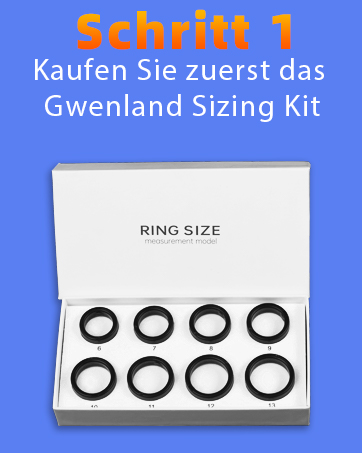
Image 2.1: A Gwenland Sizing Kit, used to find the optimal ring size.
Alternatively, you can measure your finger using a non-elastic strip of paper and a ruler:
- Wrap a non-elastic strip of paper around the base of your index or middle finger.
- Mark the point where the ends overlap.
- Measure the distance between the two marks to find your finger's perimeter.
- Refer to the size chart below to find your corresponding ring size.
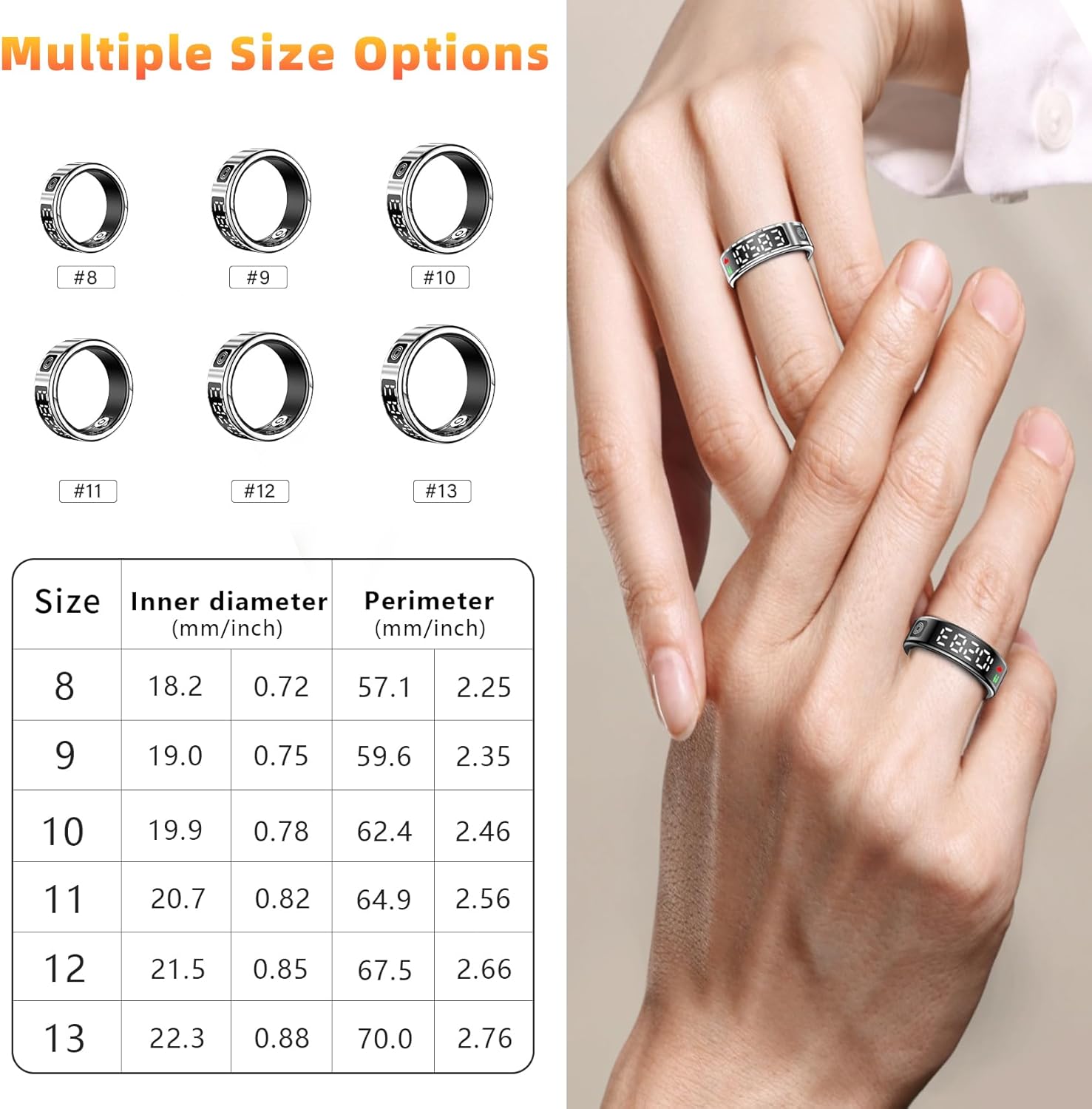
Image 2.2: Detailed size chart with inner diameter and perimeter measurements, alongside an example of the ring being worn.
2.2 Initial Charging
Before first use, fully charge your Smart Ring. The ring comes with a 200mAh charging case. A full charge typically takes about 1 hour.

Image 2.3: The Smart Ring being charged within its dedicated charging case.
2.3 App Download and Connection
The Gwenland Smart Ring requires the JRing app for full functionality and data synchronization. The app is compatible with Android 5.0+ and iOS 10.0+.
- Download the JRing App: Scan the QR code provided in the packaging or visit http://download.keeprapid.com/jring.html to download the JRing app from your device's app store.
- Grant Permissions: Upon opening the app, grant necessary permissions such as Bluetooth, WLAN/Cellular data, and location access.
- Create Profile: Register an account using your email and set up your personal information (date of birth, height, weight).
- Connect Ring: Ensure Bluetooth is enabled on your smartphone. In the JRing app, tap the '+' icon to search for devices. Select 'SR08' to connect your ring.
- Synchronize Data: Once connected, the ring will automatically synchronize data with the app.

Image 2.4: Visual guide for setting up the JRing app and connecting the Smart Ring.
3. Operating Instructions
3.1 Wearing the Ring
For the most accurate readings, ensure the sensors on the inside of the ring are positioned against the pad of your index or middle finger when wearing it.

Image 3.1: Proper wearing technique to ensure sensor contact for accurate data.
3.2 Display and Touch Functions
The Smart Ring features an LED display and a touch-sensitive area for quick access to information. A simple tap on the screen cycles through various data points:
- Time: Current time.
- Steps: Daily step count.
- Heart Rate: Real-time heart rate (bpm).
- SpO2 Levels: Blood oxygen saturation.
- Sleep Time: Overview of sleep duration.
- Battery Level: Remaining battery percentage.

Image 3.2: The Smart Ring's LED display showing different metrics accessible via touch.
3.3 Health Monitoring
The Smart Ring continuously monitors your health data:
- Heart Rate Monitoring: Tracks your heart rate 24/7, providing insights into your physical condition.
- SpO2 Monitoring: Measures blood oxygen levels in real-time.
- Sleep Analysis: Accurately identifies awake, light, and deep sleep phases, providing a detailed sleep score and analysis in the JRing app.

Image 3.3: Example of sleep tracking data and analysis available in the JRing app.
3.4 Activity Tracking
The ring tracks various fitness metrics and supports multiple sports modes:
- Daily Activity: Monitors steps, distance, and calories burned.
- Multi-Sport Modes: Includes tracking for activities such as running, walking, cycling, and hiking.

Image 3.4: Illustration of multi-sport fitness activity tracking, showing steps, calories, distance, and duration.
3.5 Gesture Control
The Smart Ring features innovative gesture control for enhanced convenience:
- Media Control: Swipe gestures can be used to navigate content on platforms like TikTok or to browse e-books.
- Remote Photography: Utilize the app's photography function by shaking your finger with the ring to capture photos remotely.

Image 3.5: Example of using gesture control to swipe through videos on a smartphone.
4. Maintenance
4.1 Water Resistance
The Gwenland Smart Ring SR08 has an IP68 waterproof rating, making it suitable for daily activities and water sports. This includes:
- Hand washing
- Showering
- Rain exposure
- Swimming
- Diving
The robust construction helps prevent water damage and ensures durable performance.

Image 4.1: The Smart Ring demonstrating its IP68 waterproof capabilities during swimming and other activities.
4.2 Battery Life and Charging
The ring offers a battery life of 3-5 days on a single charge, depending on usage. The included 200mAh charging case also serves as a storage box. To charge, place the ring in the charging case. A full charge takes approximately 1 hour.

Image 4.2: Information on the Smart Ring's long battery life and charging via its case.
5. Troubleshooting
5.1 How to Quickly Switch Off the Ring Display
- Press the touchscreen button until the interface that toggles between "LCD" and "OFF" is displayed.
- Press and hold the touchscreen button for three seconds; the display will then be switched off.
- To activate the Smart Ring again, please hold the touchscreen button for three seconds.
5.2 Cannot Synchronize Ring Data with JRing App
- Disconnect the Bluetooth connection with "SR08" in the JRing app.
- In your phone's Bluetooth settings, search for "SR08" and click on "Ignore this device" or "Forget device".
- Close and reopen the JRing app.
- Establish a new connection with "SR08" through the app.
- Check if synchronization can be completed successfully.

Image 5.1: Visual representation of troubleshooting steps for common issues.
6. Specifications
| Feature | Specification |
|---|---|
| Brand | Gwenland |
| Model Number | SR08 |
| Operating System Compatibility | Android 5.0+ and iOS 10.0+ |
| Display Type | LED |
| Input Device | Touchscreen |
| Connectivity | Bluetooth |
| Battery Capacity | 16 mAh (Ring), 200 mAh (Charging Case) |
| Battery Composition | Lithium-polymer |
| Waterproof Rating | IP68 |
| Special Features | LED display, Multi-sport tracker, Sleep tracking, High-quality touch display, Gesture control, Wireless charging, Remote photography |
| Included Components | 1 x Smart Ring, 1 x Charging Case, 2 x Charging Cables, 1 x User Manual |
| Weight | 3.5g (Ring) |
7. Support
For any technical assistance or inquiries regarding your Gwenland Smart Ring SR08, please contact our customer support. We are committed to providing comprehensive technical support to ensure your satisfaction.


