
1. Introduction
This manual provides essential information for the proper installation, operation, and maintenance of your SANSUI 24.5 Inch QHD 300Hz IPS Gaming Monitor, model ES-G25F6Q Pro. Please read this manual thoroughly before using the product to ensure optimal performance and safety. Keep this manual for future reference.

Image: Front and rear view of the SANSUI 24.5 Inch Gaming Monitor ES-G25F6Q Pro. The monitor features a sleek design with a stable stand and red accents on the back.
2. Package Contents
Verify that all items listed below are present in your product package. If any items are missing or damaged, please contact customer support.
- SANSUI 24.5 Inch Gaming Monitor (ES-G25F6Q Pro)
- Monitor Stand (Base and Neck)
- DisplayPort (DP) Cable (1.5m)
- Power Adapter
- Power Cord (1m)
- User Manual (this document)
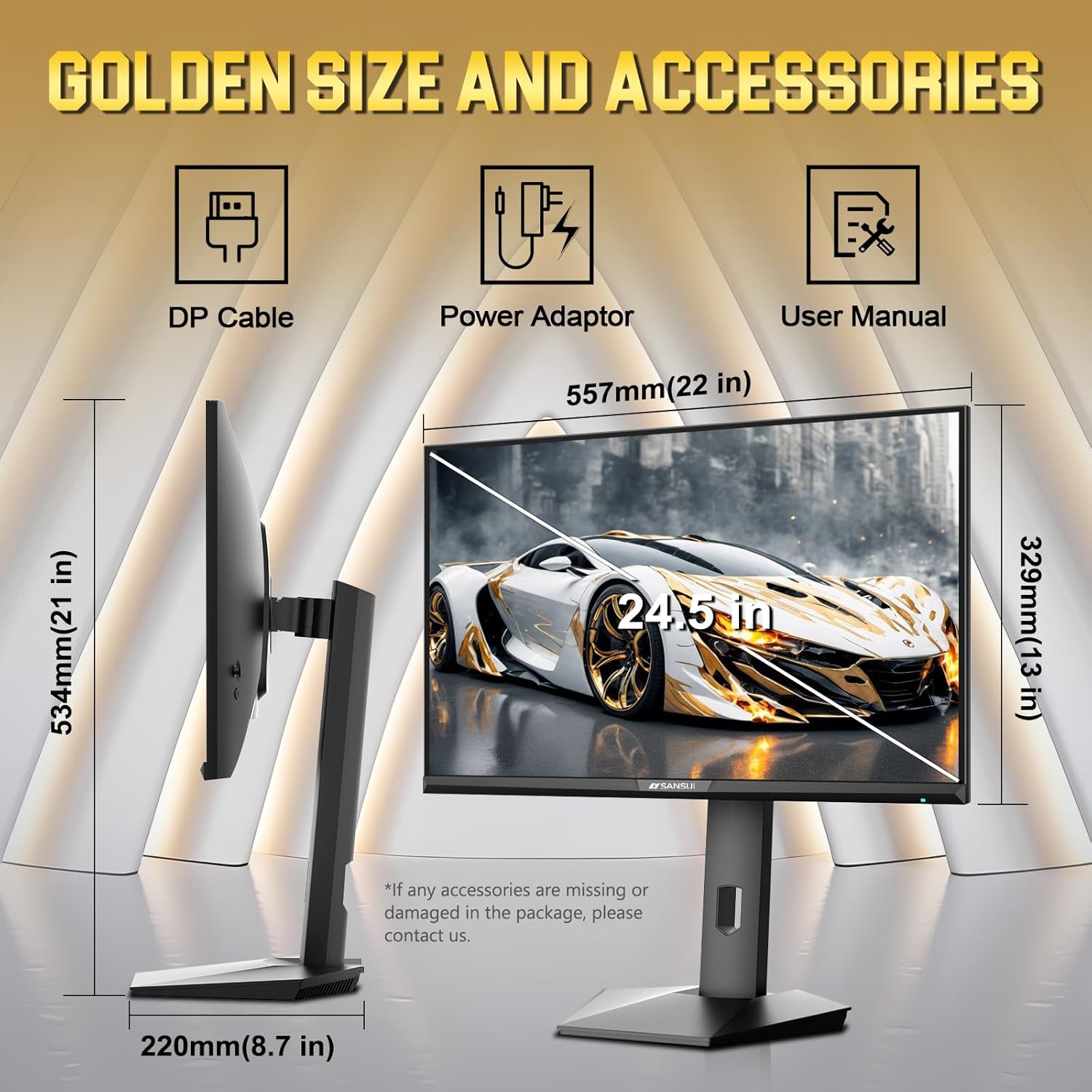
Image: Diagram illustrating the monitor's dimensions (557mm width, 329mm height, 220mm depth with stand) and the included accessories: DP Cable, Power Adapter, and User Manual.
3. Monitor Features
The SANSUI ES-G25F6Q Pro monitor is designed for high-performance gaming and visual clarity.
- Display: 24.5-inch QHD (2560x1440) Fast IPS Panel
- Refresh Rate: Up to 300Hz
- Response Time: 1ms (OD/MPRT)
- Color Gamut: 130% sRGB, 98% DCI-P3
- Brightness: 350 Nits
- High Dynamic Range: HDR support
- Adaptive Sync: FreeSync technology for smooth gaming
- Eye Care: Anti-flicker and Low Blue Light features
- Viewing Angle: 178° wide viewing angle
- Ergonomics: Pivot, Swivel, Height, and Tilt adjustments
- Mounting: VESA 100mm x 100mm compatible
- Connectivity: 2x HDMI 2.1 ports, 2x DisplayPort 1.4 ports, Audio Jack
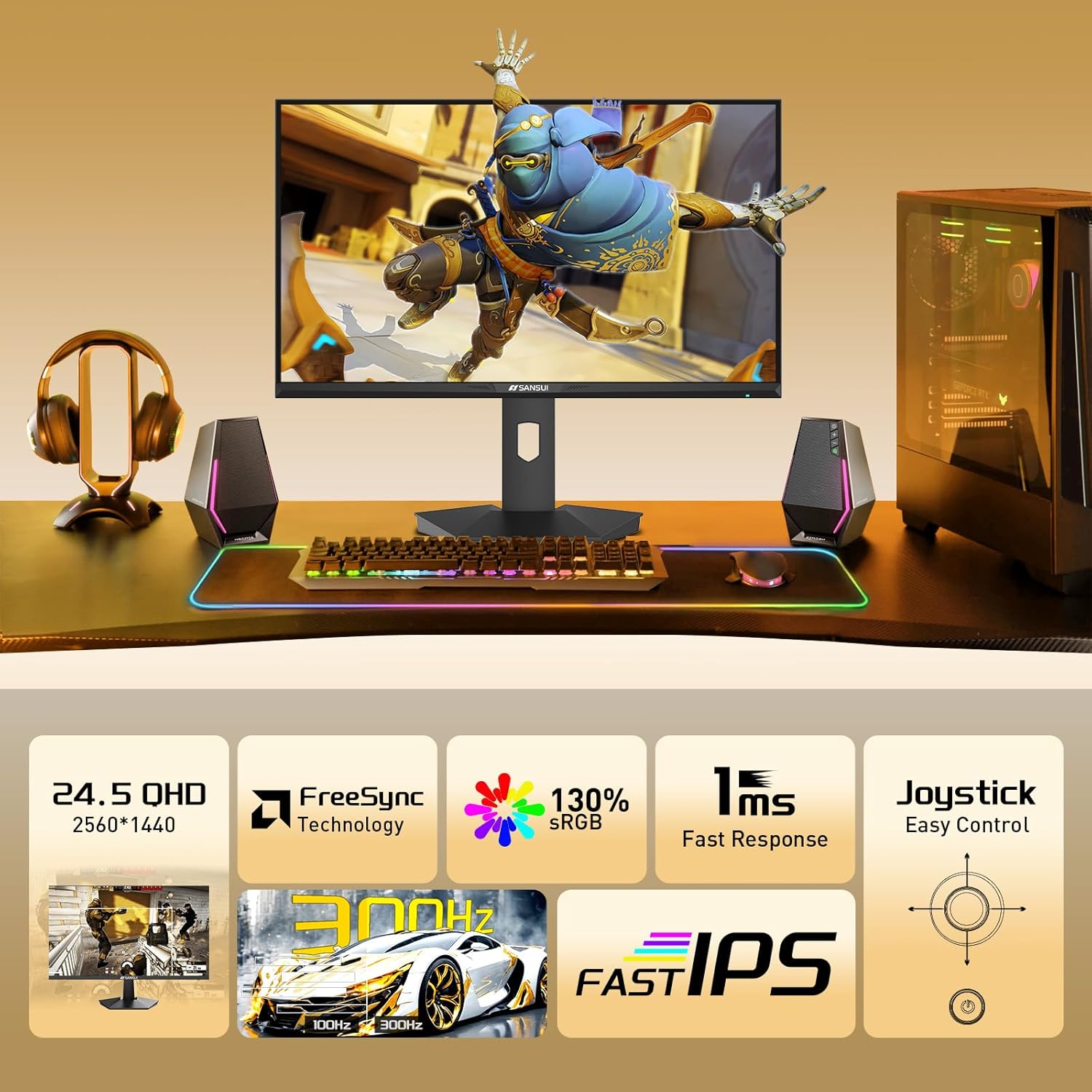
Image: An infographic summarizing the monitor's core features, including its 24.5-inch QHD display, 300Hz refresh rate, 1ms response time, FreeSync, 130% sRGB color, Fast IPS panel, and joystick control.
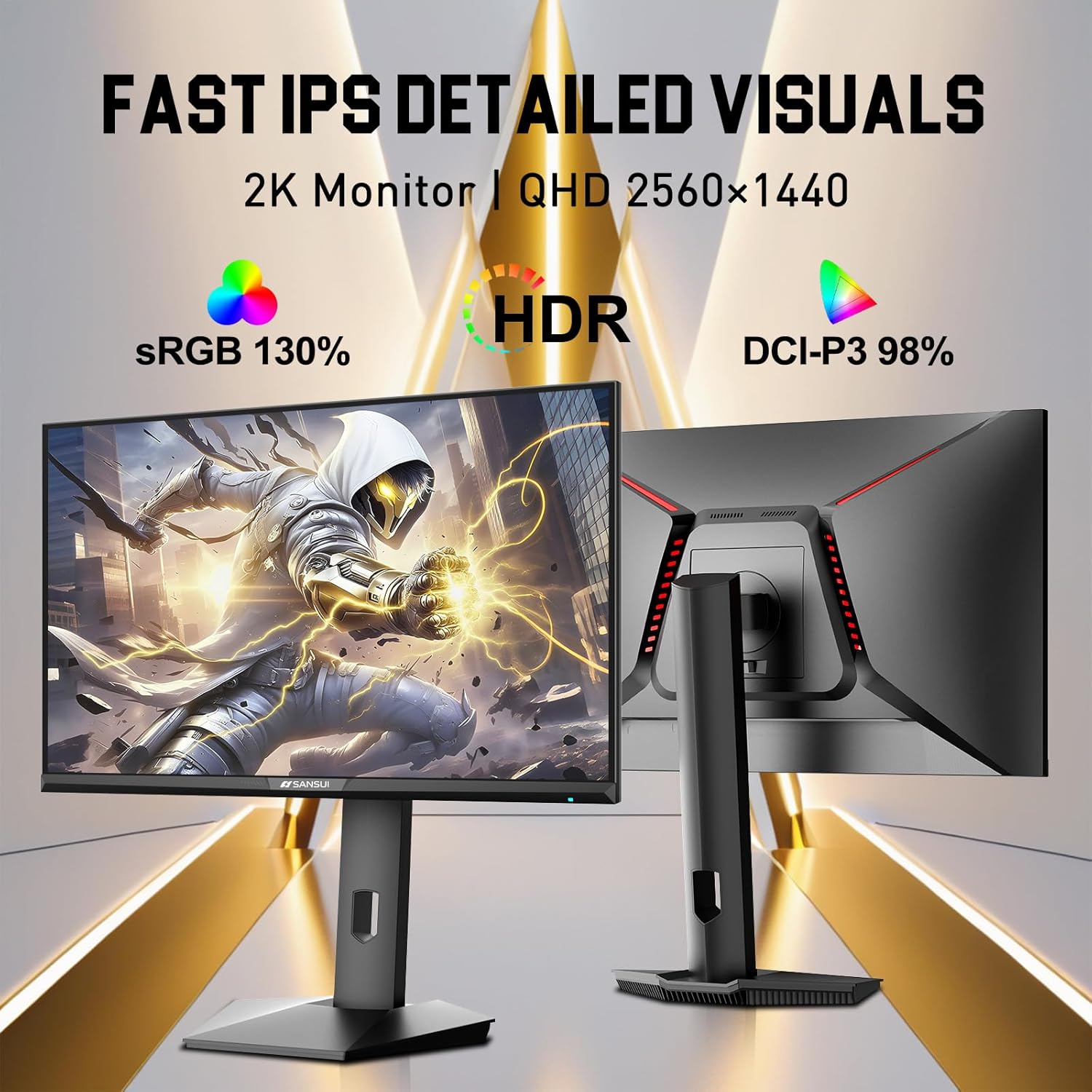
Image: A visual representation of the monitor's detailed display capabilities, emphasizing its 2K QHD resolution (2560x1440), 130% sRGB, HDR support, and 98% DCI-P3 color accuracy.
4. Setup Instructions
4.1. Stand Assembly
- Carefully remove the monitor and stand components from the packaging.
- Attach the stand neck to the monitor panel. Ensure it clicks securely into place or is fastened with screws if provided.
- Attach the stand base to the stand neck. Tighten any screws to ensure stability.
4.2. Ergonomic Adjustments
The monitor stand allows for various adjustments to optimize your viewing experience:
- Height Adjustment: 0-110mm range.
- Tilt: -5° to 20° (+/-2°).
- Swivel: L20° to R20°.
- Pivot: -90° to +90° (for portrait mode).
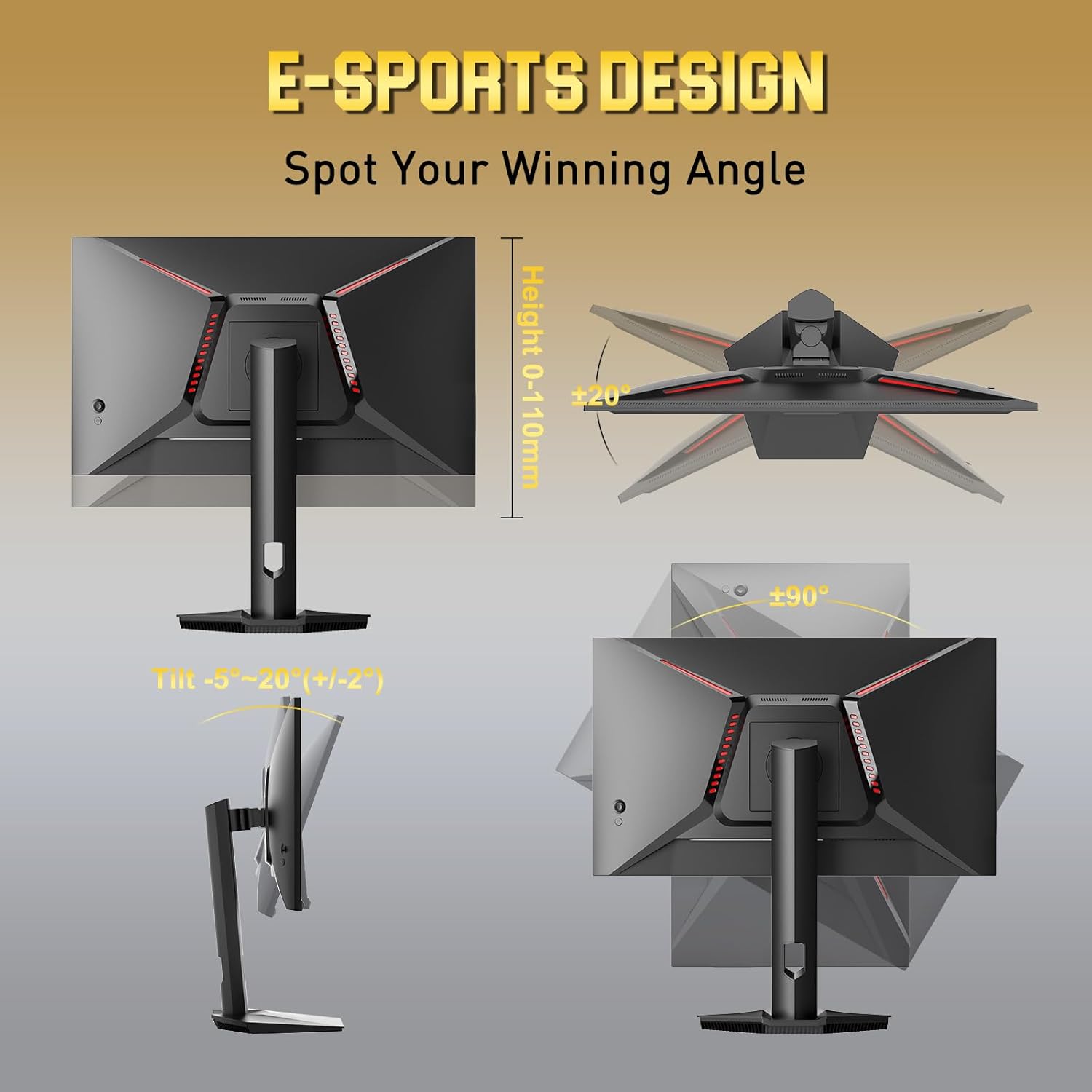
Image: Illustrations demonstrating the monitor's ergonomic stand adjustments, including height (0-110mm), tilt (-5° to 20°), swivel (±20°), and pivot (±90°).
4.3. VESA Mounting
The monitor supports VESA 100mm x 100mm mounting standards for wall mounts or alternative monitor arms. Remove the stand before attaching a VESA-compatible mount.
4.4. Connecting to Devices
Connect your computer or other devices to the monitor using the appropriate cables.
- Power: Connect the power adapter to the monitor's DC input and then plug the power cord into a power outlet.
- DisplayPort (DP): Use the included DP cable to connect your computer's DP output to one of the monitor's DP 1.4 ports. This connection supports up to 2560x1440 resolution at 300Hz.
- HDMI: Connect an HDMI cable (not included) from your device's HDMI output to one of the monitor's HDMI 2.1 ports. This connection also supports up to 2560x1440 resolution at 300Hz.
- Audio Out: Connect headphones or external speakers to the 3.5mm audio jack for sound output. The monitor does not have built-in speakers.
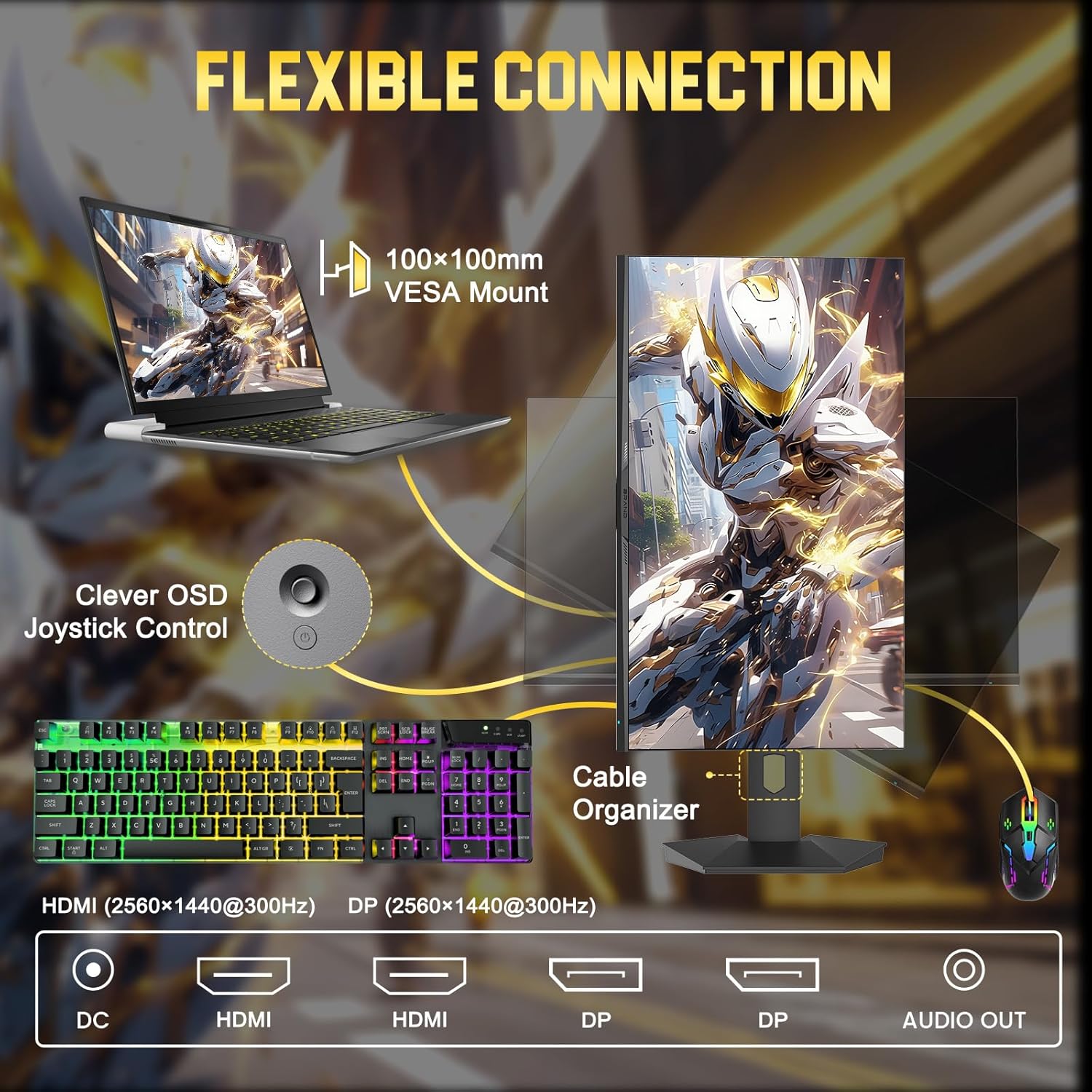
Image: A detailed view of the monitor's rear panel, illustrating the available ports (DC, 2x HDMI, 2x DP, Audio Out), the 100x100mm VESA mount, the OSD joystick control, and a cable organizer on the stand.
5. Operating Instructions
5.1. Power On/Off
Press the power button (integrated into the joystick on the back of the monitor) to turn the monitor on or off. The power indicator light will illuminate when the monitor is on.
5.2. OSD Menu Navigation
The On-Screen Display (OSD) menu is controlled using the joystick located on the back of the monitor.
- Press Joystick: Enter/Select menu item.
- Push Up: Navigate up / Increase brightness.
- Push Down: Navigate down / Decrease volume.
- Push Left: Exit menu / Input menu.
- Push Right: Enter menu / Select.
5.3. Display Settings
Adjust various display settings through the OSD menu:
- Brightness/Contrast: Adjust image luminance and contrast levels.
- Color Settings: Fine-tune color temperature, gamma, and color space (sRGB, DCI-P3).
- HDR: Enable or disable High Dynamic Range for compatible content.
- Sharpness: Adjust image clarity.
- Aspect Ratio: Select between various aspect ratio modes.
- Input Source: Manually select between DP1, DP2, HDMI1, HDMI2.
5.4. Gaming Features
The monitor includes several features to enhance your gaming experience:
- 300Hz Refresh Rate & 1ms Response Time: Provides smooth motion and reduced input lag.
- FreeSync Technology: Synchronizes the monitor's refresh rate with your GPU's frame rate to eliminate screen tearing and stuttering.
- Game Assistants: Access features like CrossHair (on-screen crosshair), Timer, FPS Counter, and specific game modes (RTS, FPS, RACING) via the OSD menu.
- MPRT (Moving Picture Response Time): Reduces motion blur by inserting black frames.
- Blacklevel Adjustment: Enhances visibility in dark areas without overexposing bright areas.
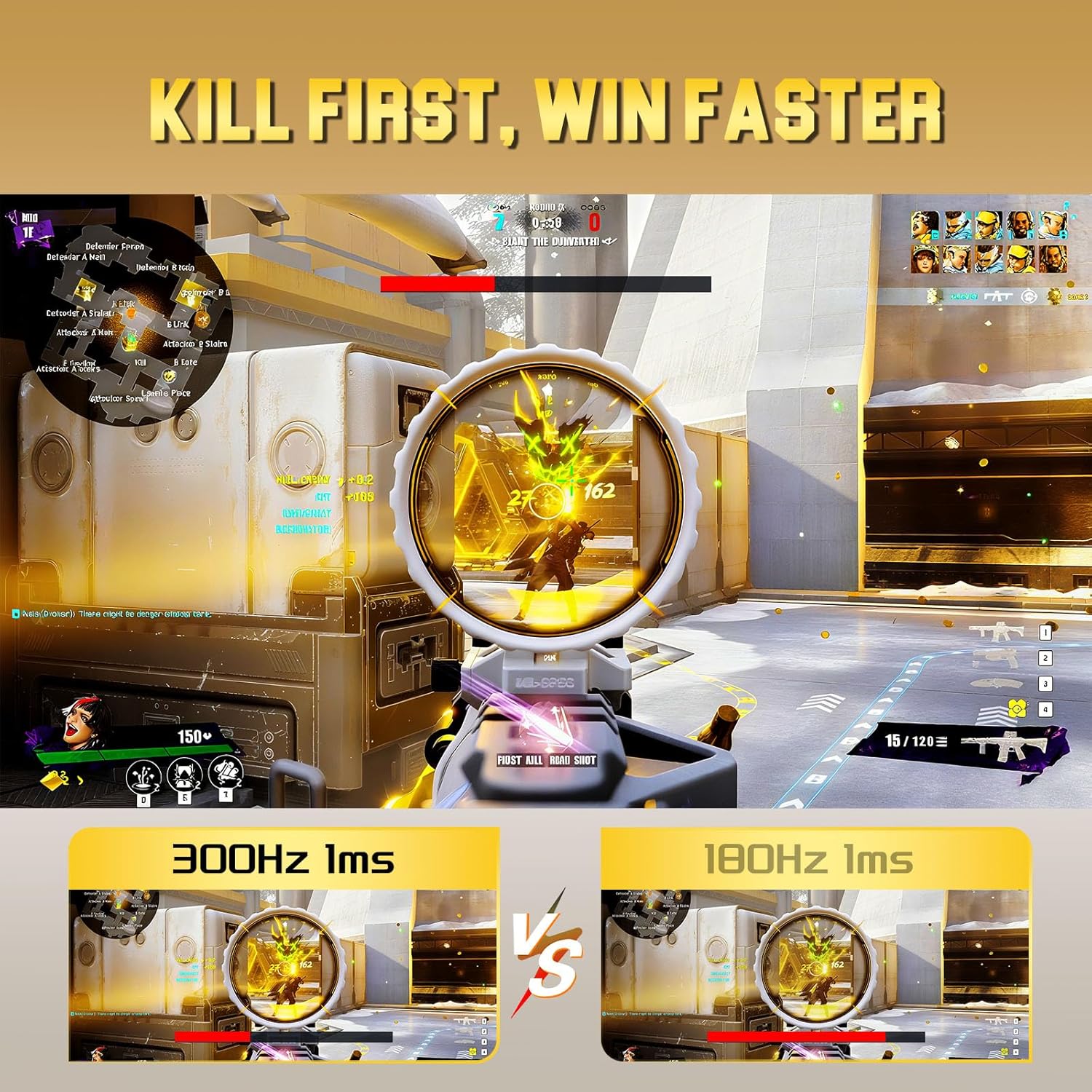
Image: A visual comparison demonstrating the smoother motion and faster response provided by a 300Hz 1ms refresh rate compared to 180Hz 1ms in a fast-paced game.
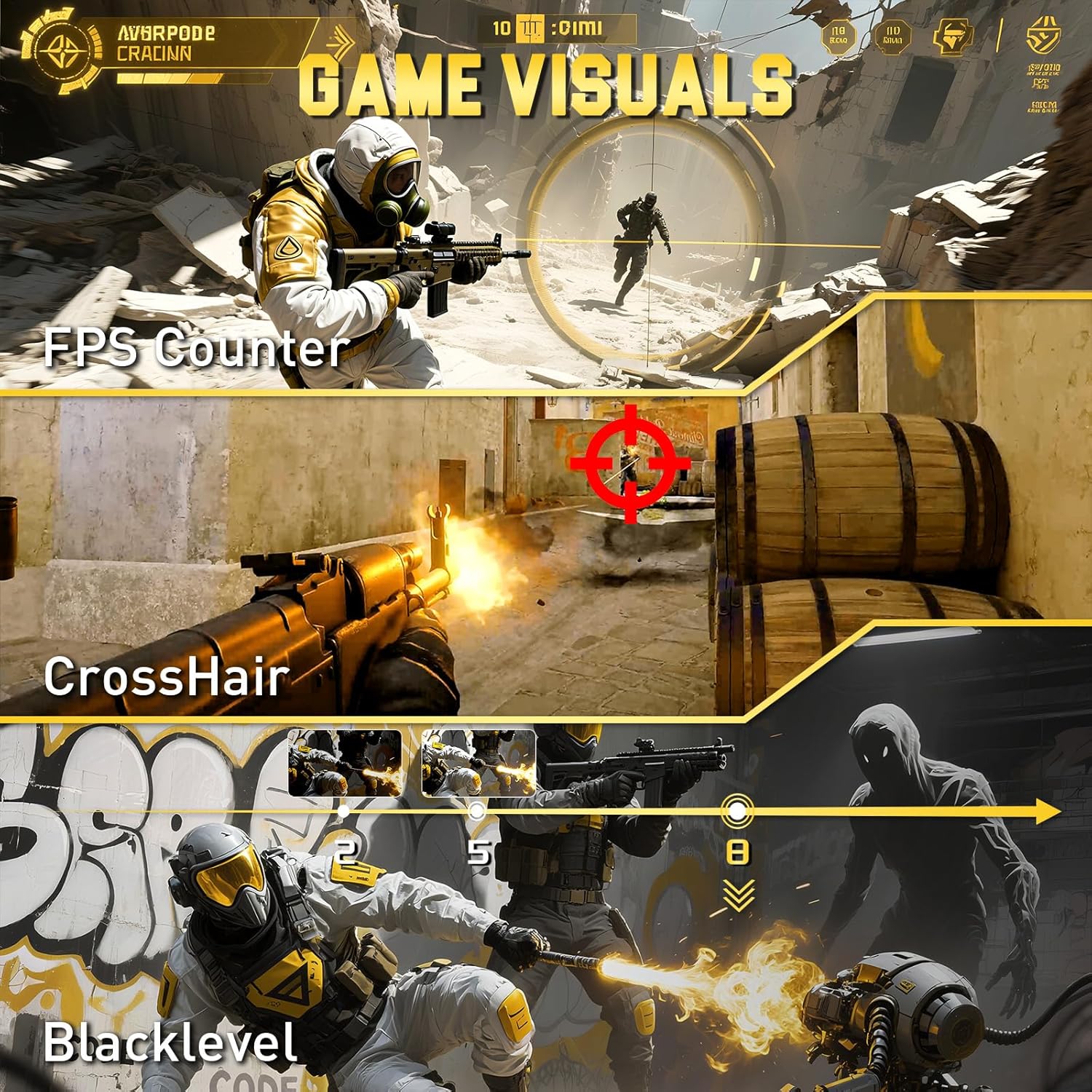
Image: Examples of in-game visual enhancements, including an FPS counter, an on-screen crosshair, and improved visibility in dark scenes through blacklevel adjustment.
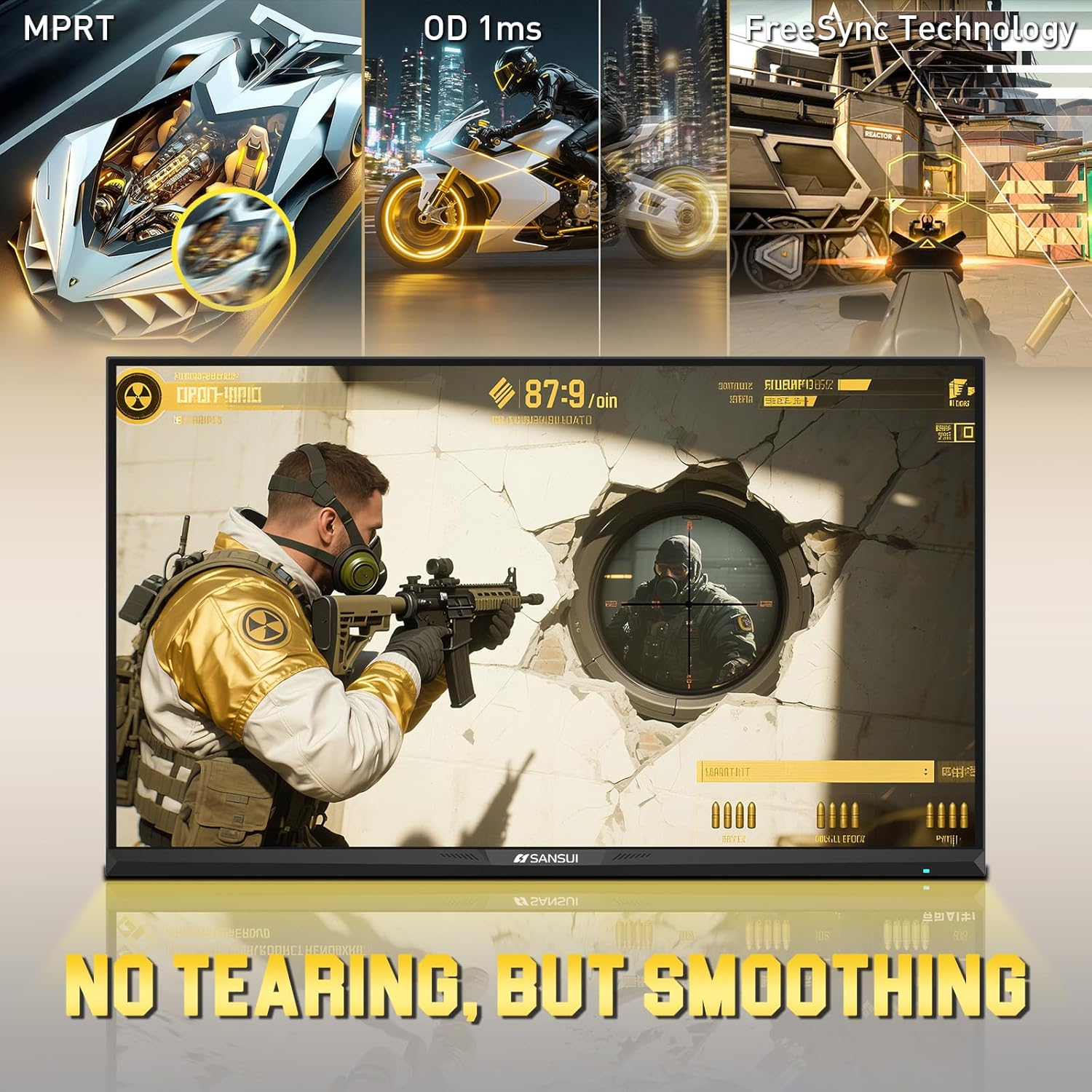
Image: A gaming screenshot highlighting the benefits of MPRT, 1ms Overdrive (OD) response time, and FreeSync technology, resulting in smooth, tear-free gameplay.
6. Maintenance
Proper maintenance ensures the longevity and performance of your monitor.
- Cleaning the Screen: Use a soft, lint-free cloth lightly dampened with water or a specialized screen cleaner. Do not use alcohol-based cleaners or abrasive materials.
- Cleaning the Casing: Wipe the monitor casing with a soft, dry cloth. Avoid using strong detergents or solvents.
- Ventilation: Ensure the monitor's ventilation openings are not blocked to prevent overheating.
- Power Off: Always turn off the monitor and unplug it from the power outlet before cleaning or if it will not be used for an extended period.
7. Troubleshooting
If you encounter issues with your monitor, refer to the following common problems and solutions:
| Problem | Possible Cause | Solution |
|---|---|---|
| No image on screen | No power; Incorrect input source; Loose video cable. | Check power connection; Select correct input source via OSD; Reconnect video cable securely. |
| Image flickering or tearing | FreeSync not enabled; Outdated graphics driver; Cable issue. | Enable FreeSync in OSD and GPU settings; Update graphics drivers; Try a different DP/HDMI cable. |
| No sound from audio jack | Volume too low; Incorrect audio output device selected on PC. | Increase monitor volume via OSD; Ensure monitor is selected as audio output device in OS settings. |
| Buttons not responding | Monitor locked; Temporary software glitch. | Unplug power cable for 30 seconds, then reconnect; Check OSD for button lock feature. |
If the problem persists after attempting these solutions, please contact SANSUI customer support.
8. Specifications
| Feature | Specification |
|---|---|
| Model Number | ES-G25F6Q Pro |
| Screen Size | 24.5 Inches |
| Panel Type | Fast IPS |
| Resolution | QHD (2560 x 1440 Pixels) |
| Aspect Ratio | 16:9 |
| Refresh Rate | 300Hz |
| Response Time | 1ms (OD/MPRT) |
| Brightness | 350 Nits |
| Color Gamut | 130% sRGB, 98% DCI-P3 |
| HDR Support | Yes |
| Viewing Angle | 178° |
| Connectivity | 2x HDMI 2.1, 2x DisplayPort 1.4, 1x Audio Out (3.5mm) |
| VESA Compatibility | 100mm x 100mm |
| Ergonomics | Height, Tilt, Swivel, Pivot |
| Product Dimensions (with stand) | 21.93 x 8.66 x 21.02 inches (557 x 220 x 534 mm) |
| Item Weight | 12.17 pounds (5.52 kg) |
9. Warranty and Support
SANSUI provides the following support for your monitor:
- Money-Back Guarantee: Free replacement or money-back warranty within 30 days from the order date.
- Technical Support: Lifetime technical support.
- Customer Service: For any questions or assistance, please contact SANSUI customer support.


