
1. Introduction
This manual provides essential information for setting up, operating, maintaining, and troubleshooting your Apple iPhone 16e. The iPhone 16e is a powerful and intuitive smartphone designed to enhance your daily communication and productivity.
This particular device is an Amazon Renewed product. Amazon Renewed devices are professionally inspected, tested, and cleaned by Amazon-qualified suppliers to ensure they work and look like new. They are backed by the Amazon Renewed Guarantee, offering a replacement or refund within 90 days if you are not satisfied.
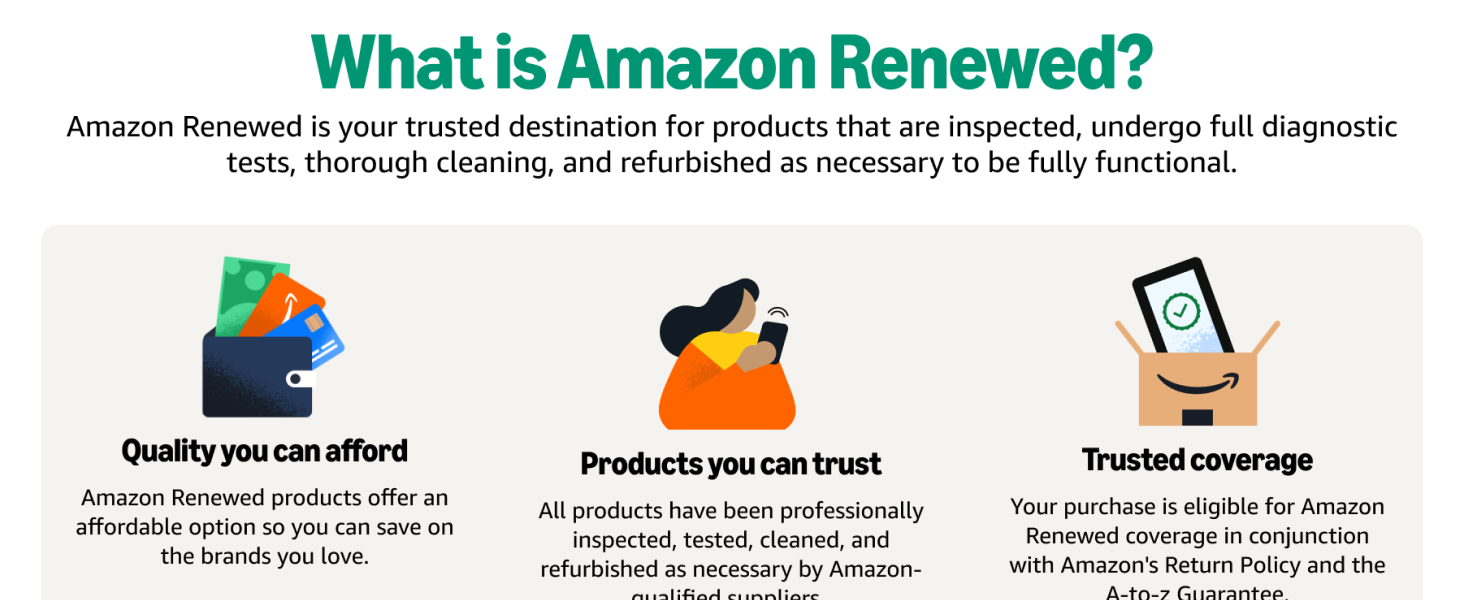
Figure 1.1: Explanation of Amazon Renewed products.
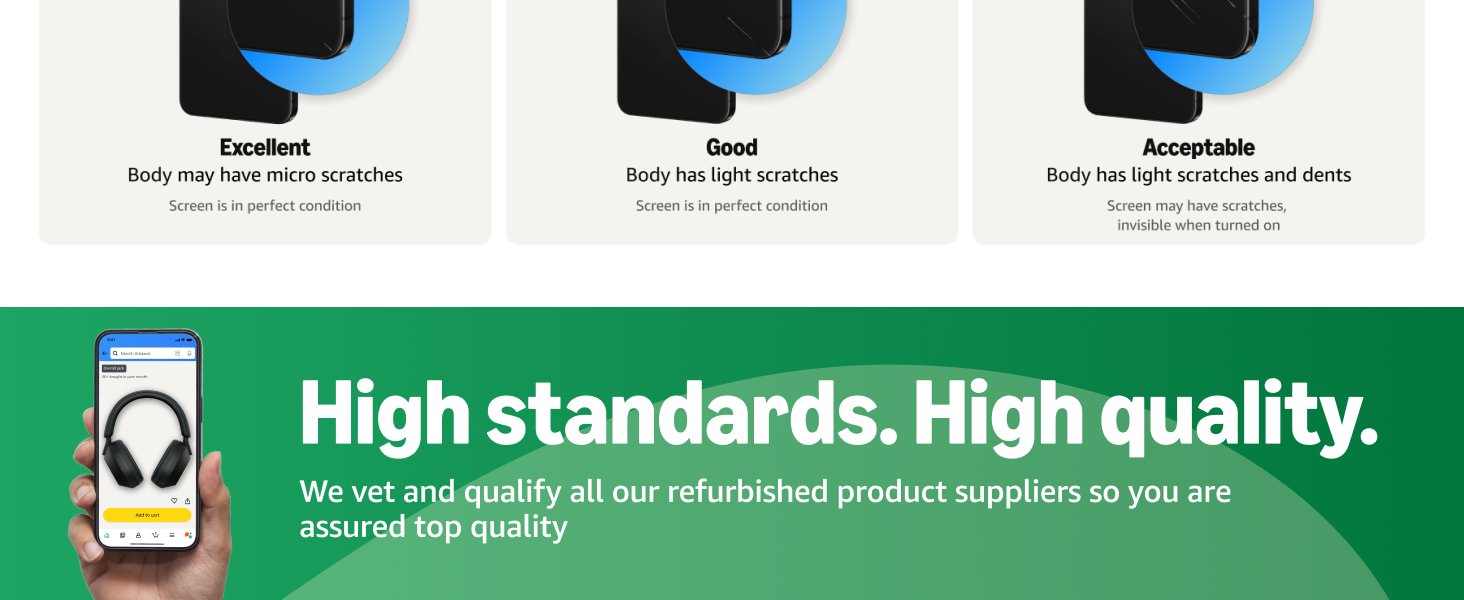
Figure 1.2: Details on refurbished product conditions and battery life.
2. Setup
2.1 Initial Power On
- Press and hold the Side button (located on the right side of the device) until the Apple logo appears.
- Follow the on-screen instructions to select your language, region, and connect to a Wi-Fi network.
2.2 eSIM Activation
The iPhone 16e supports eSIM technology. Contact your carrier (AT&T) to activate your eSIM. They will provide instructions or a QR code for activation.
- Go to Settings > Cellular > Add Cellular Plan.
- Scan the QR code provided by your carrier or enter the details manually.
- Follow the prompts to complete activation.
2.3 Data Transfer
You can transfer data from your old device during the setup process using Quick Start, iCloud backup, or iTunes/Finder backup.
- Quick Start: Bring your old iPhone near your new iPhone 16e and follow the on-screen instructions.
- iCloud Backup: Restore from an iCloud backup during setup.
- iTunes/Finder Backup: Connect your iPhone 16e to a computer with your backup and restore using iTunes (Windows) or Finder (macOS).
2.4 Basic Settings
- Apple ID: Sign in with your Apple ID or create a new one to access App Store, iCloud, and other Apple services.
- Face ID: Set up Face ID for secure unlocking and purchases.
- Passcode: Create a strong passcode for additional security.

Figure 2.1: Front and back view of the Apple iPhone 16e.
3. Operating Your iPhone 16e
3.1 Navigation and Gestures
- Home Screen: Swipe up from the bottom edge to go to the Home screen.
- App Switcher: Swipe up from the bottom edge and pause in the middle of the screen to view open apps.
- Control Center: Swipe down from the top-right corner to access quick settings.
- Notification Center: Swipe down from the top-center to view notifications.
3.2 Dynamic Island
The Dynamic Island is an interactive area at the top of your screen that adapts to show important alerts, notifications, and activities, such as incoming calls, Face ID authentication, timers, and music playback. Tap and hold on the Dynamic Island to expand it and interact with ongoing activities.
3.3 Action Button
The iPhone 16e features a customizable Action button on the left side of the device. By default, it may be set to toggle Silent mode, but you can configure it to perform various functions:
- Go to Settings > Action Button.
- Choose from options like Camera, Flashlight, Voice Memo, Focus, Translate, or Accessibility features.
- Press and hold the Action button to activate the assigned function.

Figure 3.1: Side view of the iPhone 16e, showing the Action button and volume controls.
3.4 Camera Usage
The iPhone 16e is equipped with a powerful dual-camera system, featuring a 48MP Main sensor and a 12MP Ultra-Wide sensor. It supports advanced video recording capabilities, including 4K at up to 60fps with Dolby Vision HDR.
- Taking Photos: Open the Camera app and tap the Shutter button.
- Zoom: Use pinch-to-zoom gestures or tap the 0.5x/1x/2x options on the screen.
- Video Recording: Switch to Video mode and tap the Record button.
- Cinematic Mode: For videos with a shallow depth of field.
- Portrait Mode: For photos with a depth effect.

Figure 3.2: Close-up of the iPhone 16e's dual-camera system.
3.5 Battery Management
The iPhone 16e is designed for all-day battery life. To optimize battery performance:
- Enable Low Power Mode when battery is low (Settings > Battery).
- Adjust screen brightness or enable Auto-Brightness (Settings > Display & Brightness).
- Limit background app refresh for apps you don't frequently use (Settings > General > Background App Refresh).
- Charge using the included USB-C cable for optimal charging speeds.
3.6 Connectivity
Your iPhone 16e supports 5G cellular connectivity, Wi-Fi 7, and Bluetooth for seamless wireless connections.
- Wi-Fi: Connect to Wi-Fi networks via Settings > Wi-Fi.
- Bluetooth: Pair with Bluetooth accessories via Settings > Bluetooth.
- 5G: Ensure your cellular plan supports 5G and you are in a 5G coverage area.

Figure 3.3: Bottom view of the iPhone 16e, highlighting the USB-C port.
4. Maintenance
4.1 Cleaning Your Device
To clean your iPhone 16e, use a soft, lint-free cloth. Avoid abrasive materials, aerosols, solvents, or ammonia-based cleaners. For stubborn smudges, slightly dampen the cloth with water.
4.2 Software Updates
Keep your iPhone's software up to date to ensure optimal performance and security.
- Go to Settings > General > Software Update.
- If an update is available, tap Download and Install.
4.3 Battery Health Tips
While your renewed iPhone 16e comes with a battery exceeding 80% capacity relative to new, you can extend its lifespan:
- Avoid extreme ambient temperatures.
- Remove certain cases during charging if they cause heat buildup.
- Store your iPhone with a half-charged battery if storing long-term.
4.4 Storage Management
To manage your device's 128GB storage:
- Go to Settings > General > iPhone Storage to see what's using space.
- Offload unused apps or delete large files and media.
- Utilize iCloud for cloud storage.
5. Troubleshooting
5.1 Common Issues
- Device Unresponsive: Perform a force restart (see 5.2).
- Activation Issues: If your device is stuck on activation, try a force restart. Ensure you have a stable internet connection and your eSIM is properly provisioned by AT&T.
- Battery Drain: Review battery usage in Settings > Battery to identify problematic apps.
- Connectivity Problems: Toggle Wi-Fi/Bluetooth/Cellular off and on. Reset Network Settings (Settings > General > Transfer or Reset iPhone > Reset > Reset Network Settings).
5.2 Force Restart
If your iPhone is unresponsive, a force restart can often resolve the issue without erasing data:
- Press and quickly release the Volume Up button.
- Press and quickly release the Volume Down button.
- Press and hold the Side button until the Apple logo appears.
5.3 Factory Reset
A factory reset erases all data and settings from your iPhone. Back up your device before proceeding.
- Go to Settings > General > Transfer or Reset iPhone > Erase All Content and Settings.
- Follow the on-screen prompts to confirm.
6. Specifications
| Feature | Detail |
|---|---|
| Model Name | iPhone 16e |
| Item Model Number | A3212 |
| Display | 6.1 Inches Super Retina XDR OLED |
| Operating System | iOS 18 |
| CPU Model | Apple A18 Bionic |
| CPU Speed | 2.02 GHz |
| RAM Memory Installed Size | 8 GB |
| Memory Storage Capacity | 128 GB |
| Main Camera | 48MP |
| Ultra-Wide Camera | 12MP |
| Battery Power Rating | 4005 Milliamp Hours |
| Wireless Carrier | AT&T (eSIM) |
| Cellular Technology | 5G |
| Connectivity Technologies | Bluetooth, USB, Wi-Fi 7 |
| Product Dimensions | 2.82 x 2.82 x 5.78 inches |
| Item Weight | 5.9 ounces |
| What's in the box | USB Cable |

Figure 6.1: iPhone 16e screen, highlighting its compatibility with Apple Intelligence.
7. Warranty & Support
7.1 Amazon Renewed Guarantee
Your Apple iPhone 16e is covered by the Amazon Renewed Guarantee. This means you are eligible for a replacement or refund within 90 days of receipt if you are not satisfied with the product.
7.2 Manufacturer's Warranty
As a renewed product, the original manufacturer's warranty may vary or be limited. Please refer to your purchase documentation or contact the seller (DNCL-TECHZONE) for specific details regarding any remaining Apple warranty coverage.
7.3 Customer Support
For further assistance, please refer to the Amazon Renewed support page or contact the seller directly through your Amazon order history.