
AGM M10
AGM M10 Flip Phone User Manual
Model: M10
Introduction
The AGM M10 Flip Phone is a robust and user-friendly mobile device designed for durability and essential communication. Featuring 4G LTE connectivity, dual SIM support, and a rugged IP68/IP69K and MIL-STD-810G certified build, it is engineered to withstand challenging environments. This manual provides comprehensive instructions for setting up, operating, maintaining, and troubleshooting your AGM M10 Flip Phone.
What's in the Box
Upon unboxing your AGM M10 Flip Phone, please verify that all the following items are included:
- M10 Flip Phone
- Charging Dock
- Charging Cable
- Charging Adapter

Image: Contents of the AGM M10 Flip Phone package, including the phone, charging dock, USB cable, and power adapter.
Product Overview and Features
Rugged Durability
The AGM M10 is built to withstand harsh conditions, certified with IP68/IP69K ratings for water and dust resistance, and MIL-STD-810G for shock resilience. This ensures the device can endure drops, bumps, and exposure to various elements.

Image: The AGM M10 demonstrating its drop-proof, waterproof, and dustproof capabilities in outdoor settings.
Connectivity and Dual SIM
The M10 supports 4G LTE for fast and reliable connections. It features dual Nano SIM slots, allowing for the use of two different phone numbers or carriers simultaneously, ideal for managing work and personal calls or for international travel. Note that only one SIM can utilize 4G at a time.

Image: The AGM M10's screen displaying a number, emphasizing its 4G LTE and Dual Nano SIM capabilities.
Essential Features
The phone includes practical features for daily use and emergencies:
- Flashlight: Quick-access button for instant illumination.
- SOS Emergency Button: For immediate contact in critical situations.
- FM Radio: Built-in radio for entertainment on the go.
- Smart Front LEDs: Indicators for calls, messages, and battery status.

Image: Visual representation of the AGM M10's quick access features: FM Radio, SOS, and Flashlight.
User-Friendly Design
Designed for ease of use, the M10 features large fonts and big buttons, simplifying dialing and texting. The clear display ensures a comfortable experience for users of all ages.
Portability
Measuring 4.33 × 2.22 × 0.98 inches and weighing 4.9 ounces, the AGM M10 is compact and lightweight, fitting easily into pockets or small bags, making it convenient for daily carry, work, travel, or outdoor activities.

Image: The compact design of the AGM M10, illustrating its small size and ease of carrying.
Charging Convenience
The included charging dock provides a hassle-free way to power your device. Simply place the phone into the charging dock for convenient charging without fumbling with cables.
Classic Meets Modern
The M10 integrates modern features like Bluetooth 5.0 with a classic 3.5mm audio jack. Its modest internal storage can be expanded up to 128GB using a simple SD card (not included).

Image: The AGM M10 showcasing its Bluetooth 5.0, 3.5mm jack, and expandable storage up to 128GB.
Long-Lasting Power
Equipped with a 1200mAh battery, the AGM M10 ensures extended usage throughout the day, keeping you connected when you need it most.

Image: The AGM M10 in its charging dock, emphasizing its 1200mAh battery for lasting power.
Setup
1. SIM Card and Battery Installation
To install the SIM card(s) and battery:
- Open the back cover of the phone.
- Carefully insert the Nano SIM card(s) into the designated SIM slots. Ensure the gold contacts face downwards and the notched corner aligns correctly.
- If using an SD card for expanded storage, insert it into the microSD card slot.
- Insert the battery into its compartment, ensuring the contacts align.
- Replace the back cover securely until it clicks into place.
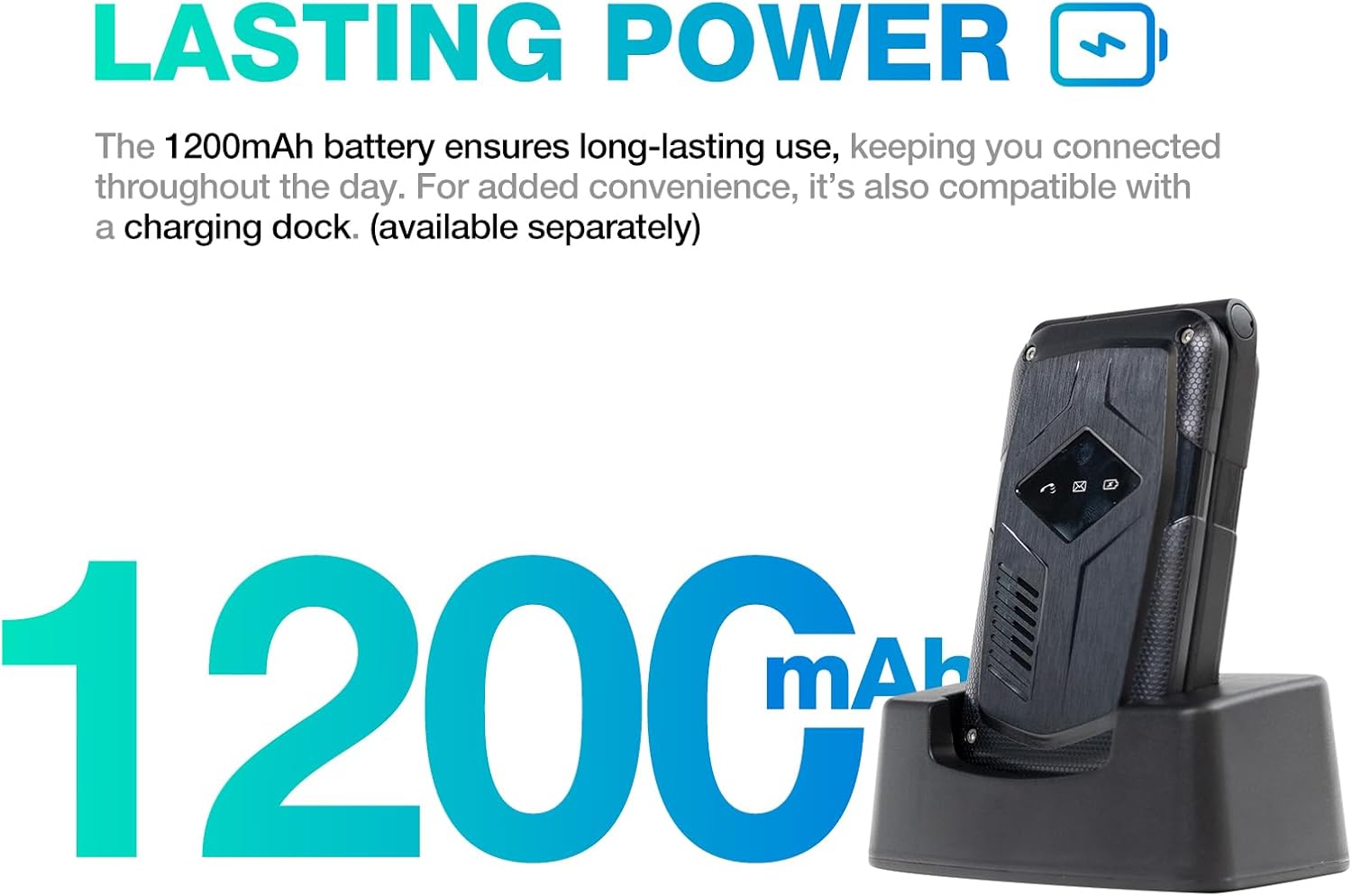
Image: The internal components of the AGM M10, showing the battery, SIM card slots, and SD card slot.
2. Initial Power On
Press and hold the Power/End Call button (red button) until the screen lights up and the AGM logo appears. The phone will boot up.
3. Charging the Device
Before first use, it is recommended to fully charge the phone. Connect the charging cable to the adapter, then plug the adapter into a power outlet. Place the phone into the charging dock, ensuring it makes proper contact. The charging indicator on the phone will show the charging status.
Operating Instructions
Basic Navigation
- Navigation Keys: Use the directional pad (up, down, left, right) to navigate through menus and options.
- OK/Select Button: Press the center button of the directional pad to confirm selections.
- Left Soft Key: Typically acts as a "Menu" or "Options" button, context-dependent.
- Right Soft Key: Typically acts as a "Back" or "Clear" button, context-dependent.
- Call Button (Green): To make a call or answer an incoming call.
- End Call/Power Button (Red): To end a call, return to the home screen, or power the phone on/off.
Making and Receiving Calls
- To Make a Call: Enter the phone number using the keypad and press the Green Call button.
- To Answer a Call: When the phone rings, press the Green Call button.
- To End a Call: Press the Red End Call button.
Sending and Receiving Messages
- Navigate to the "Messages" menu.
- Select "New Message" to compose a text.
- Enter the recipient's number and type your message.
- Press the "Send" option.
Using the Flashlight
Press the dedicated Flashlight button (usually located on the side or a specific key on the keypad, refer to phone markings) to turn the flashlight on or off.
Using the SOS Function
The SOS button is designed for emergencies. To set up and use:
- Go to the "SOS Settings" in the phone's menu.
- Add emergency contacts to the SOS list.
- In an emergency, press and hold the SOS button. The phone will automatically call and send an emergency message to the pre-set contacts.
Using FM Radio
Navigate to the "FM Radio" application from the main menu. You may need to connect headphones (via the 3.5mm jack) to act as an antenna for optimal reception.
Bluetooth Pairing
To pair with a Bluetooth device:
- Go to "Settings" > "Bluetooth".
- Turn Bluetooth on.
- Select "Search for devices" or "Pair new device".
- Choose your desired device from the list and follow the on-screen prompts to complete pairing.
Adjusting Volume
Use the dedicated volume up/down buttons on the side of the phone to adjust call volume, media volume, and ringtone volume.
Maintenance
- Cleaning: Use a soft, dry, lint-free cloth to clean the phone's screen and body. For stubborn dirt, slightly dampen the cloth with water. Avoid using harsh chemicals or abrasive materials.
- Water and Dust Resistance: While the phone is IP68/IP69K rated, ensure all port covers (if any) are securely closed before exposing the phone to water or dust. Do not intentionally submerge the phone in water for extended periods or beyond specified depths.
- Storage: Store the phone in a cool, dry place away from direct sunlight and extreme temperatures. If storing for an extended period, ensure the battery is partially charged (around 50%) to preserve battery health.
- Battery Care: Avoid fully discharging the battery frequently. Use only the provided charging accessories or certified compatible ones.
Troubleshooting
| Problem | Possible Cause | Solution |
|---|---|---|
| Phone does not power on. | Battery is drained or not properly installed. | Charge the phone using the charging dock. Ensure the battery is correctly inserted. |
| Cannot make or receive calls. | No network signal, SIM card issue, or incorrect network settings. | Check signal strength. Reinsert SIM card(s). Verify network settings with your carrier. |
| Poor call quality. | Weak signal, interference, or speaker/microphone obstruction. | Move to an area with better signal. Ensure speaker/microphone are clear of debris. |
| Battery drains quickly. | Excessive usage, background processes, or old battery. | Reduce screen brightness. Close unused applications. If battery is old, consider replacement. |
| Phone is unresponsive. | Software glitch. | Remove and reinsert the battery to perform a hard reset. |
Specifications
| Feature | Detail |
|---|---|
| Model Name | M10 |
| Brand | AGM |
| Operating System | RTOS |
| Cellular Technology | 4G |
| Wireless Carrier Compatibility | T-Mobile (US), unlocked for global carriers outside US |
| Memory Storage Capacity | 0.12 GB (expandable up to 128GB with SD card) |
| RAM Memory Installed Size | 48 MB |
| CPU Speed | 1.6 GHz |
| Battery | 1200mAh Nonstandard Battery (included) |
| Item Weight | 4.5 ounces |
| Package Dimensions | 4 x 2 x 0.6 inches |
| Color | Black |
| Durability Certifications | IP68/IP69K, MIL-STD-810G |
Warranty and Support
AGM is committed to providing trusted quality and dedicated after-sales support for the M10 Flip Phone. If you encounter any quality issues with your device, please reach out to AGM's customer service for prompt assistance and a straightforward replacement process. Enjoy long-term support directly from AGM.
For further assistance, please visit the official AGM support channels or contact their customer service team.
Related documentsM10


Ask a question about this manual
Ask about setup, troubleshooting, compatibility, parts, safety, or missing instructions. Manuals+ will review the question and use this page’s manual context to help answer it.