
Aqualin YL21188+21189
Aqualin WiFi Water Timer 2 Zones Smart Watering Timers
Model: YL21188+21189
User Manual
1. Introduction
Thank you for choosing the Aqualin WiFi Water Timer. This smart watering system is designed to provide efficient and convenient irrigation for your garden, lawn, or potted plants. With two independent water outlets and smart control features, you can customize watering schedules, monitor water usage, and manage your irrigation system remotely via the Smart Life APP, Alexa, or Google Assistant.
This manual provides detailed instructions for setting up, operating, and maintaining your Aqualin WiFi Water Timer to ensure optimal performance and longevity.
2. Product Overview
The Aqualin WiFi Water Timer system consists of the main water timer unit and a WiFi hub. The timer connects directly to your outdoor faucet, and the hub facilitates smart connectivity.

Figure 2.1: Aqualin WiFi Water Timer, WiFi Hub, and a smartphone displaying the watering schedule app.
This image shows the main components of the Aqualin smart watering system: the grey two-outlet water timer, the compact grey WiFi hub, and a smartphone screen illustrating the intuitive watering schedule interface of the Smart Life application.

Figure 2.2: Aqualin WiFi Water Timer and WiFi Hub with power adapter.
This image displays the Aqualin WiFi Water Timer unit alongside its compact WiFi hub and the accompanying EU standard power adapter. The power adapter connects directly to the gateway via a Type-C cable.
Key Features:
- APP Remote Control: Manage watering schedules from anywhere via the Smart Life APP (Android/iOS).
- Intelligent Voice Control: Compatible with Alexa and Google Assistant for hands-free operation.
- Two Watering Modes: Choose between Irrigation Mode for continuous watering and Spray Mode for interval watering.
- Upgraded Leak-Proof Design: Reinforced nylon material and multiple sealing gaskets ensure durability and prevent leaks.
- 2 Independent Water Outlets: Set distinct watering schedules for different zones or plant types.
- Built-in Flow Meters: Monitor and manage water usage for each outlet separately.
3. Specifications
| Attribute | Detail |
|---|---|
| Brand | Aqualin |
| Model Number | YL21188+21189 |
| Color | Grey |
| Product Dimensions | 16 x 15.5 x 9.7 cm |
| Item Weight | 730 g (0.73 Kilograms) |
| Material | Plastic |
| Pressure Range | 14.5 to 116 psi |
| WiFi Compatibility | 2.4 GHz only |
4. Setup Guide
4.1 Physical Installation
- Prepare the Faucet: Ensure your outdoor faucet is clean and free of debris.
- Attach the Water Timer: Screw the Aqualin Water Timer directly onto your outdoor faucet. Hand-tighten until secure. Do not overtighten. The reinforced nylon material and included sealing gaskets help prevent leaks.
- Connect Hoses: Attach your garden hoses to the two independent outlets at the bottom of the timer. Ensure a tight connection to prevent leaks.
- Install Batteries: Open the battery compartment (usually located on the back or side) and insert the required batteries (not specified in input, assume standard AA/AAA, user should check product packaging). Ensure the waterproof rubber ring is properly seated when closing the battery cover.
4.2 WiFi Hub Setup
- Power the Hub: Connect the WiFi hub to a power outlet using the provided Type-C cable and EU standard plug.
- Download Smart Life APP: Download the "Smart Life" application from your smartphone's app store (available on Android and iOS).
- Register/Login: Open the Smart Life APP and register a new account or log in if you already have one.
- Add Device (WiFi Hub):
- In the APP, tap the "+" icon to add a new device.
- Select "Gateway & Other" or search for "WiFi Hub".
- Follow the on-screen instructions to connect the hub to your 2.4 GHz WiFi network. Ensure your phone is also connected to the 2.4 GHz network during setup.
- Pair Water Timer with Hub:
- Once the WiFi hub is successfully added, select it in the Smart Life APP.
- Look for an option to "Add Sub-device" or "Add Device" within the hub's interface.
- Follow the APP's instructions to put the water timer into pairing mode (refer to the timer's specific button sequence, usually a long press of a button).
- The timer will connect to the hub, and you will see it listed in the APP.

Figure 4.1: Smart WiFi and Bluetooth Connection Diagram.
This diagram illustrates the connectivity of the Aqualin WiFi Water Timer system. It shows the water timer connected to a faucet, communicating wirelessly with the WiFi hub (2.4GHz WiFi), which then connects to the cloud via a router. A smartphone is shown interacting with the system, demonstrating remote control capabilities.
5. Operating Instructions
5.1 APP Remote Control
Once your Aqualin Water Timer is paired with the WiFi hub and connected to the Smart Life APP, you can manage your watering schedules from anywhere.
- Accessing the Timer: Open the Smart Life APP and select your Aqualin Water Timer from the device list.
- Setting Schedules:
- Navigate to the scheduling section for each of the two independent outlets.
- Set start times, watering durations (from 1 minute to 360 minutes), and frequency (daily, specific days, even/odd days).
- Manual Control: You can manually turn on/off each outlet directly from the APP for immediate watering needs.
5.2 Intelligent Voice Control
The Aqualin WiFi Water Timer is compatible with Amazon Alexa and Google Assistant, allowing for convenient voice commands.
- Link Smart Life Account: In your Alexa or Google Home app, enable the "Smart Life" skill/action and link your Smart Life account.
- Discover Devices: Ask Alexa or Google Assistant to "discover devices" to find your Aqualin Water Timer.
- Voice Commands: Use commands such as:
- "Alexa, turn on [Water Timer Name] Zone 1."
- "Hey Google, turn off [Water Timer Name] Zone 2."
- "Alexa, open zone A/zone B" (as shown in image).

Figure 5.1: APP Control and Smart Voice Control in action.
This image demonstrates the dual control methods for the Aqualin Water Timer: remote control via a smartphone app and voice control through a smart speaker (compatible with Amazon Alexa). A user is shown interacting with a smart speaker, issuing a voice command to control the watering zones.
5.3 Watering Modes
The Aqualin Water Timer offers two distinct watering modes to suit different irrigation needs:
- Irrigation Mode:
Ideal for lawns and general garden watering. In this mode, water is dispensed continuously for the set duration within the planned period. You define a start time and a duration for each watering cycle.
- Spray Mode (Mist Mode):
Perfect for misting systems, outdoor cooling, or dust removal. This mode allows for repeated interval watering during a defined plan period. You can set a start time, end time, mist duration, and interval between mists.

Figure 5.2: Configuration options for Irrigation Mode and Spray Mode.
This image illustrates the settings available for the two watering modes. The top panel shows "Irrigation Mode" with options for Start Time, Duration, and selection of watering days. The bottom panel shows "Mist Mode" (Spray Mode) with options for Start Time, End Time, Mist Time (duration), and Interval, along with watering day selection.
5.4 Rain Delay Function
To conserve water and prevent overwatering, the Aqualin Water Timer features a rain delay function. You can temporarily suspend scheduled watering for a set period.
- Activating Rain Delay: In the Smart Life APP, navigate to the timer settings and select the "Rain Delay" or "Weather Delay" option.
- Set Delay Duration: Choose from predefined delay periods (e.g., 24h, 48h, 72h, up to 168 hours).
- Automatic Resumption: Watering schedules will automatically resume after the selected delay period expires.
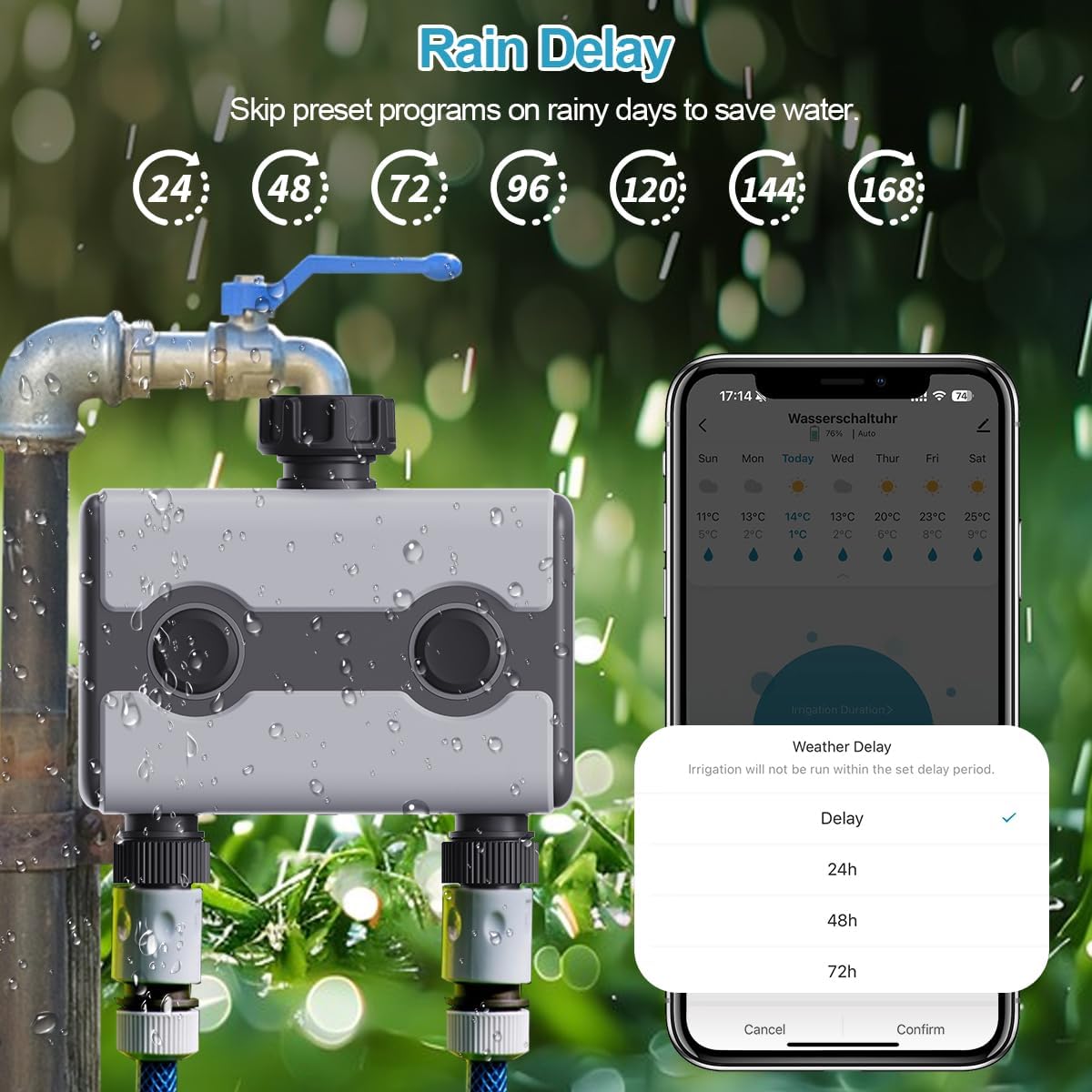
Figure 5.3: Rain Delay options in the application.
This image shows the Rain Delay feature within the Aqualin Water Timer's mobile application. It displays options to delay watering for 24h, 48h, or 72h, with a visual representation of the timer unit and a weather forecast on a smartphone screen, indicating how the feature helps save water by skipping programs on rainy days.
5.5 Water Usage Monitoring (Flow Meters)
The Aqualin Water Timer has built-in flow meters that monitor water usage for each of its two outlets independently.
- Accessing Data: View real-time and historical water consumption data within the Smart Life APP.
- Monitoring: The app provides insights into total weekly water consumption, helping you manage and optimize your water usage.
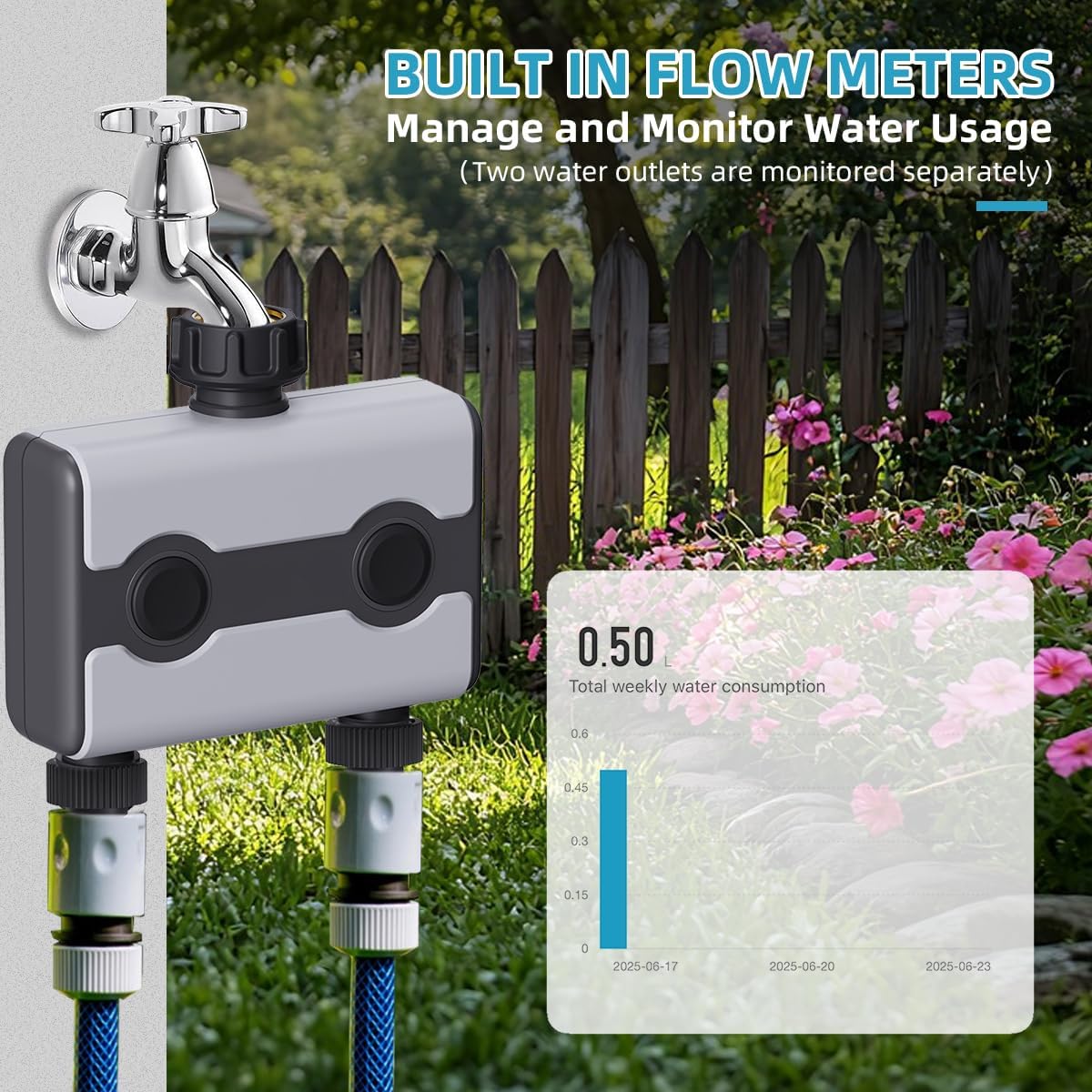
Figure 5.4: Water usage data displayed in the app.
This image highlights the built-in flow meters feature, showing the Aqualin Water Timer connected to a faucet with hoses. A smartphone screen overlays the image, displaying a graph of "Total weekly water consumption" in liters, indicating that water usage for the two outlets is monitored separately.
6. Maintenance
- Regular Cleaning: Periodically check the filter washer at the inlet of the timer for debris. Clean if necessary to ensure proper water flow.
- Battery Replacement: Replace batteries when the low battery indicator appears in the app or on the device (if applicable). Always use fresh, high-quality batteries.
- Winterization: Before freezing temperatures, disconnect the water timer from the faucet and store it indoors in a dry, frost-free location. This prevents damage from freezing water.
- Seal Inspection: Annually inspect the rubber gaskets and seals for wear and tear. Replace if damaged to maintain the leak-proof design.
7. Troubleshooting
| Problem | Possible Cause | Solution |
|---|---|---|
| Timer not watering. | No water pressure; Batteries low/dead; Schedule not set correctly; Rain delay active. | Ensure faucet is fully open. Replace batteries. Check APP schedule and ensure it's enabled. Disable rain delay in the APP. |
| Leaks from connections. | Loose connection; Damaged washer/gasket; Incorrect hose thread. | Tighten connections. Inspect and replace rubber washers/gaskets. Ensure compatible hose threads are used. Use thread sealing tape if necessary. |
| Cannot connect to WiFi Hub. | Incorrect WiFi band (not 2.4 GHz); Hub too far from router; Incorrect WiFi password. | Ensure your router is broadcasting a 2.4 GHz network and your phone is connected to it during setup. Move hub closer to router. Double-check WiFi password. |
| Timer not responding in APP. | Timer out of range of hub; Hub offline; Batteries low. | Move timer closer to hub. Check hub's power and WiFi connection. Replace timer batteries. |
| Voice control not working. | Smart Life skill not linked; Device not discovered; Incorrect voice command. | Verify Smart Life account is linked in Alexa/Google Home app. Ask assistant to "discover devices". Use correct and clear voice commands. |
8. Warranty and Support
Aqualin products are designed for reliability and performance. For specific warranty details, please refer to the warranty card included with your product packaging or visit the official Aqualin website.
If you encounter any issues or have questions regarding your Aqualin WiFi Water Timer, please contact customer support:
- Online Support: Visit the Aqualin official website for FAQs, troubleshooting guides, and contact forms.
- Email Support: Refer to your product documentation for the customer support email address.
- Extended Warranty: Options for extended warranty plans (e.g., 1-Year or 2-Year Extended Warranty by Salama Care) may be available for purchase separately. Please check with your retailer for details.
9. Product Applications
The Aqualin WiFi Water Timer is versatile and can be used for a variety of watering needs:

Figure 9.1: Diverse watering applications.
This image showcases the wide range of applications for the Aqualin Water Timer, including watering potted plants, washing cars, outdoor drip irrigation, general garden hose watering, controlling lawn sprinklers, and even providing water for pet drinking, highlighting its utility for various household and garden tasks.
- Garden Hose Watering: Standard use for general garden irrigation.
- Lawn Sprinkler Control: Automate your lawn sprinkler system.
- Outdoor Drip Irrigation: Perfect for precise watering of flower beds and vegetable gardens.
- Potted Plants: Ensure consistent watering for container plants.
- Washing Car: Convenient for scheduled car washing.
- Pet Drinking: Can be used to fill pet water bowls on a schedule.
- Watering while you're away: Remote control ensures your plants are cared for even when you are not home.
Ask a question about this manual
Ask about setup, troubleshooting, compatibility, parts, safety, or missing instructions. Manuals+ will review the question and use this page’s manual context to help answer it.