
1. Introduction
This manual provides essential instructions for the proper use and maintenance of your Simbans Picasso Pen 3. This stylus is specifically designed for use with the PicassoTab X11 Drawing Tablet. Please read this manual thoroughly before using the pen to ensure optimal performance and longevity.
Compatibility Note: The Picasso Pen 3 is exclusively compatible with the PicassoTab X11. It is not compatible with PicassoTab X (10 Inch), PicassoTab XL (11.6 Inch), or PicassoTab X14 (14.1 Inch) models.
2. Product Overview
The Simbans Picasso Pen 3 is a precision stylus designed to enhance your digital drawing and writing experience on the PicassoTab X11. It offers a natural and responsive feel, allowing for detailed and accurate input.
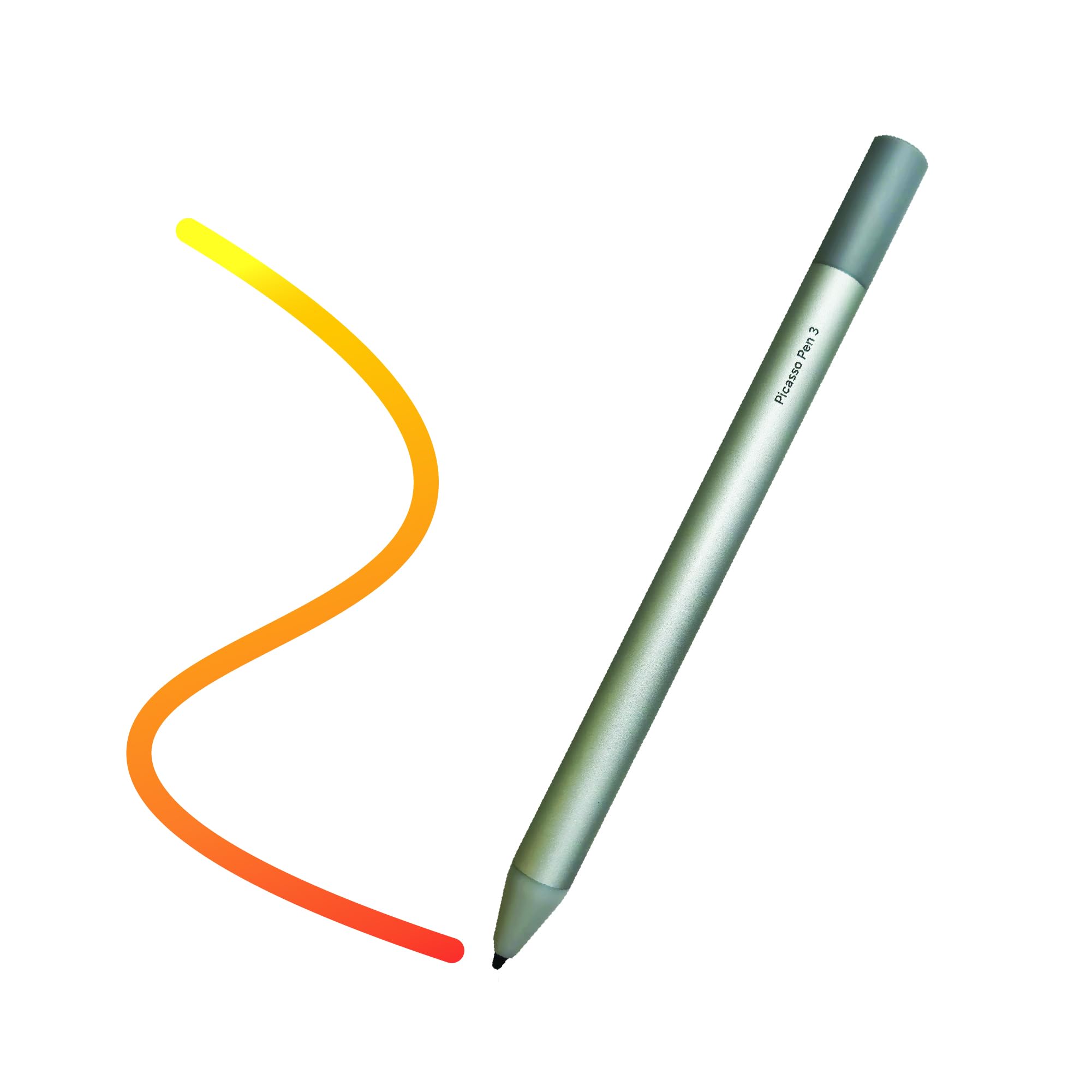
Figure 1: Simbans Picasso Pen 3
This image displays the Simbans Picasso Pen 3, a sleek silver stylus. It features a smooth body with a fine tip, designed for precise interaction with the PicassoTab X11 drawing tablet. The pen is shown from a slight angle, highlighting its ergonomic design.
3. Setup
The Picasso Pen 3 is designed for immediate use with your PicassoTab X11. No complex pairing or software installation is required.
3.1. Initial Use
- Unpack the Pen: Carefully remove the Picasso Pen 3 from its packaging.
- Check Battery: The Picasso Pen 3 includes batteries. Ensure the pen is ready for use. If the pen does not respond, refer to the "Maintenance" section for battery replacement instructions.
- Begin Drawing: Simply touch the pen tip to the screen of your PicassoTab X11. The tablet should recognize the pen automatically.
4. Operating the Picasso Pen 3
The Picasso Pen 3 functions as a precise input device for your PicassoTab X11, mimicking the feel of a traditional pen or pencil.
4.1. Basic Functions
- Drawing and Writing: Use the pen tip directly on the tablet screen to draw, write, and annotate. The pressure sensitivity of the pen allows for varying line thickness and opacity in compatible applications.
- Navigation: Tap the screen with the pen to select items, open applications, and navigate the tablet's interface.
- Gestures: Some applications may support specific gestures with the stylus. Refer to your application's documentation for details.
4.2. Pressure Sensitivity
The Picasso Pen 3 supports pressure sensitivity, allowing for dynamic line control in drawing and painting applications. Apply more pressure for thicker or darker lines, and less pressure for finer or lighter strokes.
5. Maintenance
Proper care and maintenance will extend the life of your Picasso Pen 3.
5.1. Cleaning
- Pen Body: Wipe the pen body with a soft, dry, lint-free cloth. Do not use harsh chemicals or abrasive materials.
- Pen Tip: Gently clean the pen tip with a soft cloth if any debris accumulates. Avoid applying excessive force.
5.2. Storage
Store the Picasso Pen 3 in a safe place when not in use, away from extreme temperatures and direct sunlight. Avoid placing heavy objects on the pen.
5.3. Battery Replacement
The Picasso Pen 3 uses a replaceable battery. If the pen stops responding or its performance degrades, the battery may need replacement.
- Identify Battery Compartment: Locate the battery compartment, typically by twisting or pulling a section of the pen body.
- Remove Old Battery: Carefully remove the old battery.
- Insert New Battery: Insert a new compatible battery, ensuring correct polarity.
- Secure Compartment: Reassemble the pen body securely.
Note: Dispose of used batteries according to local regulations.
6. Troubleshooting
If you encounter issues with your Picasso Pen 3, refer to the following common solutions:
| Problem | Possible Cause | Solution |
|---|---|---|
| Pen not responding | Low or dead battery | Replace the battery (refer to Section 5.3). |
| Pen not responding | Incompatible tablet model | Ensure you are using a PicassoTab X11. The pen is not compatible with other PicassoTab models. |
| Inaccurate or intermittent input | Dirty pen tip or tablet screen | Clean the pen tip and the tablet screen with a soft, dry cloth. |
| Inaccurate or intermittent input | Interference | Move away from strong electromagnetic fields or other electronic devices that may cause interference. |
If the problem persists after trying these solutions, please contact Simbans customer support.
7. Specifications
- Model: Simbans Picasso Pen 3 (PEN3)
- Color: Silver
- Compatibility: PicassoTab X11 Drawing Tablet ONLY
- Battery: Included
- Manufacturer: Simbans
8. Warranty Information
Simbans products are covered by a limited warranty. For detailed warranty terms and conditions, please refer to the warranty card included with your product or visit the official Simbans website. Keep your proof of purchase for warranty claims.
9. Customer Support
For further assistance, technical support, or inquiries regarding your Simbans Picasso Pen 3, please contact Simbans customer support through their official website or the contact information provided in your product packaging.
Simbans Official Website: Visit Simbans Store on Amazon


