
Introduction
This manual provides detailed instructions for the installation, operation, and maintenance of your AINAVI 12.3-inch Android Touch Screen. This unit is designed to upgrade the in-car entertainment system of specific Audi Q5 models, integrating modern features while retaining essential original vehicle functionalities.
Applicable Car Models
This Android unit is exclusively designed for Audi Q5 vehicles manufactured between 2009 and 2017 that are equipped with the original Audi radio system for Concert or Symphony. It is important to verify your car's original radio system before installation.
Important: This unit is not compatible with original Audi Multimedia, Audi Chorus, or Audi CD Changer systems. If your vehicle has an original Audi Multimedia system, this unit will not fit.

Image: Visual guide for identifying compatible Audi Q5 radio systems (Symphony and Concert) and incompatible systems (Multimedia, Chorus, CD Changer).
The product is intended for Left Hand Driving Vehicles only.
Key Features
- 12.3-inch HD QLED Touch Screen: Provides a 2400 x 900 resolution for an enhanced visual experience.
- Wireless CarPlay & Android Auto: Built-in functionality for seamless integration with iPhone and Android smartphones, supporting both wireless and wired connections.
- Dual System Operation: Maintains all original car CD system functions while adding Android system capabilities.
- Original Function Retention: Compatible with original iDrive button control, Bluetooth, radio, OEM rear camera, radar, and steering wheel controls.
- Bluetooth Connectivity: Supports Bluetooth v2.1 + EDR and v4.1 Low Energy (LE) for audio streaming, automatic phone book transfer, and hands-free calls.
- AHD Backup Camera Support: Compatible with 1080P AHD backup cameras (camera not included) for clearer rear view display.
- GPS Navigation: Supports online and offline maps, allowing navigation while listening to music or radio.
Setup and Installation
Installation of the AINAVI Android Touch Screen involves replacing the original display unit and connecting the provided wiring harness. Professional installation is recommended due to the complexity of automotive electronics.
Package Contents:
- 12.3" CarPlay Head Unit
- ISO Wiring Harness Cable
- Installation Frame
- LVDS cable
- Metal Bracket
- Screws (8 pieces)
General Installation Steps (Consult a professional for detailed guidance):
- Preparation: Ensure the vehicle's ignition is off and the battery is disconnected to prevent electrical damage.
- Remove Original Components: Carefully remove the original Audi Q5 display and associated trim panels to access the radio unit.
- Connect Wiring Harness: Connect the provided ISO wiring harness cable to the vehicle's existing wiring. Ensure all connections are secure.
- Install LVDS Cable: Connect the LVDS cable between the new head unit and the vehicle's system.
- Mount New Head Unit: Secure the 12.3" CarPlay Head Unit using the installation frame, metal bracket, and screws.
- Reconnect Battery: Once all connections are made and the unit is securely mounted, reconnect the vehicle's battery.
- Test Functionality: Turn on the ignition and test all functions of the new Android unit, including touch screen, audio, CarPlay/Android Auto, and original system retention.

Image: Comparison of the Audi Q5 dashboard before and after upgrading to the 12.3-inch Android screen.
Operating Instructions
Switching Between Original and Android Systems:
The unit operates with a dual-system approach, allowing you to seamlessly switch between the original Audi interface and the new Android system. This ensures that all original car functions remain accessible.

Image: Demonstrates how to switch between the original Audi system and the new Android system on the touchscreen.
Wireless CarPlay & Android Auto:
To use Wireless CarPlay or Android Auto, connect your smartphone to the head unit via Bluetooth. Once connected, you can access compatible apps for navigation, communication, and entertainment directly on the 12.3-inch screen.
- Wireless Connection: Pair your iPhone or Android phone via Bluetooth to enable wireless CarPlay or Android Auto.
- Wired Connection: For a wired connection, use a USB cable to connect your phone to the unit.
- Functions: Access GPS navigation, make and receive calls, send and receive messages, and stream music.

Image: Overview of the Wireless CarPlay and Android Auto interfaces, showcasing available applications.
GPS Navigation:
The unit supports various navigation applications, utilizing both online and offline maps. You can listen to music or radio stations simultaneously while following navigation directions.
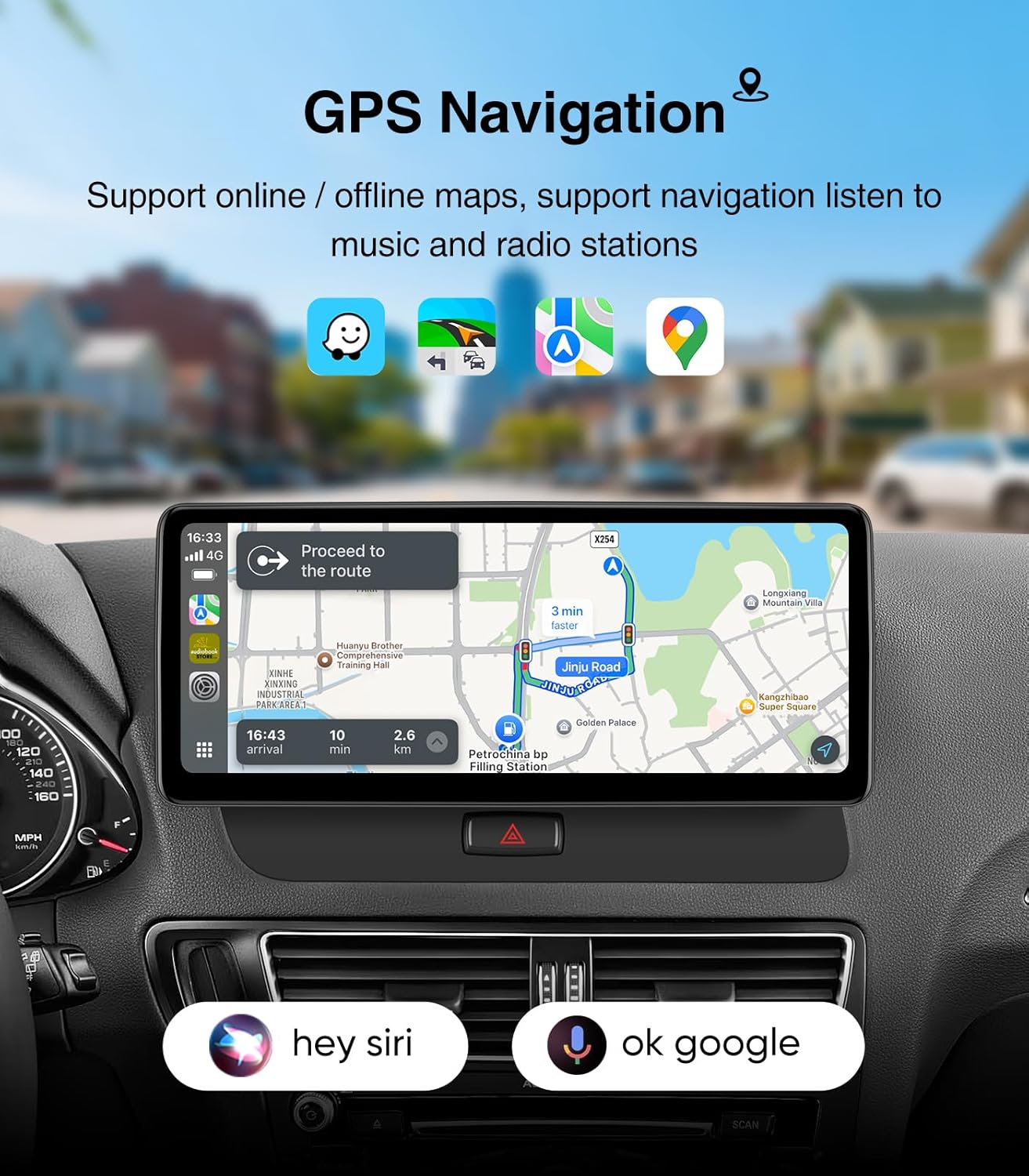
Image: GPS navigation interface showing a route and estimated travel information, with voice command options.
Bluetooth Functionality:
The integrated Bluetooth module (v2.1 + EDR, v4.1 LE) allows for audio streaming, automatic phone book synchronization, and hands-free calling. To ensure optimal performance, especially when using CarPlay, avoid connecting devices to the original Audi Bluetooth system simultaneously.

Image: Demonstrates the retention of original vehicle functions, including Bluetooth settings, after the Android screen upgrade.
Backup Camera Display:
The unit supports both OEM and aftermarket rear view cameras, including 1080P AHD cameras for a clearer image. The backup camera display automatically activates when the vehicle is in reverse gear.
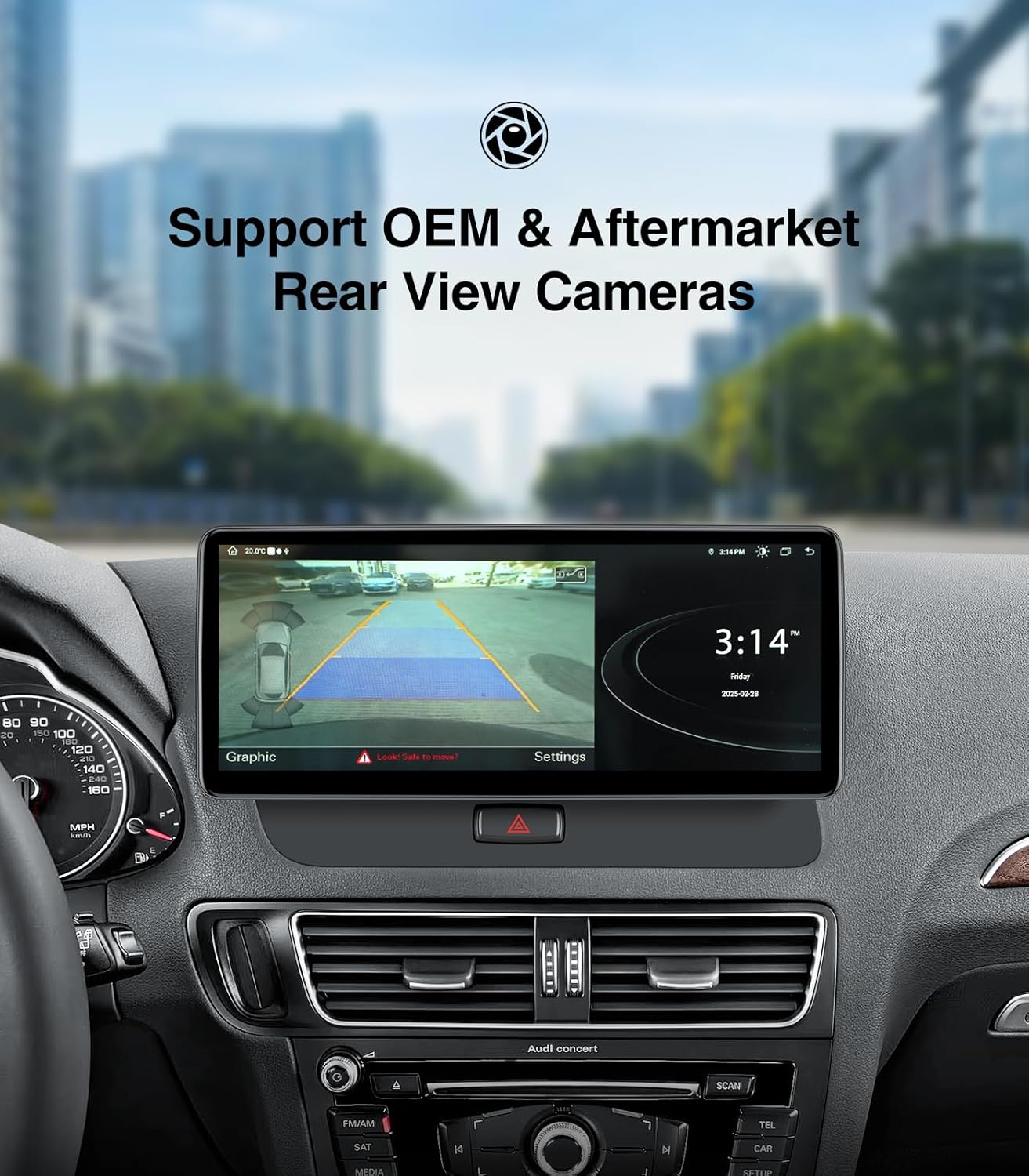
Image: Example of a backup camera view displayed on the AINAVI Android screen, showing parking assistance.
Maintenance
- Screen Cleaning: Use a soft, lint-free cloth specifically designed for electronic screens. Do not use abrasive cleaners or solvents.
- Software Updates: Periodically check for software updates to ensure optimal performance and access to the latest features. Follow the on-screen prompts or manufacturer's instructions for updates.
- General Care: Avoid exposing the unit to extreme temperatures, direct sunlight for prolonged periods, or excessive moisture.
Troubleshooting
| Problem | Possible Cause | Solution |
|---|---|---|
| Unit does not power on. | Loose power connection, vehicle battery issue. | Check all power cables are securely connected. Verify vehicle battery health. |
| No sound from speakers. | Incorrect audio settings, loose audio cables, original amplifier issue. | Check audio output settings on the unit. Ensure all audio cables are connected. Verify original amplifier is functioning. |
| CarPlay/Android Auto not connecting. | Bluetooth not paired, incorrect settings, phone compatibility. | Ensure phone Bluetooth is on and paired. Check CarPlay/Android Auto settings on the unit and phone. Disconnect from original Audi Bluetooth. |
| Touch screen unresponsive. | Software glitch, screen damage. | Restart the unit. If issue persists, contact customer support. |
| Original functions (e.g., iDrive) not working. | Incorrect wiring, software conflict. | Verify all original system connections during installation. Ensure the unit is correctly configured to retain original functions. |
Specifications
| Brand | AINAVI |
| Model | A-Q5-DP |
| Screen Size | 12.3 inches |
| Display Resolution | 2400 x 900 HD QLED |
| Compatible Car Models | Audi Q5 (2009-2017) with Concert/Symphony radio |
| Special Features | Android Auto, Apple CarPlay, Touchscreen, Retains original Audi radio system functions |
| Connectivity Technology | Bluetooth, Wireless CarPlay & Android Auto, ISO Wiring Harness |
| Bluetooth Specification | v2.1 + EDR, v4.1 Low Energy (LE) |
| Audio Output Mode | Stereo |
| Supported Internet Services | YouTube (and other Android apps) |
| Item Weight | 2.53 Kilograms |
| Parcel Dimensions | 40.89 x 22.3 x 18.21 cm |
Warranty Information
Please refer to the product packaging or the seller's official website for specific warranty terms and conditions. Typically, electronic products come with a limited manufacturer's warranty covering defects in materials and workmanship for a specified period from the date of purchase.
Keep your proof of purchase for any warranty claims.
Customer Support
For technical assistance, troubleshooting, or inquiries regarding your AINAVI Android Touch Screen, please contact AINAVI customer support. Contact information can usually be found on the product packaging, the manufacturer's website, or through your point of purchase.
When contacting support, please have your product model number (A-Q5-DP) and purchase details readily available.