
1. Introduction
The Redragon K525 is a 104-key wired membrane gaming keyboard designed for performance and comfort. It features dynamic RGB backlighting, programmable macro keys, dedicated media controls, and an ergonomic wrist rest to enhance your gaming and typing experience. This manual provides detailed instructions for setup, operation, maintenance, and troubleshooting.

Figure 1: Redragon K525 RGB Backlit Wired Membrane Gaming Keyboard. This image displays the full 104-key layout with vibrant RGB backlighting.
2. Setup
2.1 Connecting the Keyboard
- Locate the USB cable attached to the Redragon K525 keyboard.
- Plug the USB connector into an available USB port on your computer.
- The operating system will automatically detect and install the necessary drivers. Allow a few moments for this process to complete.
2.2 Attaching the Ergonomic Wrist Rest
The keyboard includes a dedicated ergonomic wrist rest for enhanced comfort during extended use.
- Align the magnetic connectors on the wrist rest with the corresponding points on the front edge of the keyboard.
- Gently bring the wrist rest closer to the keyboard until the magnets snap into place, securing the rest.
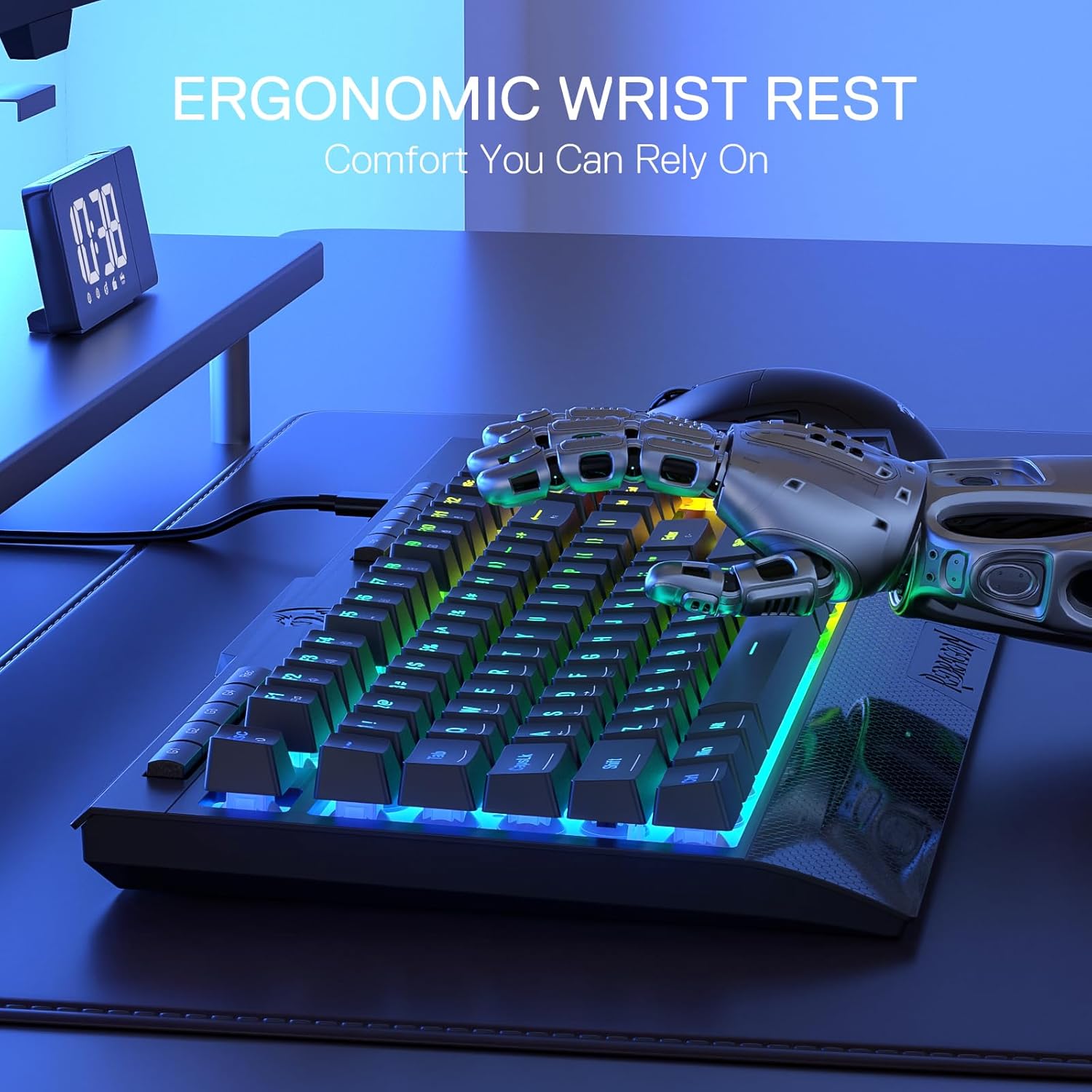
Figure 2: Ergonomic Wrist Rest. This image shows the detachable wrist rest providing support to the user's hand while typing on the keyboard.
3. Operating Instructions
3.1 RGB Backlighting Control
The K525 keyboard features full dynamic RGB backlighting with various customization options.
- Pre-set Lighting Modes: The keyboard comes with 7 pre-set lighting modes. Use the designated function keys (refer to your keyboard's specific key legends, often Fn + Insert/Home/PgUp/Del/End/PgDn or dedicated lighting keys) to cycle through these modes.
- Customizable Modes: There are 6 additional slots for customizable lighting modes. Refer to the professional software section for detailed customization.
- Brightness Control: Adjust the backlight brightness from very bright to completely off using the dedicated brightness control function (often Fn + Up/Down Arrow keys or a dedicated button).
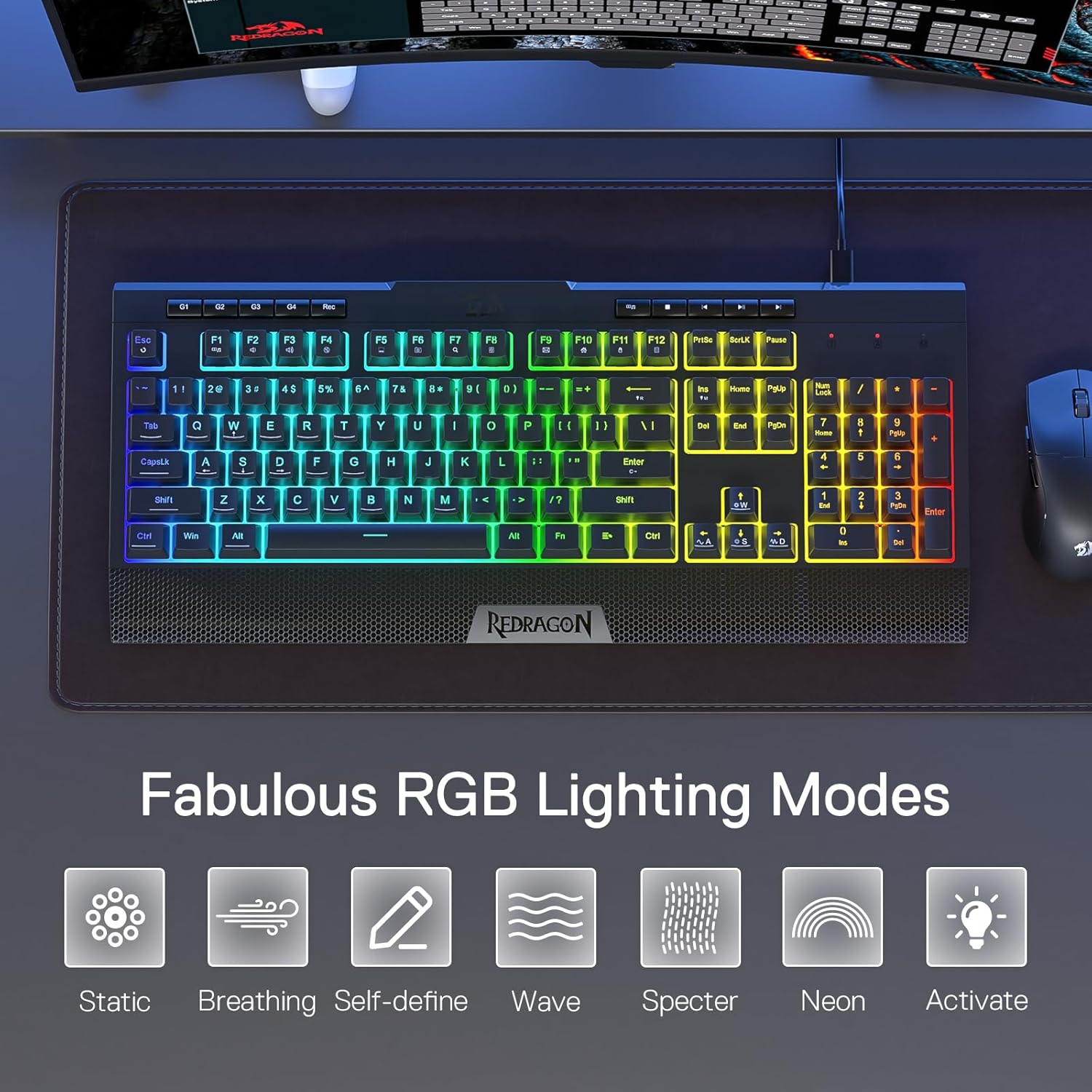
Figure 3: RGB Lighting Modes. This image illustrates various dynamic RGB lighting effects available on the K525 keyboard, including static, breathing, self-define, wave, specter, neon, and activate modes.
3.2 Macro Key Programming
The keyboard features 4 onboard macro keys (G1-G4) that can be programmed on the fly without additional software.
- Press the Rec button (usually located near the macro keys). The indicator light will start blinking.
- Press the desired macro key (G1, G2, G3, or G4) you wish to program.
- Type the sequence of keys you want to record.
- Press the Rec button again to save the macro. The indicator light will stop blinking.

Figure 4: On-Board Macro & Media Control. This image highlights the dedicated G1-G4 macro keys and media control buttons located at the top of the keyboard.
3.3 Dedicated Media Controls
Conveniently control your multimedia playback directly from the keyboard.
- Play/Pause: Dedicated button to play or pause media.
- Previous Track: Dedicated button to go to the previous track.
- Next Track: Dedicated button to skip to the next track.
- Volume Up/Down/Mute: Dedicated buttons or a scroll wheel for audio control.
3.4 26 Anti-Ghost Keys
The K525 features 26 anti-ghosting keys, allowing for simultaneous key presses to ensure fast and accurate game responses without missed commands.

Figure 5: 26 Anti-Ghost Keys. This image visually represents the anti-ghosting capability, showing multiple keys being pressed simultaneously without conflict.
3.5 Professional Software
For advanced customization, professional software is available to set immersive and vivid backlight effects and configure multiple macro functions. Visit the official Redragon website to download the latest software for your K525 model.

Figure 6: Professional Software Interface. This image displays the graphical user interface of the Redragon K525 customization software, showing options for key remapping and lighting effects.
4. Maintenance
4.1 Cleaning
- Disconnect the keyboard from your computer before cleaning.
- Use a soft, lint-free cloth slightly dampened with water or a mild cleaning solution to wipe down the keycaps and keyboard surface.
- For dust and debris between keys, use compressed air.
- Avoid using harsh chemicals or abrasive materials, as these can damage the keyboard's finish or keycap legends.
4.2 Durability
The Redragon K525 is built for longevity:
- It passes 10 million keystroke tests, ensuring reliability over time.
- Double-shot injection molded keycaps prevent key legends from fading.

Figure 7: Linear Membrane Gaming Switches. This image provides an exploded view of the keyboard's internal structure, highlighting the linear membrane switches designed for precision and quiet operation.
5. Troubleshooting
- Keyboard Not Responding: Ensure the USB cable is securely connected to both the keyboard and the computer. Try plugging the keyboard into a different USB port. Restart your computer.
- Backlighting Not Working: Check if the brightness is turned down completely. Use the brightness control function to increase it. Ensure the keyboard is properly connected.
- Macro Keys Not Working: Verify that the macro was recorded correctly. Re-record the macro if necessary. Ensure no conflicting software is interfering.
- Keys Sticking or Unresponsive: Clean the affected keys with compressed air to remove any debris. If the issue persists, contact customer support.
6. Specifications
| Feature | Detail |
|---|---|
| Model Name | Shiva Lite |
| Product Dimensions | 18.3"L x 8.4"W x 0.6"H (18.3 x 8.4 x 0.6 inches) |
| Item Weight | 1.98 pounds |
| Color | Black |
| Special Feature | Membrane Switch, On-board Macro |
| Recommended Uses For Product | Gaming |
| Keyboard Description | 104 Keys Wired Gaming Membrane Keyboard |
| Connectivity Technology | USB |
| Compatible Devices | PC |
| Manufacturer | Redragon |
| Item Model Number | K525 |
7. Warranty and Support
Redragon products come with a manufacturer's warranty. For specific warranty details, product support, or technical assistance, please visit the official Redragon website or contact their customer service directly. Keep your purchase receipt for warranty claims.


