
1. Important Safety Information
Please read this manual carefully before operating your sound bar and retain it for future reference. Follow all warnings and instructions provided in this manual and on the product.
- Do not expose this appliance to dripping or splashing.
- Do not place objects filled with liquids, such as vases, on the apparatus.
- Do not block any ventilation openings. Install in accordance with the manufacturer's instructions.
- Do not install near any heat sources such as radiators, heat registers, stoves, or other apparatus (including amplifiers) that produce heat.
- Protect the power cord from being walked on or pinched, particularly at plugs, convenience receptacles, and the point where they exit from the apparatus.
- Only use attachments/accessories specified by the manufacturer.
- Unplug this apparatus during lightning storms or when unused for long periods of time.
2. Package Contents
Verify that all items listed below are included in your package. If any items are missing or damaged, please contact customer support.
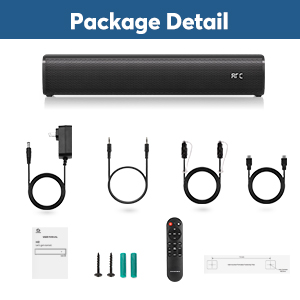
Figure 2.1: Included accessories with the wogree Sound Bar. The package contains the sound bar unit, remote control, power adapter, optical cable, AUX cable, and wall mounting screws with anchors.
- wogree 2.1ch Sound Bar
- Remote Control
- Power Adapter
- Optical Cable
- AUX Cable
- Wall Mounting Screws and Anchors
- User Manual (this document)
3. Product Overview
The wogree 2.1ch Sound Bar is designed to enhance your audio experience with powerful sound and versatile connectivity options. It features a built-in subwoofer and multiple sound modes to suit various content types.

Figure 3.1: The wogree 2.1ch Sound Bar and its included remote control. The sound bar features a sleek, low-profile design with a front grille and an integrated LED display.
3.1. Key Features
- 2.1 Channel Theater Sound: Experience cinematic bass from the built-in subwoofer with crisp dialogue and surround sound through dual full-range speakers. Ideal for movies, gaming, and streaming concerts.
- 6 Levels Voice Enhancement Technology: Amplifies critical speech frequencies for enhanced clarity. Designed for seniors and hearing-impaired users with layered sound effects.
- 16-Inch Low-Profile Design: Ultra-slim 2.9-inch height discreetly fits under TVs or mounts flush to walls. Neutral aesthetics blend with modern and traditional home decor.
- 3 Audio Modes: DSP technology optimizes sound; Music Mode, enhanced bass for rock/hip-hop; Movie Mode, expansive surround for films; Dialogue Mode, speech focus for news/podcasts.
- Smart LED Display: The sound bar features a smart LED display that shows the current input mode and volume level.
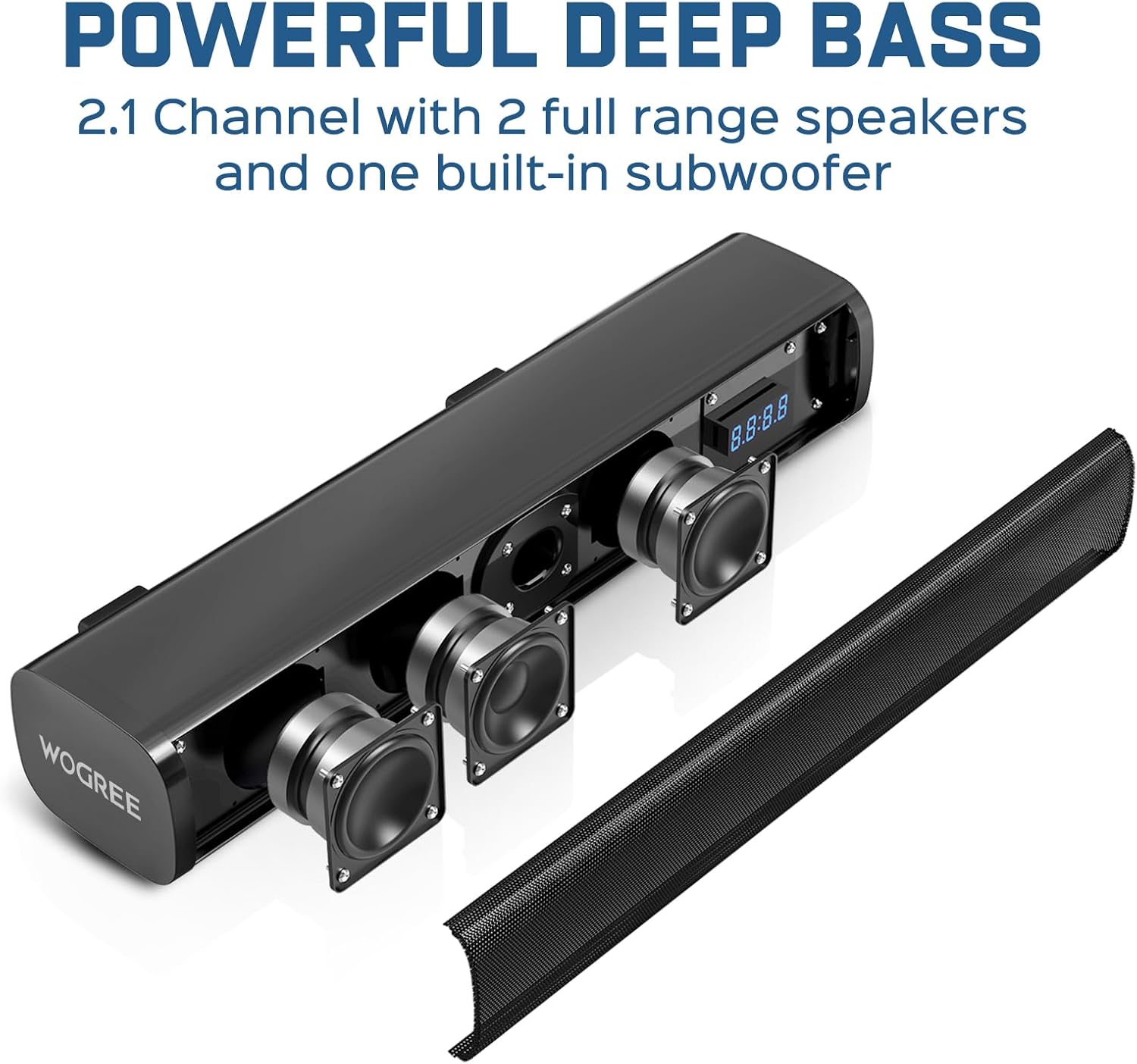
Figure 3.2: An internal view of the sound bar highlighting its two full-range speakers and integrated subwoofer, designed for powerful deep bass.
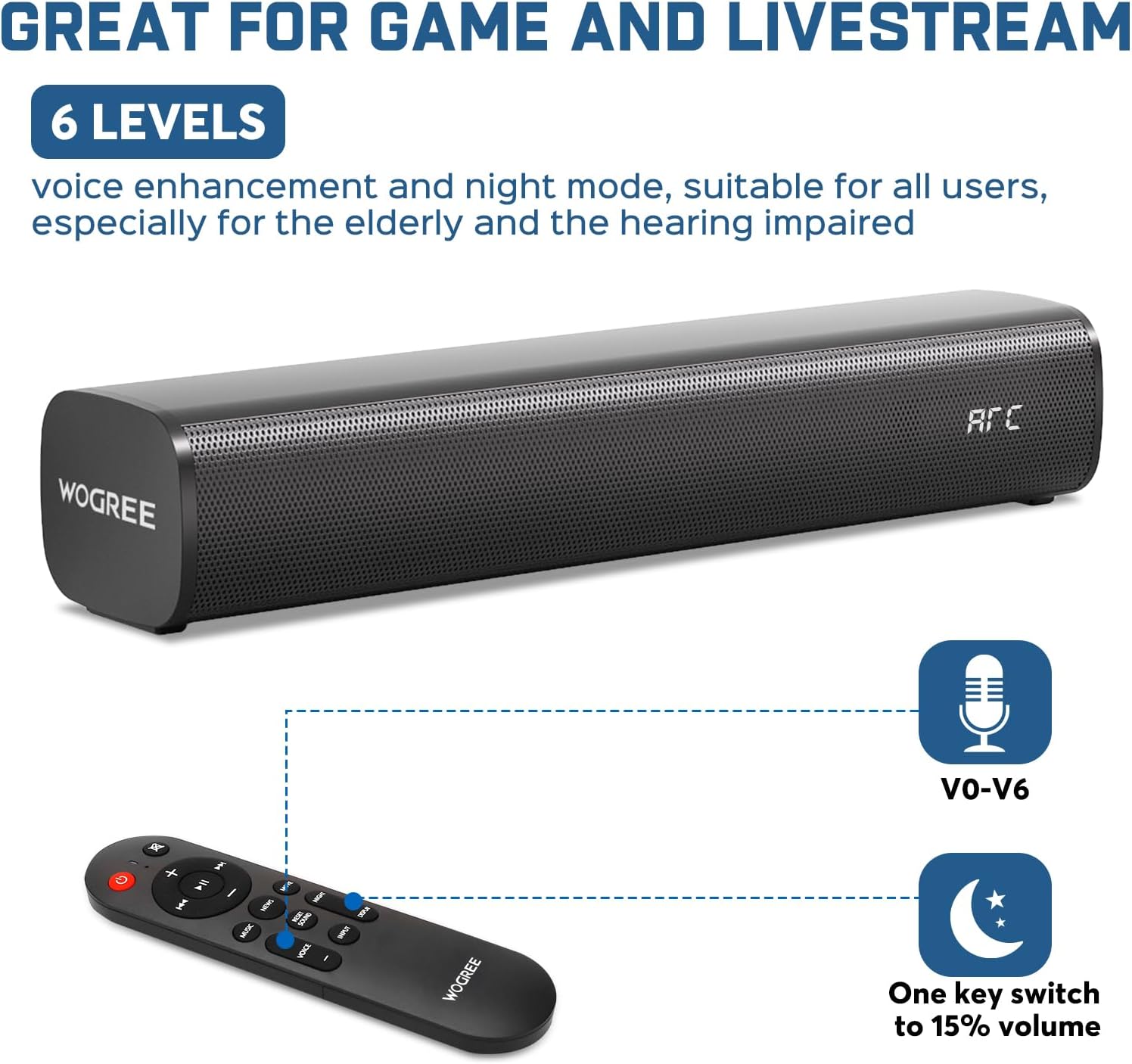
Figure 3.3: The sound bar's voice enhancement feature, adjustable through the remote, provides up to 6 levels of clarity for dialogue, beneficial for users with hearing impairment.
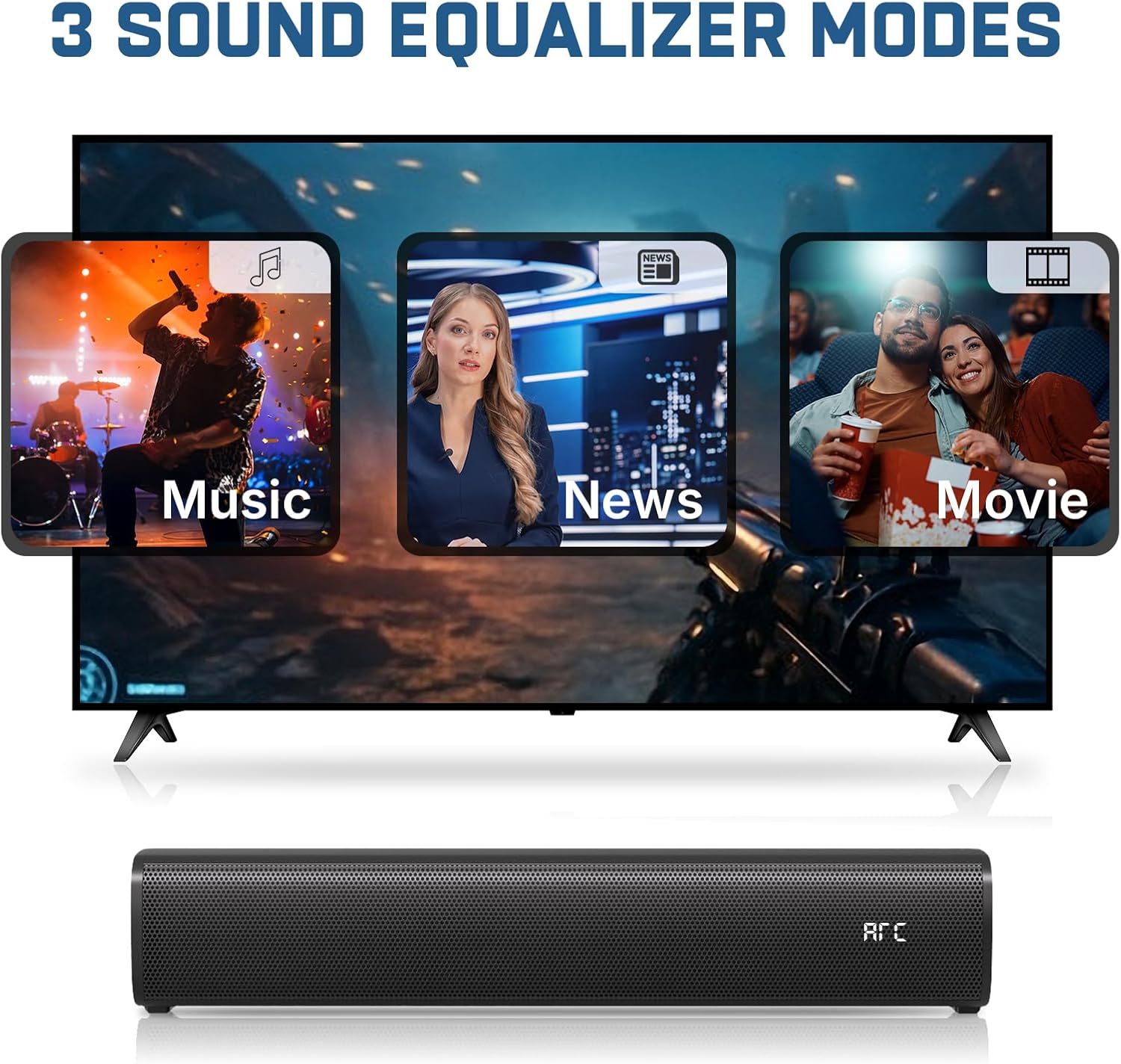
Figure 3.4: Visual representation of the three distinct sound equalizer modes: Music, News (Dialogue), and Movie, each optimized for different audio content.
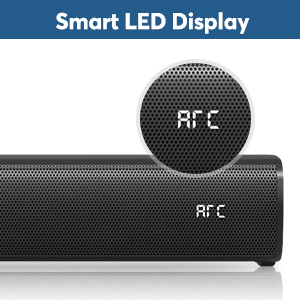
Figure 3.5: A close-up of the sound bar's integrated smart LED display, which indicates the active input source (e.g., ARC) and volume levels.
4. Connections and Setup
The wogree Sound Bar offers multiple connectivity options to integrate with various devices. Ensure the sound bar is powered off before making any connections.

Figure 4.1: The rear panel of the sound bar, displaying the available input ports for connecting to your TV, computer, projector, phone, or tablet.
4.1. Power Connection
- Connect the power adapter to the DC IN port on the back of the sound bar.
- Plug the other end of the power adapter into a wall outlet.
4.2. Connecting to a TV (Recommended)
For optimal sound quality and remote control compatibility, ARC or Optical connections are recommended.
4.2.1. ARC Connection (HDMI)
- Connect one end of an HDMI cable (not included) to the ARC port on the sound bar.
- Connect the other end of the HDMI cable to the HDMI ARC port on your TV.
- On your TV's audio settings, select "ARC" or "HDMI ARC" as the audio output.
- Ensure your TV's audio format is set to PCM if you experience no sound. The sound bar does not support Dolby or DTS.
- This connection allows you to control the sound bar's volume using your TV remote.
4.2.2. Optical Connection (SPDIF)
- Remove the protective caps from both ends of the optical cable.
- Connect one end of the optical cable to the OPTICAL port on the sound bar.
- Connect the other end of the optical cable to the Optical Digital Audio Out port on your TV.
- On your TV's audio settings, select "Optical" or "External Speaker" as the audio output.
- Ensure your TV's audio format is set to PCM. The sound bar does not support Dolby or DTS.
4.3. Other Connections
4.3.1. AUX Connection
- Connect one end of the 3.5mm AUX cable to the AUX port on the sound bar.
- Connect the other end to the headphone jack or audio output port of your device (e.g., computer, phone).
- Select "AUX" input on the sound bar.
4.3.2. USB Connection
- Insert a USB flash drive (U disk) containing MP3 audio files into the USB port on the sound bar.
- The sound bar will automatically switch to USB input and begin playing audio.
- Note: The USB port is for playing audio from a U disk and firmware updates only. It cannot supply power to the sound bar or be used as a headphone jack.
4.3.3. Bluetooth Connection
- Power on the sound bar.
- Press the "Input" button on the remote control or the sound bar to switch to "BT" mode. The LED display will show "BT".
- On your Bluetooth-enabled device (e.g., smartphone, tablet), search for "WOGREE S100" in the Bluetooth settings.
- Select "WOGREE S100" to pair. Once connected, the "BT" indicator will stop flashing.
- You can now play audio from your device through the sound bar.
5. Operating Instructions
Control your wogree Sound Bar using the included remote control or the physical buttons on the unit.
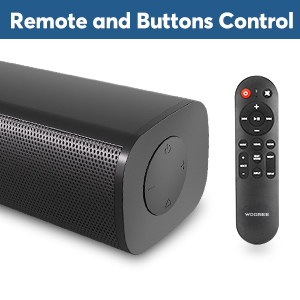
Figure 5.1: The sound bar can be controlled via the remote or the physical buttons located on the side of the unit.
5.1. Remote Control Functions
| Button | Function |
|---|---|
| Power Button (●) | Turns the sound bar On or Off. |
| Volume + / - | Adjusts the master volume level. |
| Mute | Mutes or unmutes the sound. |
| Input | Switches between input sources (ARC, Optical, AUX, USB, Bluetooth). |
| Music Mode | Optimizes sound for music with enhanced bass. |
| Movie Mode | Optimizes sound for movies with expansive surround effects. |
| News Mode (Dialogue) | Optimizes sound for clear speech, ideal for news and podcasts. |
| Voice + / - | Adjusts the voice enhancement level (V0-V6). |
| Night Mode | Reduces dynamic range for quieter listening at night. |
| Display | Toggles the LED display on/off. |
5.2. Physical Buttons
The sound bar also features physical control buttons on its side for basic functions:
- Power Button: Press to turn on/off.
- Volume + / -: Adjusts volume.
- Input Button: Cycles through input sources.
6. Wall Mounting
The wogree Sound Bar can be conveniently mounted on a wall to save space and complement your home entertainment setup.
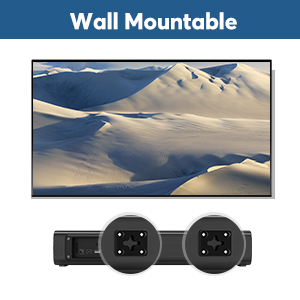
Figure 6.1: The sound bar is designed with integrated mounting points on its rear for secure wall installation.
- Determine the desired mounting location on your wall, ensuring it is level and within reach of power and audio cables.
- Use the provided wall mounting template (if included in your package) to mark the drilling points accurately.
- Drill holes at the marked locations. Insert the wall anchors into the drilled holes.
- Insert the mounting screws into the anchors, leaving a small portion of the screw head exposed.
- Align the mounting slots on the back of the sound bar with the screw heads and slide the sound bar down to secure it in place.
- Ensure the sound bar is firmly attached to the wall before releasing it.
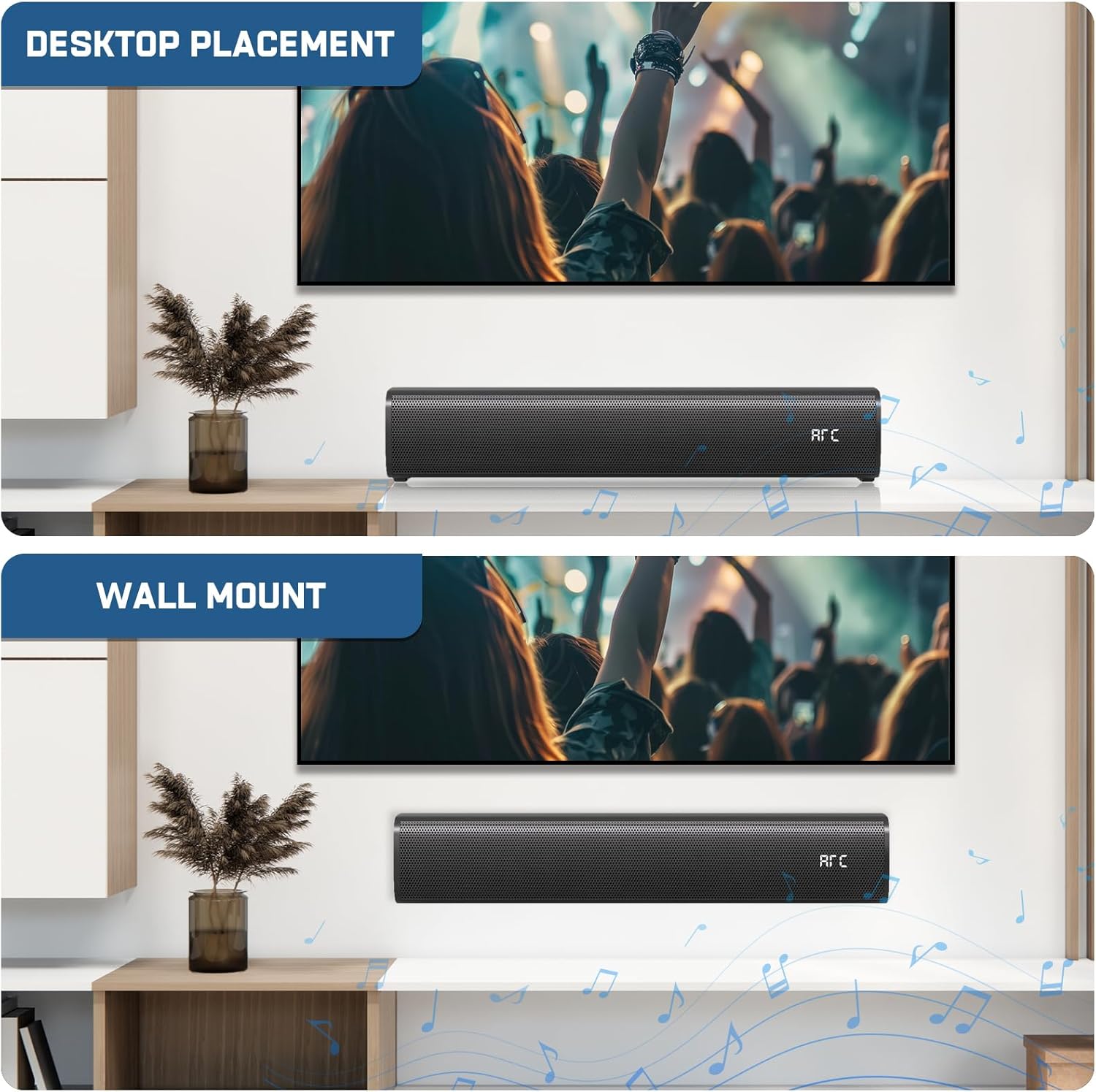
Figure 6.2: The sound bar offers flexible placement options, suitable for both desktop placement and discreet wall mounting.
7. Specifications
| Feature | Detail |
|---|---|
| Model Number | W S100 |
| Brand | wogree |
| Mounting Type | Tabletop Mount / Wall Mountable |
| Style | Built-in Subwoofer |
| Product Dimensions | 3.6 x 16 x 2.9 inches |
| Item Weight | 4.09 pounds |
| Speaker Maximum Output Power | 60 Watts |
| Frequency Response | 160 KHz |
| Connectivity Technology | Auxiliary, Bluetooth 5.3, HDMI (ARC), Optical, USB |
| Audio Output Mode | Surround |
8. Troubleshooting
If you encounter any issues with your wogree Sound Bar, please refer to the common problems and solutions below. If the problem persists, contact customer support.
- No Sound or Not Working:
- Ensure all cables are securely connected to the correct ports.
- Verify the sound bar is powered on and the correct input source is selected (e.g., ARC, Optical, BT).
- For Optical (SPDIF) connection, ensure your TV audio output is set to "Optical" or "External Speaker" and the audio format is "PCM". Remove protective caps from the optical cable.
- The sound bar does not support Dolby and DTS. Please disable Dolby and DTS on your TV, Netflix, Amazon Prime Video, HBO, Hulu, YouTube, and other streaming video apps.
- Check the volume levels on both the sound bar and your connected device/TV.
- Sound Seems Very Low Even at Maximum Volume:
- Check if the sound source (e.g., TV, streaming app) has volume protection settings enabled. Disable any volume protection functions to allow the sound bar to reach maximum volume.
- USB Port Functionality:
- The USB interface is only suitable for playing audio from a U disk and updating firmware. It cannot supply power to the sound bar.
- AUX Port Functionality:
- The AUX port cannot be used as a headphone jack.
9. Care and Maintenance
To ensure the longevity and optimal performance of your sound bar, follow these care and maintenance guidelines:
- Cleaning: Use a soft, dry cloth to clean the surface of the sound bar. Do not use liquid cleaners or aerosol sprays, as they may damage the finish or internal components.
- Placement: Place the sound bar on a stable, flat surface or mount it securely on a wall. Avoid placing it in direct sunlight, near heat sources, or in areas with high humidity.
- Ventilation: Ensure adequate ventilation around the sound bar to prevent overheating. Do not block any ventilation openings.
- Power: Unplug the sound bar from the power outlet during lightning storms or when it will be left unused for extended periods.
10. Warranty and Support
Your wogree Sound Bar is backed by a comprehensive warranty and dedicated customer support.
- Manufacturer Warranty: This product comes with a 2-Year manufacturer warranty.
- Technical Assistance: Enjoy lifetime technical assistance for any operational or setup queries.
- Returns: A 30-day hassle-free returns and money-back guarantee is provided.
- Contact Support: If you have any issues or require assistance, please send an email to the manufacturer's support team.