
jelkuz T368S
Jelkuz 11.26'' Wireless Apple CarPlay Android Auto Screen with 4K Dash Cam (Model T368S) User Manual
Model: T368S | Brand: Jelkuz
Introduction
This manual provides detailed instructions for the installation, operation, maintenance, and troubleshooting of your Jelkuz 11.26-inch Wireless Apple CarPlay and Android Auto Screen with 4K Dash Cam. Please read this manual thoroughly before using the product to ensure proper function and safety.
What's in the Box
Verify that all items are present in the package:
- 11.26 inch Wireless Apple CarPlay Screen for Car
- AHD 1080P Backup Camera
- 64GB SD Card
- Jelkuz Customized Base Brackets (various types)
- Double-sided Adhesive Bracket

Image: The Jelkuz 11.26-inch screen and its primary components, including the dash cam, backup camera, and mounting brackets.
Setup Instructions
1. Mounting the Screen
The device includes two types of brackets to accommodate various dashboard designs:
- Base Custom Bracket: Suitable for vehicles with flat dashboards (e.g., BMW, Ford).
- Double-sided Adhesive Bracket: Recommended for vehicles with tilted dashboards (e.g., Benz, Audi).
Choose the appropriate bracket for your vehicle. Ensure the mounting surface is clean and dry before attaching the bracket. The customized bracket design aims to provide a stable installation, reducing shaking or dropping.
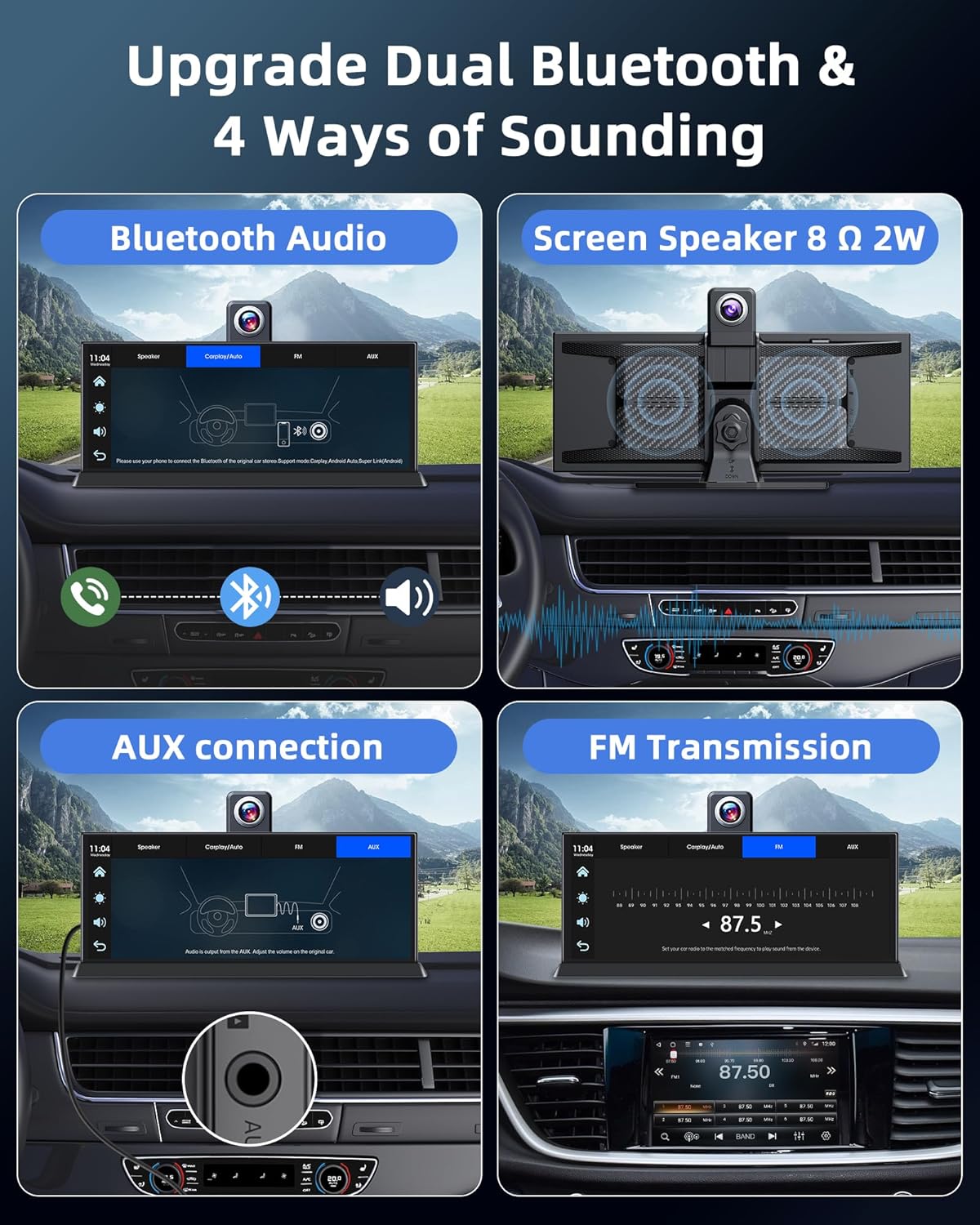
Image: Illustration of the two bracket types and their recommended use cases for different car dashboards.
2. Adjusting the Front Lens
The front camera lens can be rotated 350 degrees. This allows for optimal positioning to avoid obstructions and capture the desired monitoring angle, whether facing inside the cabin or outside the vehicle.

Image: Demonstrates the 350-degree rotation capability of the front camera lens for flexible viewing angles.
3. Connecting Power and Cameras
Connect the device to your car's power source using the provided car charger. The rear camera should be connected to the reverse light for automatic activation when reversing. The 64GB SD card should be inserted into the designated slot for dash cam recording.

Image: A visual guide illustrating the connection points for the car charger, reverse light, and rear camera.
Operating Instructions
1. Wireless Apple CarPlay & Android Auto
The Jelkuz screen is compatible with both Apple CarPlay and Android Auto. Connect your smartphone wirelessly to access navigation, music, calls, and other applications directly on the screen. This allows for hands-free operation via voice commands.

Image: The screen interface showing both Apple CarPlay and Android Auto, highlighting app access and navigation features.
Note: The device currently does not support direct connection with Huawei/Samsung phones for CarPlay/Android Auto functionality.
2. Voice Control and Navigation
Utilize voice assistants like Siri or Google Assistant for hands-free control. You can initiate calls, play music, and get real-time navigation directions by speaking commands to the device.
Video: Demonstrates the voice control features for navigation, hands-free calling, and music playback through Apple CarPlay and Android Auto.
3. Audio Output Options
The Jelkuz screen offers multiple ways to output audio to your car's speakers:
- Dual Bluetooth: Connect wirelessly to your car's Bluetooth system for high-quality audio.
- Built-in Speaker: The device has its own speaker for direct audio output.
- AUX Connection: Use an AUX cable to connect to your car's audio input for a stable wired connection.
- FM Transmission: Transmit audio to your car's FM radio by tuning to a matching frequency. This is useful for cars without Bluetooth or AUX input.
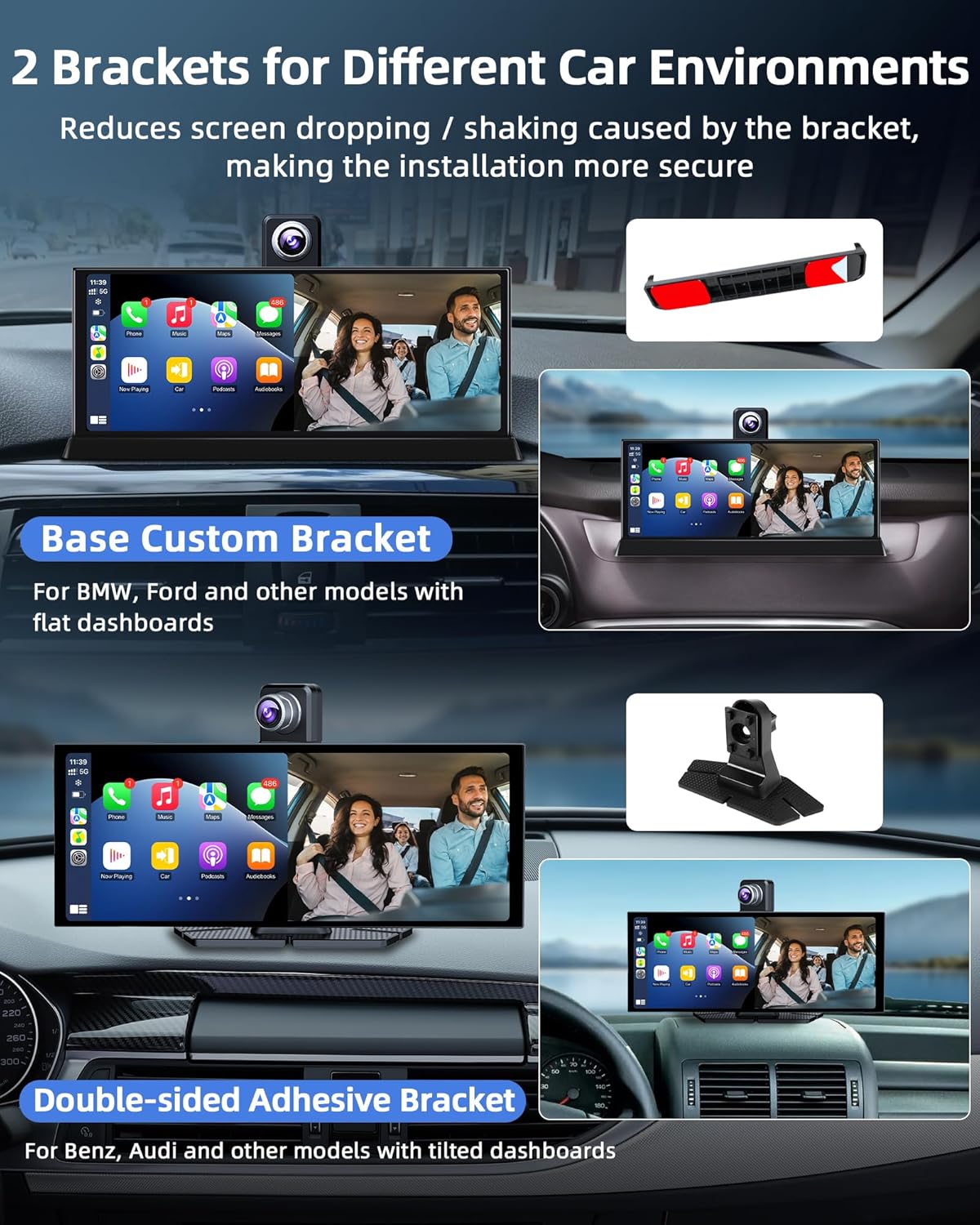
Image: Visual representation of the four audio output methods available on the device.
4. Dash Cam Functionality (Front & Rear)
The integrated dash cam system includes a 4K front camera and a 1080P AHD rear camera. Key features include:
- Loop Recording: Continuously records footage, overwriting the oldest files when the SD card is full.
- G-Sensor: Automatically locks and saves footage during sudden impacts or collisions.
- Reversing Assist: The 1080P backup camera provides a clear view and adjustable guidelines for safer parking and reversing.
- Wi-Fi Function: Allows you to download video files to your smartphone for easy access and sharing without needing a computer.
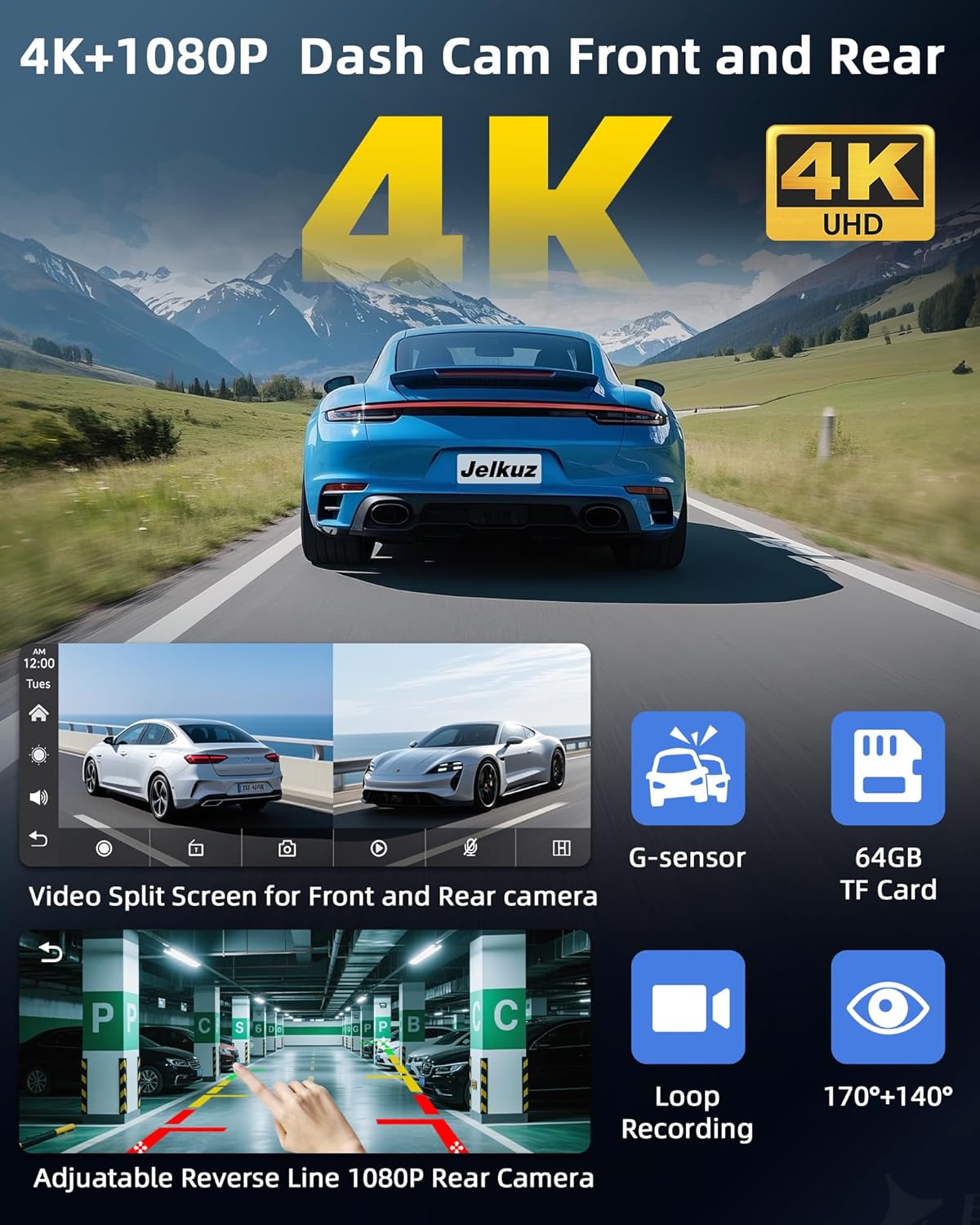
Image: Overview of the 4K front and 1080P rear dash cam capabilities, including G-sensor and loop recording.
5. Screen Mirroring (Airplay & Android Cast)
Synchronize videos and movies from your smartphone to the 11.26-inch IPS screen using Airplay (for Apple devices) or Android Cast (for Android devices) for an enhanced viewing experience.
Maintenance
- Cleaning: Use a soft, dry cloth to clean the screen and device exterior. Avoid abrasive cleaners or solvents.
- SD Card Care: Periodically format the 64GB SD card within the device settings to maintain optimal recording performance and prevent data corruption. Ensure the device is powered off before inserting or removing the SD card.
- Protective Film: A removable protective film is applied to the screen. You may remove it before use.
Troubleshooting
| Problem | Possible Cause | Solution |
|---|---|---|
| Device repeatedly reboots. | SD card issue or software glitch. | Try resetting the device. Remove the SD card and test if the issue persists. If it resolves, the SD card may be faulty and require replacement. |
| Backup camera display delay. | Connection issue or system processing time. | Ensure the rear camera connection is secure. Some delay may be normal for system initialization. If excessive, contact support. |
| Poor call microphone quality or echo. | Microphone placement, environmental noise, or Bluetooth interference. | Ensure the device's microphone is not obstructed. Test in a quieter environment. Check for other Bluetooth devices that might cause interference. Adjust volume settings. |
| Cannot connect Huawei/Samsung phone. | Current software limitation. | This device currently does not support direct connection with Huawei/Samsung phones. Please refer to future software updates for potential compatibility. |
Specifications
| Feature | Detail |
|---|---|
| Model Number | T368S |
| Screen Size | 11.26 Inches |
| Display Type | IPS |
| Front Camera | 4K (350° Rotatable) |
| Rear Camera | 1080P AHD |
| Storage | 64GB SD Card (included) |
| Connectivity | Wireless Apple CarPlay, Wireless Android Auto, Bluetooth, Wi-Fi, AUX, FM Transmitter |
| Dimensions (Package) | 12.44 x 7.09 x 4.57 inches |
| Item Weight | 2.48 pounds |
| Color | Black |
Warranty and Support
Jelkuz provides a 1-year technical support and after-sales service for this product. If you encounter any questions or issues, please contact our customer support team. For warranty claims or technical assistance, please refer to the contact information provided with your purchase or visit the official Jelkuz website.
In case of issues like repeated reboots, please follow the troubleshooting steps provided in this manual. If the problem persists, contact support for further assistance, including potential SD card replacement if indicated.
Ask a question about this manual
Ask about setup, troubleshooting, compatibility, parts, safety, or missing instructions. Manuals+ will review the question and use this page’s manual context to help answer it.