
VENTION FKEH0
VENTION Powerhive Laptop Power Bank User Manual
Model: FKEH0
Brand: VENTION
Introduction
Thank you for choosing the VENTION Powerhive Laptop Power Bank. This manual provides essential information for the safe and efficient operation, maintenance, and troubleshooting of your device. Please read this manual thoroughly before use and retain it for future reference.
Safety Information
To ensure safe operation and prevent damage, please observe the following precautions:
- Do not expose the power bank to extreme temperatures (above 60°C/140°F) or direct sunlight.
- Avoid dropping, impacting, or disassembling the device.
- Keep away from water, moisture, and flammable materials.
- Do not use if the device is damaged, swollen, or leaking.
- Use only certified cables and adapters for charging the power bank and your devices.
- Keep out of reach of children.
- Dispose of the power bank according to local regulations; do not dispose of it with household waste.

This image displays the various safety protections integrated into the VENTION Powerhive power bank, including Over-Discharge, Overtemperature, Overcurrent, Short-Circuit, Overcharge, Flame-Retardant, Overvoltage, Recovery, and Overpower Protection.
Package Contents
Please check the package for the following items:
- 1 x VENTION Powerhive Laptop Power Bank (Model FKEH0)
- 2 x USB-C to USB-C Charging Cables
- 1 x User Manual (this document)
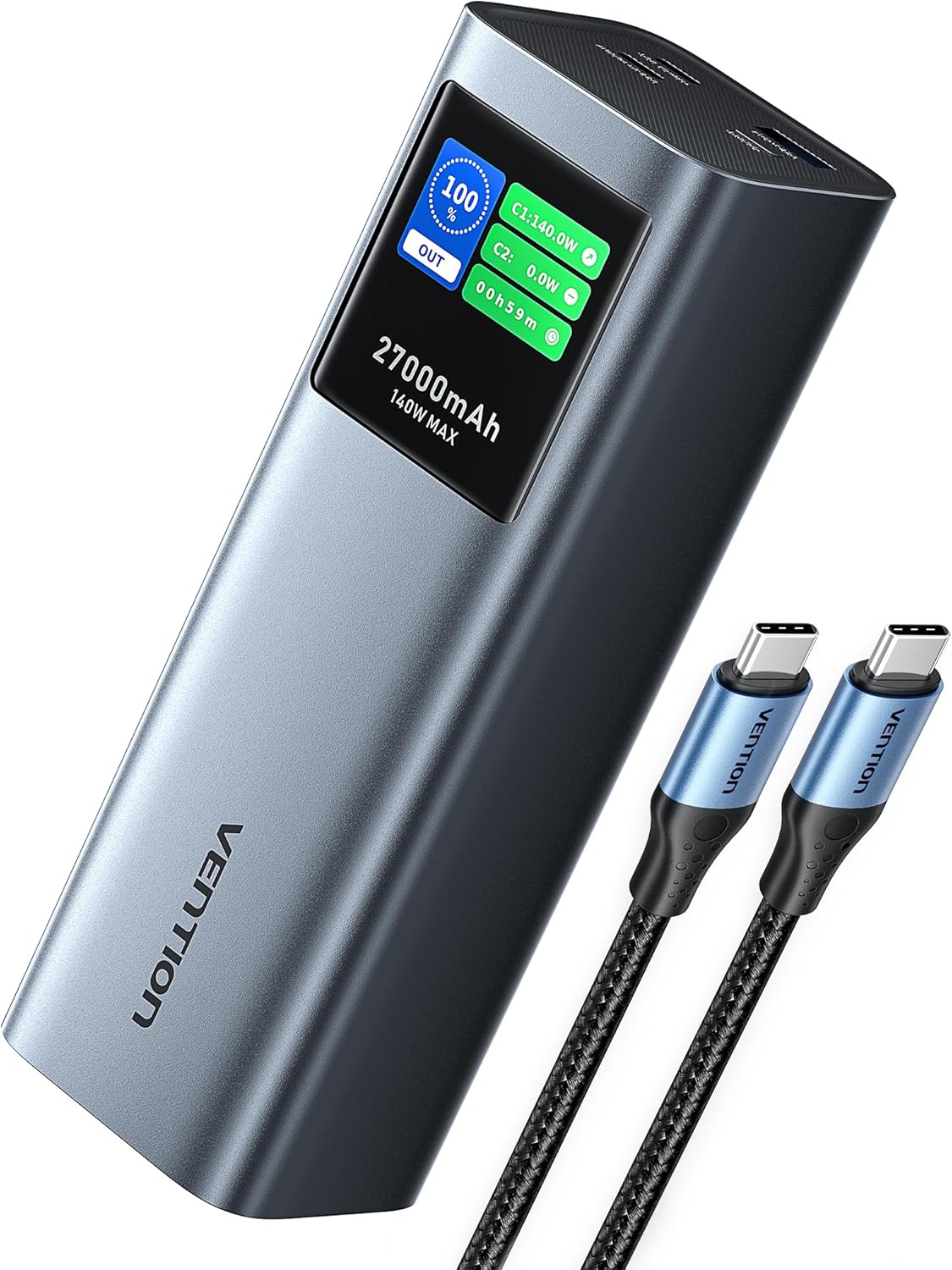
The VENTION Powerhive Laptop Power Bank shown with its included USB-C charging cables.
Product Overview
The VENTION Powerhive is a high-capacity portable power bank designed for multi-device charging, featuring PD 3.1 technology and a smart digital display.
Key Features:
- 140W Fast Charging: Utilizes PD 3.1 technology for rapid charging of compatible devices.
- 27,000mAh Capacity: Provides multiple charges for smartphones, tablets, and laptops.
- Smart Digital Display: Shows real-time charging status, power output, temperature, and more.
- Aluminum Alloy Design: Durable and efficient heat dissipation.
- Multi-Port Output: Equipped with three charging ports (140W USB-C, 20W USB-C, 18W USB-A) for simultaneous charging.
- Airline Approved: Meets airline regulations for portable power banks.

The power bank demonstrating its 140W PD 3.1 fast charging capability while connected to a laptop.

This graphic illustrates the 27,000mAh capacity, indicating approximately 0.8 charges for a MacBook Pro 16", 5.4 charges for an iPhone 15 Pro, 3.9 charges for a Nintendo Switch, and 3.8 charges for a Galaxy S23 Ultra.
Setup
Before first use, it is recommended to fully charge your VENTION Powerhive Laptop Power Bank.
- Connect one end of the provided USB-C cable to the USB-C1 (IN/OUT) port on the power bank.
- Connect the other end of the USB-C cable to a compatible USB-C wall charger (not included) with a power output of 100W or higher for optimal charging speed.
- The digital display will show the charging status and estimated time to full charge.
- Once fully charged, the display will indicate 100%. Disconnect the power bank from the charger.
Operating Instructions
Charging Your Devices:
The VENTION Powerhive features three output ports: USB-C1 (140W max), USB-C2 (20W max), and USB-A (18W max).
- Connect your device's charging cable to the appropriate port on the power bank.
- Connect the other end of the cable to your device.
- The power bank will automatically begin charging your device. The digital display will show the output power for each connected port.
- To charge multiple devices simultaneously, connect each device to an available port. The power bank will intelligently distribute power.

The power bank connected to a laptop, smartphone, and wireless earbuds, demonstrating its 3-in-1 simultaneous charging capability.

This image illustrates the bidirectional fast charging feature, showing the power bank charging a MacBook Pro 16-inch to 55% in 30 minutes, and fully charging it in 90 minutes.
Understanding the Digital Display:
The intuitive TFT digital display provides comprehensive real-time information:
- Battery Percentage: Shows the remaining power.
- Input/Output Power (W): Displays the current power being drawn or delivered by each port (C1, C2, A1).
- Estimated Charging Time: Indicates how long until the power bank is fully charged (when charging the power bank).
- Run Time: Shows how long the power bank has been actively charging devices.
- Last Charged To: The percentage the power bank was charged to in its last full cycle.
- Total Input/Output (Wh): Cumulative energy transferred.
- Battery Cycles: Number of charge/discharge cycles.
- Temperature: Internal battery temperature.
To switch the screen display time (30 seconds or Always On), long-press the button located on the power bank.
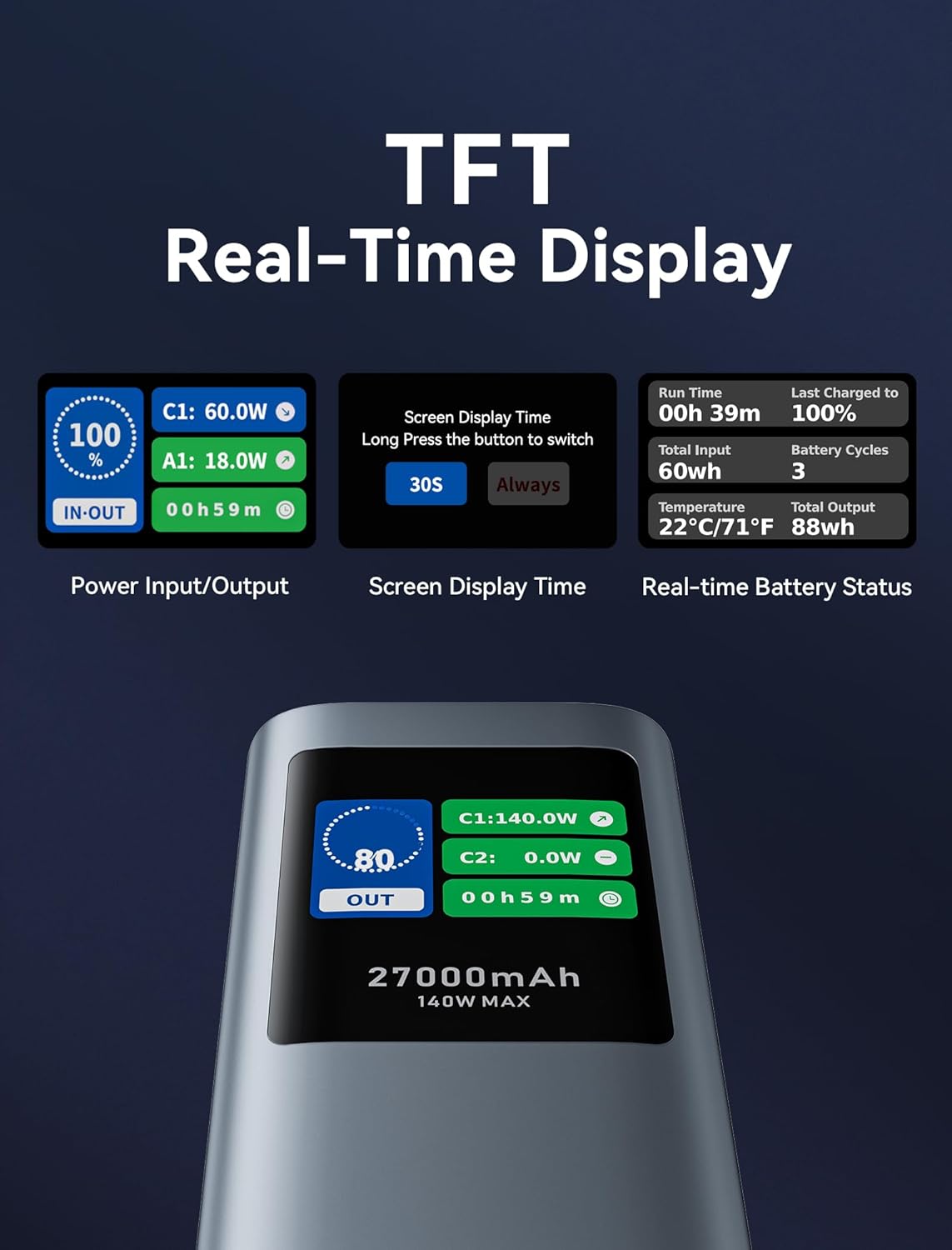
A detailed view of the TFT real-time display, showing power input/output, screen display time settings, and real-time battery status including run time, total input, temperature, last charged to, battery cycles, and total output.
Maintenance
- Cleaning: Use a soft, dry cloth to clean the power bank. Do not use liquid cleaners or aerosols.
- Storage: Store the power bank in a cool, dry place away from direct sunlight and extreme temperatures. For long-term storage, charge the power bank to about 50-70% every 3-6 months to preserve battery health.
- Battery Care: Avoid fully discharging the power bank frequently, as this can reduce its lifespan.
Troubleshooting
| Problem | Possible Cause | Solution |
|---|---|---|
| Power bank not charging devices. | Low battery; incorrect cable; device incompatibility; power bank in protection mode. | Recharge the power bank. Ensure cable is securely connected and compatible. Check device's charging requirements. Disconnect and reconnect to reset. |
| Power bank not recharging. | Faulty charging cable/adapter; power bank port damage. | Try a different USB-C cable and wall adapter. Ensure the adapter meets power bank input requirements (e.g., 100W for fast charging). |
| Digital display is dim or unreadable outdoors. | Environmental lighting conditions. | This is a known characteristic under bright outdoor conditions. Try to view the display in shaded areas or adjust your viewing angle. |
| Power bank gets warm during charging/discharging. | Normal operation, especially during high-power transfer. | This is normal. If it becomes excessively hot or emits smoke/odor, discontinue use immediately and contact support. |
Specifications
| Feature | Detail |
|---|---|
| Model Number | FKEH0 |
| Battery Capacity | 27,000 mAh (99.9 Wh) |
| Product Dimensions | 6.5 x 2.2 x 2 inches |
| Item Weight | 1.92 pounds |
| Input (USB-C1) | Up to 140W (PD 3.1) |
| Output (USB-C1) | Up to 140W (PD 3.1) |
| Output (USB-C2) | Up to 20W (PD) |
| Output (USB-A) | Up to 18W |
| Total Output | 140W Max |
| Special Features | Digital Display, Fast Charging, Over Charging Protection, Pocket Size, Scratch Resistant |
| Manufacturer | VENTION |
Note: Specifications are subject to change without notice. For the most up-to-date information, please refer to the product packaging or VENTION's official website.
Warranty and Support
The VENTION Powerhive Laptop Power Bank is manufactured by VENTION. For warranty information, technical support, or customer service inquiries, please contact VENTION directly through their official website or the contact information provided with your purchase. Please retain your proof of purchase for warranty claims.
You can visit the VENTION Store on Amazon for more information: VENTION Official Store
Related Documents - FKEH0
 |
Vention 6-in-2 USB-C Plug-in Docking Station User Manual Comprehensive user manual for the Vention 6-in-2 USB-C Plug-in Docking Station (Model VWS-J60/THZ). Includes specifications, connection diagrams, and usage instructions. |
 |
Vention 6-in-1 USB-C Wireless Charging Docking Station User Manual User manual for the Vention 6-in-1 USB-C Wireless Charging Docking Station (Model: VWS-H84), detailing its features, specifications, connection diagram, and FCC statement. |
 |
Vention 7-in-2 USB-C Plug-in Docking Station User Manual (VWS-K06) User manual for the Vention 7-in-2 USB-C Plug-in Docking Station (Model VWS-K06/THX), featuring modular design, 8K resolution support, and magnetic connection. |
 |
VENTION 6-in-1 USB-C Docking Station: User Manual & Specifications (VWS-F100) Comprehensive user manual and specifications for the VENTION 6-in-1 USB-C Docking Station (Model VWS-F100). Features HDMI, USB 3.2 Gen 1 Type-C, USB 3.0, RJ45, and 100W PD charging for expanded connectivity. |
 |
Vention 9-in-1 USB-C Docking Station (THAHB) User Manual User manual and technical specifications for the Vention 9-in-1 USB-C Docking Station (Model THAHB), featuring HDMI, USB 3.0, RJ45, and PD charging ports. |
 |
Vention 5-in-1 USB 3.0 Hub User Manual (VWS-I97) User manual and technical specifications for the Vention 5-in-1 USB 3.0 Hub (Model VWS-I97/TGX), including connectivity details and port configuration. |
Ask a question about this manual
Ask about setup, troubleshooting, compatibility, parts, safety, or missing instructions. Manuals+ will review the question and use this page’s manual context to help answer it.