
SIXTOP B0F4QK6GCM
SIXTOP Android Car Stereo User Manual
For Hyundai I10 (2013-2018) Model: B0F4QK6GCM
1. Introduction
This manual provides detailed instructions for the installation, operation, and maintenance of your SIXTOP Android Car Stereo. Please read this manual thoroughly before use to ensure proper functionality and to maximize your experience with the device. This unit is specifically designed for Hyundai I10 models manufactured between 2013 and 2018.
2. Package Contents
Verify that all items listed below are included in your package:
- SIXTOP Android Car Stereo with Frame
- AHD Rear View Camera
- External Microphone
- Power Cord
- Video Extension Cable
- GPS Antenna
- Rear Camera Input Cable
- RCA Cable
- USB Cable
- Installation Tool Kit
- User Manual (this document)
- Mounting Screws

Image: Overview of the car stereo package contents, including the main unit, AHD camera, microphone, and all necessary wiring and tools.
3. Setup and Installation
3.1 Compatibility
This Android car stereo is compatible with Hyundai I10 models from 2013 to 2018. The unit features a 9-inch touch screen with a 1280x720 resolution.
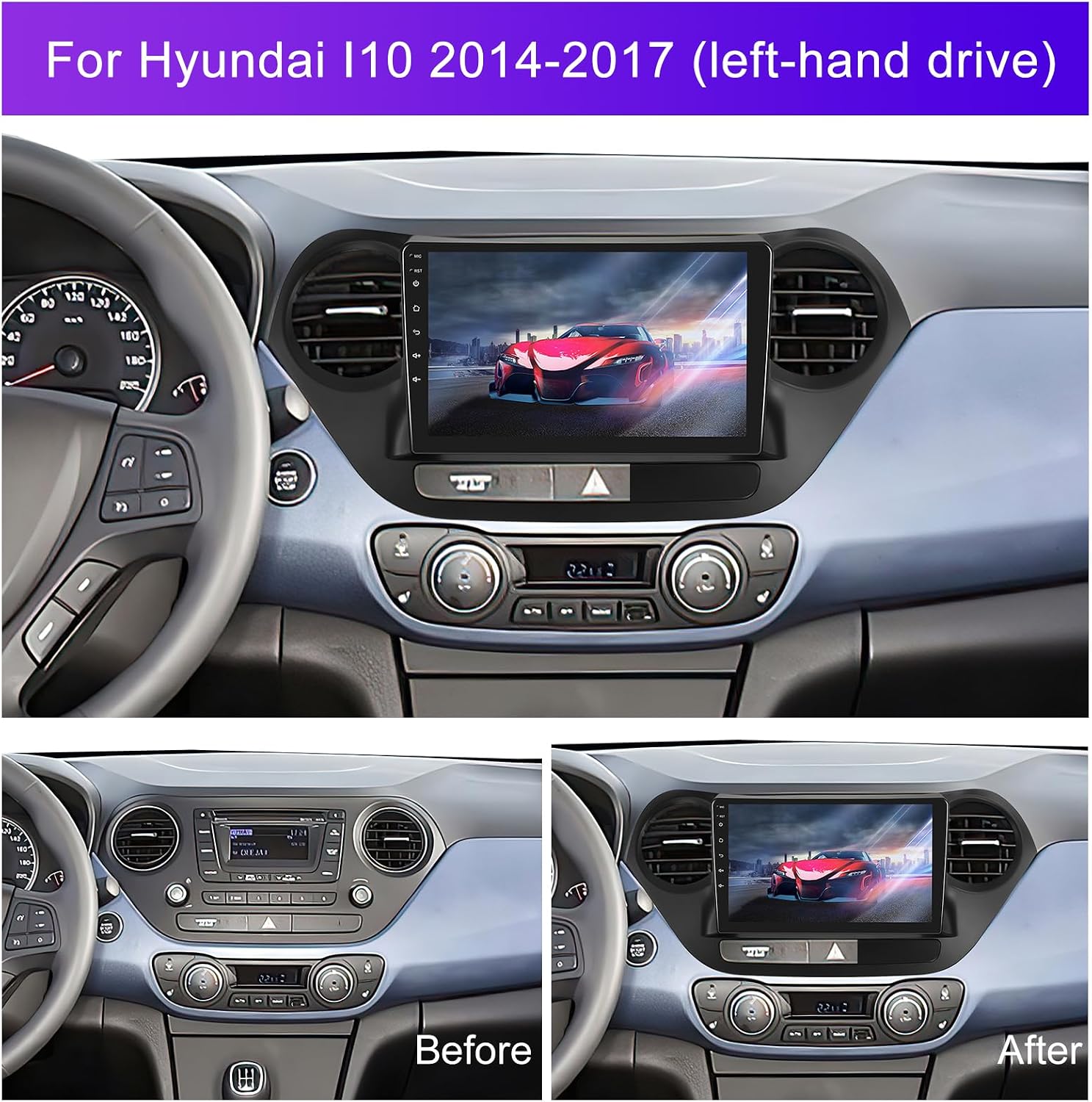
Image: Comparison showing the original Hyundai I10 dashboard and the dashboard after the SIXTOP car stereo installation.
3.2 Wiring Diagram for Rear Camera
Proper connection of the rear view camera is crucial for its functionality. Follow the diagram below for correct wiring:
- Connect the camera's video output to the 'Camera Input' on the stereo.
- Connect the camera's power cable to the reverse lamp for automatic activation.
- Ensure all connections are secure.

Image: Detailed wiring diagram illustrating how to connect the AHD rear view camera, including power, video, and ground connections to the car stereo.
4. Operating Instructions
4.1 System Overview
The stereo operates on Android 13 with 4GB RAM and 64GB ROM, providing a smooth and responsive user experience.

Image: Visual representation of the Android 13 operating system, 4GB RAM, and 64GB ROM.
4.2 Audio Features (DSP & EQ)
The unit features a built-in Digital Sound Processor (DSP) with 32-band equalization (32EQ). This allows for precise audio tuning to compensate for original car speaker limitations and achieve optimal sound quality. Various sound effects like 3D optimized, Panorama, and HiFi scene are available.

Image: Screenshot of the DSP 32-band equalizer interface, showing adjustable frequency bands and sound effect options.

Image: Interface for adjusting various DSP sound effects, including equalizer settings and audio presets.
4.3 Bluetooth 5.0
Connect your mobile phone via Bluetooth 5.0 for hands-free calling, address book synchronization, and music playback. The faster and more stable connection ensures a seamless experience.

Image: Illustration of Bluetooth 5.0 functionality, showing a phone connected for calls and music playback on the car stereo.
4.4 FM/RDS Radio
Enjoy radio broadcasts with FM/RDS support. The system allows you to listen to news, music, weather forecasts, and traffic information.

Image: The FM/RDS radio interface, showing available stations and current frequency.
4.5 WiFi and GPS Navigation
Connect to WiFi to download various applications from the Play Store, stream online music, and watch videos. The built-in GPS supports offline navigation (downloadable from Play Store) and online maps when connected to WiFi.

Image: A four-panel display showing the interfaces for WiFi connectivity, GPS navigation, Bluetooth pairing, and FM/RDS radio.

Image: GPS navigation screen showing map views and options for online and offline navigation.

Image: Display of various popular applications that can be downloaded and used on the car stereo via WiFi.
4.6 Apple CarPlay & Android Auto
The stereo supports both Apple CarPlay and Android Auto, allowing you to synchronize your phone's apps, contacts, notifications, and navigation to the car stereo. Ensure your phone's WiFi is on and connect via Bluetooth, then open the respective app on the stereo.

Image: Interface showing wireless Apple CarPlay, Android Auto, and Mirror Link options for smartphone integration.
4.7 Mirror Link
Mirror Link allows you to project your mobile phone screen onto the car stereo display. This is useful for viewing downloaded videos or other content from your phone. Select 'Airplay' for iPhone or 'Android Link' for Android phones and connect via WiFi.
4.8 AI Intelligent Voice Control
Activate the AI Voice APP to use voice commands for various functions, such as calling contacts, playing music, tuning the radio, or opening installed applications. For example, say "Play Michael Jackson's song" to play music.
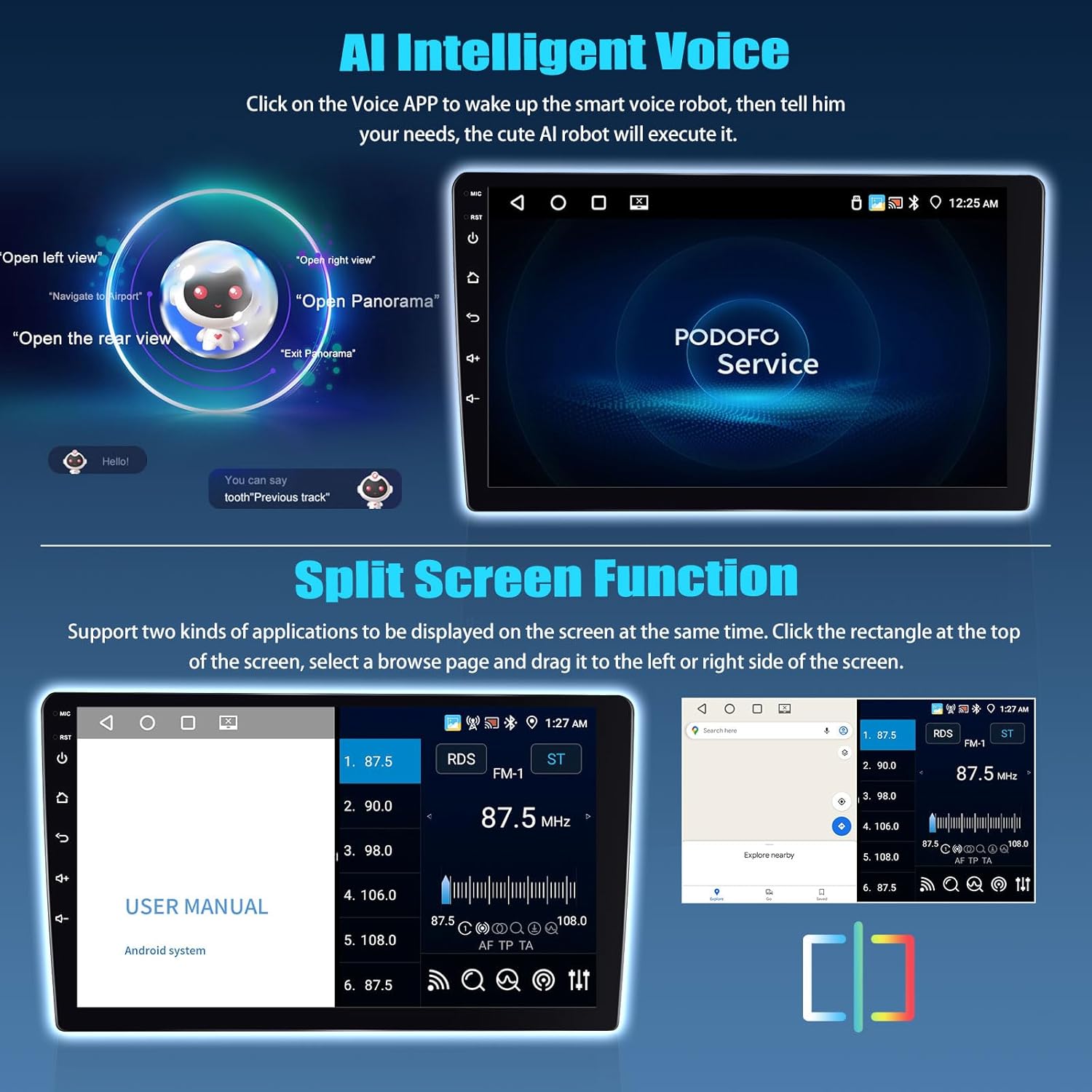
Image: Top panel shows the AI Intelligent Voice interface with example commands. Bottom panel demonstrates the Split Screen function with two applications running simultaneously.

Image: Examples of voice commands for AI assistants like Siri and Google Assistant, demonstrating hands-free operation.
4.9 Split Screen Function
The split screen feature allows two applications to be displayed and operated independently on the screen simultaneously. To activate, click the rectangle icon at the top of the screen, select an application, and drag it to either the left or right side.

Image: Demonstration of the split screen mode, showing a navigation app and a media player running side-by-side.
4.10 Steering Wheel Controls
The unit supports integration with your car's original steering wheel buttons for convenient control of audio functions, enhancing driving safety. Refer to the car settings menu to configure the steering wheel buttons.

Image: Top panel shows the interface for setting up steering wheel controls. Bottom panel displays the reversing camera view with guidelines.

Image: Illustration of how steering wheel buttons can be used to control the car stereo, showing play, pause, skip, and volume functions.
4.11 AHD Rear View Camera
The included AHD (Analog High Definition) camera provides a clear reversing image, automatically switching when the car is put into reverse gear. This feature aids in safer parking and maneuvering.

Image: A car stereo screen displaying a clear reversing image from the AHD rear view camera, with parking guidelines.
4.12 Desktop Themes
Customize the visual appearance of your car stereo by changing desktop themes. Long-press on a blank space on the homepage to access theme options and select your preferred design.
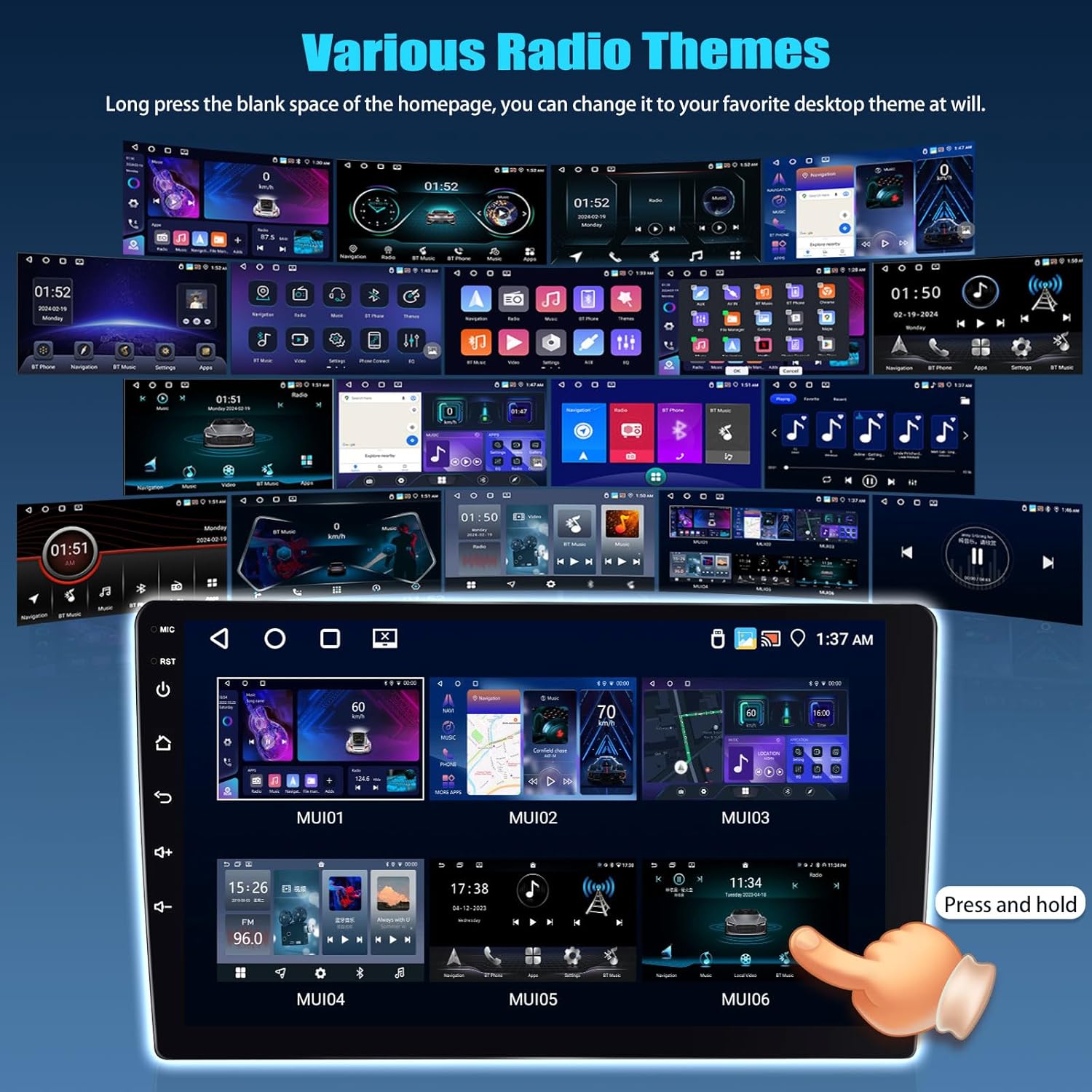
Image: A collage of different desktop themes and user interfaces that can be applied to the car stereo.
5. Maintenance
To ensure the longevity and optimal performance of your SIXTOP Android Car Stereo, follow these general maintenance guidelines:
- Screen Cleaning: Use a soft, lint-free cloth slightly dampened with water or a screen cleaner specifically designed for electronics. Avoid harsh chemicals or abrasive materials.
- Software Updates: Periodically check for system updates to ensure you have the latest features and security patches. Connect to WiFi and navigate to system settings for updates.
- Avoid Extreme Temperatures: Do not expose the unit to extreme heat or cold for extended periods, as this can affect performance and lifespan.
- Power Management: Ensure the car's electrical system is stable. Avoid frequent power interruptions or surges.
- Cable Connections: Periodically check all cable connections to ensure they are secure and free from damage.
6. Troubleshooting
If you encounter issues with your car stereo, refer to the following common troubleshooting steps:
- No Power: Check all power connections and the car's fuse box. Ensure the ignition is on.
- No Sound: Verify volume settings, check speaker connections, and ensure the audio source is correctly selected. Check DSP/EQ settings for any extreme adjustments.
- Bluetooth Connection Issues: Ensure Bluetooth is enabled on both the stereo and your phone. Delete previous pairings and try reconnecting. Ensure your phone's WiFi is also enabled for CarPlay/Android Auto.
- GPS Not Working: Ensure the GPS antenna is properly installed and has a clear view of the sky. Check GPS settings in the system.
- Touch Screen Unresponsive: Try restarting the unit. If the issue persists, a factory reset might be necessary (note: this will erase all user data).
- Rear Camera Not Displaying: Check the camera's power and video connections. Ensure the car is in reverse gear.
- System Slow/Freezing: Close unnecessary applications. Clear cache or perform a system restart. If persistent, consider a factory reset.
For issues not resolved by these steps, please contact customer support.
7. Specifications
| Feature | Specification |
|---|---|
| Model | B0F4QK6GCM |
| Operating System | Android 13 |
| RAM | 4GB |
| ROM (Internal Storage) | 64GB |
| Screen Size | 9 Inches |
| Display Resolution | 1280 x 720 HD |
| Bluetooth Version | 5.0 |
| Equalizer | 32-band DSP |
| Connectivity | Bluetooth, Wi-Fi |
| Special Features | Wireless CarPlay, Android Auto, Mirror Link, Split Screen, AI Voice Control |
| Included Components | Car Stereo with Frame, Camera, Mic, Cable |
| Item Weight | 3.97 pounds |
| Package Dimensions | 15.75 x 13.39 x 3.94 inches |
8. Warranty and Support
8.1 Warranty Information
This product comes with a 1-year warranty from the date of purchase. Please retain your proof of purchase for warranty claims.
8.2 Customer Support
For technical assistance, troubleshooting, or warranty inquiries, please contact SIXTOP customer support. You can reach us via:
- Email: SIXTOP123@163.com
- Online Support: Visit the SIXTOP store on Amazon and click 'Ask a question' to contact the seller 'xinshunhang'.
We offer 24/7 quick response, 1-year replacement, and lifetime technical support.

Image: Visual guide on how to access online support through the Amazon seller page.
Related documentsB0F4QK6GCM


Ask a question about this manual
Ask about setup, troubleshooting, compatibility, parts, safety, or missing instructions. Manuals+ will review the question and use this page’s manual context to help answer it.