
Motorola Edge 60 Fusion
Motorola Edge 60 Fusion User Manual
Model: Edge 60 Fusion
Introduction
The Motorola Edge 60 Fusion is a high-performance 5G smartphone designed for seamless communication and advanced mobile computing. It features a powerful 2.5 GHz Octa-core processor, 8GB of RAM, and 256GB of internal storage, expandable via microSDXC. Running on Android 15, it is equipped with a long-lasting 5200 mAh non-removable battery. This manual provides essential information for setting up, operating, maintaining, and troubleshooting your device.
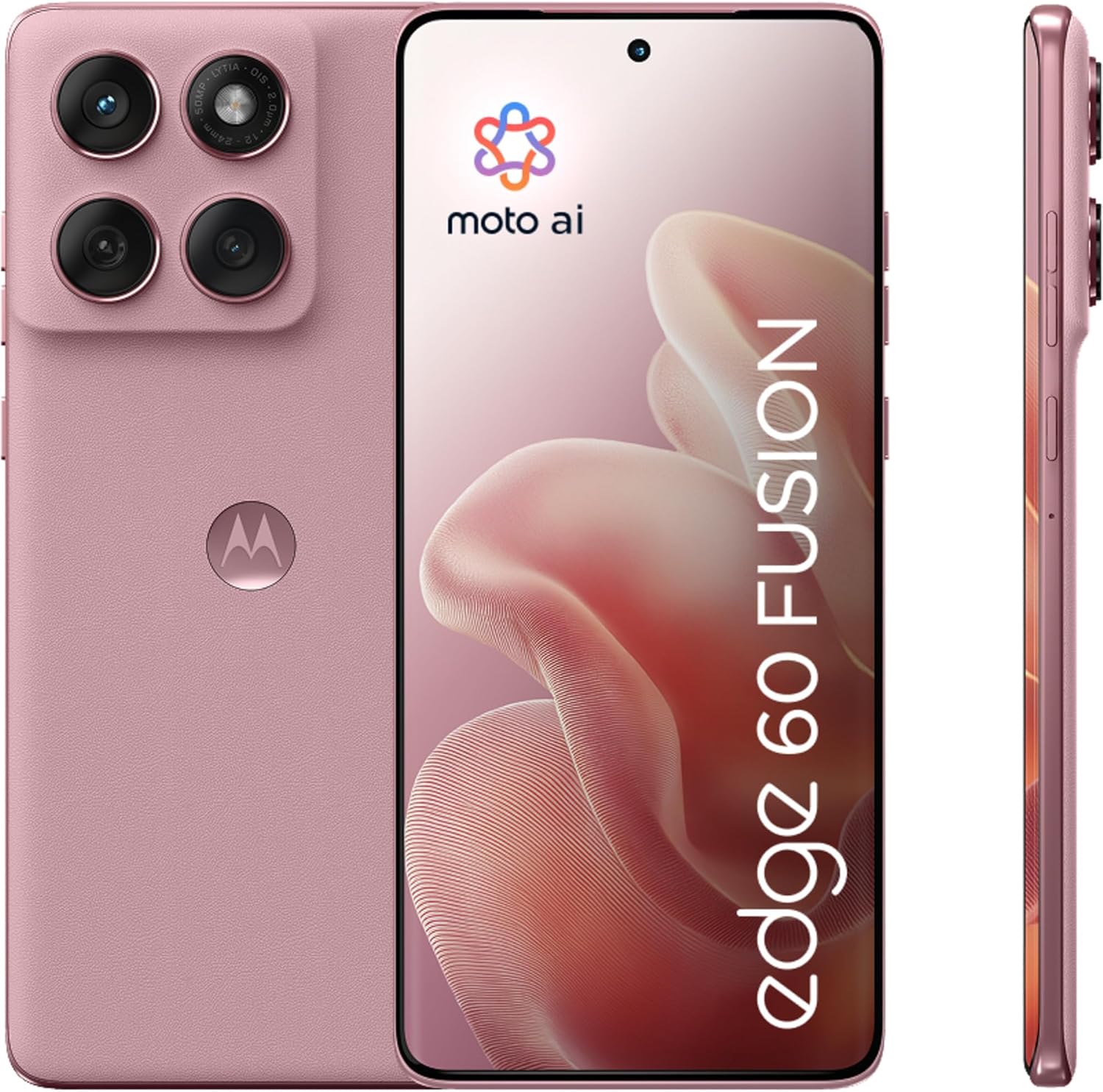
Image: Front and back view of the Motorola Edge 60 Fusion in Pantone Zephyr. The front displays the screen, while the back shows the camera module and Motorola logo.
Setup Guide
1. Unboxing and Initial Inspection
Carefully remove all items from the packaging. Verify that all components are present:
- Motorola Edge 60 Fusion Smartphone
- USB Cable
- Quick Start Guide (if included)
- SIM Ejector Tool (if included)
Inspect the device for any physical damage before proceeding.
2. Inserting SIM Cards and microSDXC Card
The Motorola Edge 60 Fusion supports Dual-SIM functionality and microSDXC expansion.
- Locate the SIM tray on the side of the device.
- Insert the SIM ejector tool into the small hole on the SIM tray to open it.
- Place your Nano-SIM cards into the designated slots (SIM 1 and SIM 2). Ensure the gold contacts face downwards.
- If using a microSDXC card for expanded storage, place it into its dedicated slot on the tray.
- Gently push the SIM tray back into the device until it clicks into place.

Image: Right side of the Motorola Edge 60 Fusion, highlighting the power button and volume rocker. The SIM tray is typically located on one of the sides.

Image: Left side of the Motorola Edge 60 Fusion, showing the smooth edge without buttons or ports.
3. Charging the Battery
Before first use, fully charge the device battery.
- Connect one end of the provided USB cable to the phone's USB-C port.
- Connect the other end of the USB cable to a compatible USB power adapter (not included) or a computer's USB port.
- The charging indicator will appear on the screen. Allow the device to charge until the battery icon shows full.
4. Powering On and Initial Configuration
Press and hold the Power button until the Motorola logo appears. Follow the on-screen prompts to complete the initial setup, including language selection, Wi-Fi connection, Google account setup, and security settings.
Operating Your Device
1. Basic Navigation
- Touchscreen Gestures: Tap, swipe, pinch-to-zoom, and long-press are standard Android gestures.
- Home Screen: Customize with widgets and app shortcuts.
- Notifications Panel: Swipe down from the top of the screen to access quick settings and notifications.
2. Making Calls and Sending Messages
Use the Phone app to make calls and the Messages app for SMS/MMS. Ensure your SIM card is active and has network coverage.
3. Camera Usage
The Motorola Edge 60 Fusion features a 50 MP main camera with OIS and a 32 MP wide-angle camera. Open the Camera app to capture photos and videos.
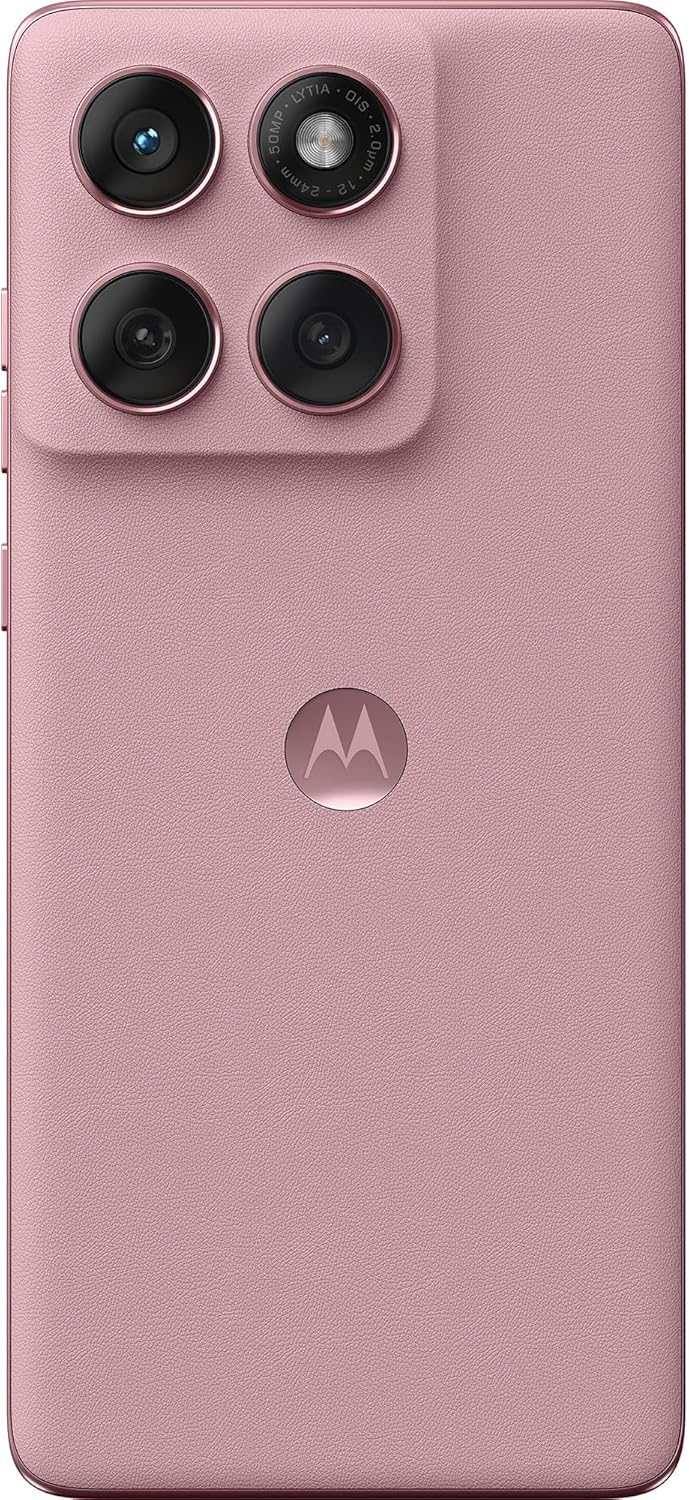
Image: Rear view of the Motorola Edge 60 Fusion, showcasing the prominent camera module with two large lenses and an LED flash. The Motorola logo is centered below the camera.
4. Connectivity
- Wi-Fi: Connect to wireless networks via Settings > Network & internet > Wi-Fi.
- Bluetooth: Pair with other Bluetooth devices via Settings > Connected devices > Connection preferences > Bluetooth.
- Mobile Data: Enable or disable mobile data via Quick Settings or Settings > Network & internet > Mobile network.
- 5G Connectivity: The device supports 5G NR bands N1/N2/N3/N5/N7/N8/N20/N26/N28/N38/N40/N41/N66/N75/N77/N78/SA/NSA/Sub6. Ensure your network provider supports 5G in your area.
Maintenance
1. Cleaning Your Device
Use a soft, lint-free cloth to clean the screen and body of the phone. Avoid abrasive materials or harsh chemicals. Do not submerge the device in water.
2. Software Updates
Regularly check for software updates to ensure optimal performance and security. Go to Settings > System > System updates.
3. Battery Care
- Avoid extreme temperatures.
- Do not let the battery fully discharge frequently.
- Use only approved chargers and cables.
Troubleshooting
Common Issues and Solutions
| Problem | Solution |
|---|---|
| Device not powering on | Ensure the battery is charged. Press and hold the Power button for at least 10-15 seconds. |
| Poor network signal | Check SIM card insertion. Move to an area with better coverage. Contact your network provider. |
| Apps crashing or freezing | Clear app cache (Settings > Apps > [App Name] > Storage & cache > Clear cache). Restart the device. |
| Battery draining quickly | Reduce screen brightness. Close unused apps. Disable unnecessary features like GPS or Bluetooth when not in use. Check battery usage in Settings. |
| Cannot connect to Wi-Fi | Restart your router and the phone. Forget the network and reconnect. Ensure correct password. |
For more complex issues, consider performing a factory reset (backup data first) or contacting Motorola support.
Specifications
| Feature | Detail |
|---|---|
| Model Name | Motorola Edge 60 Fusion |
| Operating System | Android 15 |
| Processor | Mediatek Dimensity 7300 (4 nm), Octa-core (4x2.5 GHz Cortex-A78 & 4x2.0 GHz Cortex-A55) |
| RAM | 8 GB |
| Internal Storage | 256 GB (expandable via microSDXC) |
| Display | 6.67 inches, LTPO P-OLED, 1220 x 2712 pixels |
| Main Camera | 50 MP, f/1.8, (wide), 1/1.56", 1.0µm, dual pixel PDAF, OIS |
| Front Camera | 32 MP, f/2.2, (wide), 1/3.14", 0.7µm |
| Battery | 5200 mAh, non-removable |
| Dimensions | 6.34 x 2.87 x 0.33 inches |
| Weight | 13.8 ounces (0.39 Kilograms) |
| Color | Pantone Zephyr |
| SIM Type | Dual-SIM (Nano-SIM) + eSIM |
| Network Compatibility | GSM (2G, 3G, 4G LTE, 5G NR). Not compatible with CDMA Networks (e.g., Verizon, Sprint, US Cellular) in USA. |
Warranty and Support
For warranty information, please refer to the warranty card included with your product or visit the official Motorola support website. Keep your proof of purchase for warranty claims.
For technical support, frequently asked questions, and software downloads, please visit the Motorola support portal or contact their customer service. Contact details can typically be found on the Motorola website or in the product packaging.
Important Note for USA Buyers: This smartphone is designed for GSM networks and is not compatible with CDMA networks such as Verizon, Sprint, or US Cellular. Please verify network compatibility with your carrier before purchase or if experiencing connectivity issues.
Related documentsEdge 60 Fusion


Ask a question about this manual
Ask about setup, troubleshooting, compatibility, parts, safety, or missing instructions. Manuals+ will review the question and use this page’s manual context to help answer it.