
1. Introduction
This manual provides detailed instructions for the installation, operation, and maintenance of your UNITOPSCI 2G+64G Android Car Stereo Radio. Please read this manual thoroughly before installation and use to ensure proper function and safety.
The UNITOPSCI 2G+64G Android Car Stereo Radio is an advanced in-dash multimedia system featuring a 7-inch capacitive touchscreen, Android 13 operating system, 2GB RAM, and 64GB ROM. It integrates wireless CarPlay, Android Auto, GPS navigation, Bluetooth, FM/RDS radio, and supports a backup camera and steering wheel controls.
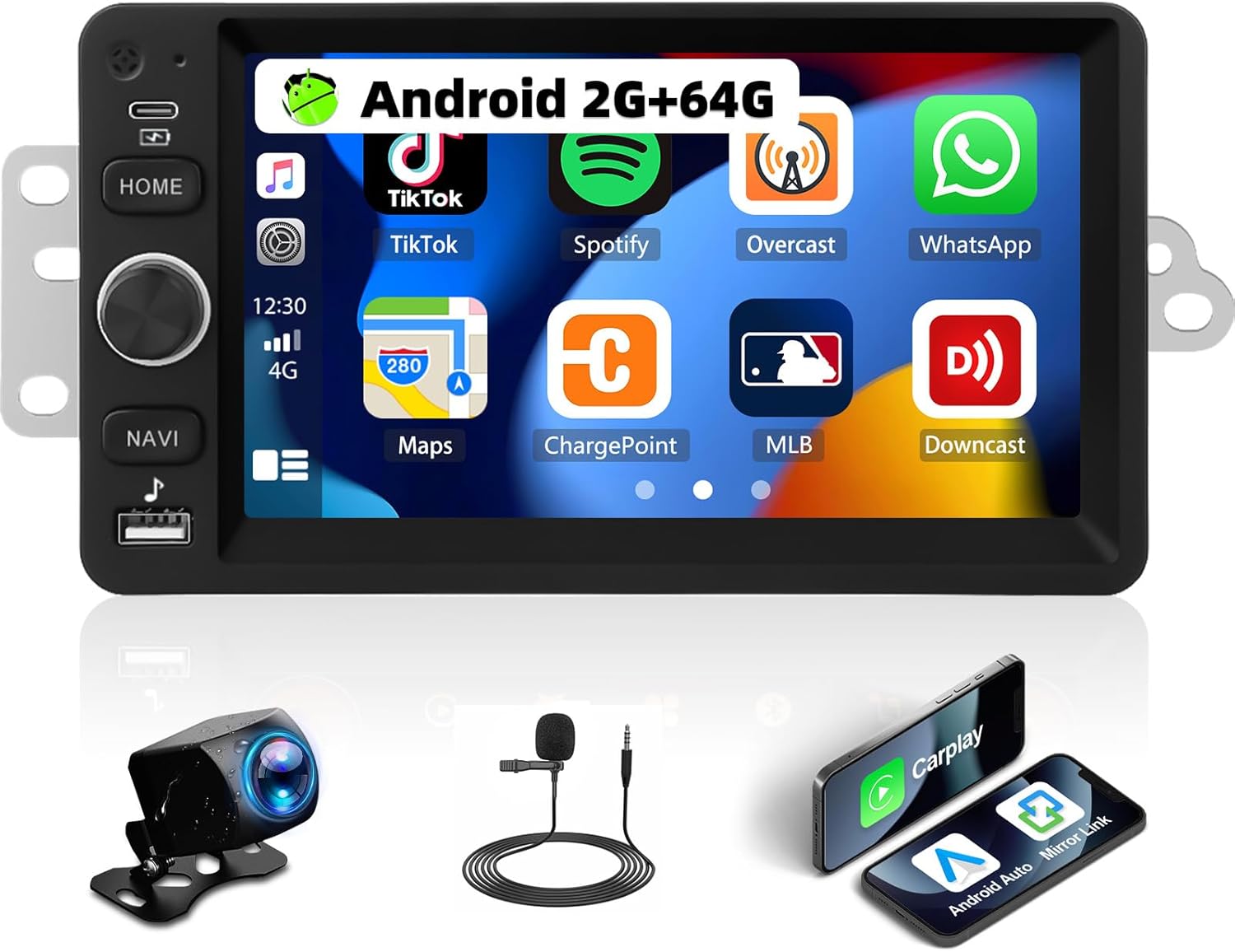
Image 1.1: UNITOPSCI 2G+64G Android Car Stereo Radio and included components.
2. Vehicle Compatibility
This Android car stereo is designed to fit specific vehicle models. Please verify your vehicle's compatibility before proceeding with installation.
- Chevy Chevrolet: Silverado, SSR, Tahoe (2003-2006)
- GMC: Siera, Yukon (2003-2006)
- Hummer: (2003-2006)
It is recommended to measure the size and shape of your original radio in the car's center console to confirm fitment.

Image 2.1: Visual comparison of a vehicle's dashboard before and after installing the UNITOPSCI car stereo.

Image 2.2: Detailed list of compatible Chevrolet, GMC, Hummer, Isuzu, Oldsmobile, Saturn, Pontiac, Buick, and Cadillac models and their respective years.
Special Note for Bose Audio System Owners:
If your vehicle is factory-equipped with a Bose premium audio system, a high-end wiring harness and a Bose-specific CANBUS decoder are required for proper function of all features, including the audio system and steering wheel controls. Consult with a professional or the manufacturer for accessory recommendations if unsure.
3. Setup and Installation
3.1. Package Contents
Verify that all components are present in the package:
- Android Car Stereo Unit
- Power Cable(s)
- RCA Cable
- Rear Camera Input Cable
- Camera
- GPS Antenna
- Canbus Box
- USB Cable(s)
- Small Horn (External Microphone)
- Antenna Adapter
- Radio Antenna
- User Manual

Image 3.1: Illustration of all items included in the product package.
3.2. Wiring Diagram
Refer to the following diagrams for correct wiring connections. Incorrect wiring can damage the unit or vehicle electronics.

Image 3.2: Comprehensive wiring diagram illustrating connections for power, RCA, USB, camera, GPS, and CANBUS.
- Power Cable: Connect to vehicle's power supply (ACC, B+, GND).
- RCA Cable: For audio output (FR OUT, FL OUT, RR OUT, RL OUT, SUBWOOFER) and auxiliary input (AUX IN L/R), video output (VIDEO OUT), and camera input (CVBS IN).
- USB Cable: For connecting USB devices.
- Rear Camera Input Cable: Connects the backup camera.
- GPS Antenna: Mount in a location with a clear view of the sky for optimal signal reception.
- Canbus Box: Connect for vehicle data communication, especially for steering wheel controls and vehicle information.
- Radio Antenna: Connect for FM/AM radio reception.
Important Installation Notes:
- Ensure all connections are secure to prevent intermittent issues.
- If your vehicle does not provide an Ignition (IGN) wire, a manual switch may be required to power the unit.
- For vehicles with complex wiring or premium sound systems, professional installation is recommended.
4. Operating Instructions
4.1. Basic Operation
- Power On/Off: Press and hold the power button (usually labeled HOME or a dedicated power icon) to turn the unit on or off. A short press typically mutes or returns to the home screen.
- Volume Control: Use the physical knob or on-screen controls to adjust the audio volume.
- Touchscreen: The 7-inch capacitive touchscreen responds to touch gestures for navigation and control.
4.2. Wireless CarPlay and Android Auto
Connect your smartphone wirelessly to access navigation, music, calls, and messages through the car stereo interface.
- Ensure Bluetooth and Wi-Fi are enabled on your smartphone.
- On the car stereo, select the CarPlay or Android Auto application.
- Follow the on-screen prompts to pair your device.
- Voice control functions (Siri for CarPlay, Google Assistant for Android Auto) are supported.

Image 4.1: Demonstrates the user interfaces for Wireless CarPlay, Android Auto, and Mirror Link functionality.
4.3. Mirror Link
Mirror your smartphone screen to the car stereo display for video and map viewing.
- Compatible with both Android and iOS devices.
- Access the Mirror Link application on the stereo and follow the pairing instructions.
4.4. WiFi and GPS Navigation
The unit features built-in WiFi and GPS for online and offline navigation.
- WiFi: Connect to a Wi-Fi hotspot to access online functions such as streaming videos (YouTube), online TV, music, and downloading applications.
- GPS: Preloaded with free offline maps. Connect to Wi-Fi to download updated maps via applications like Here WeGo. Supports online real-time navigation.

Image 4.2: Displays the interfaces for WiFi connectivity, GPS navigation, FM/RDS radio, and the audio equalizer settings.
4.5. Bluetooth
Enable hands-free calling and audio streaming via Bluetooth.
- Pair your phone with the stereo via Bluetooth settings.
- Supports hands-free calling, Bluetooth audio streaming, and automatic phone book download.
- An external microphone can be added for improved call quality.
4.6. FM/RDS Radio
Enjoy radio broadcasts with 18 preset stations.
- Tune to your preferred FM stations.
- RDS (Radio Data System) provides additional information like station name and song title where available.
4.7. EQ Audio Settings
Customize your audio experience with the built-in equalizer.
- Adjust various frequency bands to match your audio preferences.
- Pre-set EQ modes may also be available.
4.8. Split Screen Functionality
Display two applications simultaneously on the screen.
- For example, use navigation on one side and music playback on the other.
- Easily switch between applications.

Image 4.3: Illustrates the Bluetooth interface, split-screen mode, various UI themes, and the clarity of the HD touchscreen.
4.9. Backup Camera
The system supports a backup camera for safer parking.
- Automatically switches to the clear reversing image when the vehicle is in reverse.
- The included camera features a 170-degree wide viewing angle, night vision, and is waterproof.

Image 4.4: Shows the clear reversing image from the backup camera and the interface for setting up steering wheel controls.
4.10. Steering Wheel Control (SWC)
Configure your vehicle's steering wheel buttons to control the stereo functions.
- Access the SWC settings menu on the stereo.
- Follow the on-screen instructions to map functions (e.g., volume, track skip, mode) to your steering wheel buttons.
4.11. Video Output
Share video content with rear-seat passengers.
- The unit can work with a headrest monitor to display the same video content.
- A USB video output box may be required (not included).

Image 4.5: Depicts the video output feature, allowing rear-seat passengers to view content on separate monitors.
4.12. Multiple UI Themes
Personalize the stereo's appearance with various user interface themes.
- Choose from 26 available UI themes to match your preference.
5. Maintenance
To ensure the longevity and optimal performance of your car stereo, follow these maintenance guidelines:
- Cleaning: Use a soft, dry cloth to clean the touchscreen and unit exterior. Avoid abrasive cleaners or solvents.
- Software Updates: Periodically check for and install software updates provided by UNITOPSCI to enhance features and improve stability.
- Environmental Conditions: Avoid exposing the unit to extreme temperatures, direct sunlight for prolonged periods, or excessive moisture.
- Cable Management: Ensure all cables are properly routed and secured to prevent damage from vibration or snagging.
6. Troubleshooting
If you encounter issues with your UNITOPSCI car stereo, refer to the following common problems and solutions:
6.1. No Power
- Check Power Connections: Ensure the power cable is securely connected to the vehicle's power supply (ACC, B+, GND).
- Vehicle Fuse: Inspect the vehicle's fuse box for any blown fuses related to the radio or accessory power.
- Ignition Wire: If your vehicle lacks a dedicated IGN wire, verify that any custom wiring for ignition is correctly implemented.
6.2. No Sound
- Speaker Connections: Verify that all speaker wires are correctly connected to the stereo and the vehicle's speaker harness.
- Volume Level: Ensure the volume is not muted or set to a very low level.
- Bose System: If your vehicle has a Bose audio system, confirm that the correct wiring harness and CANBUS decoder are installed.
- Audio Source: Check if the correct audio source (e.g., Radio, Bluetooth, CarPlay) is selected.
6.3. Steering Wheel Controls Not Working
- CANBUS Connection: Ensure the CANBUS box is correctly connected and configured in the stereo's settings.
- SWC Learning: Re-perform the steering wheel control learning process in the stereo's settings menu.
- Vehicle Compatibility: Confirm that your vehicle's steering wheel control system is compatible with the stereo's CANBUS.
6.4. GPS Signal Issues
- Antenna Placement: Ensure the GPS antenna is mounted in a location with an unobstructed view of the sky.
- Antenna Connection: Check that the GPS antenna is securely connected to the stereo.
- Map Data: Verify that offline maps are downloaded and up-to-date, or that a stable internet connection is available for online maps.
6.5. Touchscreen Unresponsive
- Restart Unit: Try restarting the car stereo.
- Clean Screen: Ensure the screen is clean and free of debris or moisture.
For persistent issues, please contact customer support.
7. Specifications
| Feature | Detail |
|---|---|
| Model | 2G+64G Android Car Stereo |
| Operating System | Android 13 |
| RAM | 2GB |
| ROM | 64GB |
| Display Size | 7 Inches |
| Display Resolution | 1024*600 |
| Connectivity Technology | Bluetooth, Wi-Fi |
| Special Features | Wireless CarPlay, Android Auto, Mirror Link, Built-in GPS, FM/RDS Radio, EQ Audio, Split Screen, Backup Camera Support, Steering Wheel Control |
| Audio Output Mode | Stereo |
| Mounting Type | Dashboard Mount |
| Item Weight | 0.634 ounces |
| Package Dimensions | 13.54 x 9.06 x 4.25 inches |
8. Warranty Information
The UNITOPSCI 2G+64G Android Car Stereo Radio comes with a 1-year warranty from the date of purchase. Additionally, a replacement is available within 24 months for eligible issues.
This warranty covers manufacturing defects and malfunctions under normal use. It does not cover damage caused by improper installation, misuse, accidents, unauthorized repairs, or external factors.
Please retain your proof of purchase for warranty claims.
9. Customer Support
For any questions, technical assistance, or warranty claims, please contact UNITOPSCI customer support:
- Email: UNITOPSCI@126.com
- Response Time: Quick responses typically within 16 hours.
- After-Sales Support: Lifetime after-sales consultation and technical support are provided.
- Returns: 60-day no-worry return policy.


