
Introduction
This manual provides essential information for setting up, operating, and maintaining your paitanry 10.1 Inch Android Tablet. Please read this manual thoroughly before using your device to ensure proper function and longevity.
The paitanry 10.1 Inch Android Tablet (Model G80) features the Android 15 operating system, an octa-core MediaTek Helio G80 processor, 12GB RAM, and 128GB internal storage. It is equipped with a 10.1-inch In-Cell IPS display, dual cameras (5MP front, 13MP rear), dual-band Wi-Fi, Bluetooth 5.0, and an 8000mAh battery with 18W fast charging support.
Package Contents
Verify that all items are present in the package:
- 1 × paitanry 10.1 Inch Android Tablet
- 1 × Protective Case
- 1 × 9V/2A Fast Charger
- 1 × Dual Type-C Data Cable
- 1 × OTG Adapter
- 1 × User Manual (this document)

Image: The paitanry 10.1 Inch Android Tablet shown with its included protective case, charger, and cables.
Setup
1. Charging the Tablet
Before first use, fully charge the tablet. Connect the provided Type-C data cable to the tablet's USB-C port and the 9V/2A fast charger. Plug the charger into a power outlet. The battery icon on the screen will indicate charging status.
The 8000mAh battery supports up to 8 hours of mixed use. 18W PD fast charging allows for efficient recharging.

Image: Visual representation of the tablet's powerful 8000mAh battery and its estimated usage duration for various activities like gaming, online video, web surfing, music, and e-books.
2. Power On/Off
- To Power On: Press and hold the Power button located on the side of the tablet until the paitanry logo appears on the screen.
- To Power Off: Press and hold the Power button until a power menu appears. Select "Power off" from the options.
- To Restart: Press and hold the Power button until a power menu appears. Select "Restart" from the options.
3. Initial Setup
Upon first power-on, the tablet will guide you through the initial setup process. Follow the on-screen prompts to:
- Select your language.
- Connect to a Wi-Fi network.
- Sign in with your Google account or create a new one.
- Set up screen lock (PIN, pattern, password).
- Review and accept terms and conditions.
Operating Instructions
1. Basic Navigation
- Touch: Tap an icon or option to select it.
- Swipe: Drag your finger across the screen to scroll or navigate between screens.
- Pinch-to-Zoom: Place two fingers on the screen and move them apart or together to zoom in or out.
- Home Button: Returns to the home screen.
- Back Button: Returns to the previous screen.
- Recent Apps Button: Displays recently opened applications.
2. Wi-Fi Connection
To connect to a Wi-Fi network:
- Go to Settings > Network & internet > Wi-Fi.
- Toggle Wi-Fi On.
- Select your desired network from the list.
- Enter the password if prompted, then tap Connect.
The tablet supports dual-band Wi-Fi (802.11ac) for stable and fast internet connectivity.
3. Bluetooth Connection
To pair with a Bluetooth device:
- Go to Settings > Connected devices > Bluetooth.
- Toggle Bluetooth On.
- Ensure your Bluetooth device is in pairing mode.
- Select the device from the "Available devices" list and follow any on-screen prompts to complete pairing.
The tablet features Bluetooth 5.0 for efficient wireless connections.
4. Camera Usage
The tablet is equipped with a 5MP front camera and a 13MP rear camera.
- Open the Camera application.
- Tap the camera icon to switch between front and rear cameras.
- Tap the shutter button to take a photo or start/stop video recording.
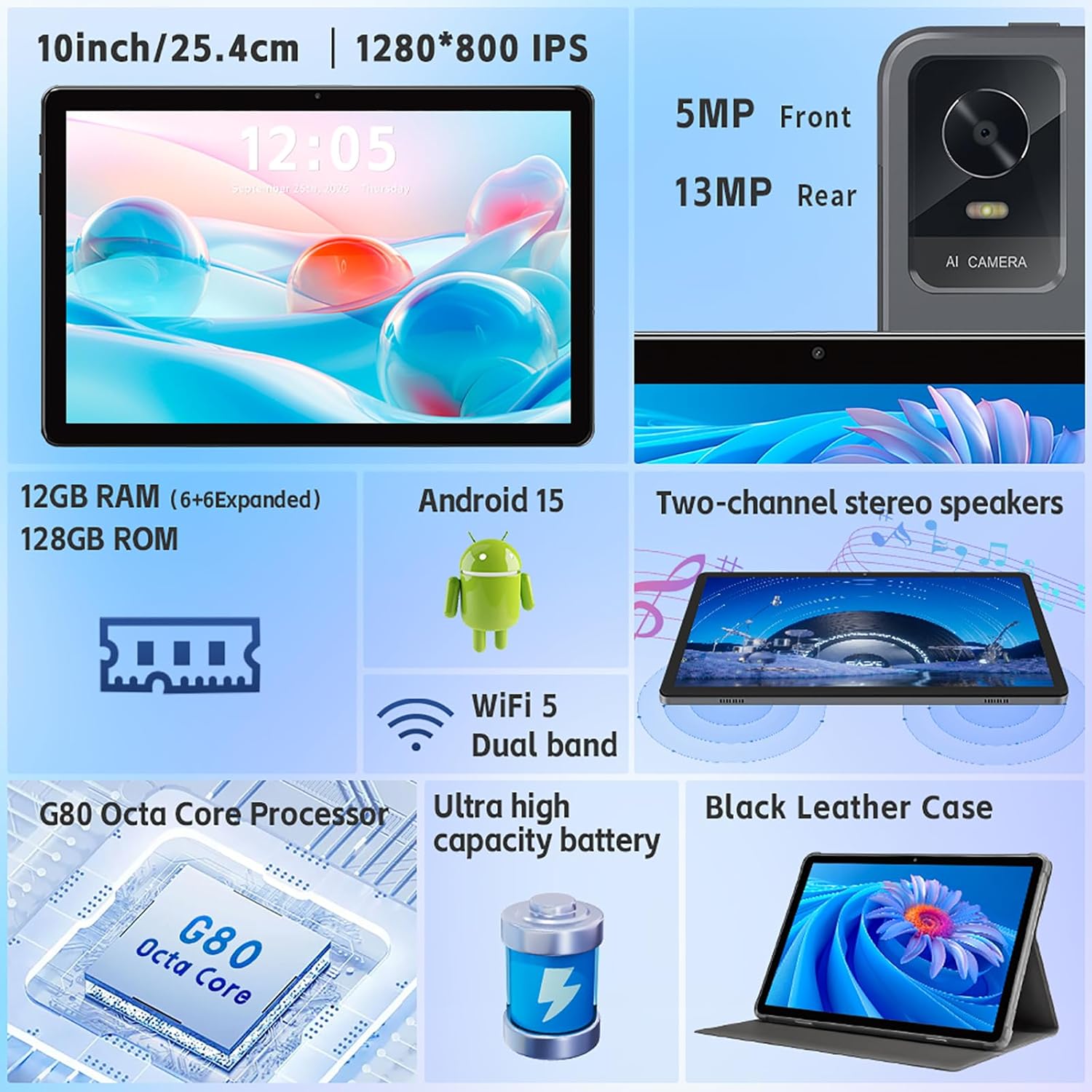
Image: An overview of the tablet's features, including the 5MP front camera and 13MP rear camera, 12GB RAM, 128GB ROM, Android 15, Wi-Fi 5 Dual band, G80 Octa Core Processor, and ultra-high capacity battery.
5. Storage Management
The tablet has 128GB of internal storage. You can expand storage up to 2TB using a Micro SD card (sold separately).
- To insert a Micro SD card: Locate the card slot on the side of the tablet. Gently insert the Micro SD card until it clicks into place.
- To manage storage: Go to Settings > Storage to view storage usage and manage files.
6. Display Settings
Customize your display experience:
- Go to Settings > Display.
- Adjust brightness, dark theme, night light, and font size.
- Set screen timeout duration.
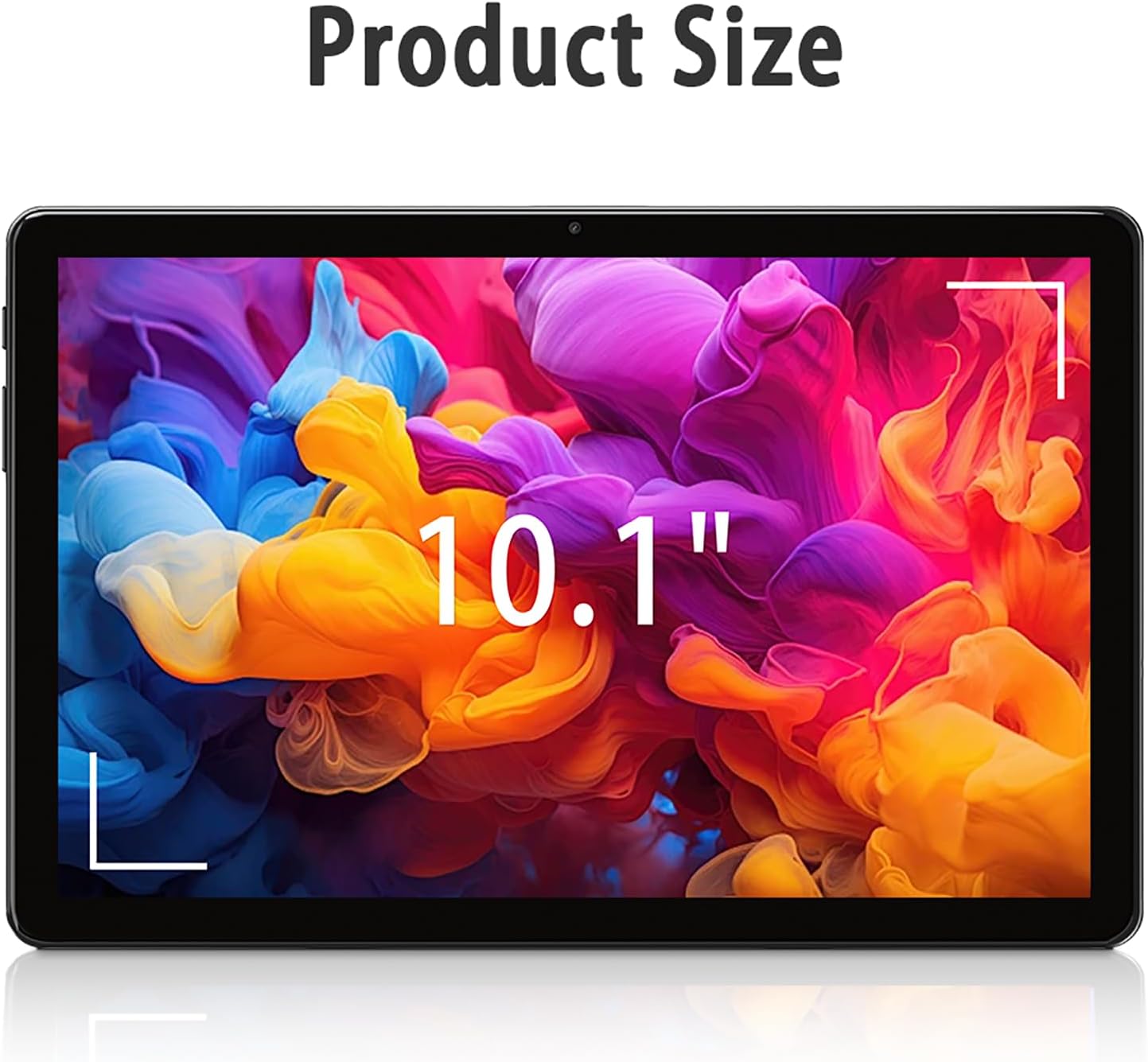
Image: The tablet screen showing "10.1"" to indicate its display size, with colorful abstract art on the screen.
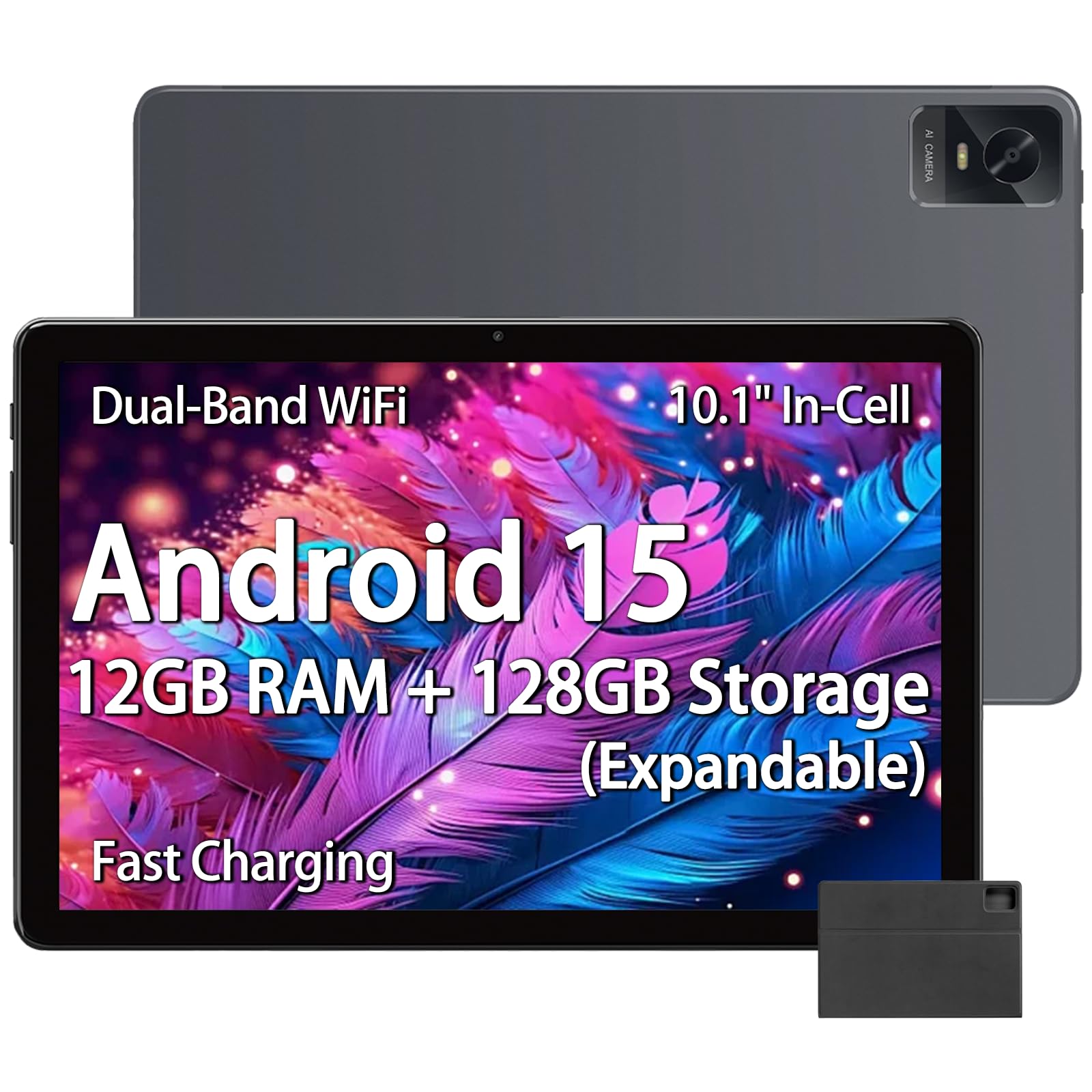
Image: The tablet displaying an image of penguins in an icy landscape, emphasizing its 16:10 aspect ratio and 10.1-inch 1280x800 HD In-Cell full lamination touchscreen for an immersive view.
7. Audio Settings
Adjust volume and sound preferences:
- Go to Settings > Sound & vibration.
- Adjust media, call, ring, and alarm volumes.
- Select ringtones and notification sounds.
The tablet includes a 3.5mm headphone jack for wired audio accessories.
Maintenance
1. Cleaning the Tablet
- Use a soft, lint-free cloth to clean the screen and body of the tablet.
- For stubborn smudges, slightly dampen the cloth with water or a screen cleaner designed for electronics.
- Avoid using harsh chemicals, abrasive materials, or excessive moisture.
2. Software Updates
Regularly check for and install software updates to ensure optimal performance, security, and access to new features.
- Go to Settings > System > System update.
- Follow the on-screen instructions to check for and install available updates.
3. Battery Care
- Avoid exposing the tablet to extreme temperatures (hot or cold).
- Do not allow the battery to fully discharge frequently. Charge it before it drops below 20%.
- Use only the provided charger and cable or certified compatible accessories.
Troubleshooting
Tablet Not Turning On
- Ensure the tablet is sufficiently charged. Connect it to the charger for at least 30 minutes.
- Press and hold the Power button for 10-15 seconds to force a restart.
Wi-Fi Connection Issues
- Check if Wi-Fi is enabled in Settings.
- Restart your Wi-Fi router and the tablet.
- Forget the network in tablet settings and reconnect.
- Ensure you are within range of the Wi-Fi signal.
Slow Performance
- Close unnecessary background applications.
- Clear cache data for frequently used apps (Settings > Apps > [App Name] > Storage & cache > Clear cache).
- Ensure sufficient free storage space. Delete unused files or apps.
- Restart the tablet.
Apps Crashing or Not Responding
- Force close the app (Settings > Apps > [App Name] > Force stop).
- Clear the app's cache (Settings > Apps > [App Name] > Storage & cache > Clear cache).
- Update the app from the Google Play Store.
- If the issue persists, uninstall and reinstall the app.
Specifications
| Brand | paitanry |
| Model Name | 10.1 inch Tablet |
| Model Number | G80 |
| Operating System | Android 15 |
| Processor | MediaTek Helio G80 Octa-Core (Arm Cortex-A75 @ 2GHz, Arm Cortex-A55 @ 1.8GHz) |
| Graphics Coprocessor | Arm Mali-G52 MC2 |
| RAM Memory | 12 GB (6GB physical + 6GB virtual) |
| Internal Storage | 128 GB |
| Expandable Storage | Up to 2 TB (Micro SD card, sold separately) |
| Screen Size | 10.1 Inches |
| Display Type | In-Cell IPS LCD |
| Display Resolution | 1280 x 800 Pixels |
| Aspect Ratio | 16:10 |
| Front Camera | 5 MP |
| Rear Camera | 13 MP |
| Battery Capacity | 8000 mAh (Lithium Polymer) |
| Battery Life (Average) | 8 Hours (mixed use) |
| Charging | 18W PD Fast Charging (USB Type-C) |
| Wi-Fi | Dual-band 802.11ac |
| Bluetooth | Bluetooth 5.0 |
| Connectivity | USB Type-C, 3.5mm Headphone Jack |
| Dimensions (L x W x Thickness) | 9.45" x 6.26" x 0.28" |
| Weight | 1 Pound |
| Special Features | Expandable Storage, Fast Charging, Supports USB OTG |

Image: A detailed view of the Helio G80 Octa-Core CPU, highlighting its central role in the tablet's performance.
Warranty and Support
Warranty Information
Your paitanry 10.1 Inch Android Tablet comes with a 1 Year Manufacturer Warranty. This warranty covers defects in materials and workmanship under normal use. It does not cover damage caused by misuse, accidents, unauthorized modifications, or external causes.
Please retain your proof of purchase for warranty claims.
Customer Support
For technical assistance, warranty claims, or further inquiries, please contact paitanry customer support through the retailer's platform or the official paitanry website.
When contacting support, please have your tablet's model number (G80) and proof of purchase ready.


