
Introduction
Thank you for choosing the EBTOOLS 720P USB Dash Camera DVR. This device is designed to enhance your driving safety and provide reliable video recording on the road. Featuring a 720P resolution, a 170-degree wide-angle lens, and Advanced Driver Assistance System (ADAS) functions, it captures clear footage and offers intelligent driving support. Its compact, curved zinc alloy body ensures discreet installation. Please read this manual thoroughly to understand the product's functions and ensure proper use.
Product Features
- Crystal Clear Recordings: Captures high-definition 720P video and images, even at high speeds.
- Durable Alloy Exterior: Features a sophisticated curved zinc alloy body, designed for durability and aesthetics.
- Easy to Use: Simple plug-and-play operation with no additional wiring required. Records automatically upon vehicle ignition.
- ADAS Driving Assistance: Includes features such as fatigue detection, front car start reminder, and lane departure warning for safer driving.
- Hidden Mini Design: Compact size allows for discreet installation behind the rearview mirror, ensuring an unobstructed view and enhanced safety.

Image: Overview of the EBTOOLS USB Dash Camera highlighting its key features.
Package Contents
Please check the package for the following items:
- 1 x Main Unit (Dash Camera)
- 1 x USB Cable
- 1 x User Manual
Setup
- Insert TF Card: Locate the TF memory card socket on the device. Insert a compatible TF card (up to 32GB, not included) into the slot. Ensure the card is inserted in the correct direction.
- Mounting: Choose a suitable location on your windshield, typically behind the rearview mirror, to ensure an unobstructed view. Use the fixed adhesive provided to securely attach the dash camera.
- Connect Power: Insert the USB cable into the dash camera's USB port and connect the other end to your car's USB power source or a compatible car charger.
- Connect to Navigation System (Optional): If your car has a compatible retrofitting navigation system, insert the USB cable into it to enable viewing and control via the car's display.
- Adjust Camera Angle: The camera head offers 90° rotation. Adjust the video head to capture the desired field of view.

Image: Labeled diagram of the dash camera components and connection points.
Operating Instructions
- Automatic Recording: Once the dash camera is connected to power and the vehicle ignition is turned on, the device will automatically power on and begin recording.
- Viewing Recordings: To view recorded videos or photos, you can either connect the dash camera to a computer using the USB cable (it will function as a removable disk) or remove the TF card and insert it into a card reader connected to a computer.
- G-Sensor Function: The built-in G-sensor detects sudden movements or impacts (e.g., collisions) and automatically locks the current video file to prevent it from being overwritten during loop recording.
- ADAS Features: The Advanced Driver Assistance System provides alerts for various driving conditions. These may include lane departure warnings, front vehicle start reminders, and fatigue detection. Ensure the camera has a clear view of the road for optimal ADAS performance.
- Voice Recording: The device supports voice recording, capturing audio inside the vehicle along with video footage.

Image: Visual representation of the ADAS system in action, detecting vehicles and potential hazards.
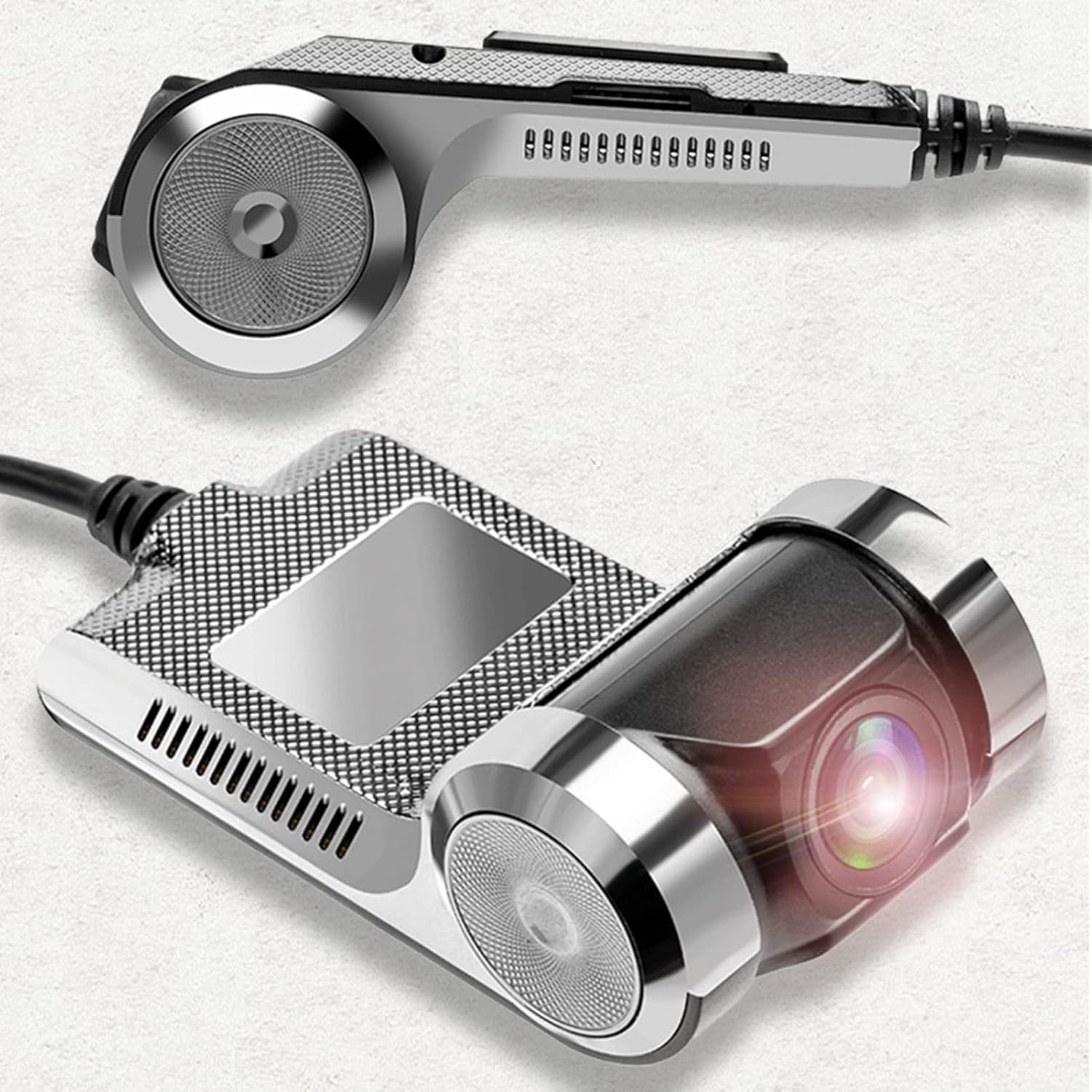
Image: Explanation of specific ADAS functions provided by the dash camera.
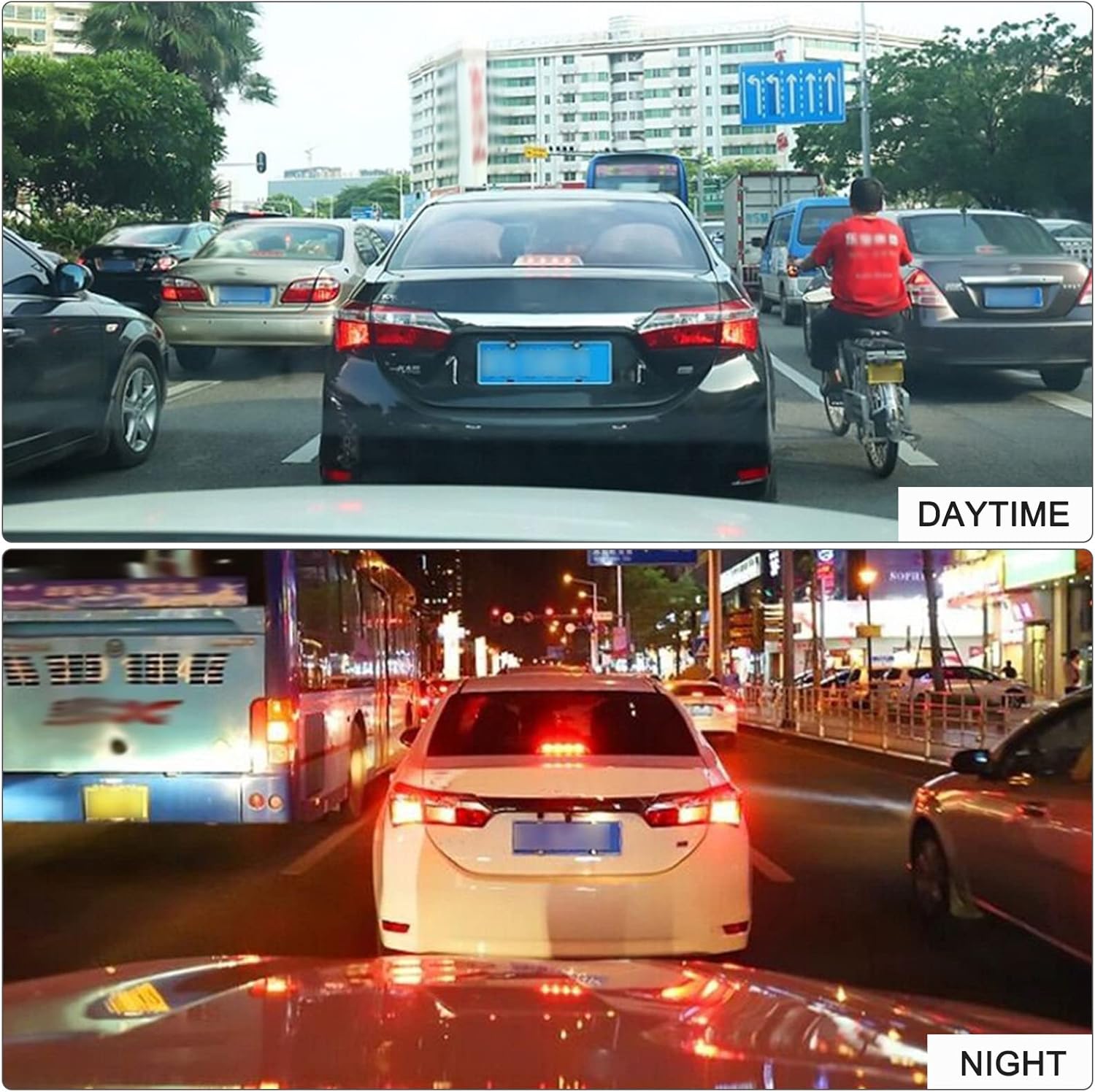
Image: Examples of daytime and nighttime recording quality.
Maintenance
- Cleaning: Use a soft, dry cloth to clean the camera lens and body. Avoid using abrasive cleaners or solvents that may damage the device.
- Memory Card Management: Regularly format your TF card (at least once a month) to ensure optimal performance and prevent data corruption. Back up important recordings before formatting.
- Temperature: Avoid exposing the device to extreme temperatures, direct sunlight for prolonged periods, or high humidity, as this can affect its lifespan and performance.
- Firmware Updates: Check the manufacturer's website periodically for any available firmware updates to ensure your device has the latest features and bug fixes.
Troubleshooting
- Device does not power on:
- Ensure the USB cable is securely connected to both the dash camera and a working power source in your vehicle. Check the vehicle's power outlet or USB port for functionality.
- Recording is not starting:
- Verify that a TF card is properly inserted and that it has sufficient free space. If the card is full, format it (after backing up important data). Ensure the vehicle ignition is on.
- Video quality is poor:
- Clean the camera lens. Ensure the protective film has been removed from the lens. Check if the camera angle is correctly adjusted and not obstructed.
- ADAS features are not working correctly:
- Ensure the camera has a clear, unobstructed view of the road ahead. ADAS performance can be affected by weather conditions, lighting, and road markings. Recalibrate if an option is available.
- Device freezes or malfunctions:
- Try resetting the device by disconnecting and reconnecting the power. If the issue persists, format the TF card. Contact customer support if the problem continues.
Specifications
| Brand Name | EBTOOLS |
| Model Number | EBTOOwqkxysdoaz |
| Color | Black |
| Material | Zinc Alloy |
| Rotation Angle | 90° |
| Display Screen | No |
| CPU | JR3272 (High-end chip) |
| Recording Resolution | 720P (1280*960) |
| Photo Format | JPEG |
| Memory Card Support | TF Card, Max 32GB (not included) |
| Speaker | Yes |
| G-Sensor | Supported |
| Removable Disk Function | Supported |
| Voice Recording | Supported |
| GPS | No |
| Back Camera Support | No |
| ADAS | ADAS Intelligent Driving Support |
| Package Dimensions | 14 x 10 x 5 cm |
| Package Weight | 185 g |
Warranty and Support
EBTOOLS products are designed for reliability and performance. For warranty information, please refer to the specific terms provided at the time of purchase or contact your retailer. If you encounter any issues or have questions regarding your EBTOOLS 720P USB Dash Camera DVR, please reach out to the seller or EBTOOLS customer support for assistance. Keep your purchase receipt as proof of purchase for any warranty claims.