
Baideluo Y05AW
Baideluo Dual Dash Cam Front and Rear 2K+1080P User Manual
Model: Y05AW
Introduction
This manual provides detailed instructions for the Baideluo Dual Dash Cam, Model Y05AW. It covers the installation, operation, and maintenance of your device, ensuring you can utilize all its features effectively. Please read this manual thoroughly before using the product.
What's in the Box
- Baideluo Dual Dash Cam (Front Unit)
- Rear Camera
- 32GB High-Endurance MicroSD Card (pre-installed)
- Suction Cup Mount
- Rear Camera Cable
- Car Charger (Cigarette Lighter Adapter)
- USB Cable
- Installation Tool (Pry Tool)
- User Manual (this document)
Product Overview
The Baideluo Dual Dash Cam system includes a main front camera unit with a display and a separate rear camera. It is designed to record both front and rear views of your vehicle, providing comprehensive coverage.
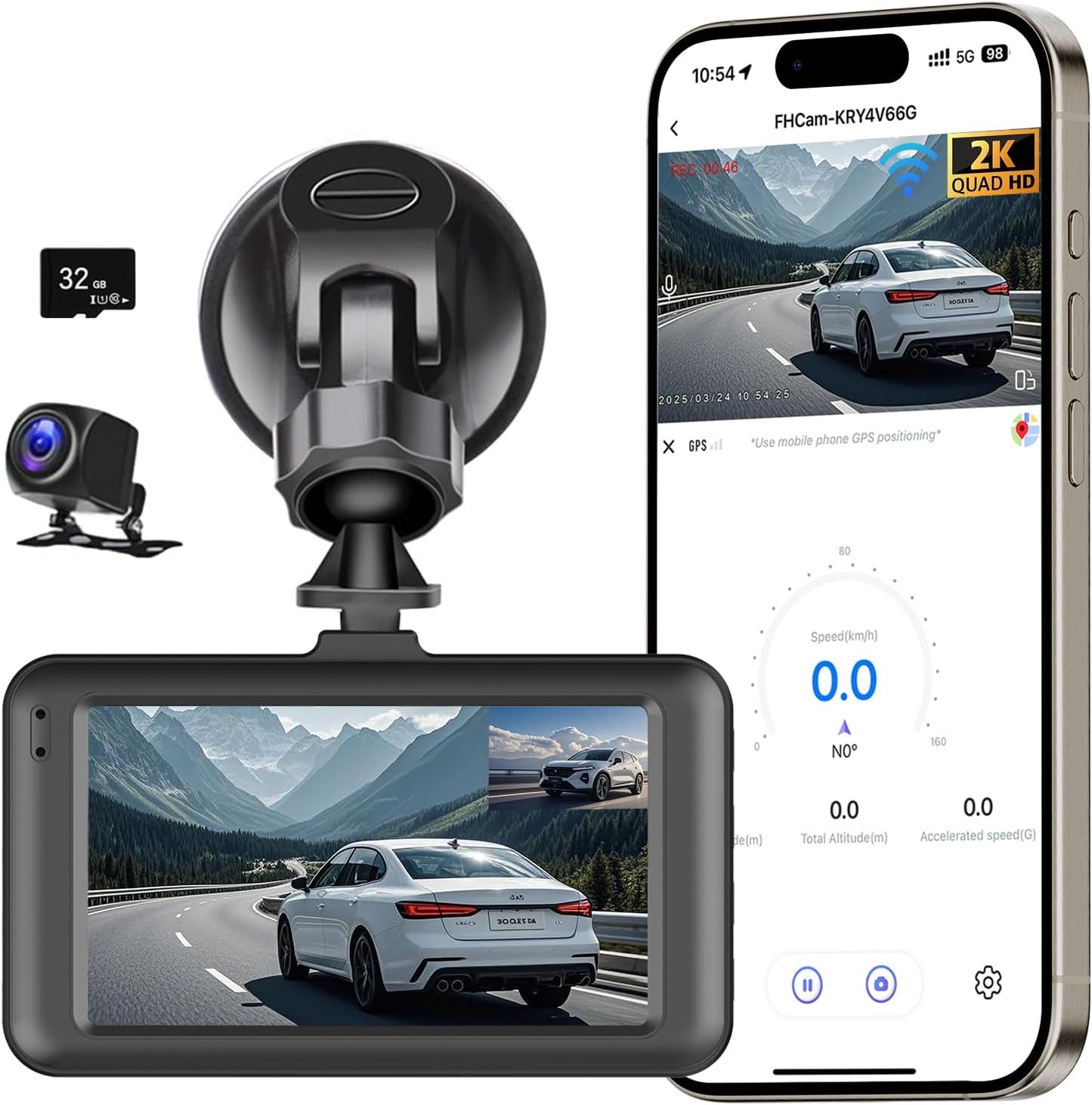
Image: Main components of the Baideluo Dual Dash Cam system, including the front camera, rear camera, suction mount, and included 32GB MicroSD card. A smartphone screen illustrates the app's live view and data display.
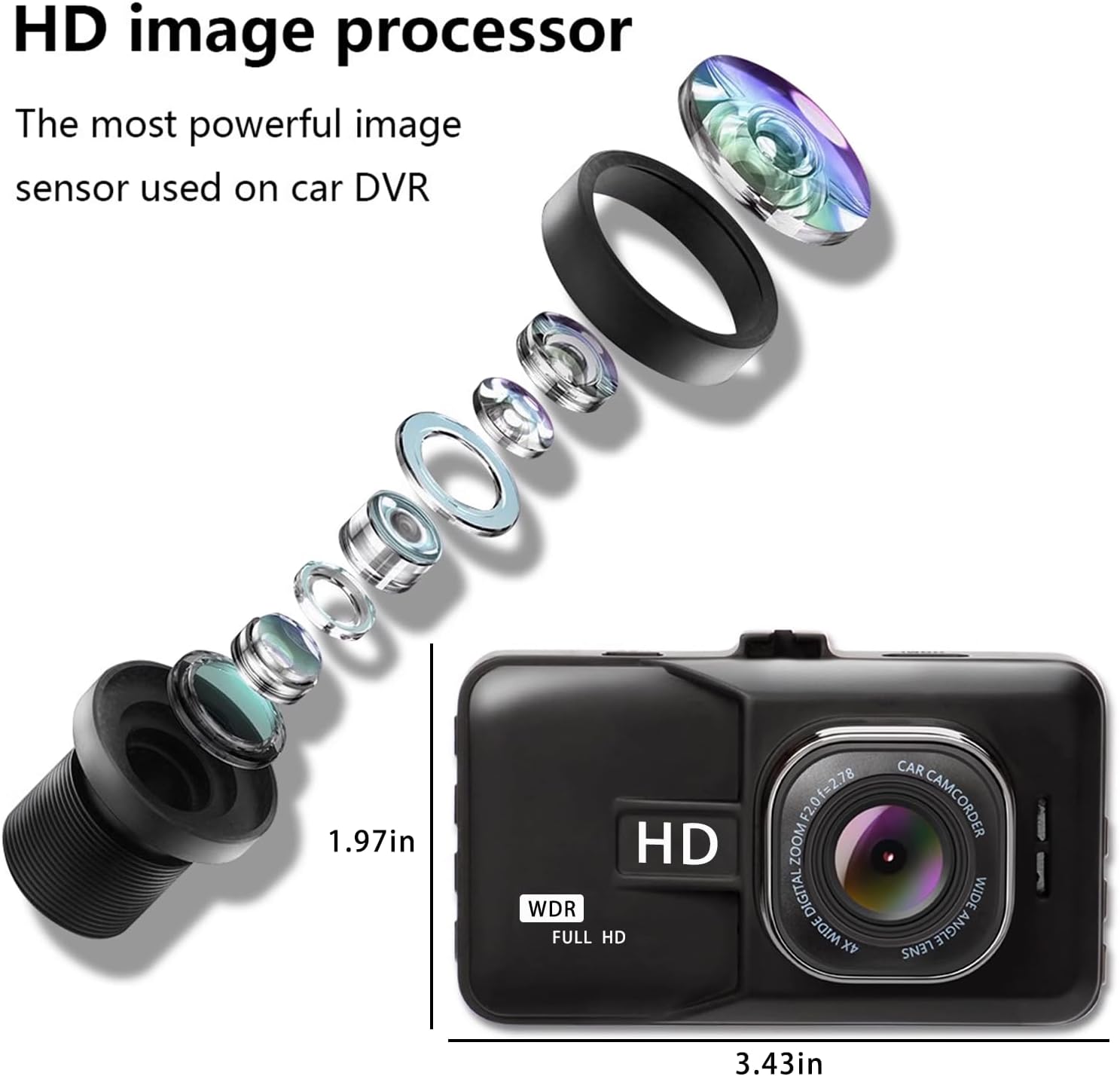
Image: Detailed view of the dash cam's internal lens structure and the physical dimensions of the front camera unit.
Installation Guide
1. Front Camera Installation
- Clean the windshield area where you intend to mount the dash cam.
- Attach the suction cup mount to the front camera.
- Press the suction cup firmly onto the cleaned windshield surface and secure it.
- Adjust the camera angle to ensure a clear view of the road ahead.
2. Rear Camera Installation
- Determine a suitable location for the rear camera, typically on the rear windshield or near the license plate.
- Route the rear camera cable from the front unit to the rear of the vehicle, tucking it along the headliner and pillar trim using the provided installation tool.
- Connect the rear camera to the cable.
- Optional: Parking Assistance Wiring: If you desire parking assistance (reversing guide lines), connect the red wire from the rear camera cable to the positive lead of your vehicle's reversing lamp. If this feature is not needed, the red wire does not require connection.

Image: Illustration of how to route the front and rear dash cam cables discreetly along the vehicle's interior trim.

Image: Visual guide for connecting the rear camera's reversing signal wire to enable parking assistance features.
3. Power Connection
- Connect the car charger to the dash cam's power input port.
- Plug the car charger into your vehicle's cigarette lighter socket.
- The dash cam will typically power on automatically when the vehicle's ignition is turned on.
4. MicroSD Card
The dash cam comes with a pre-installed 32GB high-endurance MicroSD card, formatted and ready for use. Ensure the card is properly inserted before operation. If replacing the card, use a Class 10 or higher U3 rated MicroSD card and format it within the dash cam's settings.
5. Optional 24-Hour Parking Monitor Hardwire Kit
For continuous 24-hour parking monitoring, a dedicated hardwire kit is required and sold separately. This kit connects the dash cam directly to your vehicle's fuse box, providing constant power without draining the car battery. The recommended hardwire kit can be found using ASIN: B0F5NLY9YY.

Image: Depiction of the 24-hour parking monitoring feature and the separate USB-C hardwire kit required for its functionality.
Operating Instructions
1. Power On/Off
The dash cam automatically powers on and begins recording when connected to a power source and the vehicle's ignition is on. It powers off automatically when the ignition is turned off.
2. Loop Recording
The dash cam continuously records video in segments. When the MicroSD card is full, the oldest unlocked footage is automatically overwritten by new recordings. This ensures uninterrupted recording without manual intervention.

Image: Visual representation of the loop recording function, where older files are overwritten to maintain continuous recording.
3. G-Sensor (Emergency Lock)
The built-in G-Sensor detects sudden impacts or collisions. When triggered, it automatically locks the current video segment, preventing it from being overwritten by loop recording. This footage is stored in a separate folder to protect critical evidence.

Image: The G-Sensor feature automatically locks video footage during an impact to secure accident evidence.
4. Parking Monitor
When the vehicle is parked and the dash cam is connected via a hardwire kit (sold separately), the parking monitor activates. It uses motion detection or G-Sensor triggers to record events around your parked vehicle, providing surveillance even when you are away.

Image: The parking monitor feature provides continuous surveillance for your vehicle, utilizing G-Sensor and time-lapse capabilities.
5. Night Vision
The dash cam features Super Night Vision technology with Wide Dynamic Range (WDR) to enhance video clarity in low-light conditions. This ensures that details such as license plates and road signs are clearly captured even at night.

Image: The Super Night Vision feature, supported by F2.0 aperture, a 6-layer lens, and WDR technology, ensures clear video recording in dark environments.
6. WiFi and Mobile App Control
Connect your dash cam to your smartphone (iPhone or Android) via the built-in WiFi. Download the free 'Viidure' app to access features such as live preview, video playback, file download, and settings adjustment directly from your phone.

Image: The dash cam features built-in 5G and 2.4G WiFi for quick video file transfers and seamless smartphone connectivity. The app allows for camera settings, file downloads, video replay, and firmware upgrades.
Download the 'Viidure' app: https://www.6zhentan.com/app/d0001/index.html
7. Playback Options
Recorded footage can be reviewed using several methods:
- Directly on the Dash Cam Screen: Use the dash cam's integrated display for immediate review.
- Via a Computer: Remove the MicroSD card and insert it into a card reader connected to a computer.
- Via the Mobile App: Connect to the dash cam via WiFi and use the 'Viidure' app to view and download recordings.

Image: Overview of the three available methods for playing back recorded video footage.
Key Features
- Crystal Clear Dual Recording: Front camera records in 2K Ultra HD (2560x1440P) and the rear camera in 1080P Full HD, providing comprehensive coverage.
- Super Night Vision: Equipped with Wide Dynamic Range (WDR) and an F2.0 large aperture 6-glass lens for clear footage in low-light conditions.
- Wide Angle Lenses: 170° ultra-wide angle for the front lens and 150° for the rear lens, minimizing blind spots.
- Built-in Super Capacitor: Ensures stable operation in extreme temperatures (-20°C to 70°C / -4°F to 158°F), offering enhanced safety and durability compared to traditional batteries.
- Seamless Loop Recording: Automatically overwrites the oldest unlocked files when the memory card is full, ensuring continuous recording.
- G-Sensor: Automatically detects collisions and locks the corresponding video footage to prevent overwriting.
- 24/7 Parking Monitor: Provides surveillance for your parked vehicle (requires optional hardwire kit).
- WiFi & App Control: Easily connect to your smartphone via WiFi for live view, playback, and settings management.
- Included 32GB MicroSD Card: Ready for immediate use.
Specifications
| Feature | Specification |
|---|---|
| Model Number | Y05AW |
| Front Camera Resolution | 2K (2560x1440P) |
| Rear Camera Resolution | 1080P (1920x1080P) |
| Front Lens Angle | 170° Ultra-Wide Angle |
| Rear Lens Angle | 150° Wide Angle |
| Screen Size | 3 Inches |
| Storage | 32GB High-Endurance MicroSD Card (included) |
| Connectivity | USB, WiFi (5G & 2.4G) |
| Special Features | Loop Recording, G-Sensor, Parking Monitor, Night Vision (WDR), Super Capacitor |
| Mounting Type | Windshield Suction Mount |
| Power Source | Car Charger (12V/24V input) |
| Operating Temperature | -20°C to 70°C (-4°F to 158°F) |
| Product Dimensions | 1.3 x 3.5 x 2.1 inches |
| Item Weight | 6 ounces |
Troubleshooting
If you encounter issues with your dash cam, please refer to the following common problems and solutions:
- Dash Cam Not Powering On:
- Ensure the car charger is securely plugged into both the dash cam and the vehicle's cigarette lighter socket.
- Check if the vehicle's ignition is on.
- Test the cigarette lighter socket with another device to confirm it is functional.
- Recording Stops or Footage is Missing:
- Verify that the MicroSD card is properly inserted and not full.
- Format the MicroSD card within the dash cam's settings.
- Ensure you are using a high-endurance Class 10, U3 rated MicroSD card.
- Check if the G-Sensor sensitivity is set too high, causing too many files to be locked and preventing loop recording.
- Wi-Fi Connection Issues:
- Ensure the dash cam's Wi-Fi is enabled.
- Restart both the dash cam and your smartphone.
- Make sure you are within close proximity to the dash cam.
- Temporarily disable other Wi-Fi connections on your phone (e.g., CarPlay, Android Auto) that might interfere.
- Parking Monitor Not Working:
- Confirm that the dash cam is connected via a hardwire kit (sold separately) for continuous power.
- Check parking monitor settings in the dash cam menu.
- Rear Camera Not Displaying:
- Ensure the rear camera cable is securely connected to both the front unit and the rear camera.
- Check for any damage to the rear camera cable.
- Incorrect Date/Time:
- Adjust the date and time settings in the dash cam's menu.
- If connected to the app, ensure the app's settings allow for time synchronization.
Maintenance
- Cleaning: Use a soft, dry cloth to clean the camera lenses and the dash cam body. Avoid using abrasive cleaners or solvents.
- MicroSD Card: Regularly format the MicroSD card (at least once a month) to maintain optimal performance and prevent data corruption. Back up any important footage before formatting.
- Storage: When not in use for extended periods, store the dash cam in a cool, dry place away from direct sunlight.
- Firmware Updates: Check the manufacturer's website or the mobile app periodically for firmware updates to ensure your dash cam has the latest features and bug fixes.
Warranty and Support
The Baideluo Dual Dash Cam comes with a 1-Year Warranty from the date of purchase, covering manufacturing defects. For technical support, warranty claims, or any questions not addressed in this manual, please contact Baideluo customer service through the retailer's platform or the contact information provided with your purchase.
Ask a question about this manual
Ask about setup, troubleshooting, compatibility, parts, safety, or missing instructions. Manuals+ will review the question and use this page’s manual context to help answer it.