
1. Introduction
Thank you for choosing the GT POWER AC Adapter. This adapter is specifically designed to provide reliable power to your Studiomaster Digilive 16 Mixer. This manual provides essential information for the safe and efficient use of your new power adapter. Please read it thoroughly before use and retain it for future reference.
2. Safety Information
WARNING: To prevent fire, electric shock, or injury, always follow these basic safety precautions.
- Ensure the adapter's input voltage (110V AC) matches your local power supply.
- Do not expose the adapter to rain, moisture, or extreme temperatures.
- Do not disassemble or modify the adapter. Refer all servicing to qualified personnel.
- Keep the adapter away from heat sources and direct sunlight.
- Always unplug the adapter from the power outlet when not in use for extended periods.
- This adapter features built-in protection mechanisms:
- OVP (Over Voltage Output Protection): Protects connected devices from excessive voltage.
- OCP (Over Current Output Protection): Prevents damage from excessive current draw.
- SCP (Short Circuit Output Protection): Safeguards against short circuits.
3. Product Overview
The GT POWER AC Adapter is a compact and robust power supply unit. It converts standard AC wall power to the DC voltage required by your Studiomaster Digilive 16 Mixer.
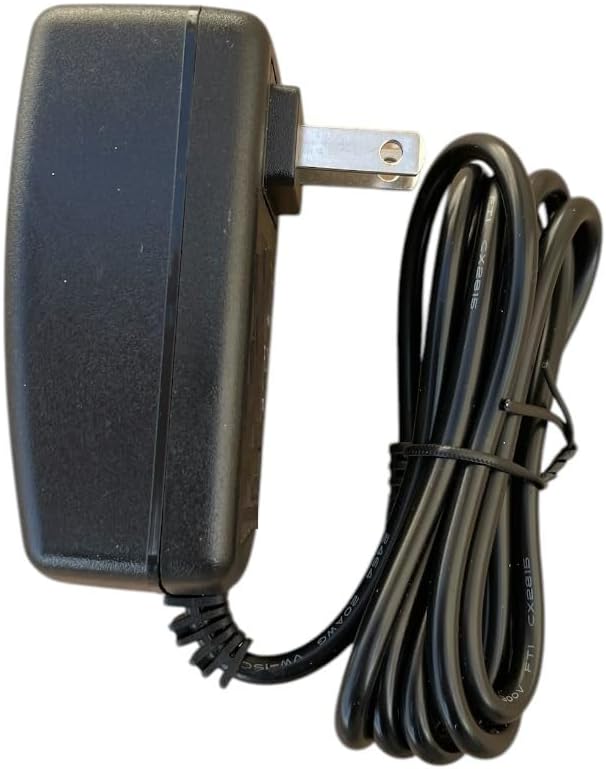
Figure 1: Side view of the GT POWER AC Adapter, showing the US-style plug and the attached power cable.

Figure 2: Rear view of the GT POWER AC Adapter, displaying the product label with model information, input/output specifications, and safety certifications.
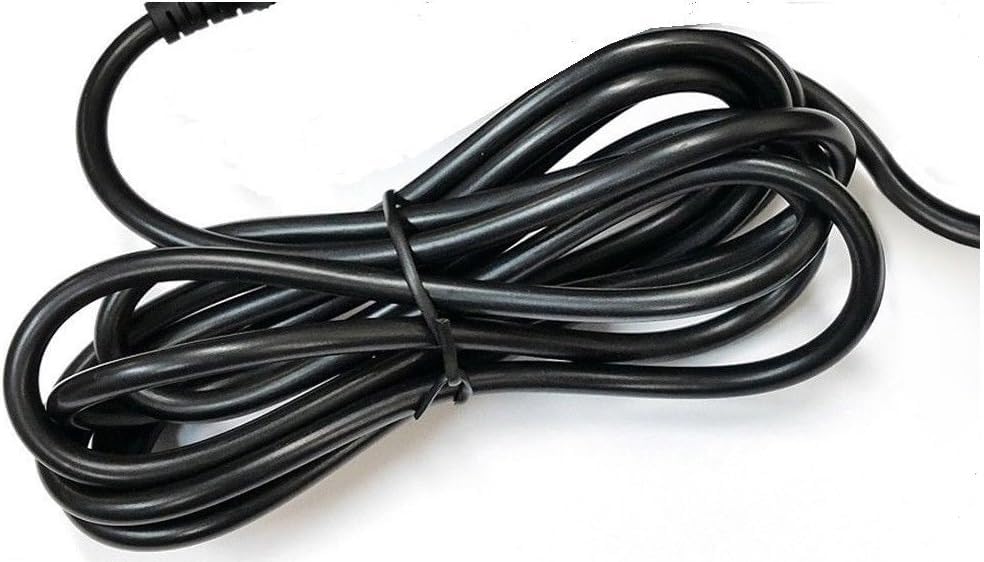
Figure 3: Close-up view of the coiled power cable, indicating its length and flexibility.
4. Setup
Follow these steps to properly set up your AC adapter:
- Unpack: Carefully remove the AC adapter from its packaging. Inspect it for any signs of damage.
- Connect to Mixer: Locate the power input port on your Studiomaster Digilive 16 Mixer. Insert the barrel connector of the AC adapter's cable firmly into this port. Ensure a secure connection.
- Connect to Power Outlet: Plug the AC adapter's main plug into a standard 110V AC wall outlet.
- Verify Connection: Ensure both ends of the adapter are securely connected before powering on your mixer.

Figure 4: The barrel connector, which plugs into the Studiomaster Digilive 16 Mixer's power input.
5. Operating Instructions
Once the adapter is properly connected:
- Ensure your Studiomaster Digilive 16 Mixer is switched off before connecting the power adapter.
- Connect the adapter to the mixer and then to the wall outlet as described in the Setup section.
- Switch on your Studiomaster Digilive 16 Mixer. The mixer should now receive power.
- When finished, switch off the mixer first, then unplug the adapter from the wall outlet.
6. Maintenance
To ensure the longevity and proper functioning of your AC adapter:
- Cleaning: Use a soft, dry cloth to clean the adapter. Do not use liquid cleaners or solvents.
- Storage: Store the adapter in a cool, dry place when not in use. Avoid wrapping the cable too tightly.
- Inspection: Periodically inspect the cable and connector for any signs of wear, cuts, or damage. If damage is found, discontinue use immediately and replace the adapter.
7. Troubleshooting
If you encounter issues with your AC adapter, refer to the following common problems and solutions:
- No Power to Mixer:
- Check if the adapter is securely plugged into both the wall outlet and the mixer.
- Ensure the wall outlet is functional by testing it with another device.
- Inspect the adapter cable and connector for any visible damage.
- Intermittent Power:
- Ensure all connections are tight.
- Avoid bending or stressing the cable at the connector points.
If the problem persists after attempting these solutions, contact customer support.
8. Specifications
| Feature | Specification |
|---|---|
| Brand | GT POWER |
| Model Number | 109 |
| Input Voltage | 110 Volts (AC) |
| Output Voltage | 12 Volts (DC) |
| Connector Type | Barrel |
| Cable Length | 59 inches (Heavy Duty Power Cable) |
| Protection Features | OVP, OCP, SCP |
9. Warranty and Support
This GT POWER AC Adapter comes with a One Year Warranty from the date of purchase. This warranty covers manufacturing defects under normal use. Additionally, a 30 Days Money Back guarantee is offered.
For warranty claims, technical support, or any inquiries, please contact your retailer or GT POWER customer service. Please have your purchase receipt and product model number (109) available when contacting support.


