
Introduction
This manual provides detailed instructions for the setup, operation, maintenance, and troubleshooting of your Dytole Wireless Headset Model DY-109. Please read this manual thoroughly before using the product to ensure optimal performance and longevity.
What's in the Box
- Wireless Headset
- Charging Base
- USB-C Charging Cable
- 2.4G USB Dongle
Product Overview
The Dytole Wireless Headset DY-109 is designed for professional communication, featuring AI noise cancellation, flexible connectivity options, and a smart multi-function charging dock.

Figure 1: Dytole Wireless Headset with Smart Multi-Function Charging Dock.
Setup
1. Charging the Headset
The headset can be charged using two methods: via the USB-C cable directly or by placing it on the included charging dock. The charging dock features an intuitive LED power display to indicate battery status.
- USB-C Charging: Connect the USB-C cable to the headset's charging port and to a power source.
- Charging Dock: Place the headset onto the charging dock. Ensure proper alignment for charging to begin. The LED display on the dock will show the charging status.
A full charge provides up to 65 hours of use. A quick 5-minute charge can provide approximately 2 hours of talk time.

Figure 2: Headset charging on the smart dock with battery indicator.
2. Connectivity Options
The Dytole Wireless Headset supports both Bluetooth 5.3 and a 2.4G USB dongle for versatile connection to various devices.
- Bluetooth Connection:
- Ensure the headset is powered on.
- Activate Bluetooth on your device (laptop, mobile phone, tablet).
- Search for "Dytole DY-109" in the list of available Bluetooth devices and select it to pair.
- 2.4G USB Dongle Connection:
- Plug the 2.4G USB dongle into an available USB port on your computer.
- Power on the headset. It will automatically connect to the dongle.
Note: Only one device can be connected at a time. The 2.4G USB dongle provides a stable connection, especially for computers without built-in Bluetooth.

Figure 3: Headset connected via 2.4G USB dongle to a laptop.
Operating Instructions
1. Wearing the Headset
The headset features an ultra-lightweight single-ear design with memory foam ear cushions for comfort during extended use. The adjustable headband ensures a balanced fit.
- Adjustable Microphone: The microphone can be rotated 270 degrees, allowing you to wear the headset on either your left or right ear. Position the microphone close to your mouth for optimal voice pickup.
- Rotatable Earcups: The earcups are designed to rotate for a perfect fit and comfort.
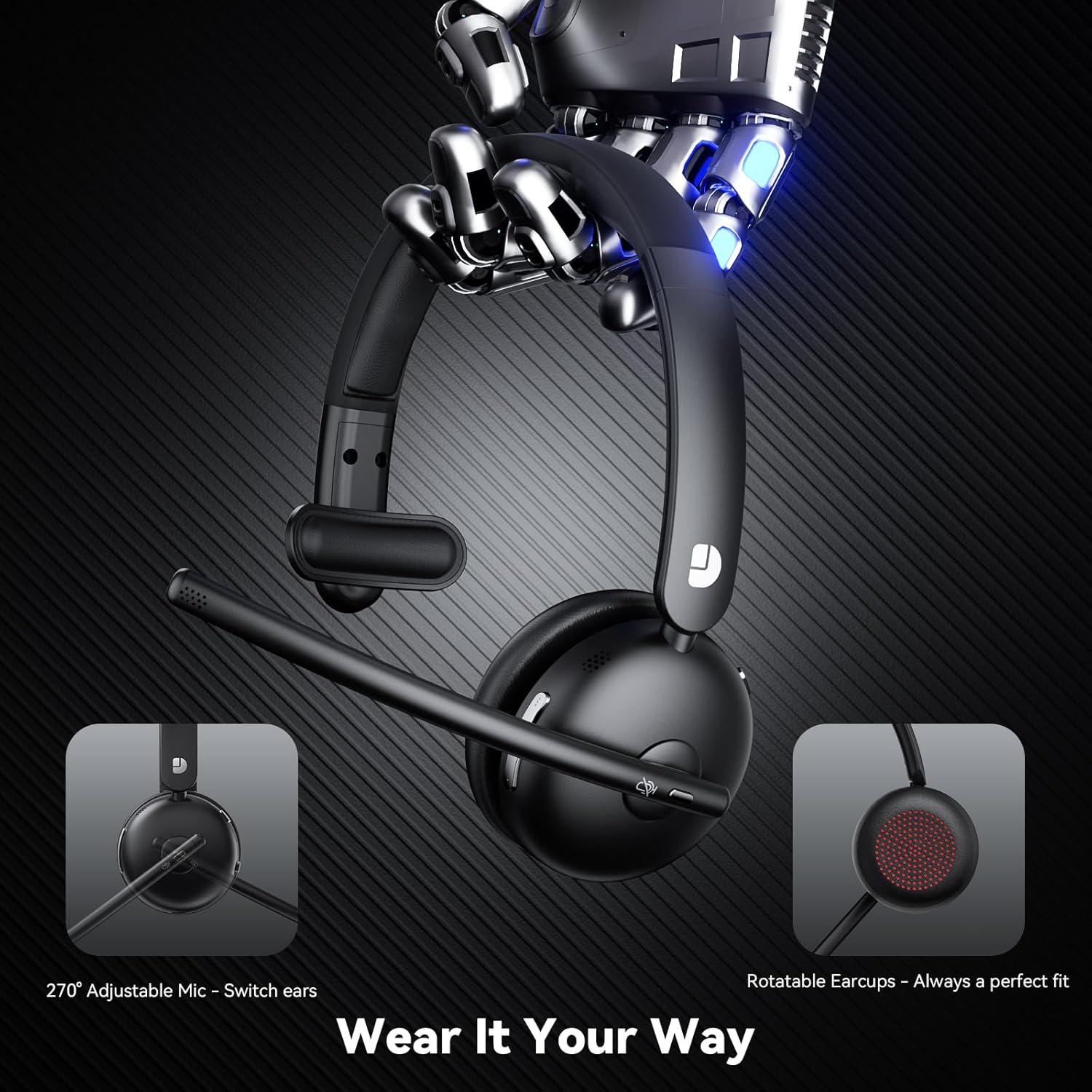
Figure 4: Adjustable microphone and rotatable earcups for personalized fit.
2. AI Noise Cancelling
The integrated AI noise-cancelling technology filters out background noise, ensuring clear voice transmission during calls and meetings. This feature is automatically active to enhance communication clarity in various environments.
3. Controls
The headset includes easy-to-access controls:
- Multi-Function Button (MFB): Used for power on/off, play/pause audio, answer/end calls.
- Mute Button: Quickly mute or unmute your microphone during calls.
- Volume Controls: Adjust audio volume up or down.
4. Compatibility
The Dytole Wireless Headset is compatible with a wide range of communication platforms and devices, including:
- Zoom
- Microsoft Teams
- Google Meet
- Laptops
- Mobile Phones
- Desktops
- Tablets
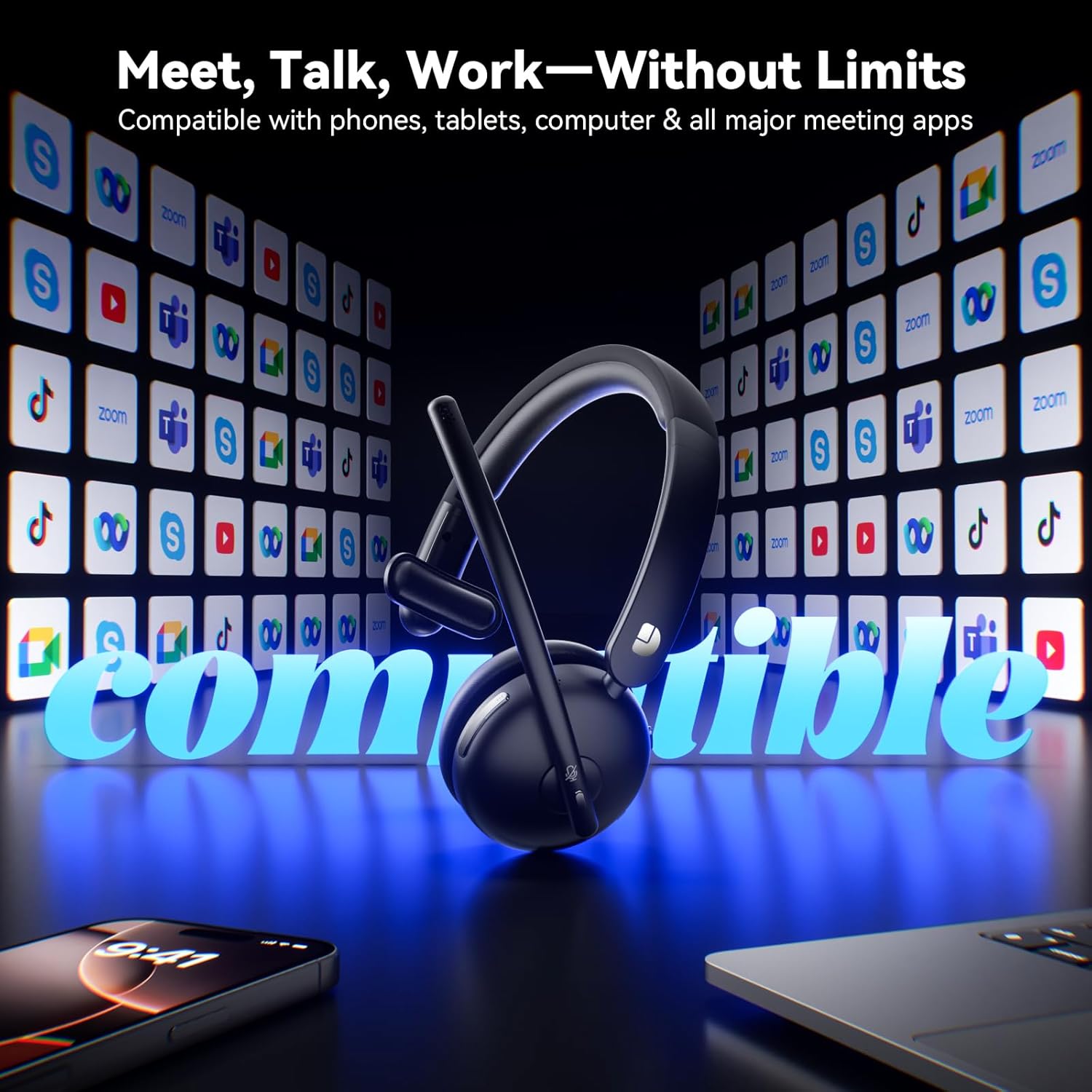
Figure 5: Headset compatibility with major communication platforms.
Maintenance
1. Cleaning
To maintain the headset's condition, wipe it regularly with a soft, dry cloth. Avoid using harsh chemicals or abrasive materials. Ensure no moisture enters the charging ports or speaker grilles.
2. Storage
When not in use, store the headset on its charging dock. The 3-in-1 smart dock also functions as a phone/tablet stand and an organizer for the USB dongle, helping to keep your workspace tidy. The dock can fold flat for travel.
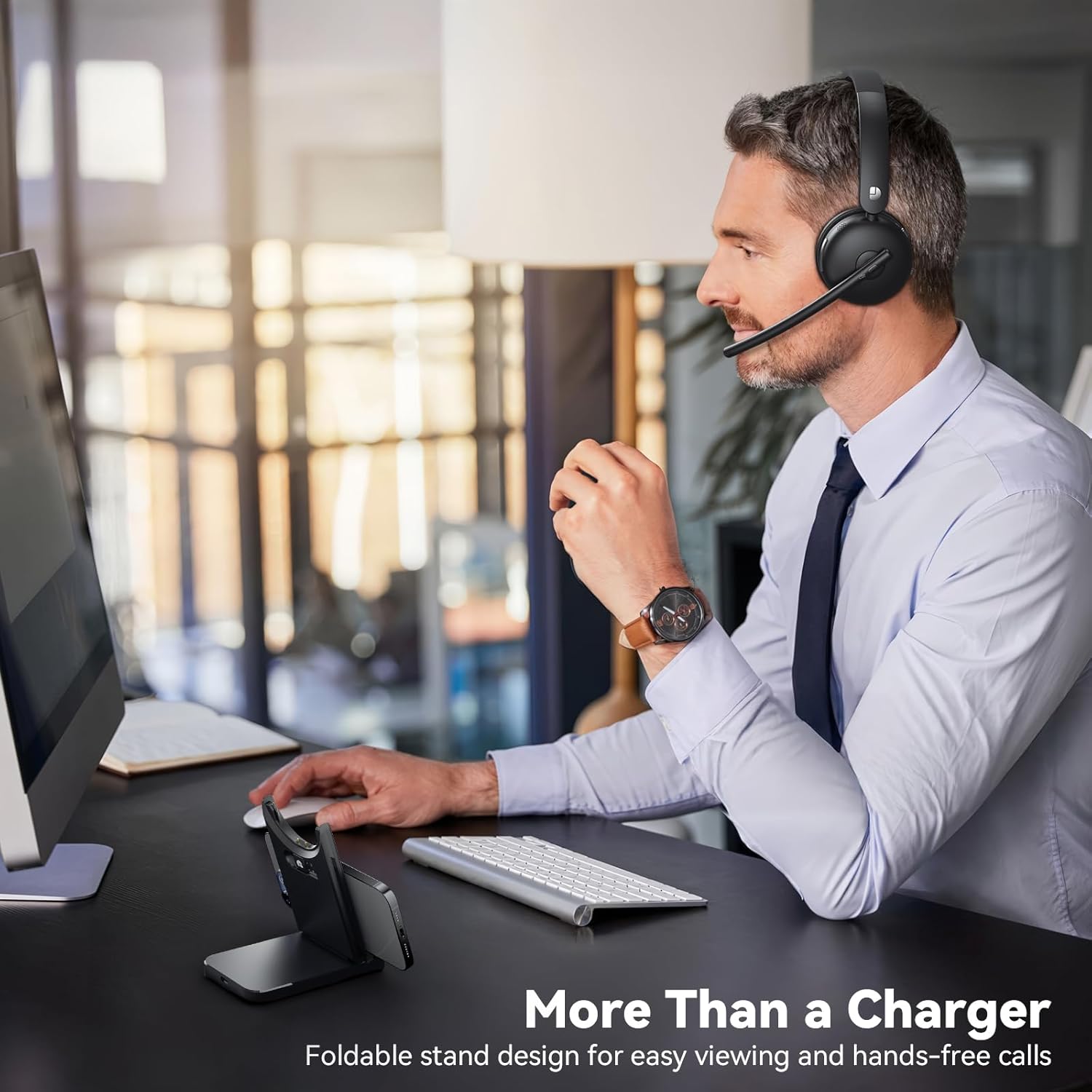
Figure 6: Smart dock used as a phone stand while the headset is in use.
Troubleshooting
- No Power: Ensure the headset is fully charged. Connect it to the charging cable or dock and allow sufficient time to charge.
- Cannot Pair/Connect:
- Ensure the headset is in pairing mode (refer to device-specific instructions for entering pairing mode if needed).
- Verify Bluetooth is enabled on your device.
- If using the USB dongle, ensure it is securely plugged in and the headset is powered on.
- Restart both the headset and the connecting device.
- Poor Audio Quality:
- Check the connection range (up to 49 feet). Move closer to your connected device.
- Ensure there are no obstructions or strong interference sources between the headset and the device.
- Adjust the volume on both the headset and the connected device.
- Microphone Not Working:
- Ensure the microphone is not muted.
- Check the microphone settings on your connected device to ensure the Dytole Headset is selected as the input device.
- Position the microphone correctly near your mouth.
Specifications
| Feature | Description |
|---|---|
| Model Name | DY-109 |
| Connectivity Technology | Wireless (Bluetooth 5.3, 2.4G USB Dongle) |
| Noise Control Features | AI Noise Cancelling |
| Battery Life | Up to 65 Hours |
| Charging Time | Approximately 1.5 days for full charge (5 min quick charge for 2 hours talk time) |
| Bluetooth Range | Up to 14.92 Meters (49 feet) |
| Earpiece Shape | On-Ear (Single-ear design) |
| Material | Memory Foam, Plastic/Aluminum |
| Item Weight | 0.46 Kilograms (1.01 pounds) |
| Compatible Devices | Laptops, Mobile Phones, Desktops, Tablets, Telephones, Smart Speakers, Televisions |
Warranty and Support
For warranty information and customer support, please refer to the product packaging or contact Dytole customer service through the official website or your retailer. Keep your purchase receipt for warranty claims.

