
1. Introduction
Thank you for choosing the ZEBRONICS Jaguar V Vertical Wireless Mouse. This manual provides detailed instructions for setting up, operating, and maintaining your new mouse. The Jaguar V is designed for ergonomic comfort and offers versatile dual-mode connectivity (2.4GHz wireless and Bluetooth) for seamless use across multiple devices.

Image 1.1: ZEBRONICS Jaguar V Vertical Wireless Mouse, showcasing its ergonomic design and included USB nano receiver.
2. Package Contents
Please check the package for the following items:
- ZEBRONICS Jaguar V Vertical Wireless Mouse - 1 unit
- USB Nano Receiver - 1 unit
- Quick User Guide - 1 unit
3. Product Overview
The Jaguar V mouse features an ergonomic vertical design to promote a natural hand position, reducing wrist strain. It includes six buttons and a 3-level DPI switch for adjustable precision.

Image 3.1: Diagram illustrating the six buttons on the ZEBRONICS Jaguar V mouse, including the Left Button, Scroll Wheel, 3-Level DPI Switch, Right Button, Forward Button, and Backward Button.

Image 3.2: Visual representation of the LED indicators for 2.4GHz, BT1, and BT2 modes on the mouse, showing their respective colors.
4. Setup Instructions
4.1. Battery Installation
- Locate the battery compartment on the underside of the mouse.
- Open the battery compartment cover.
- Insert two AAA batteries, ensuring correct polarity (+/-).
- Close the battery compartment cover securely.
4.2. 2.4GHz Wireless Connection
- Take out the USB Nano Receiver from its storage slot on the mouse.
- Plug the USB Nano Receiver into an available USB port on your computer.
- Turn on the mouse using the power switch located on the bottom.
- Switch the mode button on the bottom of the mouse to the '2.4G' position. The 2.4GHz indicator LED will light up.
- Your computer should automatically detect and install the necessary drivers. The mouse is ready for use.

Image 4.1: The ZEBRONICS Jaguar V mouse connected to a laptop via its USB Nano Receiver, illustrating the 2.4GHz wireless setup.
4.3. Bluetooth Connection (BT1 / BT2)
The mouse supports two independent Bluetooth connections (BT1 and BT2).
- Turn on the mouse using the power switch.
- Switch the mode button on the bottom of the mouse to either 'BT1' or 'BT2' position.
- Press and hold the mode button for 3-5 seconds until the corresponding BT indicator LED (BT1 or BT2) starts blinking rapidly. This indicates the mouse is in pairing mode.
- On your computer or device, open Bluetooth settings.
- Search for new devices and select 'Zeb-Jaguar V' from the list.
- Once paired, the BT indicator LED will stop blinking and remain solid for a few seconds before turning off. The mouse is now connected.
- Repeat these steps to connect to a second device using the other Bluetooth channel (BT1 or BT2).
5. Operating Instructions
5.1. DPI Adjustment
The mouse features a 3-level DPI switch, allowing you to adjust cursor sensitivity. Press the DPI button (located near the scroll wheel) to cycle through the available DPI settings (e.g., 800, 1200, 1600 DPI). Each press changes the sensitivity, providing precise control for various tasks.

Image 5.1: A hand demonstrating the ergonomic grip of the ZEBRONICS Jaguar V mouse, highlighting its high precision capabilities up to 1600 DPI.
5.2. Power Saving Mode
The ZEBRONICS Jaguar V mouse is equipped with a power-saving mode. If the mouse is inactive for a certain period, it will automatically enter sleep mode to conserve battery life. To wake the mouse, simply move it or press any button.
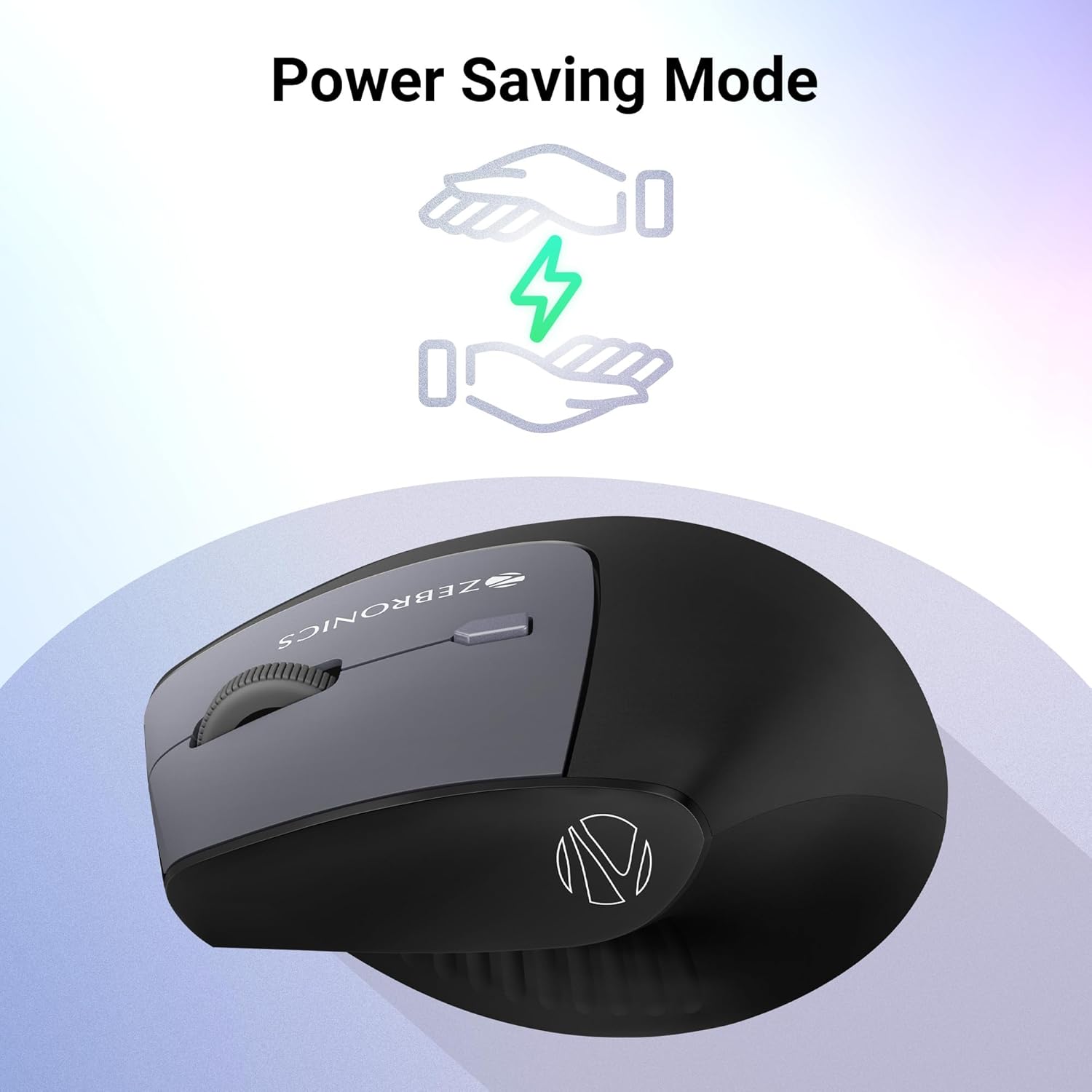
Image 5.2: Graphic illustrating the power-saving mode feature of the mouse, showing hands conserving energy.
5.3. Switching Between Modes
To switch between 2.4GHz wireless and Bluetooth (BT1/BT2) connections, use the mode switch button located on the bottom of the mouse. Simply slide the switch to your desired connection mode. The corresponding LED indicator will briefly light up to confirm the selection.
6. Maintenance
To ensure the longevity and optimal performance of your ZEBRONICS Jaguar V mouse, follow these maintenance guidelines:
- Cleaning: Use a soft, dry cloth to clean the mouse. For stubborn dirt, slightly dampen the cloth with water or a mild cleaning solution. Avoid harsh chemicals or abrasive materials.
- Storage: When not in use for extended periods, store the mouse in a cool, dry place. If storing for a long time, it is recommended to remove the batteries to prevent leakage.
- Avoid Extreme Conditions: Do not expose the mouse to extreme temperatures, direct sunlight, or high humidity.
- Handle with Care: Avoid dropping the mouse or subjecting it to strong impacts.
7. Troubleshooting
If you encounter issues with your ZEBRONICS Jaguar V mouse, refer to the following common solutions:
- Mouse not responding:
- Ensure the mouse is turned on.
- Check battery levels and replace if necessary (requires 2x AAA batteries).
- For 2.4GHz mode, ensure the USB Nano Receiver is securely plugged into a working USB port. Try a different USB port.
- For Bluetooth mode, ensure Bluetooth is enabled on your device and the mouse is correctly paired. Try re-pairing the mouse.
- Ensure the mode switch on the bottom of the mouse is set to the correct connection type (2.4G, BT1, or BT2).
- Cursor movement is erratic or lagging:
- Clean the optical sensor on the bottom of the mouse.
- Ensure you are using the mouse on a suitable surface (not highly reflective or transparent).
- Change the DPI setting to a lower value if the cursor is too sensitive.
- Replace batteries if they are low, as this can affect performance.
- Cannot connect via Bluetooth:
- Ensure the mouse is in Bluetooth pairing mode (LED blinking rapidly).
- Remove any previous 'Zeb-Jaguar V' entries from your device's Bluetooth list and try pairing again.
- Ensure your device's Bluetooth is turned on and discoverable.
- Try connecting to the other Bluetooth channel (BT1 or BT2).
8. Specifications
| Feature | Specification |
|---|---|
| Model Name | Zeb-Jaguar V |
| Connectivity | Dual Mode (2.4GHz Wireless + Bluetooth) |
| Bluetooth Versions | Dual Bluetooth (BT1, BT2) |
| DPI Levels | 3-level (up to 1600 DPI) |
| Number of Buttons | 6 Buttons |
| Power Source | 2x AAA Batteries |
| Operating System Compatibility | Windows, Mac, Linux |
| Ergonomic Design | Vertical |
| Special Features | Power Saving Mode |
| Product Dimensions (LxWxH) | 11.4 x 7.3 x 0.1 cm (Note: 0.1cm height seems incorrect, likely a data entry error, typically vertical mice are taller) |
| Item Weight | 77 g |

Image 8.1: Diagram showing the dimensions of the ZEBRONICS Jaguar V mouse (11.4 cm length, 7.3 cm width, 7.5 cm height).
9. Warranty and Support
Your ZEBRONICS Jaguar V Vertical Wireless Mouse comes with a standard manufacturer's warranty. Please refer to the warranty card included in your package for specific terms and conditions, including warranty period and coverage details.
For technical support, service, or further inquiries, please contact ZEBRONICS customer service through their official website or the contact information provided in your product documentation.