
Mingxiong Tab S10 FE S Pen
Mingxiong Tab S10 FE S Pen Replacement User Manual
For Samsung Galaxy Tab S10 FE, S10 FE+, S10 Lite
1. Introduction
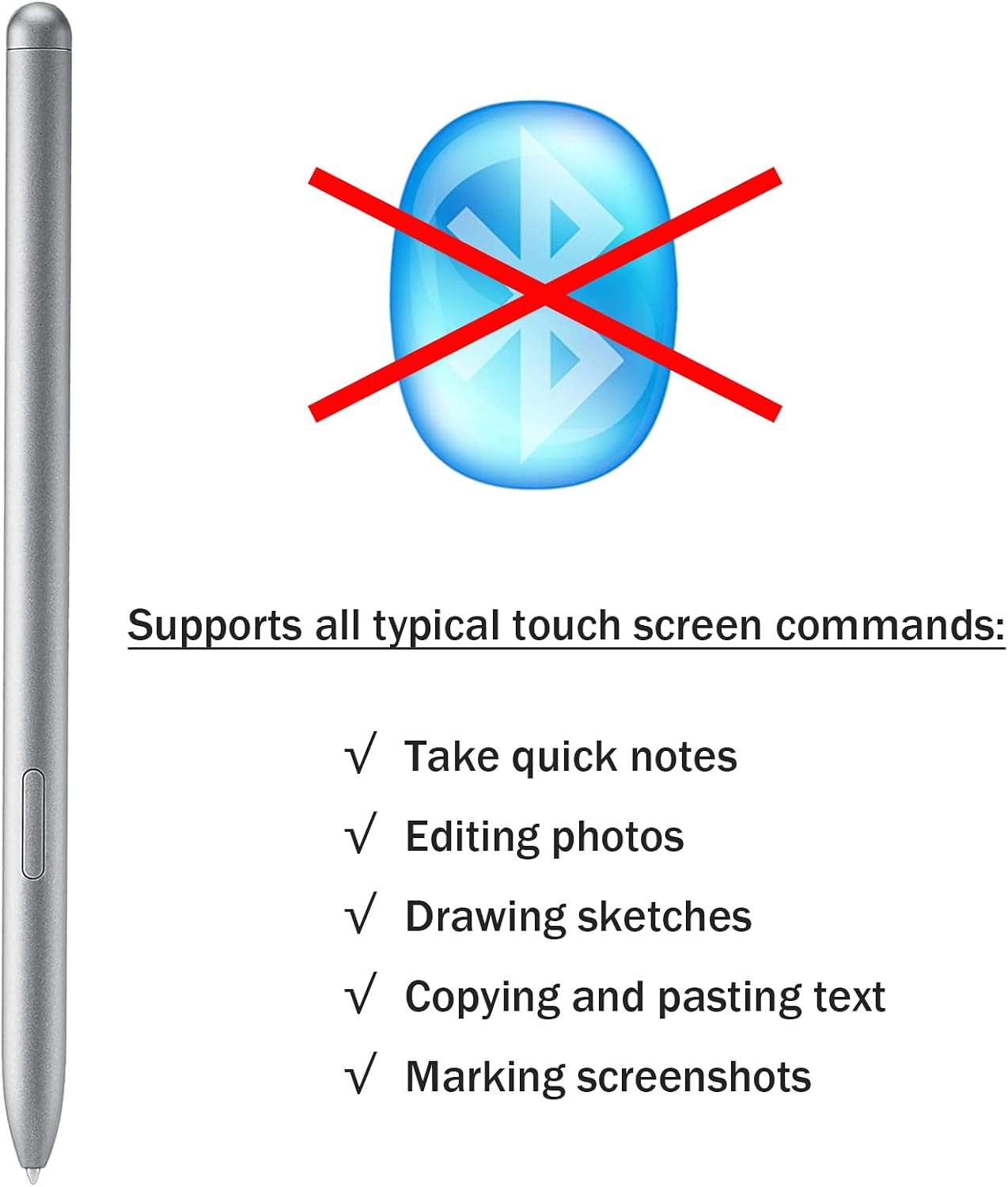
This manual provides comprehensive instructions for the Mingxiong Tab S10 FE S Pen Replacement. This stylus is designed to offer a natural and precise writing and drawing experience on compatible Samsung Galaxy tablets. It functions without Bluetooth connectivity, focusing on core stylus functionalities.
2. Package Contents
Please verify that all items listed below are included in your package:
- 1 x Mingxiong Tab S10 FE S Pen (Silver)
- 5 x Replacement Nibs (2 grey, 3 white)
- 1 x Nib Removal Tool

3. Device Compatibility
The Mingxiong Tab S10 FE S Pen is compatible with the following Samsung Galaxy Tab models:
- Samsung Galaxy Tab S10 FE
- Samsung Galaxy Tab S10 FE+
- Samsung Galaxy Tab S10 FE Plus
- Samsung Galaxy Tab S10 Lite
- Model Numbers: SM-X520, SM-X526, SM-X526B
Note: This stylus does not feature Bluetooth connectivity and therefore does not support air actions or remote control functions.

4. Setup
The Mingxiong Tab S10 FE S Pen requires no pairing or charging. It is ready for use immediately upon removal from its packaging.
- Remove the stylus from its packaging.
- Simply touch the pen tip to the screen of your compatible Samsung Galaxy Tab to begin interaction.
5. Operating Instructions
5.1 Basic Usage
The stylus functions as a precise input device for your tablet. Use it for navigation, writing, drawing, and selecting items on the screen.
5.2 Pressure Sensitivity
The S Pen features 4096 levels of pressure sensitivity, allowing for varied line thickness and opacity based on the pressure applied. A light touch produces a thin line, while heavier pressure results in a wider line, mimicking a natural writing or drawing experience.

5.3 Side Button Functionality
The button located on the side of the stylus can be used for various functions depending on the application. Commonly, it allows for quick switching between writing and eraser modes in drawing or note-taking applications.
5.4 Supported Commands
This stylus supports typical touchscreen commands, enhancing productivity and creativity:
- ✓ Take quick notes
- ✓ Edit photos
- ✓ Draw sketches
- ✓ Copy and paste text
- ✓ Mark up screenshots
5.5 Palm Rejection
The stylus incorporates palm rejection technology, allowing you to rest your hand naturally on the tablet screen while writing or drawing without unintended input from your palm.

5.6 Magnetic Attachment
For convenient storage and quick access, the stylus features a magnetic design that allows it to attach directly to the side of your compatible Samsung Galaxy Tab.

6. Nib Replacement
Over time, the nib of your S Pen may wear down. Replace it using the provided nibs and removal tool:
- Gently grip the worn nib with the nib removal tool.
- Pull the nib straight out from the stylus body.
- Insert a new nib firmly into the stylus until it clicks into place.
- Ensure the new nib is securely seated before use.
7. Maintenance
- Cleaning: Wipe the stylus body with a soft, dry cloth. Avoid using harsh chemicals or abrasive materials.
- Storage: Store the stylus in a safe place, preferably magnetically attached to your tablet, to prevent loss or damage. Avoid extreme temperatures.
8. Troubleshooting
- Problem: Stylus is not responding on the tablet screen.
- Solution:
- Ensure the stylus tip is clean and free of debris.
- Check if the tablet screen is clean.
- Verify that your tablet model is listed under the compatible devices section.
- If the nib appears damaged or worn, replace it with a new one.
- Restart your tablet.
- Problem: Pressure sensitivity is not working as expected.
- Solution:
- Ensure you are using an application that supports pressure sensitivity.
- Check the application settings for pressure sensitivity calibration or adjustments.
- Inspect the nib for any damage or wear. Replace if necessary.
9. Specifications
| Brand | Mingxiong |
| Model | Tab S10 FE S Pen Replacement |
| Color | Silver |
| Material | Plastic |
| Pressure Sensitivity | 4096 levels |
| Nib Size | 0.7mm (approximate) |
| Connectivity | Passive (No Bluetooth) |
| Dimensions (L x W x H) | 0.39 x 0.39 x 0.39 inches (approximate) |
| Item Weight | 0.528 ounces (approximate) |
10. Warranty and Support
For warranty information or technical support, please refer to the seller's policies on the platform where the product was purchased or contact Mingxiong customer service directly. Keep your purchase receipt as proof of purchase.
For additional assistance, you may visit the Mingxiong Store on Amazon.
Ask a question about this manual
Ask about setup, troubleshooting, compatibility, parts, safety, or missing instructions. Manuals+ will review the question and use this page’s manual context to help answer it.