
PXNQMTJM TPC7012EL, TPC7021EW, TPC7072GT, TPC7072GI
PXNQMTJM TPC7012EL TPC7021EW TPC7072GT TPC7072GI Protective Film and Touchpad User Manual
For 7-10 Inch Resistive Touch Screen Displays
1. Introduction
This manual provides essential instructions for the installation, operation, and maintenance of your PXNQMTJM Protective Film and Touchpad. This product is designed for use with 7-10 inch resistive touch screen displays, specifically compatible with models TPC7012EL, TPC7021EW, TPC7072GT, and TPC7072GI. Please read this manual thoroughly before installation and use to ensure proper function and longevity of the product.
Package Contents
- 1 x PXNQMTJM Protective Film (for 7-10 inch resistive touch screens)
- 1 x PXNQMTJM Touchpad (for 7-10 inch resistive touch screens)
- 1 x User Manual (this document)
2. Safety Information
Observe the following safety precautions to prevent damage to the product or injury to yourself:
- Handle the protective film and touchpad with care to avoid bending or creasing.
- Ensure the display surface is clean and free of dust before application.
- Do not apply excessive force during installation or operation.
- Keep out of reach of children.
- Dispose of packaging materials responsibly.
3. Setup and Installation
Follow these steps for proper installation of the protective film and touchpad onto your 7-10 inch resistive touch screen display.
3.1 Preparing the Display
- Clean the Screen: Power off your device. Use a soft, lint-free cloth and a screen cleaning solution (or distilled water) to thoroughly clean the display surface. Ensure there are no dust particles, smudges, or fingerprints.
- Dry the Screen: Use a dry, lint-free cloth to completely dry the screen. Any moisture left behind can cause bubbles or adhesion issues.
3.2 Applying the Protective Film
- Peel Back Layer 1: Carefully peel back a small portion of the protective layer labeled "1" from one corner of the film. Avoid touching the adhesive side.
- Align the Film: Align the exposed adhesive edge of the film with one edge of your display. Ensure precise alignment with the screen's borders and any cutouts (if applicable).
- Apply Gradually: Slowly and steadily lower the rest of the protective film onto the screen, peeling off layer "1" as you go. Use a squeegee (not included) or a credit card wrapped in a soft cloth to gently push out air bubbles from the center towards the edges.
- Remove Layer 2: Once the film is fully applied and all major bubbles are removed, carefully peel off the top protective layer labeled "2".
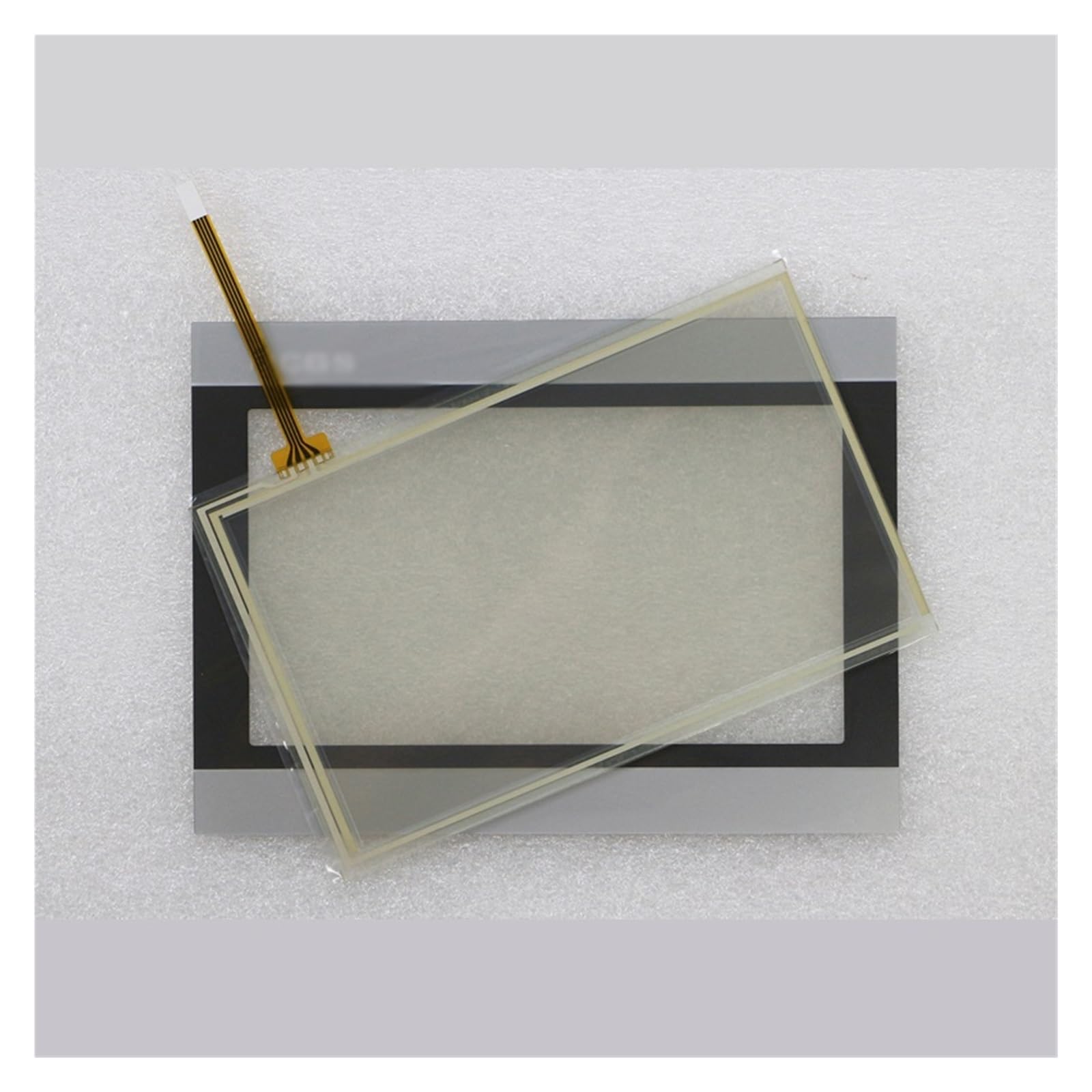
Figure 1: Illustrative image of protective film application. The image shows a clear film being carefully aligned and smoothed onto a tablet-like screen, with a hand holding a squeegee tool to remove air bubbles.
3.3 Installing the Touchpad
The touchpad component is typically integrated into the display assembly or connected via a flex cable. If you are replacing an existing touchpad, carefully disconnect the old one and connect the new PXNQMTJM touchpad, ensuring all connectors are securely seated. Refer to your device's specific service manual for detailed instructions on disassembling and reassembling the display unit.
4. Operating Instructions
After successful installation, the PXNQMTJM protective film and touchpad will function as an integral part of your resistive touch screen display.
4.1 Touch Screen Functionality
- Resistive Touch: This product supports resistive touch technology. It responds to pressure from a finger, stylus, or any pointed object.
- Calibration: If touch accuracy is an issue after installation, perform a touch screen calibration through your device's operating system settings.
- Single-Touch Operation: Resistive touch screens typically support single-touch input. Multi-touch gestures may not be supported or may require specific software.
4.2 Protective Film Benefits
- Scratch Resistance: The film provides a layer of protection against scratches and abrasions from daily use.
- Dust and Smudge Reduction: Helps to reduce the accumulation of dust and makes cleaning easier.
- Enhanced Durability: Adds an extra layer of durability to your display.
5. Maintenance and Care
Proper maintenance ensures the longevity and optimal performance of your protective film and touchpad.
- Cleaning the Film: Use a soft, lint-free cloth to gently wipe the surface of the protective film. For stubborn smudges, lightly dampen the cloth with water or a mild, non-abrasive screen cleaner.
- Avoid Harsh Chemicals: Do not use alcohol, ammonia-based cleaners, or abrasive materials, as these can damage the film or the underlying screen.
- Avoid Sharp Objects: While the film offers protection, avoid using sharp objects directly on the screen to prevent damage.
- Storage: If the product is not in use, store it in a clean, dry environment away from direct sunlight and extreme temperatures.
6. Troubleshooting
This section addresses common issues you might encounter.
| Problem | Possible Cause | Solution |
|---|---|---|
| Air bubbles under the film | Dust particles; uneven application | Gently lift the nearest edge of the film and reapply, using a squeegee to push out air. For persistent bubbles due to dust, the film may need to be removed, cleaned, and reapplied, or replaced. |
| Touch screen unresponsive or inaccurate | Improper touchpad connection; calibration needed; film obstruction |
|
| Film peeling at edges | Improper initial adhesion; exposure to moisture/heat | Press down firmly on the peeling edge. If peeling persists, the film may need replacement. Ensure edges are not frequently rubbed or exposed to liquids. |
7. Specifications
| Feature | Detail |
|---|---|
| Brand | PXNQMTJM |
| Compatible Models | TPC7012EL, TPC7021EW, TPC7072GT, TPC7072GI |
| Product Type | Protective Film and Touchpad |
| Screen Type Compatibility | Resistive Screen |
| Display Size Compatibility | 7-10 inches |
| Package Dimensions | 1.18 x 0.79 x 0.39 inches |
| Item Weight | 1.76 ounces |
| ASIN | B0F4MGSX5N |
8. Warranty and Support
For warranty information or technical support, please contact your retailer or the manufacturer directly. Keep your purchase receipt as proof of purchase. For general inquiries, refer to the contact information provided by PXNQMTJM.
Ask a question about this manual
Ask about setup, troubleshooting, compatibility, parts, safety, or missing instructions. Manuals+ will review the question and use this page’s manual context to help answer it.