
Introduction
Thank you for purchasing the AGPTEK A02PLT MP3 Player. This manual provides essential information for setting up, operating, and maintaining your device. Please read it carefully to ensure optimal performance and longevity of your MP3 player.
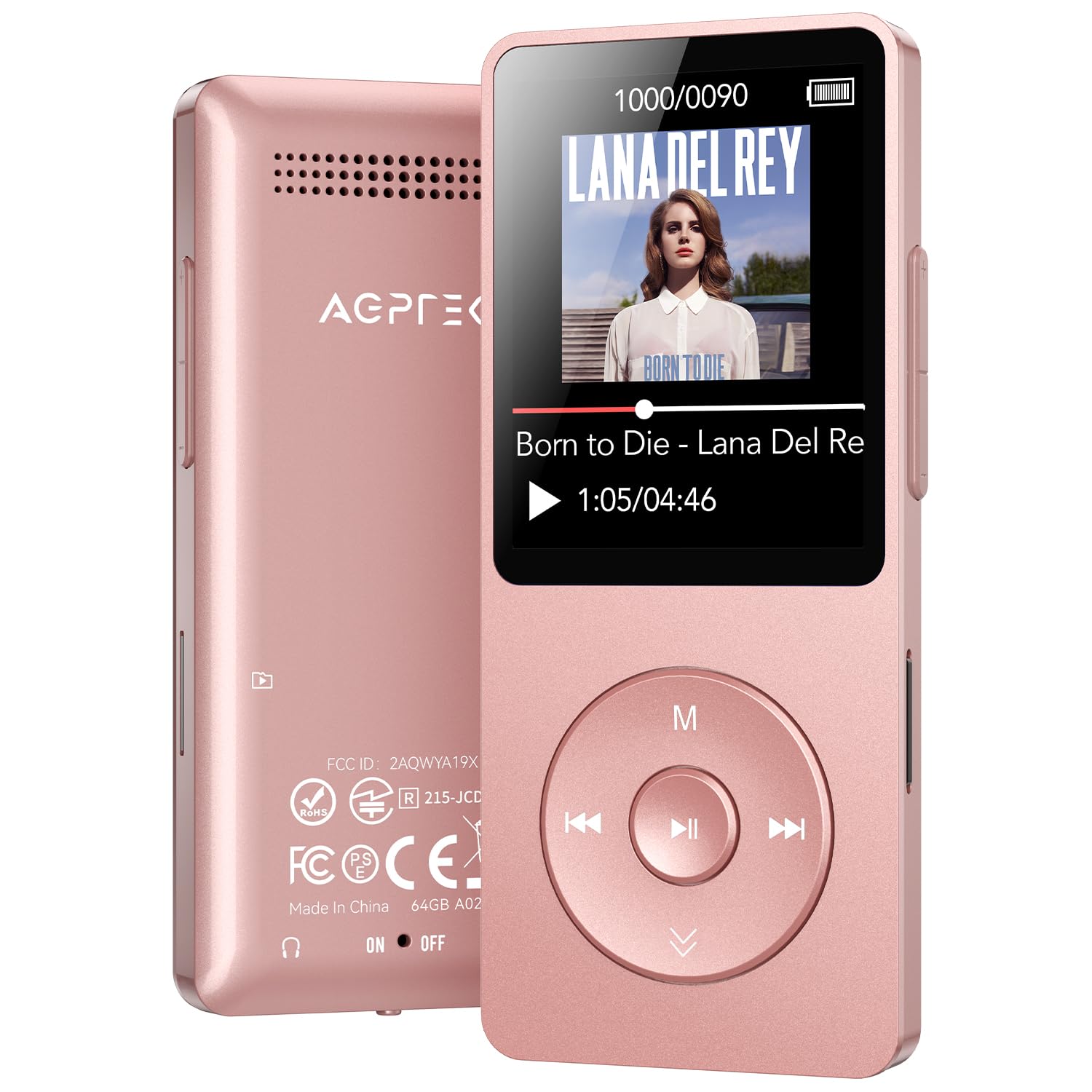
Image: The AGPTEK A02PLT MP3 Player in Rose Gold, showcasing its compact design and screen interface.
What's in the Box
- MP3 Player
Product Overview
The AGPTEK A02PLT MP3 Player features a compact design with intuitive controls and a clear display. Familiarize yourself with the device's layout for easy navigation.
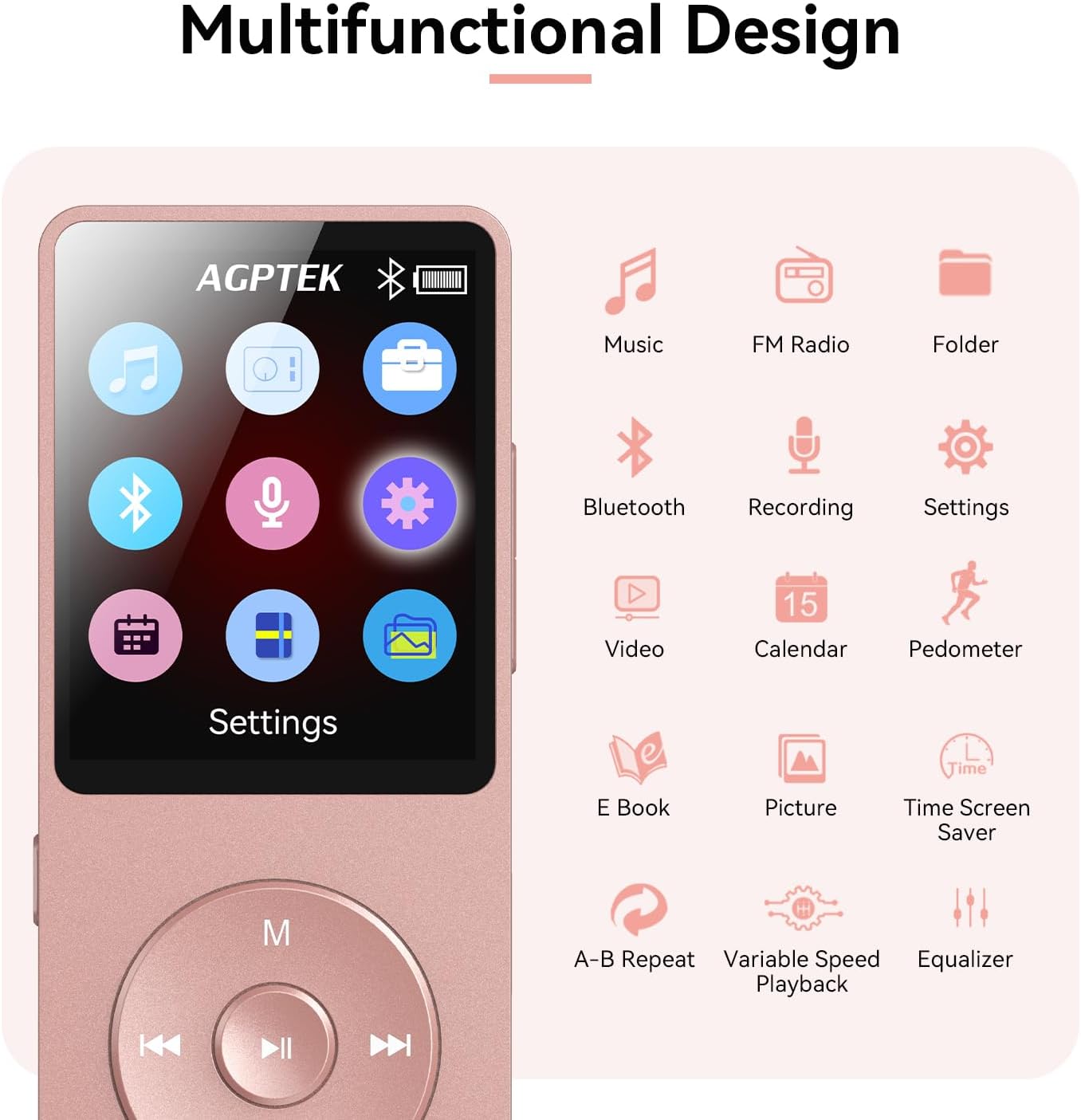
Image: The AGPTEK A02PLT MP3 Player displaying its main menu with icons for Music, FM Radio, Folders, Bluetooth, Recorder, Videos, Tools, E-books, Settings, Calendar, Pedometer, Time Screen Saver, A-B Repeat, Variable Speed Playback, and Equalizer.
Controls and Ports
- Front Panel: 1.8-inch TFT color screen, navigation buttons (play/pause, next/previous, up/down), 'M' button (menu/lock), 'VOL' button (volume).
- Side Panel: Power switch, Micro SD card slot, USB-C charging port, 3.5mm headphone jack.
Setup
Charging the Device
Before first use, fully charge your MP3 player. Connect the device to a power source using the provided USB-C cable. A full charge takes approximately 2 hours and provides up to 40 hours of playback time.
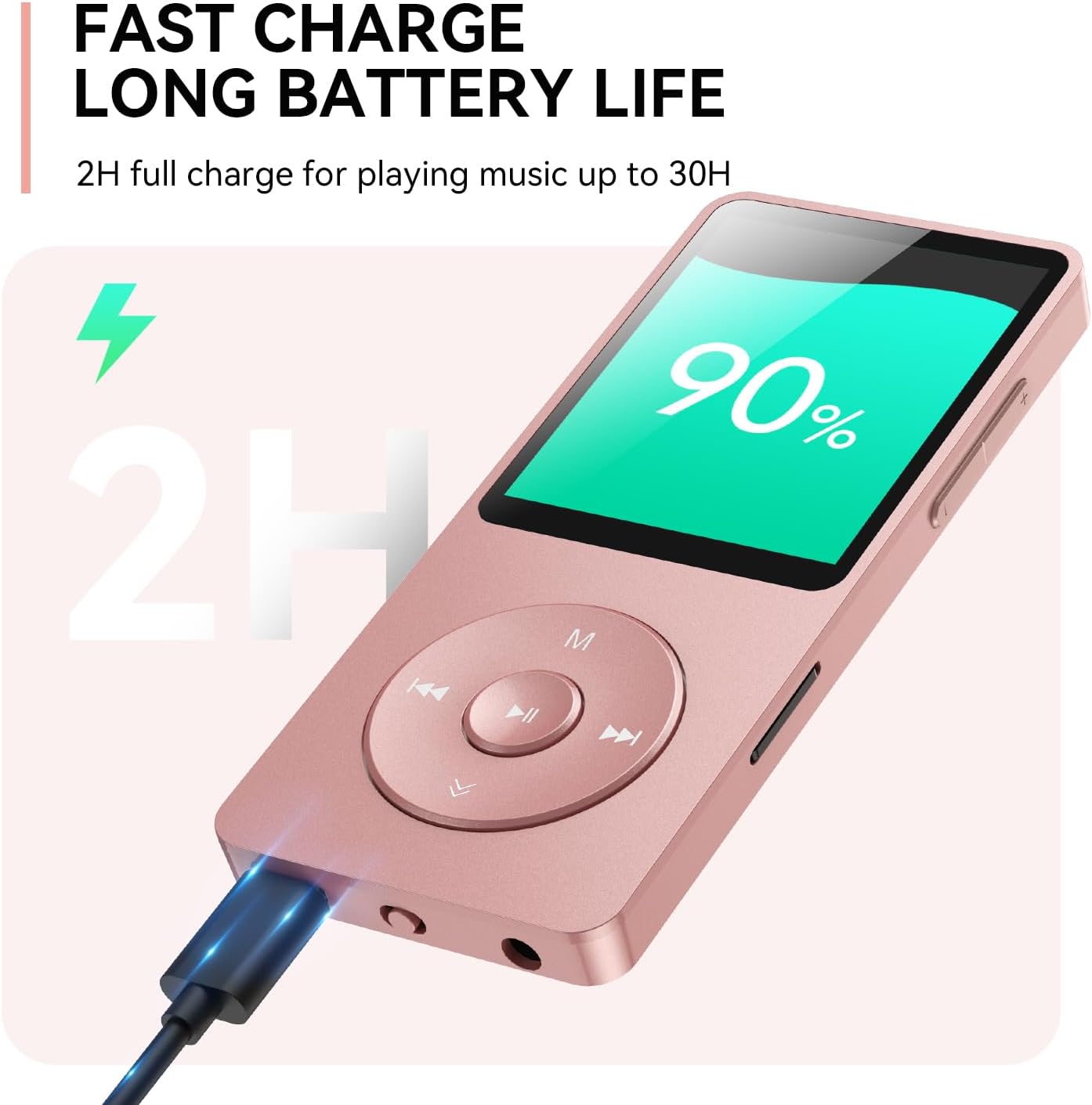
Image: The AGPTEK A02PLT MP3 Player connected via its USB-C port, displaying a charging icon and 90% battery level, illustrating its fast charge capability.
Power On/Off
To power on or off the device, locate the power switch on the side and slide it to the appropriate position.
Connecting to a Computer and Transferring Music
To transfer music files from your computer to the MP3 player:
- Connect the MP3 player to your computer using the included USB cable.
- On the MP3 player screen, select "Charge & Transfer" when prompted.
- On your computer, open the device's storage. You may need to manually create a folder (e.g., "music") and then copy and paste your desired music files into it. It is recommended to rename songs with a numerical or alphabetical prefix (e.g., "001-SongTitle") for proper sorting.
- After transferring, safely eject the device from your computer.
- On the MP3 player, navigate to the "Music" menu and select "Update Playlist" to refresh the music library.
Video: Demonstrates how to connect the AGPTEK MP3 player to a PC, transfer music files by creating a folder, and update the playlist on the device.
File Transfer Between Memory Card and Player
You can transfer files directly between the internal memory and an inserted Micro SD card:
- Navigate to the "Folders" menu on your MP3 player.
- Select "Card folder" to browse files on your Micro SD card.
- Select the file you wish to copy, then choose "Copy to Device."
- The file will be copied to the local folder.
Video: Illustrates the process of transferring files between the internal memory and an external Micro SD card on the AGPTEK MP3 player.
Operating
Basic Navigation
Use the central navigation buttons to move through menus and select options. The 'M' button typically serves as a menu or back button, and the 'VOL' button adjusts volume.
Bluetooth Pairing
The AGPTEK A02PLT features upgraded Bluetooth 5.3 for stable connections and reduced power consumption. It supports auto-reconnect for instant listening.
- Navigate to the "Bluetooth" menu on your device.
- Ensure your Bluetooth headphones or speakers are in pairing mode.
- Select your device from the list to pair.
Note: This device cannot connect to phones or tablets directly. It also cannot connect directly to car Bluetooth but works via AUX port.
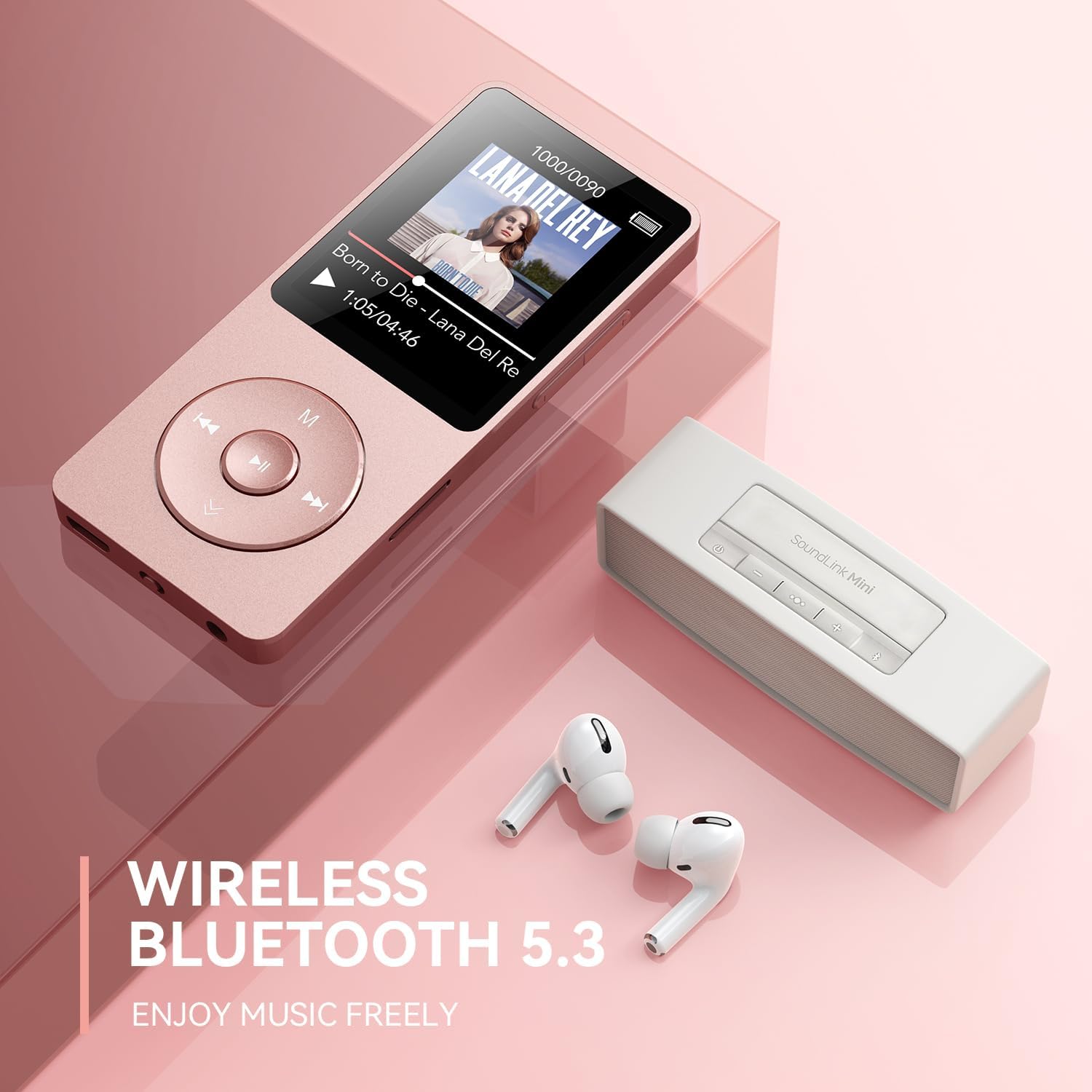
Image: The AGPTEK A02PLT MP3 Player connected wirelessly to Bluetooth earbuds and a portable speaker, highlighting its Bluetooth 5.3 capability.
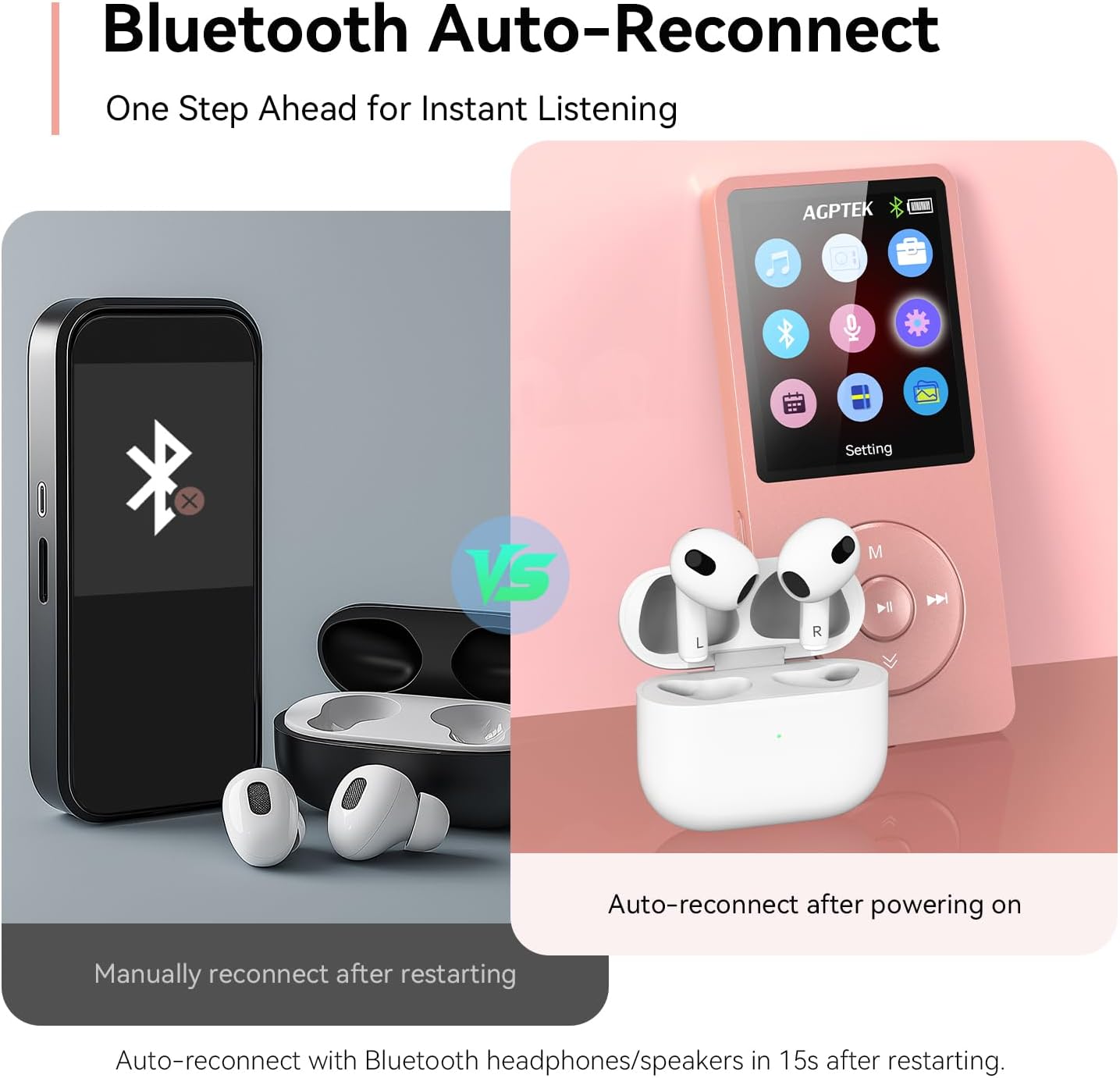
Image: A comparison showing a generic device requiring manual reconnect after restarting versus the AGPTEK A02PLT MP3 Player with Bluetooth auto-reconnect functionality.
Video: A brief overview of the AGPTEK A02 MP3 Player with Bluetooth, showcasing its features and compact size.
FM Radio
Access the FM Radio feature from the main menu. You can auto-tune and save your favorite stations.
Voice Recorder
The device includes a voice recorder function. You can also record audio via the line-in function:
- Connect your phone (or other audio source) and the MP3 player using a line-in cable (not included).
- On the MP3 player, select "Recorder," then "Record from..." and choose "Line in."
- Tap "Start Recording" and begin playing audio on your phone.
- Once recording is complete, tap the play/back button and select "Yes" to save the audio. The recorded audio will be available in your recording library.
Video: A step-by-step guide on how to record and play back audio using the line-in function on the AGPTEK MP3 player.
E-books and Video Playback
The 1.8-inch TFT color screen supports E-book reading and video playback in compatible formats (AMV/AVI).

Image: The AGPTEK A02PLT MP3 Player displaying text on its screen, indicating its e-book functionality.
Custom Playlists
You can organize your music into custom playlists:
- Connect the device to your computer.
- Open the device drive (e.g., AGP-A02T) and locate the "Customize Playlist" folder.
- Use the three default folders ("Playlist_1," "Playlist_2," and "Playlist_3") or create new ones. Name them based on artist, genre, etc.
- Copy desired songs into these folders.
- Disconnect the device and go to the "Customize Playlist" option in the music menu to access and play songs from your created playlists.
Note: Custom playlists can only be edited and added when connected to a computer. The "Add to Playlist" option in the MP3 Player's music menu only allows adding songs to the default playlists "Playlist [1]/[2]/[3]."
Video: A guide on how to customize playlists on the AGPTEK MP3 player by organizing music files through a computer connection.
Screen Lock
To prevent accidental button presses, you can lock the screen. Press and hold the 'M' button to activate or deactivate the screen lock.

Image: The AGPTEK A02PLT MP3 Player displaying a lock icon on its screen, indicating the screen lock function activated by the 'M' button.
Maintenance
Battery Care
The device has a built-in Lithium polymer 320mAh battery. To prolong battery life, avoid extreme temperatures and fully charge the device before long periods of inactivity.
Storage Expansion
The MP3 player has 64GB of built-in memory and supports expansion up to 128GB via a Micro SD card (not included). Ensure the Micro SD card is properly inserted into the designated slot.
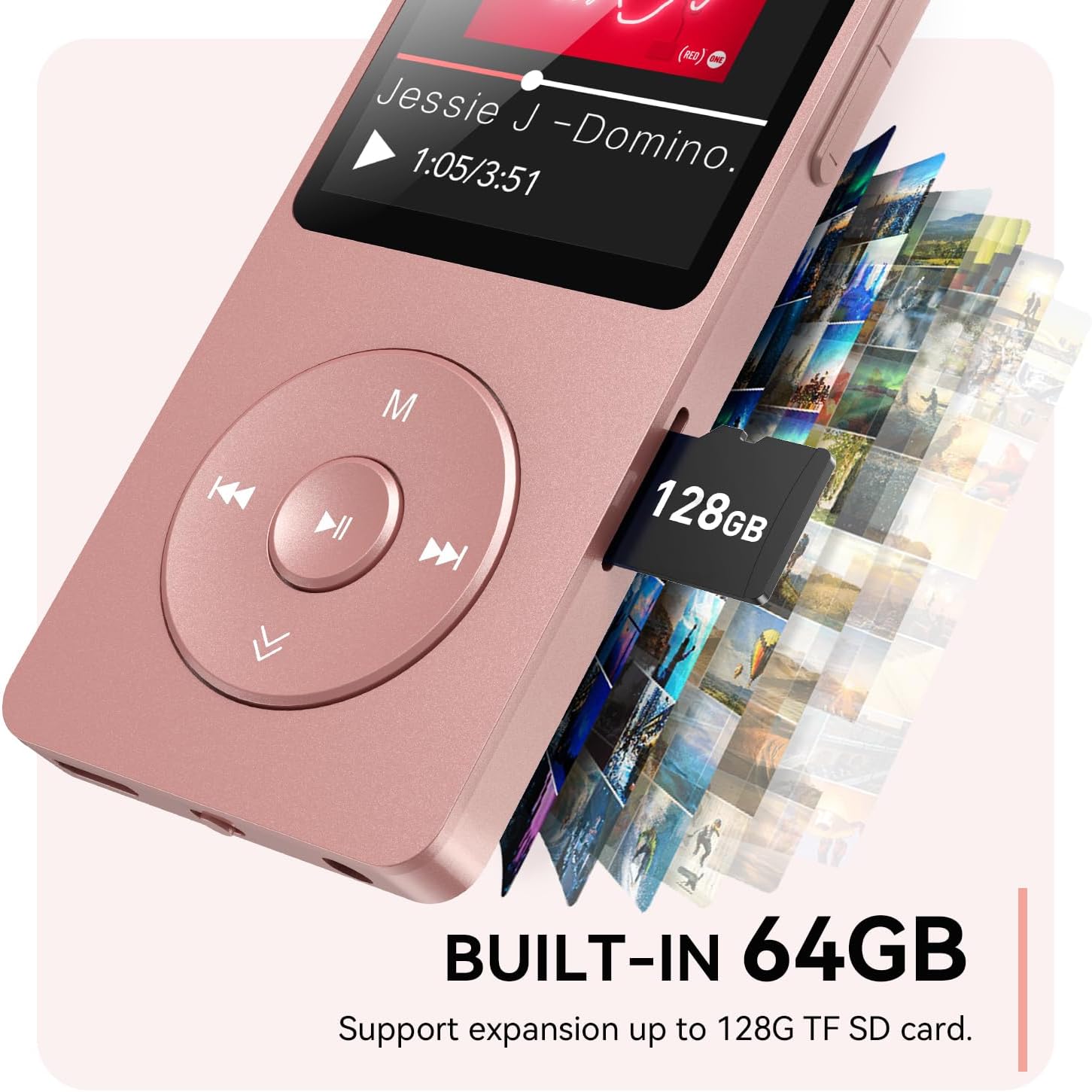
Image: The AGPTEK A02PLT MP3 Player with a 128GB Micro SD card partially inserted into its slot, illustrating the expandable storage feature.
Troubleshooting
Device Freezing
If your MP3 player freezes, press and hold the Play/Pause button for approximately 10 seconds. The screen will turn off, and the device will power on again, resolving the freeze without data loss.
Video: Instructions on how to resolve a frozen AGPTEK MP3 player by performing a soft reset.
Specifications
| Feature | Detail |
|---|---|
| Model Name | A02PLT |
| Brand | AGPTEK |
| Connectivity Technology | Bluetooth |
| Bluetooth Version | 5.3 |
| Memory Storage Capacity | 64 GB (expandable up to 128GB) |
| Screen Size | 1.8 Inches |
| Special Feature | Built-In Speaker |
| Compatible Devices | Headphone |
| Media Type | Micro SD, SD Card |
| Battery | 1 Lithium Polymer battery (included) |
| Item Weight | 5 ounces |
| Package Dimensions | 7.48 x 5.08 x 0.75 inches |
Warranty & Support
AGPTEK products typically come with a 1-Year Warranty and Lifetime Technical Support. For any inquiries or assistance, please refer to the contact information provided with your product or visit the official AGPTEK website. AGPTEK is committed to providing 7x24 Online Service to ensure customer satisfaction.


