
Redragon K708GF
Redragon Wireless Mechanical Gaming Keyboard User Manual
Model: K708GF
1. Introduction
Thank you for purchasing the Redragon K708GF Wireless Mechanical Gaming Keyboard. This manual provides detailed instructions for setting up, operating, and maintaining your new keyboard. Please read this manual thoroughly before use to ensure optimal performance and longevity of your device.
2. Package Contents
- Redragon K708GF Wireless Mechanical Gaming Keyboard
- USB-C Cable
- 2.4GHz Wireless Receiver
- Keycap Puller
- Switch Puller
- User Manual
3. Product Overview
The Redragon K708GF is a versatile mechanical gaming keyboard featuring triple-mode connectivity, a customizable LCD screen, hot-swappable switches, and vibrant RGB backlighting. Its gasket-mounted design ensures a premium typing experience.
3.1 Key Features
- Triple-Mode Connectivity: Supports 2.4GHz wireless, Bluetooth 5.0, and USB-C wired connections.
- Smart Interactive LCD Screen: 1.14-inch customizable screen for monitoring status, battery life, RGB effects, and more.
- Gasket-Mounted Structure: 5-layer design for sound dampening and smooth keystrokes.
- Hot-Swappable Sockets: Compatible with 3-pin/5-pin mechanical switches for easy customization.
- Pre-Lubed Linear Switches: Leopard L linear switches (45g actuation) for quiet and responsive typing.
- Dynamic RGB Backlighting: 18+4 customizable RGB modes.
- Long Battery Life: Built-in 4000mAh battery provides extended wireless usage.
- Double-Sided Art Keycaps: Durable PBT keycaps with unique sublimation-printed designs.
3.2 Keyboard Layout and Components

Figure 3.2.1: Redragon K708GF Keyboard Overview
This image displays the Redragon K708GF wireless mechanical gaming keyboard from an elevated front-right angle, showcasing its full layout, unique doodle-style keycaps, and the integrated LCD screen and control knob. The bottom of the keyboard is also visible, highlighting its yellow casing.

Figure 3.2.2: Gasket-Mounted Structure Components
An exploded diagram illustrating the internal layers of the Redragon K708GF keyboard's gasket-mounted structure, including the top case, keycaps, custom switches, slotted PCB, sound dampening foam, Poron sandwich foam, bottom silicone sound dampener pad, and bottom case, demonstrating its noise reduction and typing comfort features.

Figure 3.2.3: Pre-Lubed Linear Switch Specifications
This image details the specifications of the thick pre-lubed linear switches used in the keyboard, highlighting features like pre-lubrication, quick response, HiFi sound, and buttery smooth operation. It also includes a force-travel graph and key specifications such as total travel (3.6mm), pre-travel (2.0±0.6mm), actuation force (45±10gf), and click lifespan (50 million).
4. Setup
4.1 Initial Charging
Before first use, fully charge the keyboard using the provided USB-C cable. Connect one end to the keyboard's USB-C port and the other end to a USB power source (e.g., computer USB port, wall adapter). The LCD screen will indicate charging status.
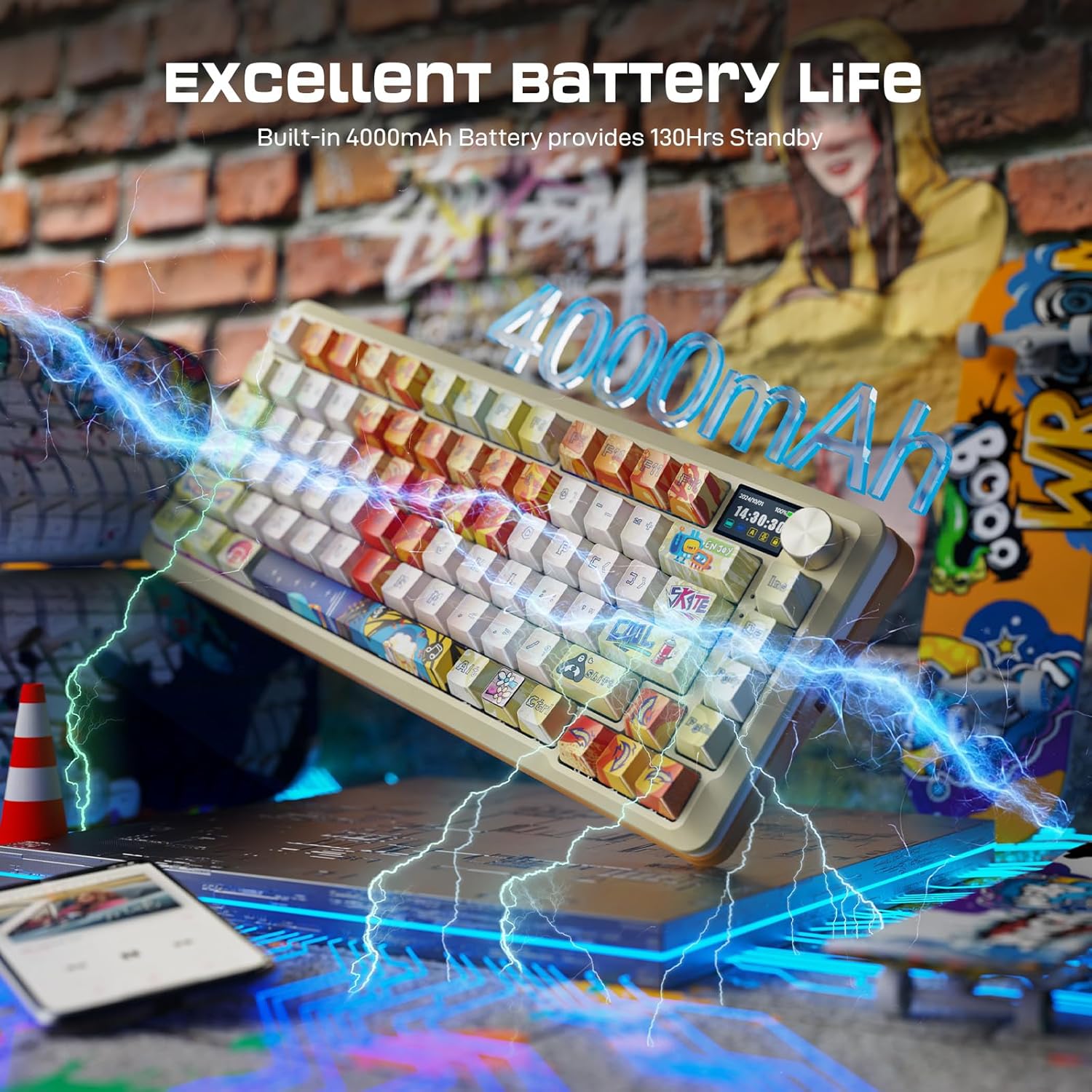
Figure 4.1.1: Keyboard Charging and Battery Life
An image illustrating the keyboard's 4000mAh battery, emphasizing its long standby time of 130 hours (RGB off) and 22 hours (RGB on). The keyboard is shown connected via a USB-C cable, with lightning bolts symbolizing charging.
4.2 Connecting the Keyboard
The Redragon K708GF supports three connection modes:

Figure 4.2.1: Triple-Mode Connectivity Overview
This image showcases the keyboard's triple-mode connectivity, allowing connection to up to 5 devices across various operating systems including Windows, Mac, PS5, Xbox, iOS, and Android. It depicts the keyboard connected to a laptop, desktop, and mobile devices.
4.2.1 2.4GHz Wireless Mode
- Locate the 2.4GHz wireless receiver (usually stored in a compartment on the keyboard).
- Plug the receiver into an available USB port on your computer.
- Switch the keyboard to 2.4GHz mode using the mode switch on the keyboard (refer to the keyboard's physical layout for exact location). The LCD screen will indicate the active connection mode.
- The keyboard should automatically connect.
4.2.2 Bluetooth Mode
- Switch the keyboard to Bluetooth mode using the mode switch.
- On your device (PC, Mac, iOS/Android), enable Bluetooth and search for new devices.
- Select "Redragon K708GF" (or similar name) from the list of available devices.
- The keyboard supports pairing with up to 3 Bluetooth devices. Use dedicated mode keys (e.g., Fn+1, Fn+2, Fn+3) to switch between paired devices.
4.2.3 USB-C Wired Mode
- Connect the provided USB-C cable to the keyboard's USB-C port.
- Connect the other end of the cable to a USB port on your computer.
- The keyboard will automatically switch to wired mode and begin charging.
5. Operating Instructions
5.1 Smart Interactive Screen & Control Knob
The 1.14-inch LCD screen and control knob provide quick access to various keyboard settings and information.

Figure 5.1.1: Smart Interactive Screen and Knob Features
This image highlights the functionalities of the keyboard's 1.14-inch customizable LCD screen, showing how it displays Bluetooth status, battery life, RGB effects, date-time, and allows for uploading personal images/GIFs. It also illustrates the intuitive control knob for adjusting volume, lighting modes, and screen displays.
- Screen Display: Shows Bluetooth status, battery life, RGB effects, date-time. Can display custom images/GIFs via software.
- Control Knob:
- Rotate left/right to adjust volume.
- Push down to enter/exit menu.
- Rotate left/right in menu to navigate options.
- Push down to confirm selection.
5.2 RGB Backlighting Control
The keyboard features extensive RGB backlighting customization.

Figure 5.2.1: RGB Backlight Customization Options
An image showcasing the keyboard's customizable RGB backlighting, indicating 18+4 dynamic RGB backlight modes controllable via software or shortcut keys. It highlights options for 18 RGB modes, 3 lighting driver modes, 7 single light colors, light recording, 5 brightness & speed levels, and the ability to turn RGB off.
- Switch Lighting Mode: Use Fn + Right Shift.
- Switch Lighting Color (Single to RGB): Use Fn + Enter.
- Adjust Brightness: Use Fn + Up Arrow / Down Arrow.
- Adjust Light Speed: Use Fn + Left Arrow / Right Arrow.
- Record Lighting Mode: Use Fn + Backspace.
- Factory Reset: Use Fn + ESC.
- Further customization is available via the Redragon software.
5.3 Software Customization
For advanced customization, including key remapping, macro creation, RGB zone control, and screen display settings, download the official Redragon software.

Figure 5.3.1: Software Customization Interface
This image displays the user interface of the Redragon software, illustrating options for lighting settings, button settings, macro management, and OLED view settings. It shows how users can reprogram every key, RGB zone, and screen display, including uploading custom GIFs to the LCD screen.
- The software can be downloaded from redragon.com.
- Note: macOS is not supported by the software.
- When the software is opened in wired mode, the screen's time automatically resets to local time.
6. Maintenance
6.1 Cleaning the Keyboard
- Disconnect the keyboard from all power sources before cleaning.
- Use a soft, lint-free cloth slightly dampened with water or a mild cleaning solution to wipe the surface.
- For cleaning between keycaps, use compressed air or a small brush.
- Do not immerse the keyboard in water or use harsh chemicals.
6.2 Replacing Keycaps and Switches
The Redragon K708GF features hot-swappable switches, allowing for easy replacement without soldering.
- Keycap Removal: Use the provided keycap puller to gently pull keycaps straight up.
- Switch Removal: Use the provided switch puller to carefully grip the top and bottom clips of the switch and pull it straight out.
- Switch Installation: Align the pins of the new switch with the holes on the PCB and press firmly until it clicks into place. Ensure pins are not bent.
- Keycap Installation: Align the keycap over the switch stem and press down gently until it is secure.
7. Troubleshooting
| Problem | Possible Cause | Solution |
|---|---|---|
| Keyboard not responding | Low battery; Incorrect connection mode; Loose cable/receiver; Driver issue. | Charge the keyboard. Ensure correct mode (2.4G/BT/Wired) is selected. Reconnect USB cable/receiver. Try a different USB port. Restart computer. |
| Bluetooth connection unstable | Interference; Too far from device; Device limit reached. | Move keyboard closer to device. Avoid other wireless devices. Re-pair the keyboard. Ensure no more than 3 devices are paired. |
| RGB lights not working/customizing | Incorrect settings; Software issue. | Check RGB settings via keyboard shortcuts. Ensure software is installed correctly (if applicable). Perform a factory reset (Fn+ESC). |
| LCD screen not displaying correctly | Software sync issue; Firmware issue. | Ensure keyboard is in wired mode when using software for time sync. Check for firmware updates on Redragon website. |
| Keys not registering or double-typing | Faulty switch; Debris under keycap/switch. | Remove keycap and switch, clean area. Replace faulty switch if necessary. |
8. Specifications
| Model | K708GF |
| Connectivity | 2.4GHz Wireless, Bluetooth 5.0, USB-C Wired |
| Switch Type | Pre-lubed Linear (Leopard L) |
| Actuation Force | 45g |
| Battery Capacity | 4000mAh |
| Wireless Runtime (RGB Off) | Up to 130 hours |
| Wireless Runtime (RGB On) | Up to 22 hours |
| Number of Keys | 81 |
| Keycap Material | PBT |
| Dimensions | 14.76 x 7.64 x 2.64 inches |
| Weight | 2.53 pounds |
| Compatible OS | Windows, Mac, PS5, Xbox, iOS, Android |
9. Warranty and Support
Redragon products come with a limited warranty. For detailed warranty information, technical support, or to download the latest software and drivers, please visit the official Redragon website:
You can also contact Redragon customer service through the contact information provided on their website for assistance with any product-related inquiries.
Related documentsK708GF


Ask a question about this manual
Ask about setup, troubleshooting, compatibility, parts, safety, or missing instructions. Manuals+ will review the question and use this page’s manual context to help answer it.