
NIMO DNB20
NIMO Mini-PC User Manual
Model: DNB20 (Series: MPL1W)
Brand: NIMO
1. Introduction
Thank you for choosing the NIMO Mini-PC. This compact and powerful desktop computer is designed for a wide range of applications, from home entertainment and office work to educational and business environments. Featuring a 12th Gen Intel N100 processor, 16GB RAM, and a 1TB M.2 SSD, it offers robust performance for multitasking, 4K video playback, and efficient daily computing. This manual provides essential information for setting up, operating, maintaining, and troubleshooting your NIMO Mini-PC.
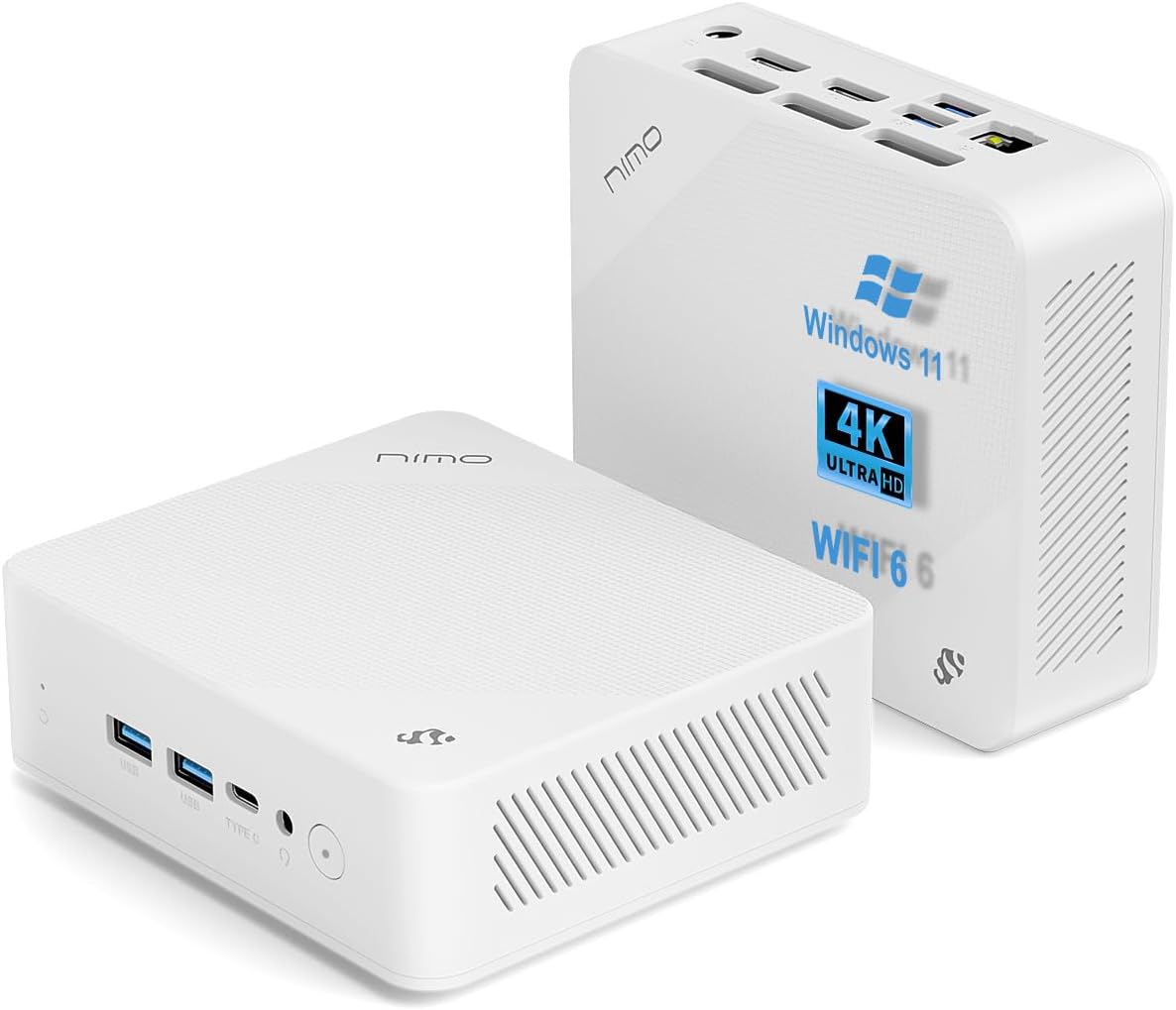
Image: The NIMO Mini-PC, showcasing its compact design and various ports from both front and rear perspectives.
2. Safety Information
Please read and follow these safety guidelines to ensure safe operation and prolong the life of your NIMO Mini-PC:
- Power Supply: Use only the original power adapter provided with the device. Using an incompatible power adapter may damage the device and void the warranty.
- Ventilation: Ensure proper ventilation around the Mini-PC. Do not block ventilation openings. Avoid placing the device in enclosed spaces or on soft surfaces that may obstruct airflow.
- Environment: Operate the device in a dry, well-ventilated area, away from direct sunlight, heat sources, and excessive dust or humidity. Avoid extreme temperatures.
- Liquid Exposure: Keep the device away from liquids. In case of accidental spills, immediately disconnect the power and contact customer support.
- Cleaning: Disconnect the power before cleaning. Use a soft, dry cloth. Do not use liquid or aerosol cleaners.
- Servicing: Do not attempt to disassemble or repair the device yourself. Refer all servicing to qualified personnel.
- VESA Mounting: If using the VESA mount, ensure it is securely attached to a stable surface or monitor according to the instructions provided.
3. Package Contents
Verify that all items are present in the package:
- 1 x NIMO Mini-PC
- 1 x Power Adapter
- 1 x Mounting Bracket
- 1 x User Manual (this document)

Image: A visual representation of the items included in the NIMO Mini-PC package: the Mini PC unit, its power adapter, a VESA mounting bracket, and the user manual.
4. Product Features
The NIMO Mini-PC is equipped with advanced components for optimal performance:
- Processor: 12th Gen Intel N100 (4 Cores, 4 Threads, 6MB Cache, up to 3.4GHz)
- Memory: 16GB DDR4 RAM
- Storage: 1TB M.2 SSD (Solid State Drive)
- Graphics: Intel UHD Graphics, supporting up to three 4K@60Hz displays simultaneously via 2x HDMI and 1x Full-function Type-C port.
- Wireless Connectivity: WiFi 6 (up to 600Mbps) and Bluetooth 5.2 for fast and reliable wireless connections.
- Wired Connectivity: Gigabit Ethernet port for high-speed wired network access.
- Ports: 4x USB 3.0 ports, 1x Full-function Type-C port, 2x HDMI 2.0 ports, 1x Gigabit LAN port, 1x 3.5mm Audio Jack, 1x DC-IN port, 1x SD Card Reader, 1x Security Slot.
- Operating System: Pre-installed with Windows 11, also compatible with Linux and Ubuntu.
- Design: Compact and VESA mount compatible for a clutter-free workspace.

Image: A detailed diagram highlighting the Intel 12th Gen N100 processor, the core of the Mini-PC's performance.

Image: Illustrates the versatile operating system options, including Windows 11, Linux, and Ubuntu compatibility.
5. Setup Guide
5.1 Connecting Peripherals
Before powering on, connect your essential peripherals:
- Display: Connect your monitor(s) to the HDMI ports or the Type-C port using appropriate cables. The Mini-PC supports up to three 4K displays simultaneously.
- Keyboard & Mouse: Connect your USB keyboard and mouse to the USB 3.0 ports. Wireless peripherals can be connected via Bluetooth 5.2.
- Network: For a wired connection, connect an Ethernet cable from your router/modem to the Gigabit LAN port. For wireless, ensure your WiFi network is available.
- Audio: Connect speakers or headphones to the 3.5mm audio jack if needed.
- Power: Connect the power adapter to the DC-IN port on the Mini-PC, then plug the adapter into a power outlet.

Image: A comprehensive view of all available ports on the NIMO Mini-PC, including USB, HDMI, LAN, Type-C, and power input, aiding in proper connection of peripherals.
5.2 Powering On
Once all peripherals are connected, press the power button located on the front of the Mini-PC. The system will boot up, and you will see the Windows 11 operating system.
5.3 VESA Mounting (Optional)
The NIMO Mini-PC supports VESA mounting, allowing you to attach it to the back of a compatible monitor or TV for a clean, integrated setup.
- Attach the provided VESA mounting bracket to the VESA holes on the back of your monitor/TV using appropriate screws (not always included with bracket, check monitor manual).
- Slide the NIMO Mini-PC onto the bracket until it clicks securely into place.
- Ensure all cables are routed neatly and do not interfere with ventilation.

Image: Comparison showing the NIMO Mini-PC both VESA mounted behind a monitor for a space-saving setup and placed traditionally on a desktop.
6. Operating Instructions
6.1 Basic Operation
Your NIMO Mini-PC operates like a standard Windows 11 desktop computer. Use your connected keyboard and mouse to navigate the operating system, launch applications, and manage files.
- Power On/Off: Press the power button to turn on. To shut down, use the Windows Start menu (Start > Power > Shut down).
- Restart: Use the Windows Start menu (Start > Power > Restart).
- Sleep: Use the Windows Start menu (Start > Power > Sleep) or press the power button briefly.
6.2 Triple Display Setup
The NIMO Mini-PC supports connecting up to three 4K displays simultaneously, enhancing productivity and multimedia experiences.
- Connect your primary monitor to one of the HDMI ports.
- Connect a second monitor to the other HDMI port.
- Connect a third monitor to the full-function Type-C port using a compatible Type-C to DisplayPort/HDMI adapter or cable.
- Once connected, Windows will automatically detect the displays. You can configure display settings (extend, duplicate, or show only on one) by right-clicking on the desktop and selecting "Display settings".

Image: The NIMO Mini-PC demonstrating its capability to drive three independent displays, ideal for multitasking and complex workflows.
6.3 Storage Expansion
The Mini-PC includes an SD card reader for convenient storage expansion, allowing you to easily add up to 512GB of extra storage via a TF card slot.
- Insert a compatible TF (microSD) card into the designated slot on the side of the Mini-PC.
- The system will recognize the new storage, and you can access it through File Explorer.

Image: The NIMO Mini-PC on a desk, with a close-up highlighting the TF card slot for expandable storage.
7. Maintenance
Regular maintenance helps ensure the longevity and optimal performance of your NIMO Mini-PC:
- Cleaning: Periodically clean the exterior of the Mini-PC with a soft, dry, lint-free cloth. Use compressed air to gently clear dust from ventilation openings. Do not use liquid cleaners.
- Software Updates: Keep your operating system (Windows 11) and drivers updated to ensure security and performance. Check for updates regularly through Windows Update.
- Data Backup: Regularly back up important data to an external drive or cloud storage to prevent data loss.
- Antivirus Software: Install and maintain up-to-date antivirus software to protect against malware and viruses.
- Storage Management: Periodically clean up unnecessary files and programs to free up storage space and maintain system speed.
8. Troubleshooting
This section addresses common issues you might encounter:
| Problem | Possible Cause | Solution |
|---|---|---|
| No Power | Power adapter not connected; faulty power outlet; power adapter issue. | Ensure power adapter is securely connected to both the Mini-PC and a working power outlet. Try a different outlet. |
| No Display | Monitor not connected; incorrect input source on monitor; faulty cable. | Check HDMI/Type-C cable connections. Ensure monitor is on and set to the correct input source. Try a different cable or monitor. |
| No Internet (Wired) | Ethernet cable loose; router/modem issue; network driver issue. | Check Ethernet cable connection. Restart your router/modem. Check network adapter status in Device Manager. |
| No Internet (Wireless) | WiFi disabled; incorrect password; router issue; WiFi driver issue. | Ensure WiFi is enabled in Windows settings. Verify WiFi password. Restart router. Update WiFi drivers. |
| Slow Performance | Too many applications running; low storage space; outdated drivers. | Close unnecessary applications. Free up disk space. Update drivers and Windows. |
If the problem persists, please refer to the Warranty and Support section for assistance.
9. Specifications
| Feature | Detail |
|---|---|
| Processor | Intel 12th Gen N100 (4 Cores, 4 Threads, up to 3.4GHz, 6MB Cache) |
| RAM | 16GB DDR4 |
| Storage | 1TB M.2 SSD |
| Graphics | Intel UHD Graphics (up to 750MHz) |
| Video Output | 2x HDMI 2.0 (4K@60Hz), 1x Full-function Type-C (4K@60Hz) |
| Wireless | WiFi 6 (802.11ax, up to 600Mbps), Bluetooth 5.2 |
| Wired LAN | 1x Gigabit Ethernet |
| USB Ports | 4x USB 3.0, 1x Full-function Type-C |
| Audio | 1x 3.5mm Audio Jack |
| Card Reader | 1x SD Card Reader (supports up to 512GB TF card) |
| Operating System | Windows 11 (pre-installed), Linux/Ubuntu compatible |
| Dimensions (L x W x H) | 4.92 x 4.45 x 1.57 inches (12.5 x 11.3 x 4 cm) |
| Weight | 1.76 pounds (0.8 kg) |
| Color | Macaroon White |
| VESA Support | Yes |
10. Warranty and Support
NIMO is committed to providing excellent customer service and support for your Mini-PC.
- Warranty: Your NIMO Mini-PC comes with a 2-year technical support warranty.
- Returns & Exchanges: A 90-day return or exchange window is offered from the date of purchase.
- Technical Support: For any technical issues or inquiries, please contact the NIMO Mini PC after-sales team. Our computer experts are available to provide professional and free technical support or repair services.
- Contact Information: Please refer to the contact details provided on the NIMO official website or your purchase documentation for the most up-to-date support channels.

Image: Illustrates NIMO's commitment to after-sales excellence, including support for domestically partially assembled products, 90-day free returns, 2-year after-sales support, and 24/7 customer service.
Related documentsDNB20


Ask a question about this manual
Ask about setup, troubleshooting, compatibility, parts, safety, or missing instructions. Manuals+ will review the question and use this page’s manual context to help answer it.