
1. Introduction
This manual provides detailed instructions for the installation, operation, and troubleshooting of your Fardriver Programmable Bluetooth Wireless Adapter Dongle. This device is designed to facilitate parametric performance debugging for specific Fardriver, ND, and Nanjing controllers. It enables wireless parameter adjustment and real-time monitoring via a mobile application.
Please read this manual thoroughly before using the product to ensure proper functionality and to prevent any potential issues.
2. Product Overview
The Fardriver Bluetooth Wireless Adapter Dongle is a compact device that connects to your compatible controller, providing wireless connectivity for tuning and monitoring. Key features include:
- Bluetooth Connectivity: Offers up to 50ft range for wireless communication.
- Wireless Tuning: Allows effortless parameter adjustment via a mobile app.
- Mobile App Control: Intuitive interface for programming, customizing settings, and real-time performance monitoring.
- Plug-and-Play Setup: Simple installation by plugging into the controller's port.
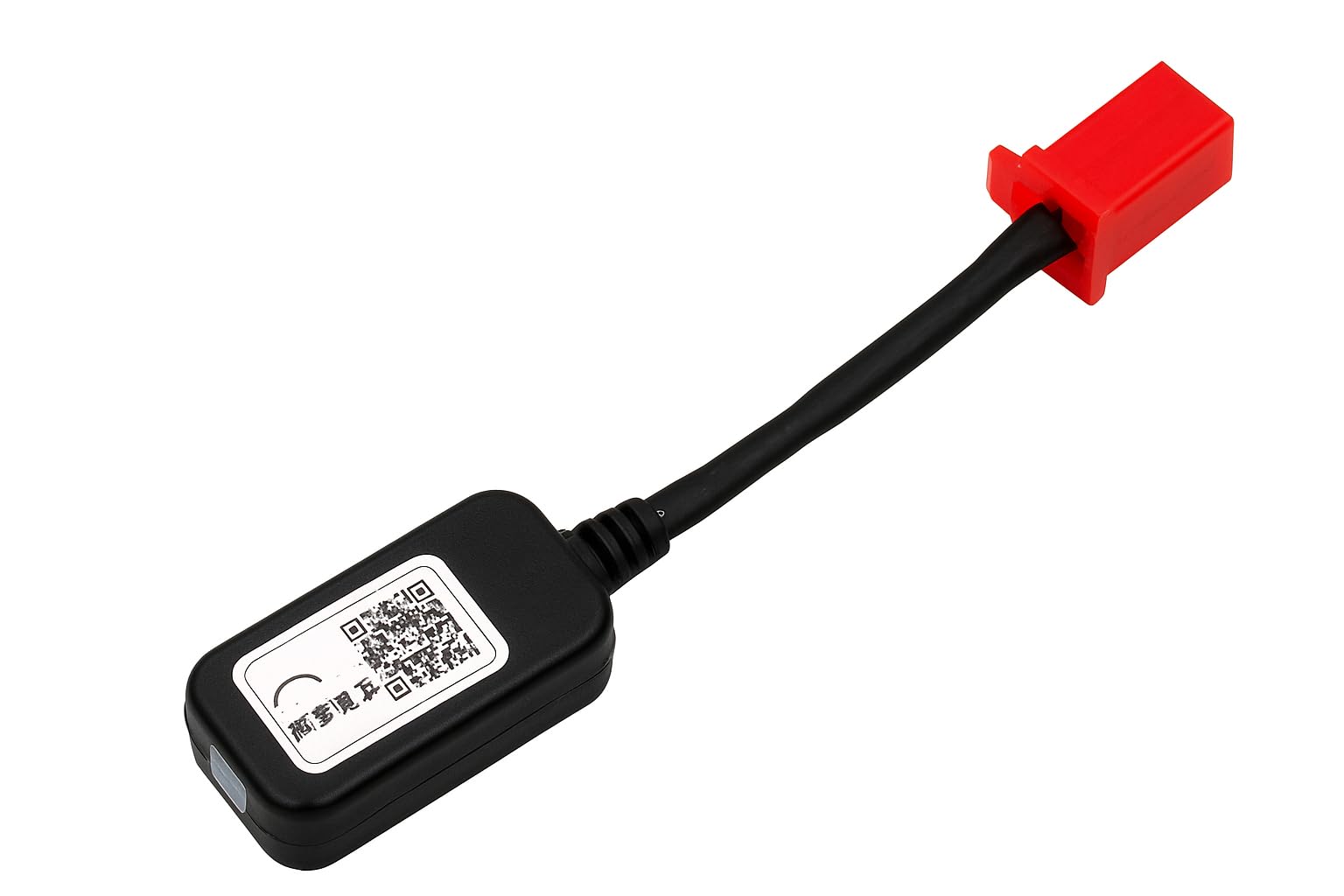
Figure 2.1: Fardriver Bluetooth Wireless Adapter Dongle
The dongle also supports advanced monitoring functions, including voltage, current, and temperature, providing comprehensive data for performance analysis.

Figure 2.2: Dongle with Voltage, Current, and Temperature Monitoring Functions
3. Compatibility
This Bluetooth Wireless Adapter Dongle is specifically designed for use with the following controller brands and models:
- Fardriver Controllers (all compatible models)
- ND Controllers
- Nanjing Controllers (e.g., ND72300)
- Tuttio Soleil01
Important: This product is exclusively compatible with the listed brands and models for parametric performance debugging. It is not designed to work with controllers from other manufacturers.

Figure 3.1: Wide Compatibility with Various E-Bike Types
4. Setup Instructions
Follow these steps to connect the Fardriver Bluetooth Wireless Adapter Dongle to your controller:
- Locate the Connector: Identify the 4-pin red connector on your Nanjing Fardriver Controller Harness. This dongle is pre-wired to connect directly to this specific port.
- Connect the Dongle: Carefully plug the dongle's red 4-pin connector into the corresponding port on your controller harness. Ensure a secure and firm connection.
- Power On: Once connected, power on your controller. The dongle should receive power and be ready for Bluetooth pairing.
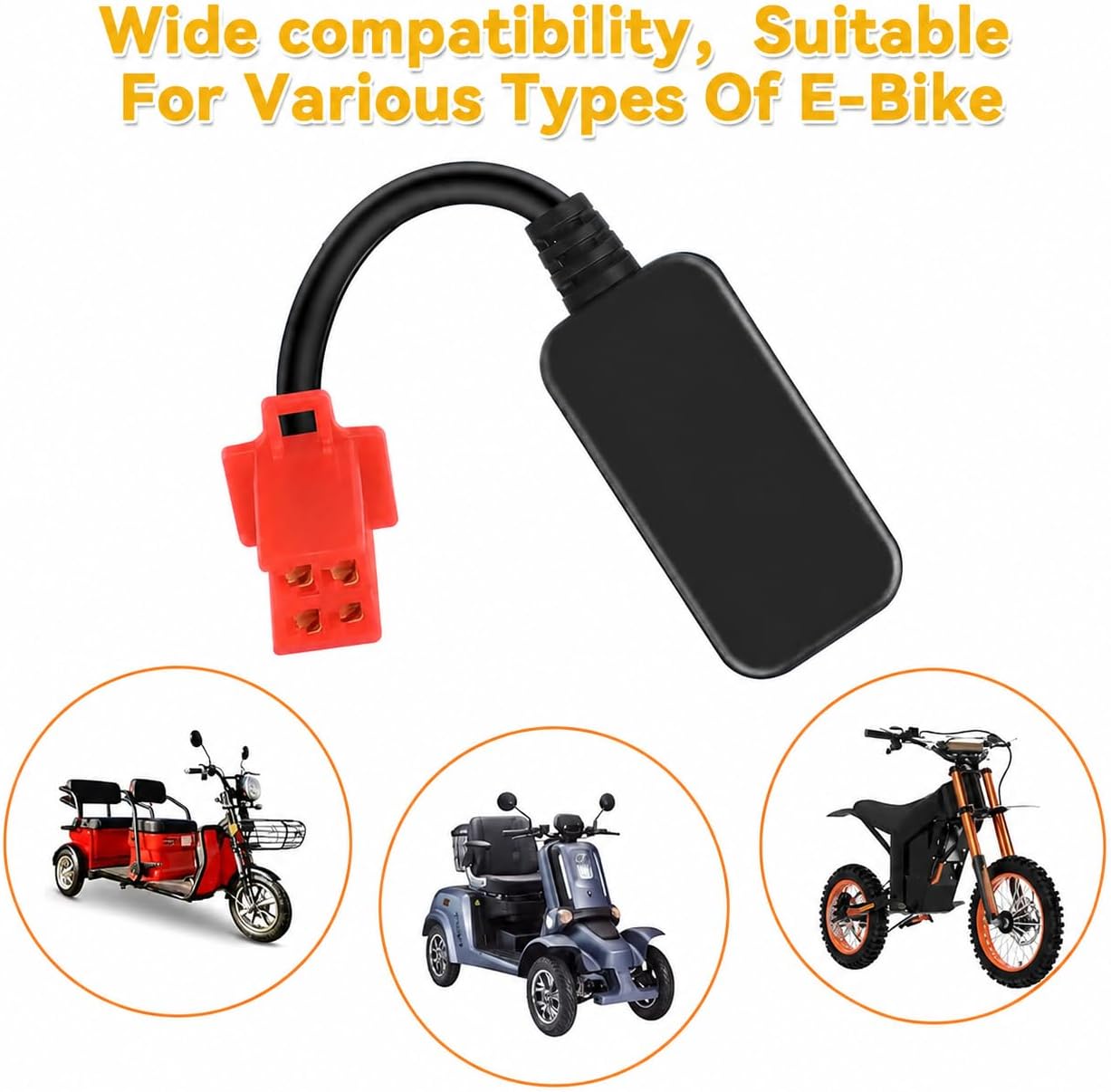
Figure 4.1: Dongle with 4-pin Red Connector
5. App Installation and Usage
To utilize the full functionality of the Fardriver Bluetooth Wireless Adapter Dongle, you need to install a compatible mobile application on your smartphone (Android or iPhone).
5.1 Download the Application
Several applications are compatible with Fardriver controllers. We recommend trying the following:
- Worthless Controls App (also known as Gdriver App)
- Nanjing FarDriver App
You can download these apps from the respective app stores:
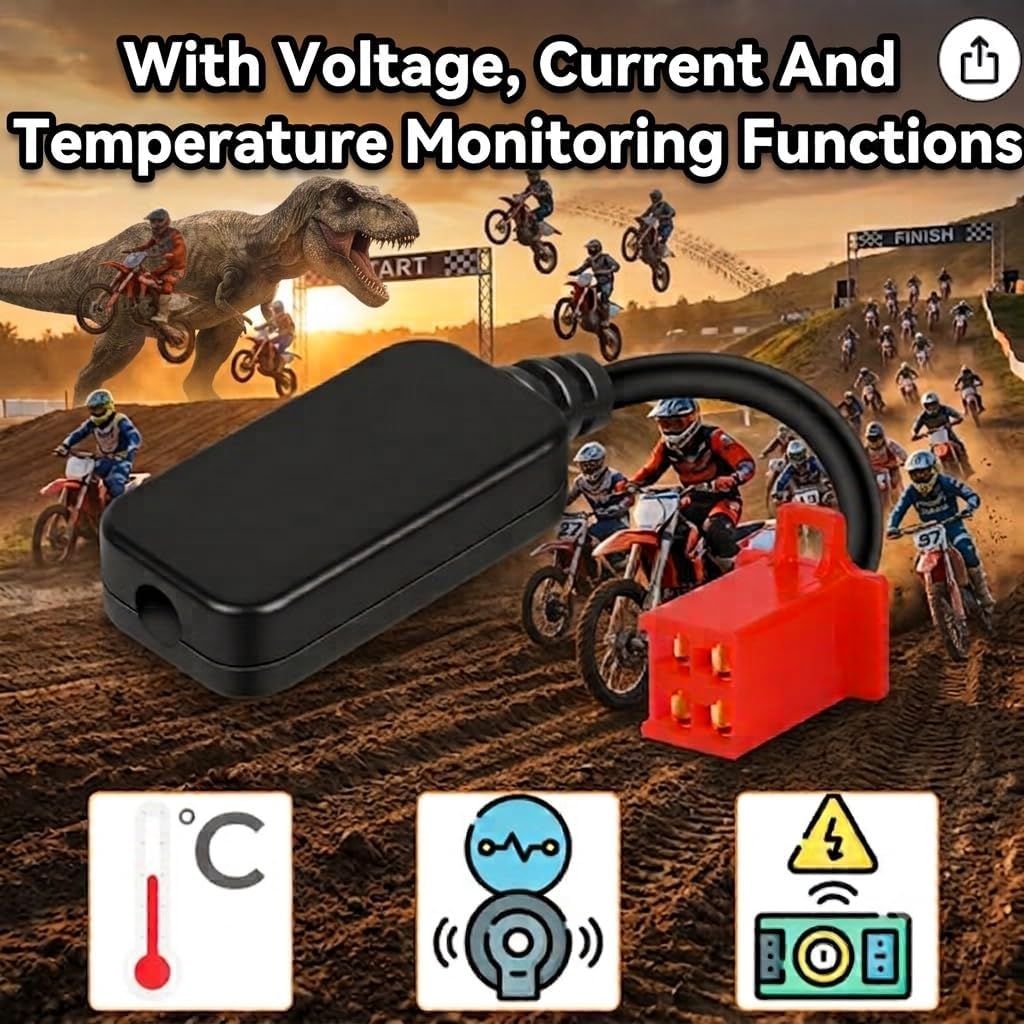
Figure 5.1: Download the Official Apps
- Google Play Store (Worthless Controls / Gdriver App): Download Worthless Controls App
- Apple App Store (Nanjing FarDriver App): Download Nanjing FarDriver App
Some dongles may also feature a QR code for additional resources or app downloads. Scan the QR code on your dongle if present for more information.

Figure 5.2: Dongle with QR Code Label
A related link for additional resources, possibly accessible via QR code, is: http://weixin.qq.com/r/az8gOPXE7aiSrbFb92p5
5.2 Pairing and Operation
- Enable Bluetooth: Ensure Bluetooth is enabled on your smartphone.
- Open App: Launch the installed Fardriver-compatible application.
- Scan for Device: Within the app, initiate a scan for available Bluetooth devices. Your dongle should appear in the list.
- Connect: Select your dongle from the list to establish a connection.
- Adjust Parameters: Once connected, you can access various settings and parameters within the app to customize your controller's performance.
- Monitor Data: The app also provides real-time monitoring of essential data such as voltage, current, and temperature.
6. Troubleshooting
If you encounter issues while using the Fardriver Bluetooth Wireless Adapter Dongle, consider the following:
- Connection Issues: Ensure the dongle is securely plugged into the 4-pin red connector on your controller. Verify that your controller is powered on and Bluetooth is active on your smartphone.
- App Compatibility: If you experience difficulty registering or binding to your controller, try using an alternative compatible app such as the "Worthless Controls App" or the "Gdriver App" if you are currently using another.
- App Updates: Ensure your chosen mobile application is updated to the latest version.
- Interference: Move away from potential sources of wireless interference that might affect Bluetooth signal strength.
- Controller Compatibility: Double-check that your controller is one of the supported Fardriver, ND, or Nanjing models.
If problems persist, please refer to the support section for further assistance.
7. Specifications
| Feature | Specification |
|---|---|
| Brand | Generic |
| Hardware Interface | Bluetooth |
| Color | Black |
| Compatible Devices | Smartphone, iPhone |
| Product Dimensions (L x W x H) | 5" x 1" x 0.5" |
| Data Link Protocol | Bluetooth |
| Compatible Operating System Family | Android |
| Manufacturer | FARDRIVER |
| Built-In Media | Pre-wired to Connect to Fardriver Harness 4-pin connector |
| ASIN | B0F4K7Y2QH |
8. Maintenance
The Fardriver Bluetooth Wireless Adapter Dongle requires minimal maintenance. Follow these guidelines to ensure its longevity:
- Cleaning: Wipe the dongle with a soft, dry cloth. Avoid using liquid cleaners or solvents.
- Storage: Store the dongle in a cool, dry place when not in use.
- Handling: Handle the dongle and its connector with care to prevent physical damage.
- Environmental Conditions: Avoid exposing the dongle to extreme temperatures, humidity, or direct sunlight.
9. Warranty and Support
This product is sold without an explicit warranty. For any operational issues, technical support, or questions regarding product functionality, please contact the store owner directly through your Amazon purchase history. They can provide further assistance and guidance.