
1. Introduction
Thank you for choosing the ORICO MiniDock Mac mini M4 Dock and Stand. This device is designed to expand the connectivity and storage capabilities of your Mac mini M4 or M4 Pro, providing additional ports and an M.2 SSD enclosure. Please read this manual carefully to ensure proper installation and operation.

Image 1: The ORICO MiniDock with a Mac mini M4 unit placed on top, showcasing its compact design and how it integrates with the Mac mini.
2. Package Contents
Please verify that all items are present in your package:

Image 2: An exploded view of the ORICO MiniDock package contents, including the dock, box, 0.15m USB-C cable, user manual, screwdriver, thermal pad, and screws.
- ORICO MiniDock (1)
- USB-C to USB-C Cable (0.15m, 10Gbps) (1)
- Screwdriver (1)
- Thermal Pad (1)
- Screws (for SSD installation) (1 set)
- User Manual (1)
3. Setup and Installation
3.1. Installing an M.2 NVMe SSD (Optional)
The ORICO MiniDock supports M.2 NVMe SSDs up to 8TB (2280 size) for storage expansion. An SSD is not included and must be purchased separately.
- Using the provided screwdriver, carefully open the bottom cover of the MiniDock.
- Attach the thermal pad to your M.2 NVMe SSD. This helps dissipate heat and maintain optimal performance.
- Align the SSD with the M.2 slot inside the enclosure and gently insert it. Secure the SSD with the provided screw.
- Close the bottom cover and secure it with the screws.

Image 3: A four-step visual guide demonstrating how to install an M.2 NVMe SSD into the ORICO MiniDock, including opening the cover, applying the thermal pad, inserting the SSD, and securing the cover.
3.2. Connecting the MiniDock to Your Mac mini
- Place your Mac mini M4 or M4 Pro securely into the top slot of the ORICO MiniDock. The dock is designed to fit snugly and save desk space.
- Connect the provided USB-C to USB-C cable from the "PC IN" port on the MiniDock to an available USB-C/Thunderbolt port on your Mac mini. This connection provides power and data transfer for the dock and its connected devices.
- Connect any desired peripherals (USB devices, SD/TF cards, audio devices) to the corresponding ports on the MiniDock.

Image 4: A Mac mini M4 positioned vertically on the ORICO MiniDock, illustrating the space-saving design and how the dock integrates with the computer.
3.3. Formatting the SSD on Mac OS
After installing a new SSD, it must be formatted before use. Follow these steps to format the partition in Mac OS:
Video 1: This video demonstrates the steps to format an external drive partition using Disk Utility in Mac OS. It shows how to access Disk Utility, select the external drive, erase it, choose the 'Exfat' format for cross-platform compatibility (or APFS for Mac-only), and complete the process.
- Click on 'Go' in the Finder menu bar, then select 'Utilities'.
- In the Utilities folder, open 'Disk Utility'.
- In Disk Utility, select your external ORICO drive from the 'External' section in the sidebar.
- Click the 'Erase' button in the toolbar.
- In the erase dialog, you can name the drive. For 'Format', select 'Exfat' if you plan to use the drive with both Mac OS and Windows systems. If you only intend to use it with Mac OS, you can select 'APFS'. For 'Scheme', select 'GUID Partition Map'.
- Click 'Erase' to begin the formatting process. Once complete, click 'Done'. The formatted drive will now appear on your desktop.
4. Operation
4.1. Port Overview
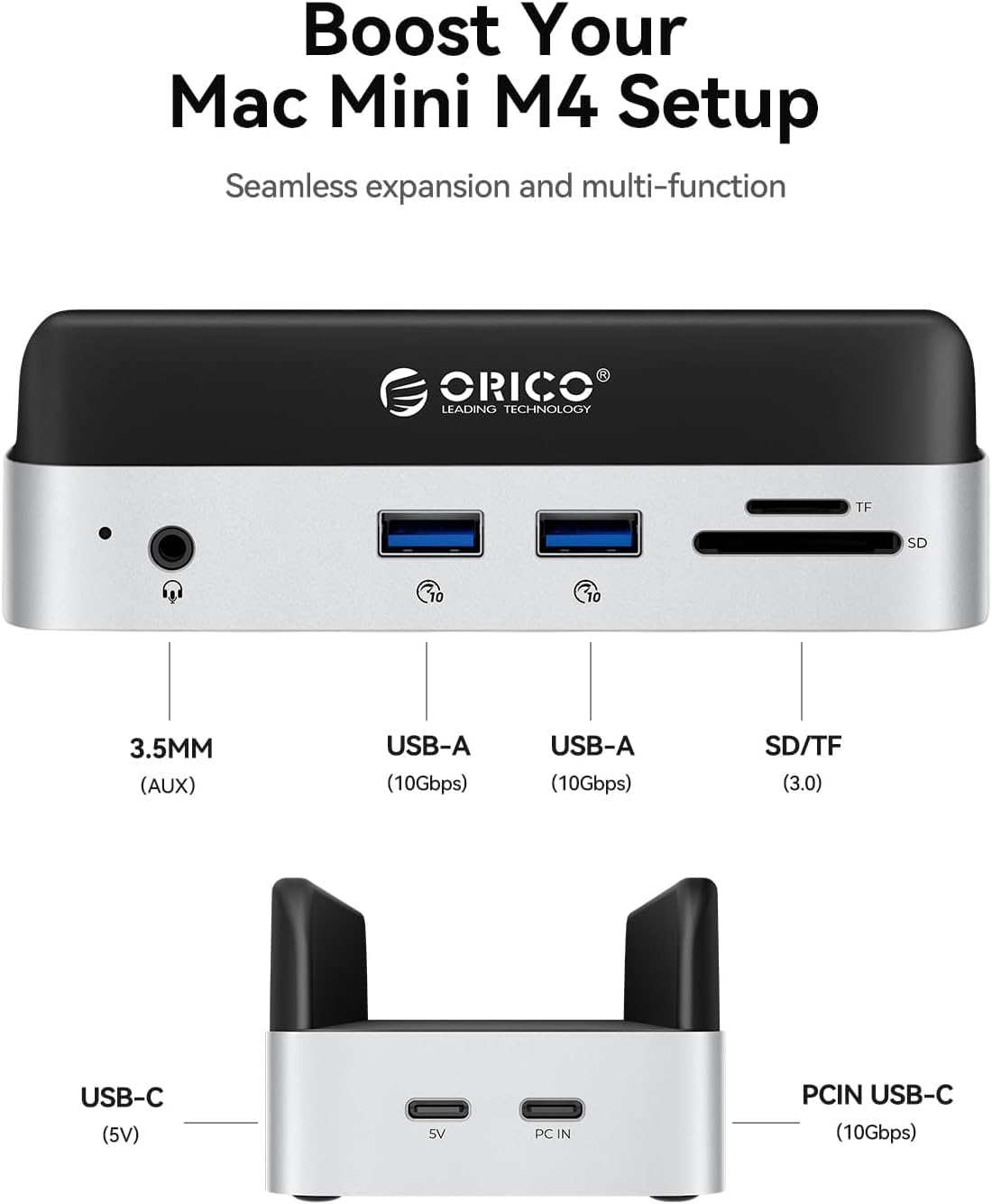
Image 5: A detailed diagram highlighting the various ports on the ORICO MiniDock, including 3.5mm audio, two USB-A (10Gbps) ports, SD/TF card slots, a 5V USB-C port, and a PC IN USB-C (10Gbps) port.
- 3.5mm Audio Jack: Connect headphones, speakers, or a microphone.
- USB-A 10Gbps Ports (x2): For connecting high-speed USB devices such as external hard drives, SSDs, or other peripherals requiring fast data transfer.
- SD/TF Card Slots (3.0): For reading and writing data from standard SD cards and MicroSD (TF) cards.
- USB-C (5V) Port: This port is for additional power input if needed for high-power devices connected to the dock.
- PC IN USB-C (10Gbps) Port: Connects to your Mac mini for data and power.
4.2. Data Transfer
The ORICO MiniDock supports high-speed data transfer up to 10Gbps through its USB 3.2 Gen 2 ports. This allows for quick transfer of large files, such as HD videos and backups, between your Mac mini and external storage devices.

Image 6: An illustration demonstrating the high-speed data transfer capabilities of the ORICO MiniDock, showing a file transfer in progress on a Mac mini screen, with a visual representation of 10Gbps speed.
4.3. Compatibility
The MiniDock is primarily designed for Mac mini M4 and M4 Pro models (2024). It also offers broad compatibility with various operating systems for its USB hub functions.

Image 7: Icons representing compatibility with Mac OS, Windows, Android, and Linux operating systems, indicating the broad usability of the MiniDock's hub features.
5. Key Features
- Massive Storage Expansion: Supports M.2 NVMe SSDs up to 8TB (SSD not included) with data transfer speeds up to 10Gbps.
- Multi-Port Connectivity: Includes 2x USB-A 10Gbps ports, SD/TF card slots, and a 3.5mm audio jack.
- Space-Saving Design: Vertical stand design optimizes desk space by integrating seamlessly with your Mac mini.
- Optimized Interface: Redesigned host interface position for convenient and aesthetically pleasing connections.
- Secure Placement: Features anti-slip silicone pads for a stable grip.
6. Specifications
| Product Dimensions | 5.31 x 2.56 x 1.71 inches |
| Item Weight | 9.9 ounces |
| Brand | ORICO |
| Hardware Interface | 3.5mm Audio, USB 3.1 Type A, USB 3.2 Gen 2 |
| Special Feature | Plug and Play |
| Compatible Devices | Mac mini M4, Mac mini M4 Pro, MacBook Pro |
| Total USB Ports | 4 (2x USB-A 10Gbps, 1x USB-C 5V, 1x PC IN USB-C 10Gbps) |

Image 8: A visual representation of the ORICO MiniDock's dimensions (135mm L x 65mm W x 43.5mm H) and approximate weight (180g), shown in a hand for scale.
7. Maintenance
- Keep the device clean and free from dust. Use a soft, dry cloth for cleaning.
- Avoid exposing the device to extreme temperatures, humidity, or direct sunlight.
- Do not attempt to disassemble or repair the device yourself. Refer to qualified service personnel.
- Ensure proper ventilation around the device and your Mac mini to prevent overheating.
8. Troubleshooting
- Device Not Recognized: Ensure the USB-C cable is securely connected to both the MiniDock's "PC IN" port and your Mac mini. Try a different USB-C port on your Mac mini.
- SSD Not Appearing: If you installed an SSD, ensure it is correctly seated and secured. New SSDs must be formatted before they appear in Finder (refer to Section 3.3).
- Slow Data Transfer: Verify that you are using the provided 10Gbps USB-C cable. Ensure your connected devices (e.g., external SSDs) also support 10Gbps speeds.
- Peripherals Not Working: Check that the peripherals are properly connected to the MiniDock. If using high-power USB devices, ensure the 5V USB-C power input is connected to a power source.
9. Warranty and Support
ORICO products come with a standard manufacturer's warranty. For detailed warranty information, technical support, or service inquiries, please refer to the warranty card included in your package or visit the official ORICO website. Please retain your proof of purchase for warranty claims.


