
1. Introduction
This manual provides comprehensive instructions for the installation, operation, and maintenance of your SIXWIN 4G+64G Android 13 Car Stereo. This unit is specifically designed for Nissan Rogue models manufactured between 2007 and 2015. Please read this manual thoroughly before installation and use to ensure proper functionality and to maximize your experience with the device.
The SIXWIN car stereo features a 9-inch touch screen, Android 13 operating system, 4GB RAM, 64GB ROM, wireless CarPlay, Android Auto, Mirror Link, Bluetooth, FM radio, GPS navigation, WiFi connectivity, steering wheel control (SWC) support, and includes a backup camera.
2. Safety Information
- Always operate the device responsibly and in accordance with local traffic laws. Distracted driving can lead to accidents.
- Ensure all wiring is correctly connected to prevent short circuits or damage to the vehicle's electrical system.
- Do not attempt to disassemble or modify the unit. This may void the warranty and cause damage.
- Keep the screen clean and free from obstructions to maintain clear visibility.
- If you encounter any issues during installation or operation, refer to the troubleshooting section or contact customer support.
3. Compatibility and Package Contents
3.1 Vehicle Compatibility
This car stereo is designed for Nissan Rogue models from 2007 to 2015. It is crucial to verify your vehicle's dashboard configuration before installation. This unit is compatible with vehicles featuring a round hazard button. If your vehicle has a square hazard button, this specific model is not compatible.

Image: Dashboard compatibility guide for Nissan Rogue 2007-2015. Ensure your vehicle's center panel matches option 'A' with a round hazard button for proper fitment.
3.2 Package Contents
Please check the package for the following items:
- SIXWIN Car Radio Unit
- Power Cable
- RCA Cable
- USB Cable (2x)
- Radio Antenna
- GPS Antenna
- Rear Camera Input Cable
- Microphone
- Rear Camera
- Installation Tool
- User Manual (this document)
- Accessories (mounting brackets, screws)

Image: Visual representation of all included components and the dimensions of the head unit.
4. Setup and Installation
Professional installation is recommended. Ensure the vehicle's battery is disconnected before beginning installation to prevent electrical damage.
4.1 Wiring Diagram
Refer to the following diagram for correct wiring connections. Each cable is labeled for easy identification.

Image: Detailed connection diagram showing power, RCA, USB, radio antenna, GPS antenna, and rear camera input cables. Includes a 20-pin audio/video socket diagram.
- Power Cable: Connect to the vehicle's power harness. Ensure correct positive, negative, and accessory connections.
- RCA Cables: Connect for audio output (front, rear, subwoofer) and video input/output.
- USB Cables: For connecting external devices, USB drives, or wired CarPlay/Android Auto.
- Radio Antenna: Connect the vehicle's radio antenna to the unit.
- GPS Antenna: Mount the GPS antenna in a location with a clear view of the sky for optimal signal reception.
- Rear Camera Input Cable: Connect the included backup camera to this input.
- Microphone: Connect the external microphone for improved call quality and voice commands.
- Steering Wheel Control (SWC) Wires: Connect to your vehicle's SWC wires. Refer to your vehicle's wiring diagram for specific connections.
4.2 Physical Installation
- Carefully remove the original car stereo and dashboard trim.
- Connect all necessary wiring harnesses as per the wiring diagram.
- Mount the new SIXWIN unit into the dashboard opening, ensuring a secure fit.
- Reinstall the dashboard trim and test all functions before fully securing.
5. Operating Instructions
5.1 Power On/Off and Basic Interface
Press the power button to turn the unit on or off. The 9-inch touch screen provides access to all functions. The Android 13 operating system offers a user-friendly interface.
The unit supports multiple UI desktop themes, allowing you to customize the appearance. Navigate through themes in the system settings.
5.2 Wireless CarPlay & Android Auto & Mirror Link
The unit supports both wireless and wired CarPlay and Android Auto, as well as Mirror Link functionality.

Image: Overview of Apple CarPlay, Android Auto, and Mirror Link capabilities, including voice command examples like "Hey Siri, Open music" or "Hey Assistant, Call Jane."

Image: Step-by-step guide for connecting Wireless CarPlay via Bluetooth and the 'Zlink' app, and Wired Android Auto via USB and the Android Auto app. Note: Samsung phones may not be supported for wireless Android Auto.
- Wireless CarPlay: Connect your iPhone via Bluetooth, then open the "Zlink" app on the car stereo to establish the wireless CarPlay connection.
- Wireless Android Auto: Download the Android Auto app on your phone. Connect your phone via Bluetooth, then open the "Zlink" app on the car stereo. (Note: Some Samsung phones may not be supported for wireless Android Auto).
- Wired CarPlay/Android Auto: Connect your smartphone to the unit via a USB cable.
- Mirror Link: Connect your phone via WiFi (for iOS) or USB (for Android) to mirror your phone's screen on the stereo.
Once connected, you can access navigation, phone contacts, messages, music, and other apps directly from the car stereo screen. Voice control (Siri/Google Assistant) is supported.
5.3 GPS Navigation
The unit has built-in GPS navigation and supports both online and offline maps. The pre-installed "Here We Go" app allows for offline navigation after downloading the necessary map data. Connect to WiFi to use online navigation services or download other navigation apps from the app store.
5.4 Bluetooth Hands-free & Music
Pair your smartphone via Bluetooth 5.0 for hands-free calling and audio streaming. You can download your phone's contacts to the stereo. The external microphone ensures clear communication during calls.
5.5 FM/RDS Radio
Access FM radio with 18 preset stations. The RDS (Radio Data System) feature displays station information where available.
5.6 Steering Wheel Control (SWC)
After connecting the SWC wires during installation, you can configure the steering wheel buttons to control various functions of the stereo, such as volume adjustment, track skipping, and answering calls. This enhances driving safety by keeping your hands on the wheel.
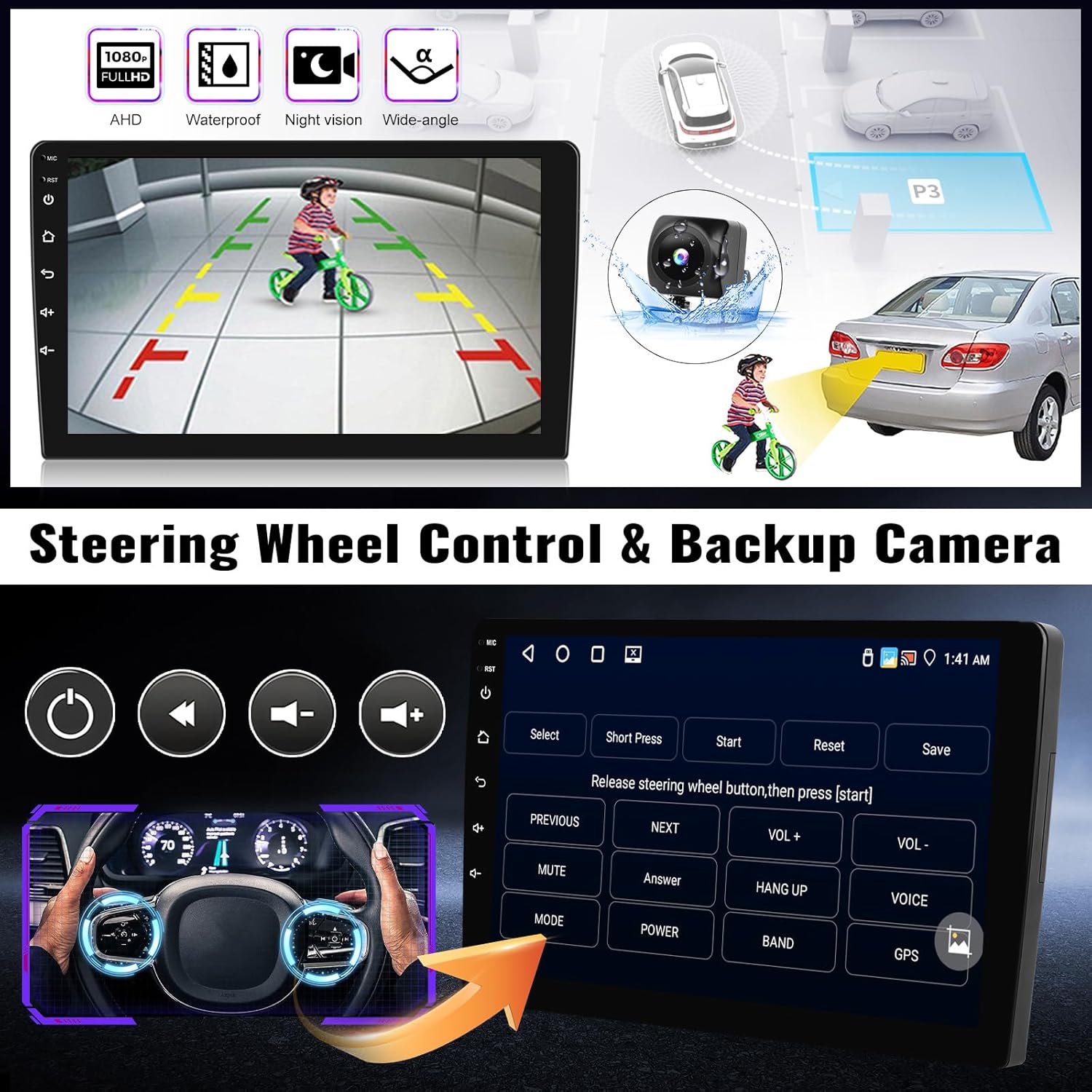
Image: Illustration of steering wheel control button mapping and the automatic display of the backup camera feed when reversing.
5.7 Backup Camera
The included AHD backup camera automatically displays a clear image on the stereo screen when the vehicle is in reverse gear. This feature assists in safer parking and maneuvering.
5.8 WiFi Connection
Connect the car stereo to a WiFi hotspot (e.g., from your smartphone) to access online features, download apps, browse the internet, and use online navigation services.
5.9 Split Screen Function
The split-screen function allows you to run two applications simultaneously on the 9-inch display, such as navigation on one side and music playback on the other. This enhances multitasking capabilities.

Image: Demonstrates the customizable shortcut panel and the three-panel homepage display, allowing quick access to frequently used apps and information.
6. Maintenance
- Screen Cleaning: Use a soft, lint-free cloth to gently wipe the touch screen. Avoid abrasive cleaners or harsh chemicals.
- Software Updates: Periodically check for system updates via the WiFi connection to ensure optimal performance and access to new features.
- General Care: Keep the unit free from excessive dust and moisture. Avoid exposing it to extreme temperatures.
7. Troubleshooting
| Problem | Possible Cause | Solution |
|---|---|---|
| Unit does not power on. | Incorrect power wiring; Blown fuse; Vehicle battery issue. | Check power cable connections; Inspect vehicle fuses; Verify vehicle battery charge. |
| No sound. | Speaker wires disconnected; Volume too low; Mute activated. | Check speaker wiring; Increase volume; Deactivate mute function. |
| GPS signal weak or inaccurate. | GPS antenna improperly placed or disconnected. | Ensure GPS antenna has a clear view of the sky and is securely connected. |
| CarPlay/Android Auto not connecting. | Incorrect connection method; Phone compatibility issue; App not running. | Verify wired/wireless connection steps; Check phone compatibility (e.g., Samsung wireless AA note); Ensure Zlink/Android Auto app is active. |
| Backup camera not displaying. | Camera input cable loose; Camera power issue; Reverse trigger wire not connected. | Check camera connections; Ensure camera receives power; Verify reverse trigger wire connection. |
| Unit does not fit dashboard. | Incorrect vehicle model or hazard button type. | Confirm your Nissan Rogue model year (2007-2015) and ensure your hazard button is round. This unit is not compatible with square hazard buttons. |
8. Specifications
| Feature | Detail |
|---|---|
| Model Number | A7907A3018A4MI2 |
| Operating System | Android 13 |
| RAM + ROM | 4GB RAM + 64GB ROM |
| Screen Size | 9 Inches |
| Connectivity Technology | Wireless (CarPlay, Android Auto, WiFi, Bluetooth) |
| Bluetooth Version | 5.0 |
| GPS Map Type | North America, Worldwide (via Here We Go app) |
| Audio Output Mode | Stereo |
| Equalizer | 32-band EQ |
| Backup Camera | AHD (Included) |
| Product Dimensions | 1 x 1 x 1 inches (Unit only, frame dimensions vary) |
| Item Weight | 4.24 pounds |
9. Warranty and Support
SIXWIN provides online assistance and user manual support for its products. For any technical issues, installation queries, or warranty claims, please contact our customer support team.
Customer Support Email: sixwin_vip@163.com
Please include your product model number (A7907A3018A4MI2) and a detailed description of your issue when contacting support for faster assistance.

