
TCL 9465X2-2CLCA111
TCL Tab 11 FE User Manual
Model: 9465X2-2CLCA111
Introduction
This manual provides essential information for the safe and efficient use of your TCL Tab 11 FE tablet. Please read it thoroughly before operating the device and keep it for future reference.
The TCL Tab 11 FE is a versatile tablet featuring a 10.95-inch 2K NXTVISION display, 4GB RAM, and 128GB internal storage, designed for a rich multimedia and productivity experience.
Package Contents
Upon unboxing your TCL Tab 11 FE, please verify that all items are present and in good condition:
- TCL Tab 11 FE Tablet
- Instruction Manual
- Charging Cable or Plug (specific type may vary by region)
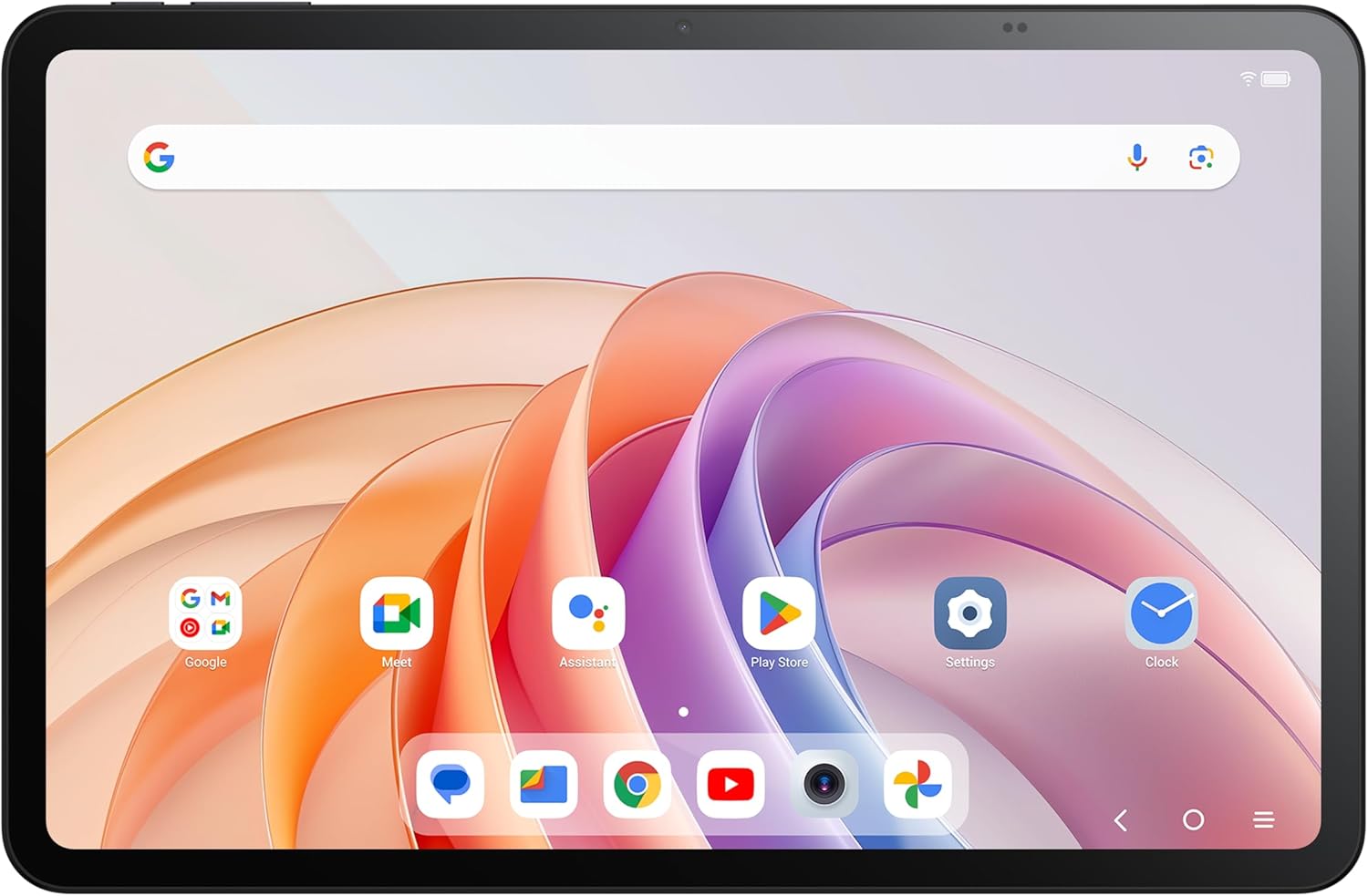
Image: Front view of the TCL Tab 11 FE tablet, showcasing its vibrant display with various application icons and a search bar. This illustrates the tablet's user interface and screen quality.
Setup
1. Initial Charge
Before first use, fully charge your TCL Tab 11 FE. Connect the provided charging cable to the tablet's charging port and the other end to a power adapter (not always included) or a compatible USB port. The battery indicator will show charging progress.

Image: Side profile of the TCL Tab 11 FE, highlighting the placement of physical buttons and ports, including the charging port. This view is helpful for identifying where to connect the charging cable.
2. Powering On/Off
- To Power On: Press and hold the Power button until the TCL logo appears on the screen.
- To Power Off: Press and hold the Power button until the power options menu appears, then select "Power off".
3. Initial Setup Wizard
Upon first power-on, the tablet will guide you through an initial setup process. This includes selecting your language, connecting to a Wi-Fi network, setting up your Google account, and configuring basic security settings.
Operating Your Tablet
Navigation
- Touch Gestures: Use taps, swipes, pinches, and long presses to interact with the screen.
- Home Screen: The central hub for your apps and widgets.
- Notification Panel: Swipe down from the top of the screen to access notifications and quick settings.
Connecting to Wi-Fi
- Go to Settings.
- Tap on Network & internet.
- Select Wi-Fi and turn it on.
- Choose your desired network from the list and enter the password if prompted.
Camera Usage
The TCL Tab 11 FE is equipped with front and rear cameras for photos and videos.

Image: Rear view of the TCL Tab 11 FE tablet, clearly showing the dual camera setup and the TCL branding. This image helps users locate the main camera for photography.
Open the Camera app from your home screen or app drawer. Select photo or video mode and tap the shutter button to capture.
Maintenance
Cleaning the Device
Use a soft, lint-free cloth to clean the screen and body of the tablet. Avoid using abrasive cleaners, alcohol, or solvents, as these can damage the surface.
Battery Care
- Avoid exposing the tablet to extreme temperatures.
- Do not fully discharge the battery regularly.
- Use only approved chargers and cables.
Software Updates
Regularly check for and install software updates to ensure optimal performance and security. Go to Settings > System > System update.
Troubleshooting
Device Not Turning On
- Ensure the battery is charged. Connect the charger and wait a few minutes before attempting to power on.
- Press and hold the Power button for at least 10-15 seconds to force a restart.
Screen Unresponsive
- Restart the tablet.
- Ensure the screen is clean and free of debris.
Wi-Fi Connection Issues
- Restart your Wi-Fi router.
- Forget the network in tablet settings and reconnect.
- Ensure you are within range of the Wi-Fi signal.
Specifications
| Feature | Detail |
|---|---|
| Brand | TCL |
| Model Name | 9465X2-2CLCA111 |
| Screen Size | 10.95 Inches |
| Max Screen Resolution | 2K NXTVISION |
| Processor | 3.4 GHz |
| Memory Storage Capacity | 128 GB |
| RAM | 4 GB |
| Operating System | Android |
| Average Battery Life | 12 Hours |
| Item Weight | 1.61 pounds |
| Product Dimensions (LxWxH) | 5.91 x 5.91 x 7.87 inches |
| Color | All Grey |
| Wireless Type | 802.11n |
Warranty and Support
Your TCL Tab 11 FE comes with a three-year manufacturer warranty against manufacturing defects. Please retain your proof of purchase for warranty claims.
For technical support, warranty service, or further inquiries, please visit the official TCL support website or contact their customer service. Refer to the official TCL website for the most up-to-date contact information and support resources.
You can find more information and support on the TCL Brand Store on Amazon.
Related documents9465X2-2CLCA111


Ask a question about this manual
Ask about setup, troubleshooting, compatibility, parts, safety, or missing instructions. Manuals+ will review the question and use this page’s manual context to help answer it.