
1. Introduction
Thank you for choosing the CNAPXAIA C10 Instant Print Camera for Kids. This camera is designed to provide a fun and creative experience for children aged 3 to 12, combining digital photography with instant inkless printing. It features a 2.4-inch screen, 1080P video recording, various filters and frames, and includes a 32GB memory card to store thousands of photos.
This manual provides essential information on how to set up, operate, and maintain your camera. Please read it carefully before use and keep it for future reference.
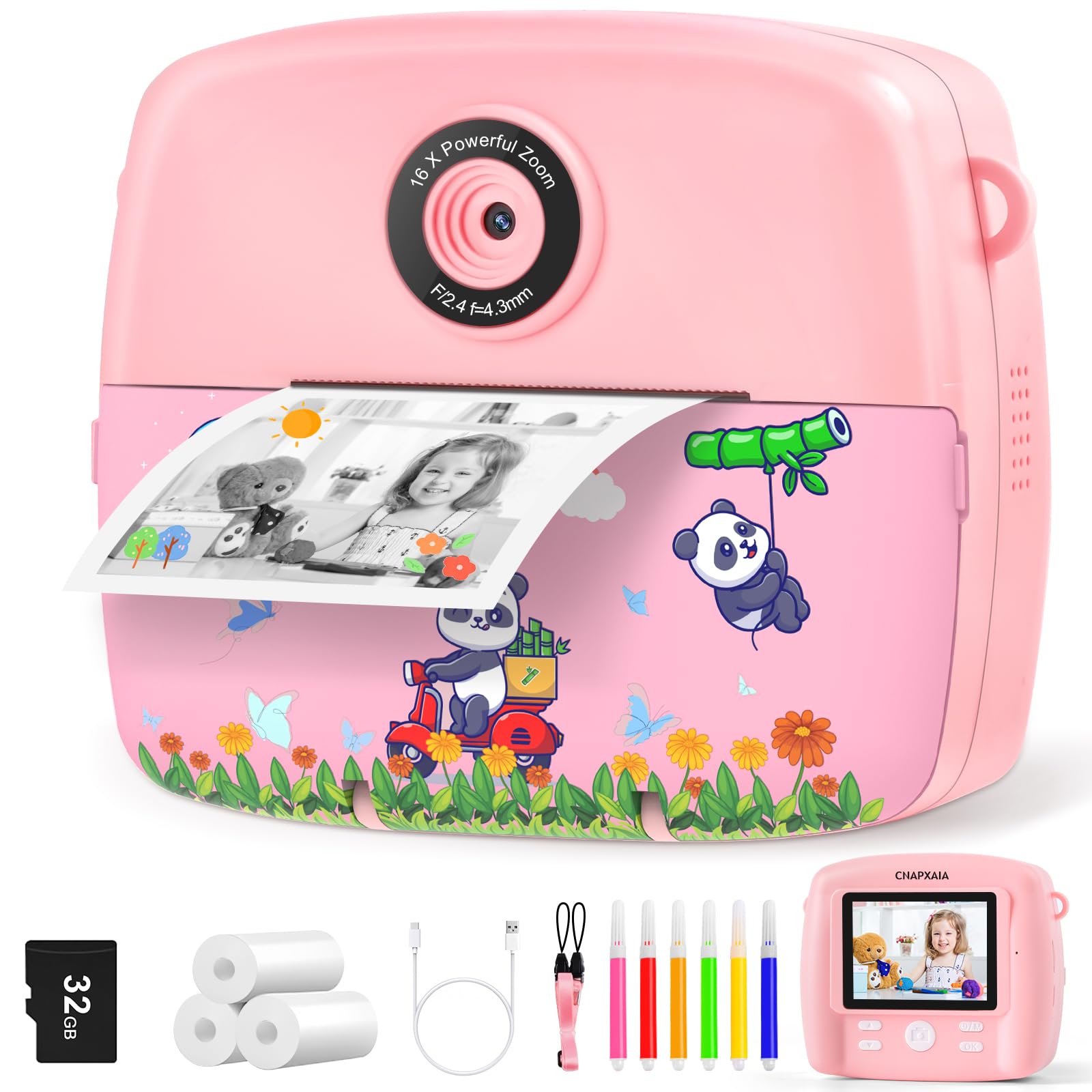
Image 1.1: CNAPXAIA C10 Instant Print Camera (Pink)
2. Safety Information
- This product is not suitable for children under 3 years of age due to small parts.
- Adult supervision is recommended during use.
- Do not expose the camera to water or extreme temperatures.
- Use only the provided USB-C cable for charging.
- Ensure print paper is installed correctly to avoid printing failures.
- If the camera screen freezes, press the side reset button for several seconds to restart.
3. Package Contents
Please check that all items are present in the package:
- CNAPXAIA C10 Instant Print Camera
- 3 Rolls of Print Paper
- 6 Color Pens
- Adjustable Lanyard
- USB-C Charging Cable
- 32GB Memory Card (pre-installed or included separately)
4. Setup
4.1 Charging the Camera
Before first use, fully charge the camera. Connect the provided USB-C cable to the camera's charging port and the other end to a compatible USB power adapter (not included) or computer. The charging indicator light will show the charging status.
4.2 Inserting the Memory Card
The camera supports a Micro SD card up to 32GB. If not pre-installed, locate the Micro SD card slot on the side of the camera. Insert the card with the gold contacts facing down until it clicks into place. To remove, gently push the card in until it springs out.
4.3 Loading Print Paper
Follow these steps to load the thermal print paper:
- Step 1: Open the film door on the side of the camera.
- Step 2: Insert a roll of print paper as illustrated, ensuring the paper feeds from the bottom and leaves approximately 2.5 to 5 cm (1 to 2 inches) of paper extending out.
- Step 3: Close the film door securely.
- Step 4: Select the print function and press the print button to test the paper feed.

Image 4.1: Instructions for Loading Print Paper
5. Operating Instructions
5.1 Power On/Off
Press and hold the Power button for a few seconds to turn the camera on or off.
5.2 Taking Photos
In photo mode, frame your shot using the 2.4-inch LCD screen. Press the Shutter button to capture a photo. The camera supports burst shooting for multiple rapid captures.
5.3 Recording Videos
Switch to video mode. Press the Shutter button once to start recording and again to stop. The camera records in 1080P HD resolution.

Image 5.1: 1080P HD Video Recording and Camera Portability
5.4 Using Filters and Frames
Navigate through the camera's menu to access various fun filters and decorative frames to enhance your photos before or after capturing them.

Image 5.2: Multi Funny Frames & Filters
5.5 Playing Games and MP3 Player
The camera includes 5 built-in puzzle games for entertainment. It also features an MP3 player function, allowing children to listen to music (files must be loaded onto the SD card).

Image 5.3: Learning & Entertainment with Games and MP3 Player
5.6 Printing Photos
After taking a photo, you can choose to print it instantly. The camera uses inkless thermal printing technology, producing black and white images. You can select between Grayscale Mode and Dot Matrix Mode for printing.

Image 5.4: Two Ink-Free Printing Modes
5.7 Time-Lapse Function
The camera supports time-lapse photography with adjustable intervals (e.g., 2s, 5s, 10s) to capture sequences of events over time.
5.8 Zoom Function
Utilize the 16x digital zoom to get closer to your subjects. Adjust the zoom level using the designated buttons.

Image 5.5: Video Recording, Time-Lapse, and Zoom Features
6. Maintenance
6.1 Cleaning the Camera
Wipe the camera body with a soft, dry cloth. Do not use liquid cleaners or solvents. For the lens, use a specialized lens cleaning cloth.
6.2 Replacing Print Paper
When the print paper runs out, follow the steps in Section 4.3 to load a new roll. Ensure you use compatible thermal paper.
6.3 Battery Care
To prolong battery life, avoid fully discharging the battery frequently. Charge the camera regularly, even if not in use for extended periods.
6.4 Storage
Store the camera in a cool, dry place away from direct sunlight and moisture when not in use.
7. Troubleshooting
- No Print Output or Blank Prints: Ensure the print paper is installed in the correct direction (thermal side facing the print head) and that enough paper is extending from the slot.
- Poor Print Quality: Adjust the print density settings in the camera menu. Ensure the paper is not old or damaged.
- Camera Screen Freezes: Locate the reset button (usually a small pinhole on the side) and press it with a thin object (like a paperclip) for several seconds to restart the device.
- Camera Not Turning On: Check if the battery is charged. Connect the camera to a charger and try again.
- Cannot Save Photos/Videos: Ensure the 32GB memory card is correctly inserted and not full. If full, transfer files to a computer or delete unnecessary ones.
8. Specifications
| Feature | Specification |
|---|---|
| Model Number | C10 |
| Brand | CNAPXAIA |
| Display Screen | 2.4-inch LCD |
| Photo Resolution | 3 Megapixels (Effective Capture) |
| Video Resolution | 1080P HD |
| Zoom | 16x Digital Zoom |
| Image Stabilization | Digital |
| Storage | Supports up to 32GB Micro SD card (32GB card included) |
| Printing Technology | Inkless Thermal Printing |
| Connectivity | USB Type-C |
| Battery Life | Approx. 3-4 hours continuous use |
| Weight | 200 Grams |
| Special Features | Games, MP3 Player, Time-Lapse, Filters, Frames, Burst Shooting |
9. Warranty Information
This product comes with a standard manufacturer's warranty. For details regarding warranty coverage, duration, and terms, please refer to the warranty card included in your package or visit the official CNAPXAIA website. Keep your proof of purchase for warranty claims.
10. Support
If you encounter any issues or have questions about your CNAPXAIA C10 Instant Print Camera, please contact our customer support team. Contact information can typically be found on the product packaging, the official CNAPXAIA website, or through your retailer.
For the latest updates, FAQs, and additional support resources, please visit the CNAPXAIA official website.